


Programmatically Start and Stop the Dynamic Web TWAIN Service from a C# Application
The Dynamic Web TWAIN service is the local bridge between browser applications and scanners. The first time a user visits a web scanning app built with Dynamic Web TWAIN, they’re prompted to install this service so scanning can work. In some scenarios, you may want tighter control: ship the service inside your own installer and manage its lifecycle directly (start/stop) from your C# application. This article shows how to wrap and programmatically launch and shut down the Dynamic Web TWAIN service using the Dynamic Web TWAIN REST .NET project.
What you’ll build: A C# WinForms app that programmatically starts and stops the Dynamic Web TWAIN service using the Dynamic Web TWAIN REST .NET project, eliminating the browser installation prompt for end users.
Key Takeaways
- The Dynamic Web TWAIN REST .NET project replaces the legacy .NET TWAIN SDK and exposes a
ServiceManagerAPI for full lifecycle control of the local scanning service. - Calling
_serviceManager.CreateService(true)starts the service on the default fixed port so any web page can discover the service reliably. - Stopping the C# application terminates the service automatically, enabling seamless start/stop from your own installer or system tray app.
- This approach is ideal for enterprise deployments where silent, prompt-free scanner access is required from a managed C# host.
Common Developer Questions
How do I programmatically start the Dynamic Web TWAIN service from a C# application?
Open the Dynamic-Web-TWAIN-REST-dotnet WinForms sample and call _serviceManager.CreateService(true) when your host application starts. Passing true forces the default fixed port so browser pages can discover the service consistently.
How do I prevent the “install service” prompt from appearing when users open my web scanning page?
Bundle the service inside your own installer and start it before users open the scanning page. Once the local service is already running, the browser no longer needs to ask the end user to install it first.
How do I specify a fixed port when launching the Dynamic Web TWAIN service from .NET?
Use _serviceManager.CreateService(true) instead of the overload that selects a random port. That keeps the service address predictable for any web app that needs to connect to it.
Prerequisites
- Visual Studio 2019 or later with .NET desktop workload installed
- Dynamic Web TWAIN REST .NET project cloned locally
Step 1: See the Dynamic Web TWAIN Service Installation Prompt
The free online demo shows end‑to‑end document scanning, image processing, and upload directly in the browser. On first visit, the user is prompted to install the Dynamic Web TWAIN service to enable access to local scanners.
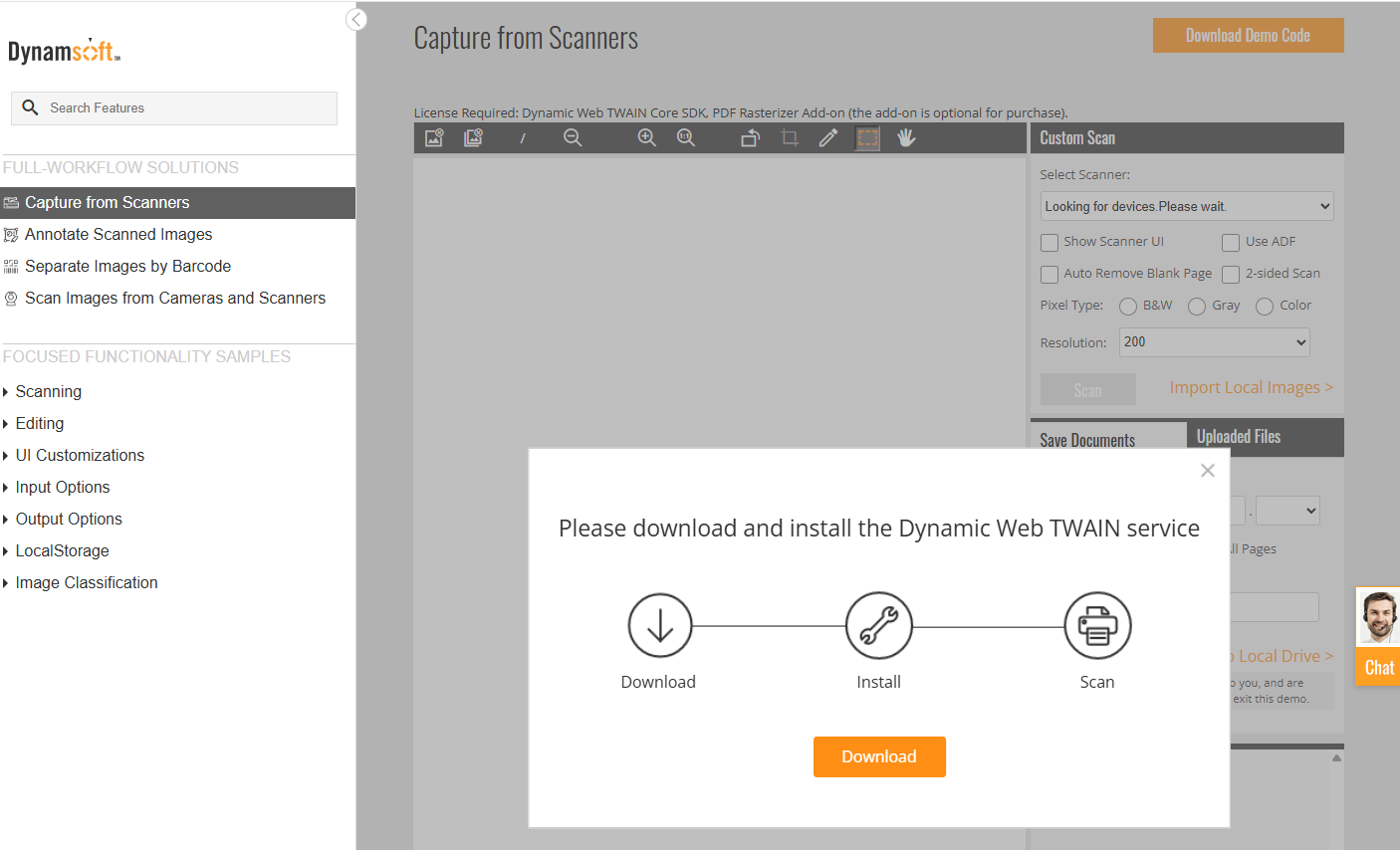
After installation, the service runs in the background and enables seamless scanning until explicitly stopped.
Step 2: Programmatically Start the Dynamic Web TWAIN Service in C#
Dynamsoft has retired the legacy .NET TWAIN SDK and released Dynamic Web TWAIN REST .NET project as its replacement. This repository lets you bundle the Dynamic Web TWAIN service and control its lifecycle programmatically.
-
Open
Dynamic-Web-TWAIN-REST-dotnet\Samples\WinFormsAppin Visual Studio. The sample mimics the original .NET TWAIN WinForms experience.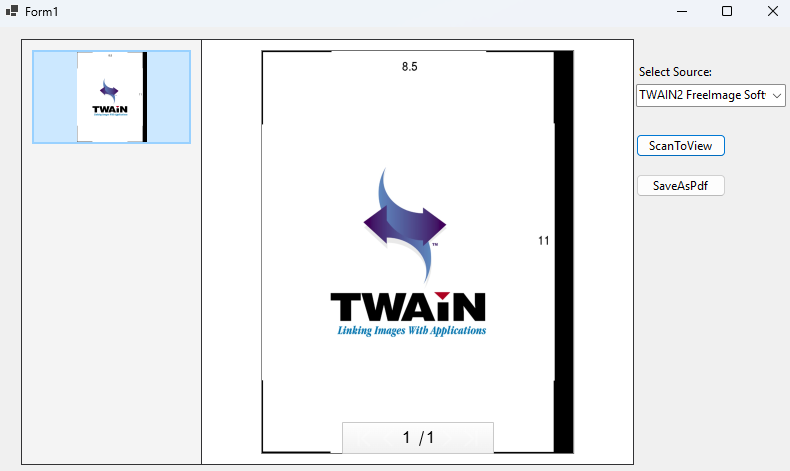
-
Start the service with the default (fixed) port so web pages can connect predictably:
_serviceManager.CreateService(true);Passing
trueforces use of the default port. Omitting it selects a random available port, which a web page cannot reliably discover. -
Verify the service is running in Task Manager.
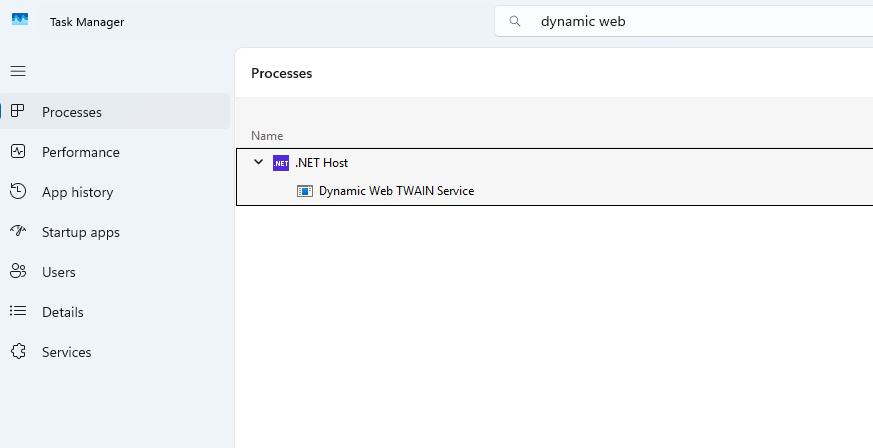
Step 3: Verify That the Service Launches and Shuts Down Correctly
- Launch the C# application (which starts the service).
-
Refresh the online demo page to see if the prompt for installing the Web TWAIN service is gone.
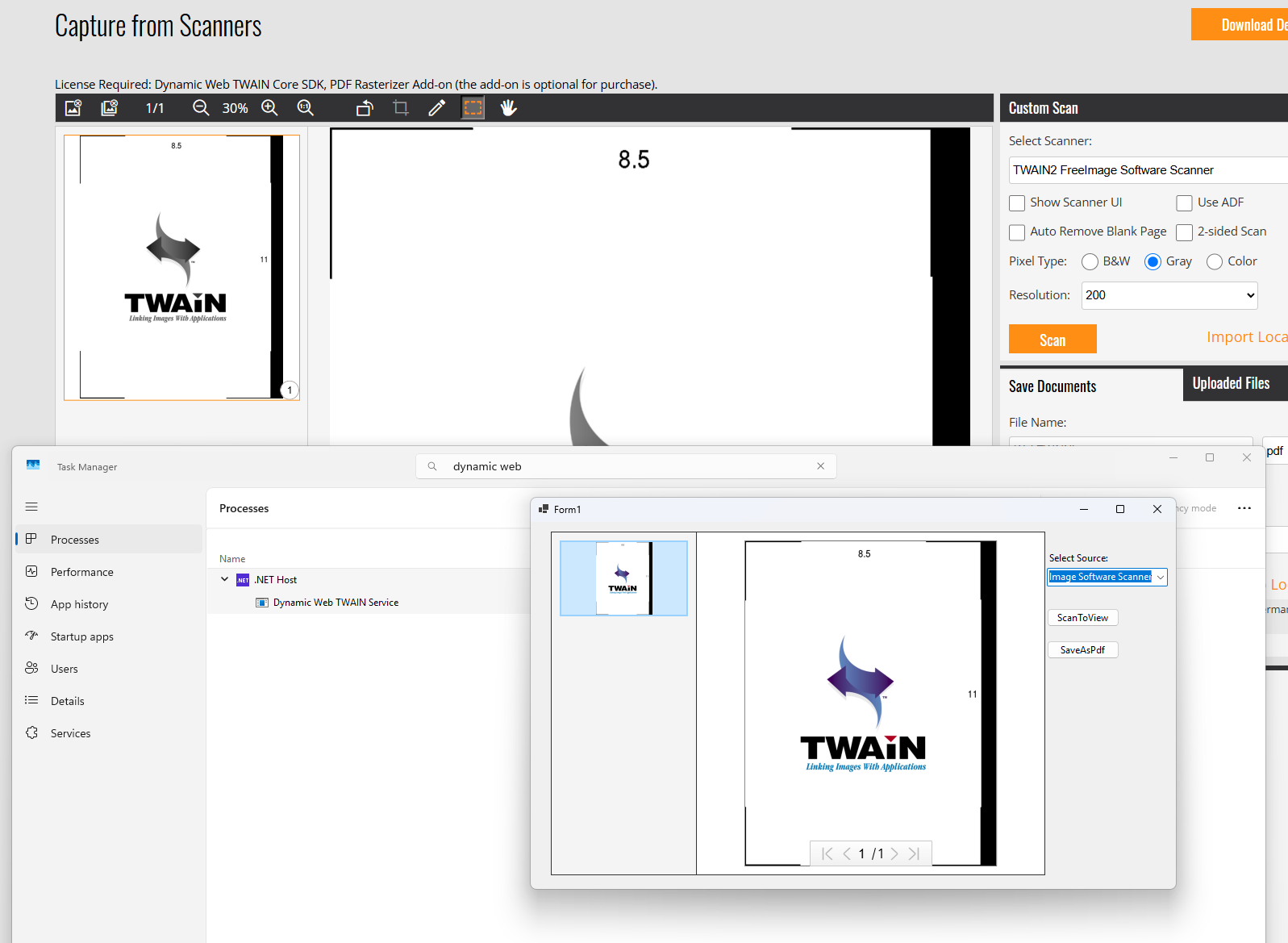
- Close the C# application and refresh the online demo page again to see if the prompt for installing the Web TWAIN service reappears.
Common Issues & Edge Cases
- Service fails to start on the expected port: If another process already occupies the default port,
CreateService(true)may fail silently or throw an exception. Check for conflicts withnetstat -ano | findstr :<port>and ensure no previous service instance is still running in Task Manager before callingCreateService. - Browser still shows the installation prompt after the service starts: The online demo checks for the service at page load; a hard refresh (Ctrl+Shift+R) or clearing the browser cache is needed for the newly started service instance to be detected.
- Service process is not terminated when the C# app closes: If the service was started as a detached process, it may outlive the parent application. Call
_serviceManager.StopService()inside theFormClosingevent handler to guarantee the service is always cleaned up on exit.