


How to Build a .NET Barcode Generator and Reader App: ZXing vs Dynamsoft SDK Comparison
Barcode generators are essential tools in various scenarios. A typical use case is testing barcode reader and scanner SDKs. In this tutorial, we’ll build a Windows Forms application that can both generate and read barcodes using two popular .NET Barcode SDKs: ZXing.NET and Dynamsoft Barcode Reader. ZXing.NET offers both barcode generation and decoding capabilities, while Dynamsoft Barcode Reader provides more robust and accurate recognition. This application allows you to compare the two SDKs side-by-side and evaluate their performance.
What you’ll build: A Windows Forms (.NET 8.0) app that generates barcodes with ZXing.NET and compares decoding accuracy between ZXing.NET and Dynamsoft Barcode Reader on the same image, side-by-side.
Key Takeaways
- ZXing.NET handles both barcode generation and decoding in pure .NET with no license required, while Dynamsoft Barcode Reader delivers higher accuracy on damaged, rotated, or low-contrast barcodes.
- The Dynamsoft SDK uses the
CaptureVisionRouterAPI from the Dynamsoft Capture Vision bundle to process rawBitmappixel data directly — no file I/O needed. - Both SDKs support major 1D/2D formats (Code 128, QR Code, EAN-13, UPC-A); Dynamsoft’s engine handles edge cases (partial damage, skew, DPM) that ZXing misses.
- This app doubles as a benchmarking harness for evaluating .NET barcode SDK accuracy before committing to a production integration.
| Feature | ZXing.NET | Dynamsoft Barcode Reader |
|---|---|---|
| Barcode generation | ✓ | ✗ |
| 1D/2D decoding | ✓ (basic) | ✓ (enterprise-grade) |
| Damaged/low-contrast barcodes | Limited | Strong |
| License required | No (open source) | Free trial available |
| .NET API | BarcodeReader.DecodeMultiple() |
CaptureVisionRouter.Capture() |
Common Developer Questions
How do I decode QR codes from an image file in C# .NET?
Load the image into a Bitmap, then hand that bitmap to either ZXing.NET or Dynamsoft from the WinForms app’s Decode button flow. In this article, ZXing uses DecodeMultiple(bitmap), while Dynamsoft converts the bitmap into ImageData and calls CaptureVisionRouter.Capture().
What is a more accurate .NET barcode reader alternative to ZXing.NET?
Dynamsoft Barcode Reader is the more accurate .NET alternative in this comparison. ZXing.NET is useful as a free baseline for barcode generation and basic decoding, but Dynamsoft is the better choice when you need stronger performance on damaged, rotated, low-contrast, or multi-barcode images.
How do I pass a Windows Forms Bitmap to the Dynamsoft Barcode Reader SDK?
Extract the raw pixel bytes, width, height, stride, and pixel format from the WinForms Bitmap, map that format to the corresponding EnumImagePixelFormat, and construct an ImageData object. Once the bitmap is wrapped as ImageData, you can pass it directly to CaptureVisionRouter.Capture() without saving it to disk first.
Related Guides in This Cluster
- Browse comparison guides
- Browse migration and alternatives guides
- Compare Android barcode scanning SDKs for mobile teams
This article is Part 2 in a 2-Part Series.
Demo: .NET Barcode Generator & Reader
Prerequisites
- Visual Studio 2022 with .NET 8.0
- 30-day trial license for Dynamsoft Barcode Reader
Step 1: Create the WinForms Project
- Open Visual Studio and create a new .NET Windows Forms App project.
- Name the project “BarcodeGenerator” and set the target framework to .NET 8.0.
-
Add the required NuGet packages:
Install-Package ZXing.Net Install-Package ZXing.Net.Bindings.Windows.Compatibility Install-Package Dynamsoft.DotNet.BarcodeReader.BundleNote:
- Dynamsoft Barcode Reader is now a module of the Dynamsoft Capture Vision SDK, and they share the same API structure.
- ZXing.Net requires ZXing.Net.Bindings.Windows.Compatibility to function properly with
Bitmapand other Windows-specific types.
Step 2: Design the Tabbed UI Layout
The application uses a tabbed interface with three main sections:
- Generate Tab: For creating barcodes.
- Read Tab: For decoding barcodes from generated or uploaded images.
- Settings Tab: To switch between SDKs.
Here’s the basic form initialization code:
public Form1()
{
    InitializeComponent();

    MinimumSize = new Size(900, 900);

    Text = "Barcode Generator and Reader (ZXing.NET & Dynamsoft Barcode Reader)";
    Width = 800;
    Height = 600;

    tabControl = new TabControl { Dock = DockStyle.Fill };
    generateTab = new TabPage("Generate");
    readTab = new TabPage("Read");
    settingsTab = new TabPage("Settings");

    InitGenerateTab();
    InitReadTab();
    InitSettingsTab();
    InitSDK();

    tabControl.TabPages.Add(generateTab);
    tabControl.TabPages.Add(readTab);
    tabControl.TabPages.Add(settingsTab);

    Controls.Add(tabControl);
}
Step 3: Generate Barcodes with ZXing.NET
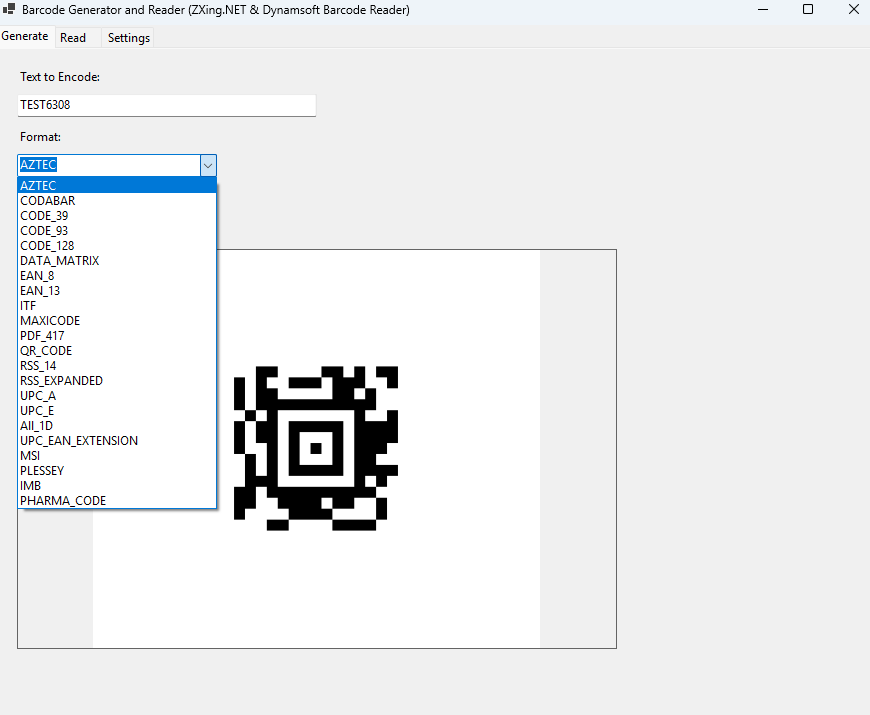
We’ll use ZXing.NET to generate barcodes. The main UI components on the Generate tab include:
- A text input field for the barcode content
- A format selector dropdown with all supported formats
- A generate button to create the barcode
- A save button to save the generated barcode image
- A picture box to preview the barcode
private void InitGenerateTab()
{
    Label inputLabel = new Label { Text = "Text to Encode:", Top = 20, Left = 20 };
    inputTextBox = new TextBox { Top = 45, Left = 20, Width = 300 };

    Label formatLabel = new Label { Text = "Format:", Top = 80, Left = 20 };
    formatComboBox = new ComboBox { Top = 105, Left = 20, Width = 200 };
    formatComboBox.Items.AddRange(Enum.GetNames(typeof(BarcodeFormat)));
    formatComboBox.SelectedIndex = 0;

    generateButton = new Button { Text = "Generate", Top = 145, Left = 20 };
    generateButton.Click += GenerateButton_Click;

    saveButton = new Button { Text = "Save", Top = 145, Left = 120 };
    saveButton.Click += SaveButton_Click;

    barcodePictureBox = new PictureBox
    {
        Top = 200,
        Left = 20,
        Width = 600,
        Height = 400,
        BorderStyle = BorderStyle.FixedSingle,
        SizeMode = PictureBoxSizeMode.Zoom,
        Anchor = AnchorStyles.Top | AnchorStyles.Left
    };

    generateTab.Controls.AddRange(new Control[]
    {
        inputLabel, inputTextBox, formatLabel, formatComboBox,
        generateButton, saveButton, barcodePictureBox
    });

}
Here’s the barcode generation logic:
private void GenerateButton_Click(object sender, EventArgs e)
{
    if (string.IsNullOrEmpty(inputTextBox.Text))
    {
        inputTextBox.Text = GenerateRandomContent((BarcodeFormat)Enum.Parse(typeof(BarcodeFormat), formatComboBox.SelectedItem.ToString()));
    }

    var writer = new BarcodeWriterPixelData
    {
        Format = (BarcodeFormat)Enum.Parse(typeof(BarcodeFormat), formatComboBox.SelectedItem.ToString()),
        Options = new EncodingOptions
        {
            Height = 400,
            Width = 450,
            Margin = 10
        }
    };

    PixelData pixelData;
    try
    {
        pixelData = writer.Write(inputTextBox.Text);
    }
    catch (Exception ex)
    {
        MessageBox.Show($"Error generating barcode: {ex.Message}", "Error", MessageBoxButtons.OK, MessageBoxIcon.Error);
        return;
    }


    var bitmap = new Bitmap(pixelData.Width, pixelData.Height, PixelFormat.Format32bppRgb);
    var bitmapData = bitmap.LockBits(
        new Rectangle(0, 0, bitmap.Width, bitmap.Height),
        ImageLockMode.WriteOnly,
        bitmap.PixelFormat);

    try
    {
        System.Runtime.InteropServices.Marshal.Copy(
            pixelData.Pixels, 0, bitmapData.Scan0, pixelData.Pixels.Length);
    }
    finally
    {
        bitmap.UnlockBits(bitmapData);
    }

    barcodePictureBox.Image = bitmap;
    inputImageBox.Image = bitmap;
}
If the input text is empty, randomly generate a content for the barcode:
private string GenerateRandomContent(BarcodeFormat format)
{
    Random rnd = new Random();

    switch (format)
    {
        case BarcodeFormat.EAN_13:
            int part1 = rnd.Next(10, 99);
            int part2 = rnd.Next(100000000, 999999999);
            int part3 = rnd.Next(0, 9);
            return $"{part1}{part2}{part3}";
        case BarcodeFormat.EAN_8:
            return rnd.Next(1000000, 9999999).ToString();
        case BarcodeFormat.CODE_39:
        case BarcodeFormat.CODE_128:
        case BarcodeFormat.CODABAR:
            return "ZX" + rnd.Next(100000, 999999);
        case BarcodeFormat.QR_CODE:
            return "https://www.dynamsoft.com?id=" + rnd.Next(1000, 9999);
        case BarcodeFormat.UPC_A:
            return rnd.NextInt64(10000000000L, 99999999999L).ToString();
        case BarcodeFormat.ITF:
            return rnd.Next(100000000, 999999999).ToString();
        default:
            return "TEST" + rnd.Next(1000, 9999);
    }
}
Click the save button to save the generated barcode image as JPEG, PNG, or BMP.
private void SaveButton_Click(object sender, EventArgs e)
{
    if (barcodePictureBox.Image == null)
    {
        MessageBox.Show("Please generate a barcode first.", "No Image", MessageBoxButtons.OK, MessageBoxIcon.Warning);
        return;
    }

    using SaveFileDialog dialog = new SaveFileDialog
    {
        Filter = "PNG Image|*.png|JPEG Image|*.jpg|Bitmap Image|*.bmp",
        Title = "Save Barcode Image",
        FileName = "barcode"
    };

    if (dialog.ShowDialog() == DialogResult.OK)
    {
        var format = ImageFormat.Png;
        switch (Path.GetExtension(dialog.FileName).ToLower())
        {
            case ".jpg": format = ImageFormat.Jpeg; break;
            case ".bmp": format = ImageFormat.Bmp; break;
        }

        barcodePictureBox.Image.Save(dialog.FileName, format);
        MessageBox.Show("Image saved successfully.", "Saved", MessageBoxButtons.OK, MessageBoxIcon.Information);
    }
}
Step 4: Read and Decode Barcode Images
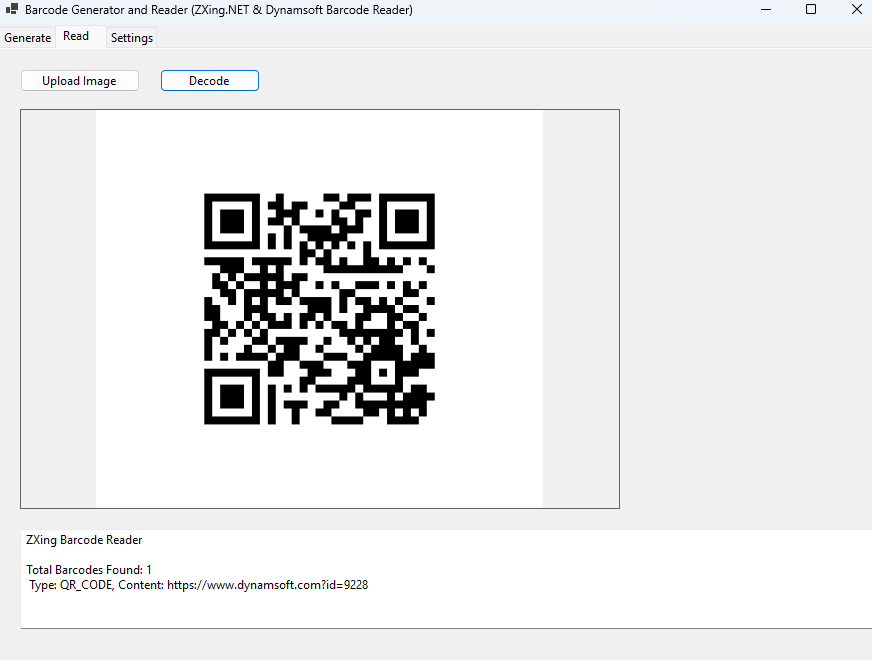
The Read tab allows users to upload and decode barcode images. The UI includes:
- A button to upload an image
- A button to decode the image
- A picture box to display the uploaded or generated image
- A text box to show the barcode decoding results
private void InitReadTab()
{
    uploadImageButton = new Button
    {
        Text = "Upload Image",
        Top = 20,
        Left = 20,
        Width = 120
    };
    uploadImageButton.Click += UploadImageButton_Click;

    decodeButton = new Button
    {
        Text = "Decode",
        Top = 20,
        Left = 160,
        Width = 100
    };
    decodeButton.Click += DecodeButton_Click;

    inputImageBox = new PictureBox
    {
        Top = 60,
        Left = 20,
        Width = 600,
        Height = 400,
        BorderStyle = BorderStyle.FixedSingle,
        SizeMode = PictureBoxSizeMode.Zoom,
        Anchor = AnchorStyles.Top | AnchorStyles.Left
    };

    resultTextBox = new TextBox
    {
        Top = inputImageBox.Bottom + 20,
        Left = 20,
        Width = 600,
        Height = 100,
        Multiline = true,
        Anchor = AnchorStyles.Top | AnchorStyles.Left | AnchorStyles.Right,
        ScrollBars = ScrollBars.Vertical
    };

    readTab.Controls.AddRange(new Control[]
    {
        uploadImageButton,
        decodeButton,
        inputImageBox,
        resultTextBox
    });
}
Decode Barcode Images with ZXing.NET or Dynamsoft
The application supports decoding using either ZXing.NET or Dynamsoft Barcode Reader, depending on the SDK selected from the Settings tab.
-
Initialize the Dynamsoft Barcode Reader SDK with a license key:
private void InitSDK() { string errorMsg; int errorCode = LicenseManager.InitLicense("LICENSE-KEY", out errorMsg); if (errorCode != (int)EnumErrorCode.EC_OK) Console.WriteLine("License initialization error: " + errorMsg); } -
Trigger the decoding process with different .NET Barcode SDKs:
 private void DecodeButton_Click(object sender, EventArgs e)
 {
     if (inputImageBox.Image is not Bitmap bitmap) return;

     string selectedSdk = sdkSelectorComboBox.SelectedItem.ToString();
     string content = "";

     if (selectedSdk == "ZXing")
     {
         content += "ZXing Barcode Reader\r\n\r\n";

         var reader = new BarcodeReader();

         try
         {
             var result = reader.DecodeMultiple(bitmap);

             content += "Total Barcodes Found: " + (result?.Length ?? 0) + Environment.NewLine;

             foreach (var item in result)
             {
                 content += " Type: " + item.BarcodeFormat + ", " + "Content: " + item.Text + Environment.NewLine;
             }
         }
         catch (Exception ex)
         {
             MessageBox.Show($"Error decoding barcode: {ex.Message}", "Error", MessageBoxButtons.OK, MessageBoxIcon.Error);
             return;
         }
     }
     else if (selectedSdk == "Dynamsoft Barcode Reader")
     {
         content += "Dynamsoft Barcode Reader\r\n\r\n";

         CaptureVisionRouter cvr = new CaptureVisionRouter();

         byte[] bytes;
         int width;
         int height;
         int stride;
         PixelFormat pixelFormat;
         GetBitmapData(bitmap, out bytes, out width, out height, out stride, out pixelFormat);

         EnumImagePixelFormat format = EnumImagePixelFormat.IPF_RGB_888;
         switch (pixelFormat)
         {
             case PixelFormat.Format24bppRgb:
                 format = EnumImagePixelFormat.IPF_RGB_888;
                 break;
             case PixelFormat.Format32bppArgb:
             case PixelFormat.Format32bppRgb:
                 format = EnumImagePixelFormat.IPF_ARGB_8888;
                 break;
             default:
                 MessageBox.Show("Unsupported pixel format.");
                 return;
         }


         ImageData data = new ImageData(bytes, width, height, stride, format);
         CapturedResult result = cvr.Capture(data, PresetTemplate.PT_READ_BARCODES);

         if (result != null && result.GetErrorCode() == 0)
         {
             DecodedBarcodesResult barcodesResult = result.GetDecodedBarcodesResult();
             if (barcodesResult != null)
             {
                 BarcodeResultItem[] items = barcodesResult.GetItems();
                 content += "Total Barcodes Found: " + items.Length + Environment.NewLine;
                 foreach (BarcodeResultItem barcodeItem in items)
                 {
                     content += " Type: " + barcodeItem.GetFormatString() + ", " + "Content: " + barcodeItem.GetText() + Environment.NewLine;
                 }
             }
         }
     }

     resultTextBox.Text = content != "" ? content : "No barcode found.";
 }
Step 5: Add an SDK Selector to the Settings Tab
The Settings tab allows the user to choose between the two barcode SDKs:
private void InitSettingsTab()
{
    Label sdkLabel = new Label { Text = "Barcode SDK", Top = 20, Left = 20 };
    sdkSelectorComboBox = new ComboBox
    {
        Top = 45,
        Left = 20,
        Width = 200,
        DropDownStyle = ComboBoxStyle.DropDownList
    };
    sdkSelectorComboBox.Items.AddRange(new string[] { "ZXing", "Dynamsoft Barcode Reader" });
    sdkSelectorComboBox.SelectedIndex = 0;

    settingsTab.Controls.AddRange(new Control[] { sdkLabel, sdkSelectorComboBox });
}
Step 6: Build and Run the Barcode Application
- Press F5 in Visual Studio to build and launch the application.
-
Try generating different barcode formats.
-
Test barcode decoding using a .NET Barcode SDK.
How to Decide Between ZXing.NET and Dynamsoft
Choose ZXing.NET when you want a free baseline for standard barcode generation and light-duty decoding in controlled conditions. Choose Dynamsoft when the cost of missed scans is higher than the license cost, especially if you expect damaged labels, low-contrast images, perspective distortion, or multi-barcode scenes. This article is most useful when paired with the broader benchmark hub so you can compare .NET-specific observations with cross-platform accuracy results.
Common Issues & Edge Cases
- ZXing fails to decode barcodes it just generated: Some formats (e.g., ITF, CODABAR) require adequate quiet zones. If ZXing returns null after generating, increase
Options.Marginto at least10inEncodingOptions. - Dynamsoft throws an unsupported pixel format error: The SDK accepts
IPF_RGB_888andIPF_ARGB_8888. If yourBitmapuses an indexed format (e.g.,Format8bppIndexed), convert it first:bitmap.Clone(new Rectangle(0,0,bmp.Width,bmp.Height), PixelFormat.Format24bppRgb). - ZXing’s
DecodeMultiplereturnsnullinstead of an empty array: When no barcode is found, ZXing returnsnullrather than an empty collection — always null-check the result before iterating to avoid aNullReferenceException.