


Build a .NET MAUI Barcode Scanner for Scanned Documents on Windows (C# Tutorial)
Document digitization is a common task across various industries. Many documents—such as exam papers, legal contracts, patient records, account statements and more—contain barcodes that store crucial information. This tutorial builds a .NET MAUI Windows app that digitizes documents using traditional scanners (HP, Canon, Epson, etc.) and extracts barcodes from the scanned images with Dynamsoft Barcode Reader.
What you’ll build: A .NET MAUI Windows application that acquires document images from TWAIN/WIA/SANE scanners via Dynamic Web TWAIN Service and decodes barcodes from those images using Dynamsoft Barcode Reader — all in C#.
Key Takeaways
- A .NET MAUI Windows app can drive TWAIN, WIA, and SANE scanners through the Dynamic Web TWAIN REST API using the
Twain.Wia.Sane.ScannerNuGet package. CaptureVisionRouter.Capture()fromDynamsoft.DotNet.BarcodeReader.Bundledecodes barcodes directly from raw image byte arrays — no intermediate file required.- Scanner settings (pixel type, resolution, ADF, duplex) are configured programmatically, enabling fully automated batch document digitization workflows.
Common Developer Questions
How do I scan documents from a TWAIN scanner in a .NET MAUI Windows app?
Use the Twain.Wia.Sane.Scanner package to enumerate scanners, configure options like resolution and duplex, and fetch the scanned image bytes through the Dynamic Web TWAIN Service REST API. The MAUI app then displays those bytes directly in the Windows desktop UI for the next processing step.
How do I read barcodes from a scanned document image in C#?
Pass the scanned image byte array to CaptureVisionRouter.Capture() from Dynamsoft.DotNet.BarcodeReader.Bundle. The barcode reader can decode directly from memory, so you do not need to save intermediate image files before running recognition.
Why does Dynamsoft Barcode Reader return no barcode results on a low-resolution scan?
Low-resolution scans often blur small barcode modules, which leaves too little signal for the decoder. Increasing scanner resolution, using grayscale or color instead of aggressive black-and-white settings, and ensuring the page is flat usually improves recognition reliability.
Demo Video
This article is Part 4 in a 4-Part Series.
- Part 1 - How to Integrate a TWAIN Document Scanner in a .NET MAUI Desktop App for Windows and macOS
- Part 2 - How to Build a Desktop Document Scanner with .NET MAUI Blazor and TWAIN
- Part 3 - How to Integrate a JavaScript Document Scanner in .NET MAUI WebView
- Part 4 - Build a .NET MAUI Barcode Scanner for Scanned Documents on Windows (C# Tutorial)
Prerequisites
- .NET SDK.
- Install Dynamic Web TWAIN Service for Windows.
- Connect Your PC to a TWAIN, WIA, or SANE compatible scanner.
- Get a 30-day free trial license for Dynamsoft Barcode Reader.
Why Do Companies Still Use Traditional Scanners?
Before diving into the code, let’s explore why companies continue to use traditional scanners instead of HD USB cameras or mobile phones for document digitization:
- Image Quality and Consistency: Scanners provide uniform lighting and a fixed distance between the document and sensor, ensuring high-quality images.
- Speed and Efficiency: Scanners can quickly and automatically process multiple pages.
- OCR Accuracy: High-quality scanned images enhance OCR processing accuracy.
- Security and Compliance: Scanners offer better security and compliance with regulatory requirements than mobile devices.
Dynamic Web TWAIN Service provides RESTful APIs that allow programming languages to interact with TWAIN, WIA, SANE, and ESCL compatible scanners. In the following sections, we will use Twain.Wia.Sane.Scanner, a C# wrapper of Dynamic Web TWAIN Service, to interact with scanners and Dynamsoft.DotNet.BarcodeReader.Bundle to read barcodes.
Step 1: Set Up a .NET 9 MAUI Windows App
-
In Visual Studio Code, press
Ctrl+Shift+Pto open the command palette and run theCreate a new .NET MAUI Appcommand to scaffold a new .NET MAUI project.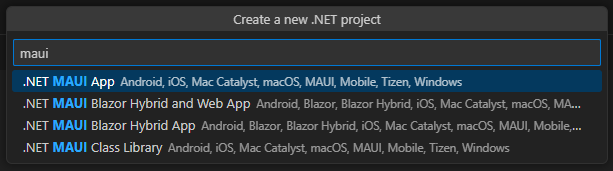
-
Add
Dynamsoft.DotNet.BarcodeReader.BundleandTwain.Wia.Sane.Scannerto the*.csprojfile.<ItemGroup> <PackageReference Include="Dynamsoft.DotNet.BarcodeReader.Bundle" Version="11.0.3000" /> <PackageReference Include="Twain.Wia.Sane.Scanner" Version="2.0.1" /> </ItemGroup>
Step 2: Acquire Documents from a TWAIN, WIA, or SANE-Compatible Scanner
Build the Scanner UI in XAML
Define the UI layout in MainPage.xaml. The UI includes Picker, CheckBox, Button, Label, and Editor components.
<?xml version="1.0" encoding="utf-8" ?>
<ContentPage xmlns="http://schemas.microsoft.com/dotnet/2021/maui"
xmlns:x="http://schemas.microsoft.com/winfx/2009/xaml"
x:Class="documentbarcode.MainPage">
<HorizontalStackLayout HorizontalOptions="FillAndExpand"
VerticalOptions="FillAndExpand">
<VerticalStackLayout Margin="20"
MaximumWidthRequest="400"
WidthRequest="400"
Spacing="20">
<StackLayout Padding="10"
BackgroundColor="#f0f0f0"
Spacing="5">
<Picker x:Name="DevicePicker"
Title="Select Source"
ItemsSource="{Binding Items}">
</Picker>
<Picker x:Name="ColorPicker"
Title="Select Pixel Type">
<Picker.ItemsSource>
<x:Array Type="{x:Type x:String}">
<x:String>B & W</x:String>
<x:String>Gray</x:String>
<x:String>Color</x:String>
</x:Array>
</Picker.ItemsSource>
</Picker>
<Picker x:Name="ResolutionPicker"
Title="Select Resolution">
<Picker.ItemsSource>
<x:Array Type="{x:Type x:Int32}">
<x:Int32>100</x:Int32>
<x:Int32>150</x:Int32>
<x:Int32>200</x:Int32>
<x:Int32>300</x:Int32>
</x:Array>
</Picker.ItemsSource>
</Picker>
<StackLayout Orientation="Horizontal">
<CheckBox x:Name="showUICheckbox"/>
<Label Text="Show UI"
VerticalOptions="Center"/>
</StackLayout>
<StackLayout Orientation="Horizontal">
<CheckBox x:Name="adfCheckbox"/>
<Label Text="ADF"
VerticalOptions="Center"/>
</StackLayout>
<StackLayout Orientation="Horizontal">
<CheckBox x:Name="duplexCheckbox"/>
<Label Text="Duplex"
VerticalOptions="Center"/>
</StackLayout>
<Grid RowDefinitions="*, *"
ColumnDefinitions="*, *"
Padding="10">
<Button Text="Scan Document"
Clicked="OnLoadImageClicked"
Grid.Row="0"
Grid.Column="0"
Margin="10"/>
<Button Text="Read Barcode"
Clicked="OnScanBarcodeClicked"
Grid.Row="0"
Grid.Column="1"
Margin="10"/>
<Button Text="Save Current Image"
Clicked="OnSaveClicked"
Grid.Row="1"
Grid.Column="0"
Margin="10"/>
<Button Text="Delete All"
Clicked="OnDeleteAllClicked"
Grid.Row="1"
Grid.Column="1"
Margin="10"/>
</Grid>
<Label x:Name="BarcodeResultsLabel"
Text="Barcode Results"
TextColor="blue"/>
<Editor x:Name="BarcodeResultContent"
HeightRequest="300"
WidthRequest="360"/>
</StackLayout>
</VerticalStackLayout>
<ScrollView x:Name="ImageScrollView"
WidthRequest="800"
HeightRequest="800">
<VerticalStackLayout x:Name="ImageContainer"/>
</ScrollView>
<Image x:Name="LargeImage"
Aspect="AspectFit"
MaximumWidthRequest="600"/>
</HorizontalStackLayout>
</ContentPage>
Explanation of UI Components:
DevicePicker: Selects a TWAIN, WIA, or SANE-compatible scanner.ColorPicker: Selects the pixel type.ResolutionPicker: Selects the resolution.showUICheckbox: Toggles the scanner UI.adfCheckbox: Enables the automatic document feeder.duplexCheckbox: Enables duplex scanning.BarcodeResultContent: Displays barcode results.ImageScrollView: Shows scanned image thumbnails.LargeImage: Displays the selected scanned image.
Scan Documents via Dynamic Web TWAIN Service
-
Get the scanner source list and populate the
DevicePicker:private static string licenseKey = "LICENSE-KEY"; private static ScannerController scannerController = new ScannerController(); private static List<Dictionary<string, object>> devices = new List<Dictionary<string, object>>(); private static string host = "http://127.0.0.1:18622"; private List<byte[]> _streams = new List<byte[]>(); public ObservableCollection<string> Items { get; set; } private int selectedIndex = -1; private async void InitializeDevices() { var scanners = await scannerController.GetDevices(host, ScannerType.TWAINX64SCANNER | ScannerType.ESCLSCANNER); if (scanners.Count == 0) { await DisplayAlert("Error", "No scanner found", "OK"); return; } for (int i = 0; i < scanners.Count; i++) { var scanner = scanners[i]; devices.Add(scanner); var name = scanner["name"]; if (name != null) { Items.Add(name.ToString()); } } DevicePicker.SelectedIndex = 0; } -
Add a button click event to handle document scanning:
 private async void OnLoadImageClicked(object sender, System.EventArgs e)
 {
   if (DevicePicker.SelectedIndex < 0) return;
   var parameters = new Dictionary<string, object>
       {
         {"license", licenseKey},
         {"device", devices[DevicePicker.SelectedIndex]["device"]}
       };

   parameters["config"] = new Dictionary<string, object>
       {
         {"IfShowUI", showUICheckbox.IsChecked},
         {"PixelType", ColorPicker.SelectedIndex},
         {"Resolution", (int)ResolutionPicker.SelectedItem},
         {"IfFeederEnabled", adfCheckbox.IsChecked},
         {"IfDuplexEnabled", duplexCheckbox.IsChecked},
       };

   var data = await scannerController.ScanDocument(host, parameters);
   string jobId = "";
   if (data.ContainsKey(ScannerController.SCAN_SUCCESS))
   {
     jobId = data[ScannerController.SCAN_SUCCESS];
   }

   string error = "";
   if (data.ContainsKey(ScannerController.SCAN_ERROR))
   {
     error = data[ScannerController.SCAN_ERROR];
   }

   if (!string.IsNullOrEmpty(jobId))
   {
     var images = await scannerController.GetImageStreams(host, jobId);
     int start = _streams.Count;
     for (int i = 0; i < images.Count; i++)
     {
       MemoryStream stream = new MemoryStream(images[i]);
       _streams.Add(images[i]);
       ImageSource imageStream = ImageSource.FromStream(() => stream);
       Image image = new Image
       {
         WidthRequest = 200,
         Aspect = Aspect.AspectFit,
         Source = imageStream,
         BindingContext = i + start
       };

       var tapGestureRecognizer = new TapGestureRecognizer();
       tapGestureRecognizer.Tapped += OnImageTapped;
       image.GestureRecognizers.Add(tapGestureRecognizer);

       ImageContainer.Children.Add(image);

     }

     ScrollToLatestImage();
     ShowLargeImage(_streams[_streams.Count - 1]);
   }
   else if (!string.IsNullOrEmpty(error))
   {
     await DisplayAlert("Error", error, "OK");
   }
 }

 private void ShowLargeImage(byte[] bytes)
 {
   MemoryStream stream = new MemoryStream(bytes);
   ImageSource imageStream = ImageSource.FromStream(() => stream);
   LargeImage.Source = imageStream;
 }

 private void OnImageTapped(object? sender, TappedEventArgs e)
 {
   if (sender is Image image && image.BindingContext is int index)
   {
     byte[] imageData = _streams[index];
     ShowLargeImage(imageData);
     selectedIndex = index;
   }
 }
All scanned images are stored in
_streamsfor later operations. TheOnImageTappedmethod is used to display the selected image inLargeImage.
Step 3: Read Barcodes from Scanned Documents
-
Initialize the
CaptureVisionRouterobject:private void InitializeCVR() { string errorMsg; int errorCode = LicenseManager.InitLicense(licenseKey, out errorMsg); if (errorCode != (int)Dynamsoft.Core.EnumErrorCode.EC_OK) Console.WriteLine("License initialization error: " + errorMsg); cvr = new CaptureVisionRouter(); } -
Add a button click event to read barcodes from the current image:
 private void OnScanBarcodeClicked(object sender, System.EventArgs e)
 {
   if (_streams.Count == 0)
   {
     DisplayAlert("Error", "Please load an image first.", "OK");
     return;
   }

   BarcodeResultContent.Text = "";
   CapturedResult result = cvr.Capture(_streams[selectedIndex], PresetTemplate.PT_READ_BARCODES);
   if (result != null)
   {
     DecodedBarcodesResult barcodesResult = result.GetDecodedBarcodesResult();
     if (barcodesResult != null)
     {
       BarcodeResultItem[] items = barcodesResult.GetItems();
       BarcodeResultContent.Text += "Total barcode(s) found: " + items.Length + Environment.NewLine + Environment.NewLine;
       int index = 1;
       foreach (BarcodeResultItem barcodeItem in items)
       {
         BarcodeResultContent.Text += "Result " + index + Environment.NewLine;
         BarcodeResultContent.Text += "Barcode Format: " + barcodeItem.GetFormatString() + Environment.NewLine;
         BarcodeResultContent.Text += "Barcode Text: " + barcodeItem.GetText() + Environment.NewLine + Environment.NewLine;
         index += 1;
       }

     }
   }
 }
The
Capturemethod reads barcodes from the image data and returns a list of barcode results. The barcode results are displayed in theBarcodeResultContenteditor. -
Connect a scanner to your PC and press
F5to run the .NET MAUI Windows app.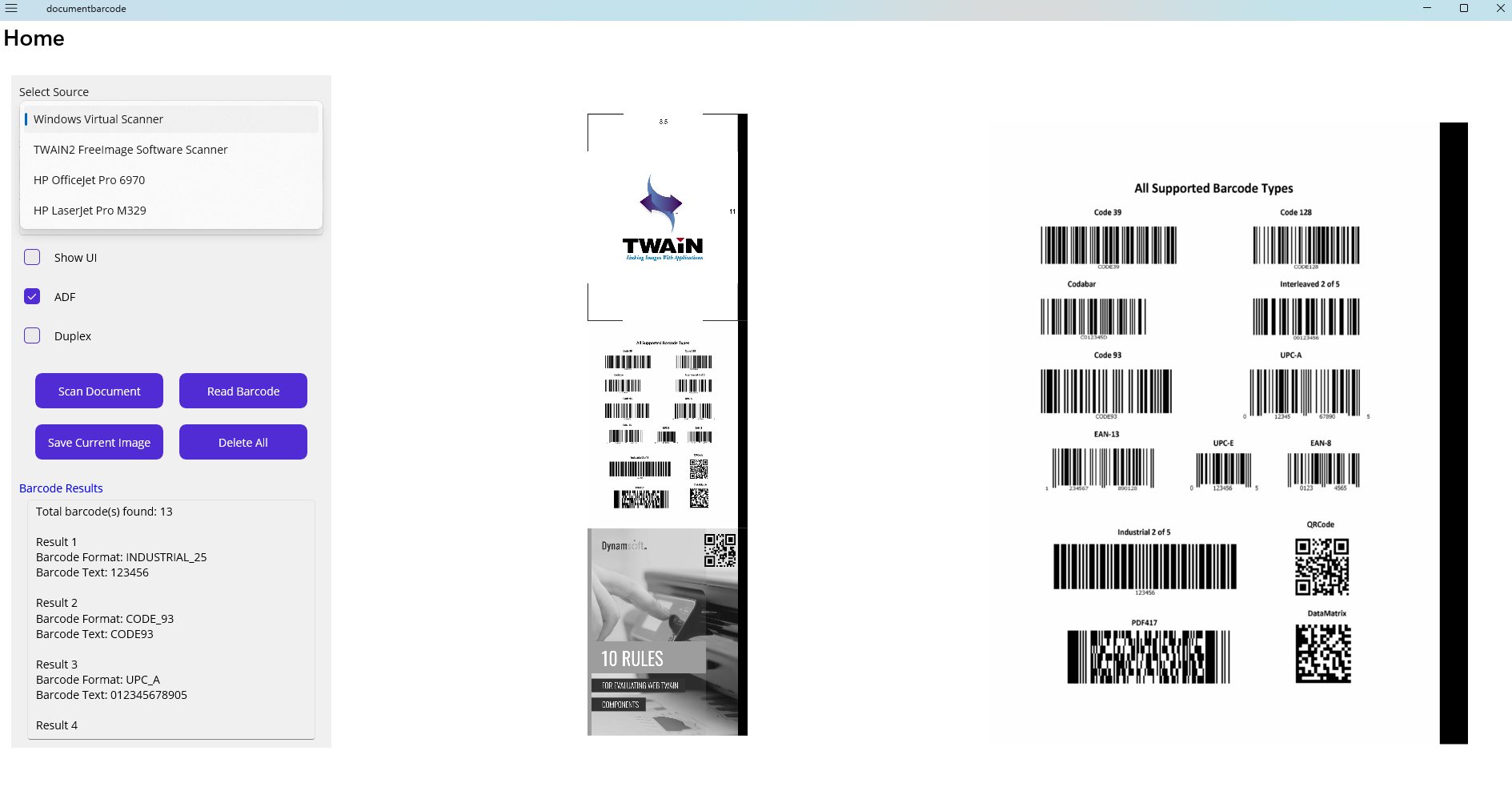
Common Issues & Edge Cases
- No scanner detected: Ensure the Dynamic Web TWAIN Service is running on port 18622. If it did not start automatically after installation, launch it manually from the Windows system tray or by running
DynamsoftService.exe. - Barcode not decoded from scan: At resolutions below 200 DPI, 1D barcodes and small QR codes may fail to decode. Set the resolution to at least 200 DPI via
ResolutionPickerfor reliable results. - MAUI app fails to build for Windows: Ensure the project targets
net9.0-windows10.0.19041.0in the.csprojand that the MAUI Windows workload is installed. Rundotnet workload install maui-windowsto add it if missing.