


How to Build a Cross-Platform Barcode, MRZ, and Document Scanner with .NET MAUI Blazor
Extracting structured data from barcodes, passports, and physical documents typically demands separate native implementations for every platform. The Dynamsoft Capture Vision SDK bundles barcode reading, MRZ recognition, and document detection into one JavaScript-callable API, and .NET MAUI Blazor lets you host that API inside a cross-platform BlazorWebView — giving you a single Razor codebase that runs on Android, iOS, macOS, and Windows.
What you’ll build: A .NET MAUI Blazor app named “Vision Scanner” that scans barcodes, reads MRZ fields from passports and IDs, and detects document boundaries with a perspective-correction editor, running on all four major platforms using Dynamsoft Capture Vision SDK v3.2.5000.
Demo Video: .NET MAUI Blazor Vision Scanner in Action
Key Takeaways
- This tutorial demonstrates how to integrate Dynamsoft Capture Vision SDK into a .NET MAUI Blazor app to perform barcode, MRZ, and document scanning from a shared Razor UI.
- The Dynamsoft Capture Vision Bundle v3.2.5000 exposes a unified
CaptureVisionRouterAPI that switches between barcode (ReadBarcodes_Default), MRZ (ReadMRZ), and document boundary (DetectDocumentBoundaries_Default) detection templates at runtime. - Because
WKWebViewon macOS does not supportgetUserMedia, a platform-specificAVFoundationcamera service captures frames in C# and forwards them to JavaScript as base64-encoded JPEG — no external dependency required. - This pattern fits any scenario that requires cross-platform document capture in a single app: identity verification, logistics, expense scanning, and kiosk check-in.
Common Developer Questions
How do I enable camera access inside a BlazorWebView on Android?
The default Android BlazorWebView does not automatically grant WebRTC camera permissions, so you need a custom handler and WebChromeClient that forwards and approves the camera permission request. Once that shim is in place, the JavaScript scanner inside the Blazor page can use the camera normally.
Why does navigator.mediaDevices.getUserMedia fail in a MAUI app on macOS?
WKWebView on macOS does not expose navigator.mediaDevices, so browser-style camera capture is unavailable inside the Blazor view. The workaround is to capture frames natively with AVFoundation and push them into the JavaScript layer as encoded images.
How do I switch the Dynamsoft Capture Vision Router between barcode, MRZ, and document detection modes without reinitializing the SDK?
Initialize the router once, then change the active template name at runtime between ReadBarcodes_Default, ReadMRZ, and DetectDocumentBoundaries_Default. That lets one MAUI Blazor app switch scanning modes without tearing down and rebuilding the SDK.
Prerequisites
- .NET 8 SDK
- Visual Studio 2022 17.8+ with the .NET MAUI workload installed
- A Dynamsoft Capture Vision license key
Get a 30-day free trial license at dynamsoft.com/customer/license/trialLicense
Step 1: Add the Dynamsoft Capture Vision Bundle to the Blazor Host Page
The SDK ships as a single CDN bundle. Add it to wwwroot/index.html before the Blazor framework script so that the Dynamsoft global is available as soon as the WebView loads.
<!DOCTYPE html>
<html lang="en">
<head>
    <meta charset="utf-8" />
    <meta name="viewport" content="width=device-width, initial-scale=1.0, maximum-scale=1.0, user-scalable=no, viewport-fit=cover" />
    <title>Vision Scanner</title>
    <base href="/" />
    <link rel="stylesheet" href="css/bootstrap/bootstrap.min.css" />
    <link href="css/app.css" rel="stylesheet" />
    <link href="BarcodeScanner.styles.css" rel="stylesheet" />
    <script src="https://cdn.jsdelivr.net/npm/dynamsoft-capture-vision-bundle@3.2.5000/dist/dcv.bundle.min.js"></script>
    <script src="jsInterop.js"></script>
</head>
<body>
    <div class="status-bar-safe-area"></div>
    <div id="app">Loading...</div>
    <script src="_framework/blazor.webview.js" autostart="false"></script>
</body>
</html>
Step 2: Register Platform-Specific Services and Configure the Android WebView
The camera abstraction (ICameraService) is registered in MauiProgram.cs. On macOS, WKWebView does not support getUserMedia, so a native AVFoundation implementation is wired in instead. On Android, a custom BlazorWebViewHandler replaces the default WebChromeClient to grant the WebView camera permission at the OS level.
// MauiProgram.cs
using Microsoft.AspNetCore.Components.WebView.Maui;
using BarcodeScanner.Services;

#if ANDROID
using BarcodeScanner.Platforms.Android;
#endif

namespace BarcodeScanner;

public static class MauiProgram
{
    public static MauiApp CreateMauiApp()
    {
        var builder = MauiApp.CreateBuilder();
        builder
            .UseMauiApp<App>()
            .ConfigureFonts(fonts =>
            {
                fonts.AddFont("OpenSans-Regular.ttf", "OpenSansRegular");
            }).ConfigureMauiHandlers(handlers =>
            {
#if ANDROID
                handlers.AddHandler<BlazorWebView, MauiBlazorWebViewHandler>();
#endif
            });

        builder.Services.AddMauiBlazorWebView();
#if DEBUG
        builder.Services.AddBlazorWebViewDeveloperTools();
#endif

#if MACCATALYST
        builder.Services.AddSingleton<ICameraService, MacCameraService>();
#else
        builder.Services.AddSingleton<ICameraService, DefaultCameraService>();
#endif

        return builder.Build();
    }
}
The Android-specific MyWebChromeClient grants all WebView permission requests — including camera — so that getUserMedia resolves inside the Blazor page:
// Platforms/Android/MyWebChromeClient.cs
public class MyWebChromeClient : WebChromeClient
{
    private MainActivity _activity;

    public MyWebChromeClient(Context context)
    {
        _activity = context as MainActivity;
    }

    public override void OnPermissionRequest(PermissionRequest request)
    {
        try
        {
            request.Grant(request.GetResources());
            base.OnPermissionRequest(request);
        }
        catch (Exception ex)
        {
            Console.WriteLine(ex);
        }
    }

    public override bool OnShowFileChooser(global::Android.Webkit.WebView webView,
        IValueCallback filePathCallback, FileChooserParams fileChooserParams)
    {
        base.OnShowFileChooser(webView, filePathCallback, fileChooserParams);
        return _activity.ChooseFile(filePathCallback,
            fileChooserParams.CreateIntent(), fileChooserParams.Title);
    }
}
This handler is injected via the custom MauiBlazorWebViewHandler:
// Platforms/Android/MauiBlazorWebViewHandler.cs
public class MauiBlazorWebViewHandler : BlazorWebViewHandler
{
    protected override global::Android.Webkit.WebView CreatePlatformView()
    {
        var view = base.CreatePlatformView();
        view.SetWebChromeClient(new MyWebChromeClient(this.Context));
        return view;
    }
}
Step 3: Initialize the SDK with a License Key
The Index.razor page presents a license activation screen. When the user taps Activate, Blazor calls the JavaScript initSDK function via IJSRuntime. The function initializes the license, pre-loads the WASM modules for barcode (DBR), label recognition (DLR), and document detection (DDN), loads the MRZ character-recognition models, and creates a CaptureVisionRouter instance.
@* Index.razor — Activate button handler *@
private async Task Activate()
{
    if (string.IsNullOrWhiteSpace(licenseKey)) return;
    isActivating = true;
    statusMessage = "";
    StateHasChanged();

    try
    {
        isActivated = await JSRuntime.InvokeAsync<bool>(
            "jsFunctions.initSDK", objRef, licenseKey);
        statusMessage = isActivated
            ? "SDK activated successfully!"
            : "SDK activation failed.";
    }
    catch (Exception ex)
    {
        statusMessage = "Error: " + ex.Message;
    }

    isActivating = false;
    StateHasChanged();
}
The corresponding JavaScript receives the call and boots the SDK:
// wwwroot/jsInterop.js — initSDK
initSDK: async function (dotnetRef, licenseKey) {
    dotnetHelper = dotnetRef;
    toggleLoading(true);
    try {
        await Dynamsoft.License.LicenseManager.initLicense(licenseKey, true);
        Dynamsoft.Core.CoreModule.loadWasm(["DBR", "DLR", "DDN"]);

        parser = await Dynamsoft.DCP.CodeParser.createInstance();
        await Dynamsoft.DCP.CodeParserModule.loadSpec("MRTD_TD1_ID");
        await Dynamsoft.DCP.CodeParserModule.loadSpec("MRTD_TD2_FRENCH_ID");
        await Dynamsoft.DCP.CodeParserModule.loadSpec("MRTD_TD2_ID");
        await Dynamsoft.DCP.CodeParserModule.loadSpec("MRTD_TD2_VISA");
        await Dynamsoft.DCP.CodeParserModule.loadSpec("MRTD_TD3_PASSPORT");
        await Dynamsoft.DCP.CodeParserModule.loadSpec("MRTD_TD3_VISA");
        await Dynamsoft.CVR.CaptureVisionRouter.appendDLModelBuffer("MRZCharRecognition");
        await Dynamsoft.CVR.CaptureVisionRouter.appendDLModelBuffer("MRZTextLineRecognition");

        cvr = await Dynamsoft.CVR.CaptureVisionRouter.createInstance();

        isSDKReady = true;
        toggleLoading(false);
        return true;
    } catch (ex) {
        console.error(ex);
        toggleLoading(false);
        return false;
    }
},
Step 4: Decode Barcodes, MRZ, and Documents from Image Files
The Reader.razor page lets users pick an image from the device file system. After the file is selected, C# calls jsFunctions.loadAndDecodeFile, passing the <input> element ID and the active mode string ("barcode", "mrz", or "document"). The JavaScript side reads the file directly from the DOM, decodes it via cvr.capture(), and returns a JSON object containing the result text and any detected geometry.
The active template is selected from the mode string at call time:
// wwwroot/jsInterop.js — getTemplateName
function getTemplateName() {
    if (currentMode === 'barcode') return 'ReadBarcodes_Default';
    if (currentMode === 'mrz') return 'ReadMRZ';
    if (currentMode === 'document') return 'DetectDocumentBoundaries_Default';
    return 'ReadBarcodes_Default';
}
On the C# side, the Reader.razor component handles the file change event and parses the returned JSON to update the UI:
// Pages/Reader.razor — LoadImage
private async Task LoadImage(ChangeEventArgs e)
{
    result = "";
    showDocumentEditor = false;
    rectifiedImage = "";
    isLoading = true;
    StateHasChanged();

    try
    {
        // JS reads the file directly from the <input> element — no C# stream needed.
        var json = await JSRuntime.InvokeAsync<string>(
            "jsFunctions.loadAndDecodeFile", "reader_file_input", selectedMode);

        if (!string.IsNullOrEmpty(json))
        {
            using var doc = System.Text.Json.JsonDocument.Parse(json);
            var root = doc.RootElement;

            if (root.TryGetProperty("error", out var errProp))
            {
                result = "Error: " + errProp.GetString();
            }
            else
            {
                currentImageBase64 = root.TryGetProperty("image", out var imgProp)
                    ? imgProp.GetString() ?? "" : "";

                var decodeResult = root.TryGetProperty("result", out var resProp)
                    ? resProp.GetString() ?? "" : "";
For MRZ results, the JavaScript parser extracts structured fields from the raw MRZ string before returning them to C#:
// wwwroot/jsInterop.js — extractMrzInfo
function extractMrzInfo(result) {
    const parseResultInfo = {};
    parseResultInfo['Document Type'] = JSON.parse(result.jsonString).CodeType;
    parseResultInfo['Issuing State'] = result.getFieldValue("issuingState");
    parseResultInfo['Surname'] = result.getFieldValue("primaryIdentifier");
    parseResultInfo['Given Name'] = result.getFieldValue("secondaryIdentifier");
    let type = result.getFieldValue("documentCode");
    parseResultInfo['Passport Number'] = type === "P"
        ? result.getFieldValue("passportNumber")
        : result.getFieldValue("documentNumber");
    parseResultInfo['Nationality'] = result.getFieldValue("nationality");
    parseResultInfo["Gender"] = result.getFieldValue("sex");
    // ... date-of-birth and expiry fields
    return parseResultInfo;
}
Step 5: Stream the Live Camera Feed and Handle Platform Differences
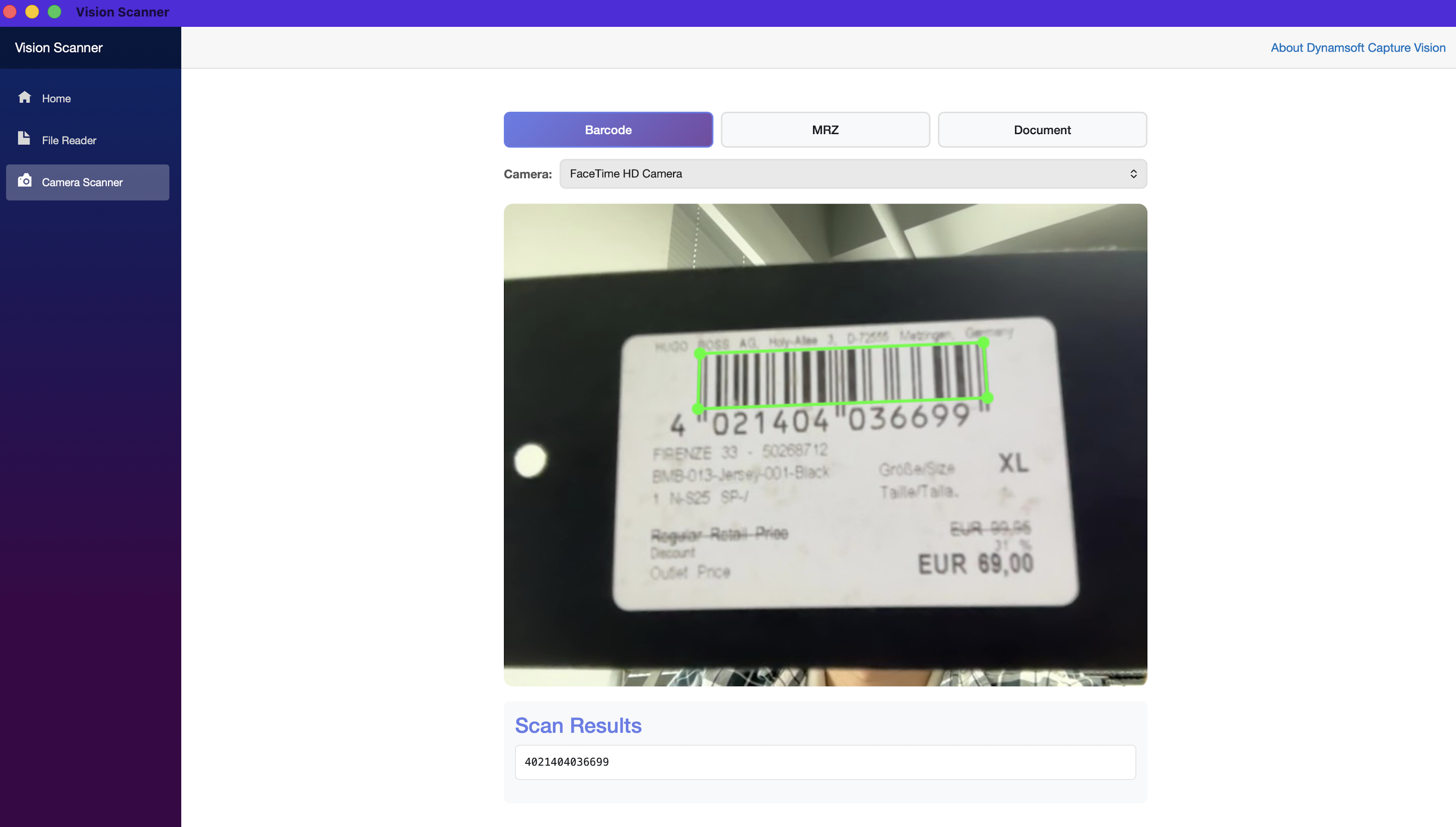
Scanner.razor checks the injected ICameraService.RequiresNativeCamera flag to decide whether to use the standard getUserMedia web path or the macOS native AVFoundation path.
// Pages/Scanner.razor — OnAfterRenderAsync (first render)
if (useNativeCamera)
{
    await InitNativeCamera();
}
else
{
    await InitWebCamera();
}
Web camera path (Android, iOS, Windows): Blazor enumerates cameras via getUserMedia, opens the chosen device, and starts a requestAnimationFrame decode loop:
// Pages/Scanner.razor — InitWebCamera
private async Task InitWebCamera()
{
    cameraLabels = await JSRuntime.InvokeAsync<string[]>(
        "jsFunctions.initScanner", objRef, "camera_view", selectedMode);

    if (cameraLabels != null && cameraLabels.Length > 0)
    {
        StateHasChanged();
        await JSRuntime.InvokeVoidAsync("jsFunctions.openCamera", 0);
        await JSRuntime.InvokeVoidAsync("jsFunctions.startScanning", selectedMode);
    }
}
Native camera path (macOS): MacCameraService opens an AVCaptureSession, captures pixel buffers via AVCaptureVideoDataOutput, converts every second frame to a base64 JPEG, and exposes it through GetLatestFrame(). The Blazor component polls this method via a [JSInvokable] callback that the JavaScript timer calls on an interval:
// Pages/Scanner.razor — GetLatestFrame (JS-invokable poll endpoint)
[JSInvokable]
public string? GetLatestFrame()
{
    if (_disposed || !useNativeCamera) return null;
    return CameraService.GetLatestFrame();
}
Scan results from both paths flow back to C# through [JSInvokable] callbacks:
// wwwroot/jsInterop.js — processCameraResult (barcode branch)
if (currentMode === 'barcode' &&
    item.type === Dynamsoft.Core.EnumCapturedResultItemType.CRIT_BARCODE) {
    txts.push(item.text);
    globalPoints = item.location.points;
    if (overlayCtx) drawCameraOverlayQuad(overlayCtx, item.location.points, '#00ff00', 3);
}
// ...
if (currentMode === 'barcode' && txts.length > 0 && dotnetHelper) {
    dotnetHelper.invokeMethodAsync('OnScanResultReceived', txts.join('\n'));
}
Step 6: Rectify Captured Documents with a Browser-Side Homography
When Document mode is active and the user taps Capture, the frozen frame and the detected quad points are sent to C#. The Scanner.razor component opens an overlay editor where the user can drag the four corner handles to refine the boundary, then tap Rectify. The perspective warp is computed entirely in the browser using an inverse-mapping homography — no server round-trip.
// wwwroot/jsInterop.js — warpPerspective (inverse-mapping core)
function warpPerspective(srcCanvas, quadPts) {
    // ...
    const dstPts = [{ x: 0, y: 0 }, { x: W, y: 0 }, { x: W, y: H }, { x: 0, y: H }];
    const Hinv = buildHomography(dstPts, sp);   // inverse: dst → src

    for (let y = 0; y < H; y++) {
        for (let x = 0; x < W; x++) {
            const [sx, sy] = applyH(Hinv, x + 0.5, y + 0.5);
            // bilinear sample from source
            // ...
        }
    }
    dstCtx.putImageData(dstImg, 0, 0);
    return dstCanvas;
}
After rectification, the corrected image is displayed inline. The user can re-open the quad editor by tapping Edit, or export the image via jsFunctions.saveDocument, which triggers the native OS share sheet on Android/iOS or a file-save dialog on Windows and macOS.
Common Issues & Edge Cases
- Camera permission denied inside Android WebView: The default
BlazorWebViewdoes not forward WebRTC permission requests to the OS. SubclassingBlazorWebViewHandlerand installing a customWebChromeClientthat callsrequest.Grant(request.GetResources())is required — seeMauiBlazorWebViewHandler.csandMyWebChromeClient.cs. getUserMedianot available on macOS (WKWebView):WKWebViewon macOS does not exposenavigator.mediaDevices. The workaround is to capture frames natively viaAVCaptureVideoDataOutputinMacCameraService.csand push them to the JavaScript layer as base64 JPEG data URLs. The JS scanner path treats these frames identically to web-camera frames.- MRZ settings reset when switching modes: The SDK uses
cvr.initSettings('./full.json')for MRZ mode andcvr.resetSettings()for all other modes; callingresetSettingswhile MRZ mode is active will silently drop the MRZ template. ThestartScanningfunction injsInterop.jsalways calls the appropriate settings function before settingisDetecting = true, so mode switches should always go throughjsFunctions.startScanning.
Frequently Asked Questions
How do I enable camera access inside a BlazorWebView on Android?
The default BlazorWebView on Android does not forward WebRTC permission requests to the OS. You must subclass BlazorWebViewHandler and replace the default WebChromeClient with a custom implementation that calls request.Grant(request.GetResources()) inside OnPermissionRequest. The MauiBlazorWebViewHandler and MyWebChromeClient classes in this tutorial provide a ready-to-use reference implementation. Without this shim, getUserMedia will silently return a NotAllowedError even after the user grants permission in the Android system dialog.
Why does navigator.mediaDevices.getUserMedia fail in a .NET MAUI Blazor app on macOS?
WKWebView — the browser engine underlying .NET MAUI on macOS Catalyst — does not expose navigator.mediaDevices to hosted web content, so getUserMedia throws a TypeError regardless of Info.plist permissions. The fix is to capture frames natively via AVCaptureVideoDataOutput in a C# ICameraService implementation (MacCameraService), encode each frame as a base64 JPEG, and deliver it to the JavaScript layer through a [JSInvokable] poll endpoint (GetLatestFrame). The Dynamsoft Capture Vision SDK then processes these frames identically to frames sourced from a web camera.
How do I switch between barcode, MRZ, and document scanning in Dynamsoft Capture Vision without reinitializing the SDK?
Pass the appropriate template name string directly to cvr.capture(): ReadBarcodes_Default for barcodes, ReadMRZ for passport and ID MRZ, and DetectDocumentBoundaries_Default for document edge detection. The CaptureVisionRouter instance is reused across all modes — never destroyed. The only additional step for MRZ is calling cvr.initSettings('./full.json') before scanning, and cvr.resetSettings() when switching away from MRZ. Route all mode changes through jsFunctions.startScanning to ensure settings initialization is never skipped.
Can Dynamsoft Capture Vision SDK decode QR codes and barcodes in .NET MAUI without a native plugin?
Yes. Because BlazorWebView executes JavaScript, the SDK’s WebAssembly (WASM) barcode engine runs entirely inside the WebView on all four platforms — Android, iOS, macOS, and Windows — without any native Xamarin or MAUI bindings. The only platform-specific code in this project handles camera access (MauiBlazorWebViewHandler on Android and MacCameraService on macOS); the decoding logic is 100% shared JavaScript.
Conclusion
You now have a .NET MAUI Blazor app that scans barcodes, reads MRZ from travel documents, and captures documents with perspective correction — sharing one set of Razor pages across Android, iOS, macOS, and Windows. The Dynamsoft Capture Vision SDK v3.2.5000 handles all recognition logic entirely on-device via WebAssembly, while platform-specific shims (MauiBlazorWebViewHandler on Android, MacCameraService on macOS) bridge the gap where the WebView’s camera API falls short. For next steps, explore the Dynamsoft Capture Vision documentation to customize recognition templates or add additional result item types.