




Configure Proxy Server
Configure Proxy Server to allow users to access Dynamic Web TWAIN Services (with Bonjour Service enabled) on the Intranet. Make sure the Dynamic Web TWAIN Service is installed before configuring.
Installation
-
Download
DynamsoftProxyServerSetup(Remote Scan Proxy Server) for your platform. -
On Windows, run
Install.cmdas an administrator. On macOS, install by double clicking. On Linux, install via the command line.
Enable Proxy Server
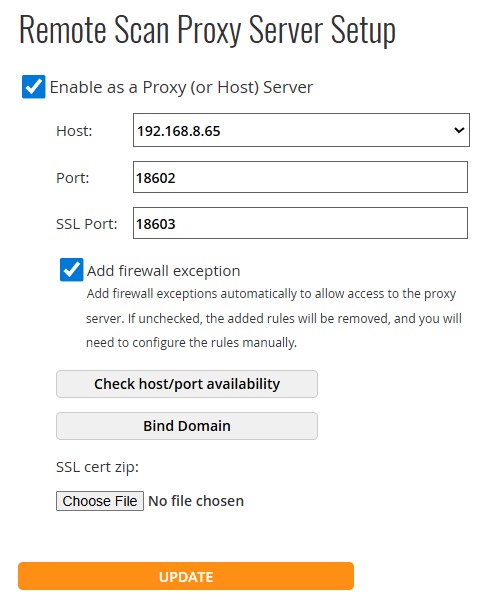
- Access http://127.0.0.1:18625/admin/proxy.html and you will see the UI above.
- Check “Enable as a Proxy (Or Host) Server”. You can also uncheck it to disable it.
- Select a host IP.
- Set the ports. Default values: 18602 and 18603.
- [Optional] “Add firewall exception” is checked by default. It will add rules automatically on Windows. On macOS and Linux, you may need to set the rules up manually.
- Bind Domain. Bind a specified domain to your IP.
- Import the downloaded SSL certificate (you can get it on the domain binding page) by clicking
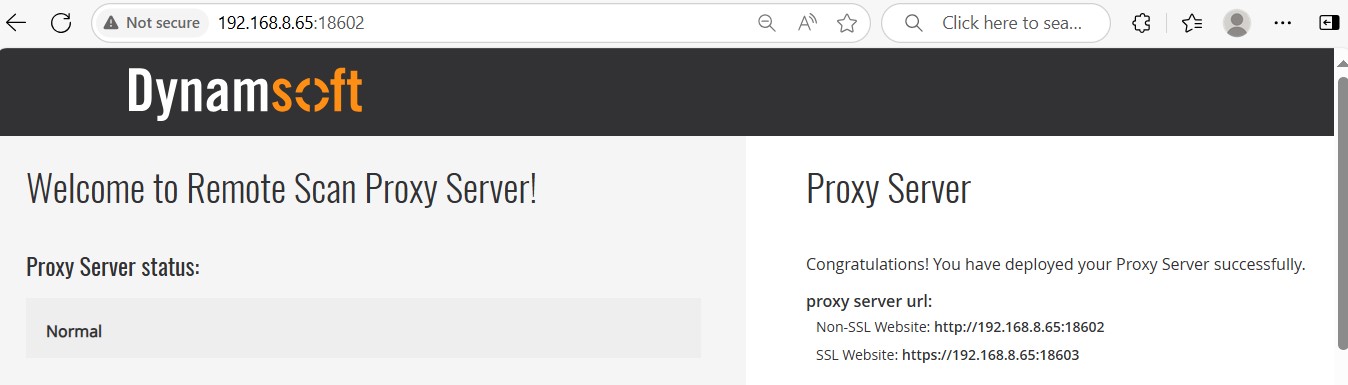
Choose File. If the SSL port is not configured, you don’t need to import the SSL certificate. - Click “UPDATE”. The server will restart automatically. After a few seconds, visit http://IP:Port, if you can see the following page, it means that the Proxy Server configuration is successful.
 Yes
Yes No
No