




Camera Control
This page introduces the main camera control features available in Dynamsoft Barcode Reader for Android. It explains how to manage focus behavior, configure zoom for small or distant barcodes, and enable additional camera enhancement features to improve scanning performance in specific scenarios.
Focus Control & Focus Modes
In most cases, the camera automatically determines when focus is needed and adjusts the focal length accordingly. This behavior is called continuous auto-focus. In addition, the camera view supports tap-to-focus, which allows the user to trigger auto-focus manually. When these default focus behaviors do not meet your requirements, you can use the methods described in this page to control focus more precisely.
Trigger an Auto-Focus
Use the following code to trigger auto-focus:
- Java
- Kotlin
mCamera.setFocus(new PointF(0.5f,0.5f));cameraEnhancer.setFocus(PointF(0.5f,0.5f))
Optionally, you can specify the focus mode when triggering auto-focus.
- FM_LOCKED: Lock the focal-length after this focus.
- FM_CONTINUOUS_AUTO: Allow the camera to adjust the focal-length automatically after this focus.
- Java
- Kotlin
mCamera.setFocus(new PointF(0.5f,0.5f), EnumFocusMode.FM_LOCKED); mCamera.setFocus(new PointF(0.5f,0.5f), EnumFocusMode.FM_CONTINUOUS_AUTO);cameraEnhancer.setFocus(PointF(0.5f,0.5f), EnumFocusMode.FM_CONTINUOUS_AUTO) cameraEnhancer.setFocus(PointF(0.5f,0.5f), EnumFocusMode.FM_LOCKED)
Enhanced Focus
Use this feature if your device has difficulty focusing.
- Java
- Kotlin
CameraEnhancer mCamera = new CameraEnhancer(this);
try {
   mCamera.enableEnhancedFeatures(EnumEnhancerFeatures.EF_ENHANCED_FOCUS);
} catch (CameraEnhancerException e) {
   throw new RuntimeException(e);
}
val mCamera = CameraEnhancer(this) mCamera.enableEnhancedFeatures(EnumEnhancerFeatures.EF_ENHANCED_FOCUS)
Related API
Auto-Zoom & Zoom Factor
Zoom control is commonly used when processing small barcodes or scanning from a long distance. There are two zoom control features:
- Auto-zoom: Lets the library determine whether to zoom in.
- Zoom factor: Lets you set the zoom factor directly. This is commonly used when focusing on small barcodes.
Auto Zoom
If your application mainly scans barcodes at a normal distance but also needs to recognize barcodes that are farther away, enabling auto-zoom is recommended.
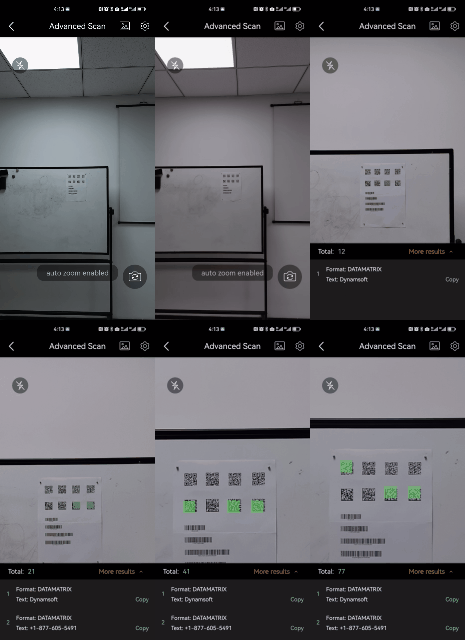
Auto Zoom
- Java
- Kotlin
CameraEnhancer mCamera = new CameraEnhancer(this);
try {
   mCamera.enableEnhancedFeatures(EnumEnhancerFeatures.EF_AUTO_ZOOM);
} catch (CameraEnhancerException e) {
   throw new RuntimeException(e);
}
val mCamera = CameraEnhancer(this) mCamera.enableEnhancedFeatures(EnumEnhancerFeatures.EF_AUTO_ZOOM)
Related API
Zoom Factor
If your application mainly targets small barcodes or barcodes that are far from the camera, it is recommended to control the zoom factor directly.
- Java
- Kotlin
CameraEnhancer mCamera = new CameraEnhancer(this);
mCamera.setZoomFactor(2.0f);
val mCamera = CameraEnhancer(this) mCamera.zoomFactor = 2.0f
Related API
Enhanced Features
| Feature | Description |
|---|---|
| EF_FRAME_FILTER | Filters blurry video frames using algorithm-based processing. It is usually unnecessary for standard barcode scanning unless you are facing significant accuracy issues. |
| EF_SENSOR_CONTROL | Filters video frames captured while the device is moving based on sensor data. It is usually unnecessary for standard barcode scanning unless you are facing significant accuracy issues. |
| EF_ENHANCED_FOCUS | Improves autofocus performance on older devices. If you enable this feature, it is recommended to use it only on older devices, as it may have a negative effect on cameras whose autofocus already works well. |
| EF_AUTO_ZOOM | Automatically zooms in to recognize barcodes that are far from the camera. |
| EF_SMART_TORCH | Provides a smart torch button prompt. When lighting conditions are poor, the torch button appears automatically. |
 Yes
Yes No
No