


 Blog
How to Build Custom Document Capture Workflows with the Dynamsoft API
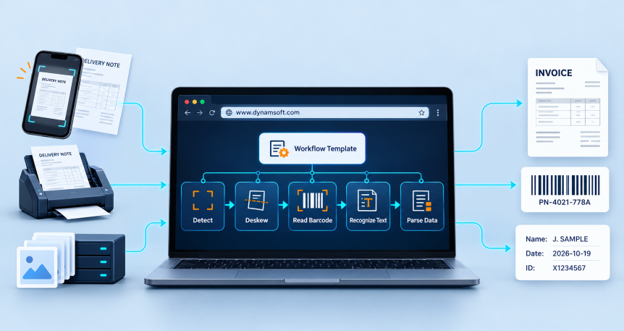
Dynamsoft provides API access for custom document capture workflows through its Capture Vision SDK, enabling developers to integrate document detection, deskewing, barcode reading, text recognition, and data parsing into a unified pipeline. The Capture Vision Router manages the pipeline by retrieving images from an input source, executing the tasks specified in a JSON template, and passing the results to the application code. For capturing documents from physical scanners in web applications, the Dynamic Web TWAIN SDK provides the acquisition layer.
Many capture projects begin with fixed applications that later require workarounds. This guide provides a step-by-step overview of the Capture Vision workflow API and presents three customizable capture pipelines for developers and IT teams.
Key Takeaways
- Dynamsoft offers API access to custom document capture workflows via its Capture Vision SDK and Capture Vision Router.
- A Dynamsoft Capture Vision workflow consists of three components: an image source, a JSON template that defines processing tasks, and result receivers that deliver output to the application code.
- Capture Vision templates let you chain tasks, so one task can use another’s output. For example, a barcode-reading task can target only areas next to specific text lines on a detected label.
- Many workflow changes, such as adding a task or adjusting regions of interest, can be made by editing the Capture Vision template without rewriting the input or output code.
- Dynamsoft Capture Vision processes images locally on the device or server. At runtime, it only contacts a license server, which does not receive images or extracted data.
- Dynamic Web TWAIN provides browser-based scanner control using TWAIN, WIA, ICA, SANE, and eSCL, with protocols that vary by operating system.
What makes document capture workflows difficult to standardize?
Standardizing document capture workflows is challenging because organizations use diverse image sources, document types, and systems. For example, logistics teams photograph delivery notes with phones, clinics scan intake packets with desktop scanners, and back offices process thousands of image files. Image quality varies, and each process requires different data, such as a barcode, a text line, a corrected image, or a combination.
Why do off-the-shelf capture tools fall short?
Off-the-shelf capture tools enforce a fixed processing sequence, limiting workflow customization. If an application only crops and saves, developers must integrate separate libraries for barcodes or text, increasing maintenance. Each additional library duplicates image analysis, adds deployment requirements, and increases the number of components requiring security checks.
How does the Dynamsoft Capture Vision workflow API work?
The document capture workflow API separates image sources, processing tasks, and result destinations so one engine can coordinate them all. In Dynamsoft Capture Vision, the Capture Vision Router handles this. It takes an image source, reads a parameter template that defines the tasks, runs those tasks in parallel or in sequence, and sends the results to one or more receivers.
In a Dynamsoft Capture Vision workflow, images go from the image source through the Capture Vision Router to the result receivers, and the JSON template tells the router which tasks run and in what order.
What are the components of a Capture Vision workflow?
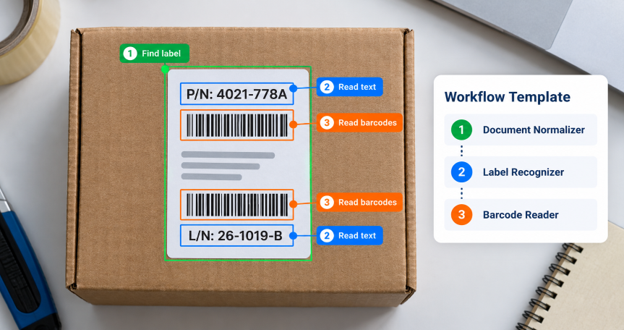
In Dynamsoft Capture Vision, the image source can be any object that implements the Image Source Adapter interface, for example, Dynamsoft Camera Enhancer for live video, the Directory Fetcher or File Fetcher for stored files, or a custom adapter. The JSON template defines the tasks and the areas of the images to which they are to be applied. The Capture Vision Router then assigns each task to the appropriate functional product: Document Normalizer detects and deskews documents, Barcode Reader decodes barcodes, Label Recognizer reads text lines, and Code Parser converts raw strings, such as text from a passport’s MRZ, into structured fields. Result receivers pass final results to application callbacks, and intermediate receivers provide checkpoint results for review or modification.
How do Capture Vision tasks share results?
In a Capture Vision workflow, individual task results are shared, allowing a barcode task to use image analysis already completed by a document task. The Capture Vision Router maintains a pool of functional product instances and starts processing the next image as soon as one becomes available.
How to build a workflow with the Dynamsoft Capture Vision API
To build a workflow with the Dynamsoft Capture Vision API, first define tasks in a JSON template. Next, connect an image source, the Capture Vision Router, and a result receiver within your application. This pattern is consistent across JavaScript, Android, iOS, C++, .NET, Java, and Python editions, making it easy to transfer concepts between platforms.
Step 1: Define the workflow in a JSON template
A Capture Vision template defines a workflow by assigning named tasks to regions of interest. Each region can reference another task’s output, specify settings such as Document Normalizer, Label Recognizer, or Barcode Reader, and declare dependencies and relative positions to other regions.
Example: chaining tasks on a product label
A product-label workflow demonstrates these dependencies. The first region runs a Document Normalizer task on the entire image to locate the label. The second region uses a Label Recognizer task within the label to read text lines. Two additional regions run Barcode Reader tasks above and below the recognized text lines. A TextLineFilteringCondition with a regular expression such as ^P/N links each barcode task to the corresponding line. The router parses these regions, builds a dependency graph, and executes tasks in sequence.
When should you use preset templates?
Teams that do not require custom logic can use preset templates such as ReadBarcodes_Default, DetectAndNormalizeDocument_Default, and RecognizeTextLines_Default. When custom settings are loaded with initSettings(), these presets are replaced. Therefore, custom template files must include any preset behavior required by the application.
Step 2: Connect the image source, router, and result receiver
To connect a Capture Vision workflow in code, use three router calls: setInput() to register the image source, addResultReceiver() to register the result receiver, and startCapturing() to run a named template on each image. The image source can be Dynamsoft Camera Enhancer for live video or any object that implements the Image Source Adapter interface. The result receiver provides callbacks for each result type, including decoded barcodes, recognized text lines, processed documents, parsed results, and the complete captured result.
How do you process a single image or scanned page?
For a single image, such as an uploaded file or scanned page, capture() runs a template once and returns the result directly. In the JavaScript edition, it accepts a Blob, image, canvas, video element, image data, or URL string. Three additional controls are important in production: switchCapturingTemplate() changes the active template during a session without restarting capture, MultiFrameResultCrossFilter cross-validates and de-duplicates results across video frames, and addResultReceiver() has been asynchronous since Capture Vision Bundle 3.4.2000, so current code should await it.
What custom capture pipelines can you build with the Dynamsoft API?
Custom capture pipelines built with the Dynamsoft API differ in three places: the image source, the template, and what the application does with the result. The three examples below cover a browser camera, a desktop scanner, and a server-side script.
Pipeline 1: How do you capture documents from a camera in the browser?
A browser camera capture pipeline detects document boundaries on live video frames and then applies perspective correction to the captured frame, entirely in the browser. At startup, the application activates the license, loads the Document Normalizer module, creates a Capture Vision Router, and loads a template file containing the DetectDocumentBoundaries_Default and NormalizeDocument_Default templates.
During scanning, the application passes each video frame to capture() with the detection template and draws the detected four-point boundary on screen. To avoid blurry captures, it compares consecutive boundaries and captures only after several stable frames. It then adjusts the normalization template at runtime with getSimplifiedSettings() and updateSettings(), setting the detected corner points as the region of interest, and runs that template on the captured frame to produce a deskewed page. Because detection and normalization run in the user’s browser, pages leave the device only when the application uploads them. The step-by-step tutorial builds the complete multi-page scanner with auto-capture, corner editing, and PDF export.
Pipeline 2: How do you extract MRZ data from passports and IDs on a desktop scanner?
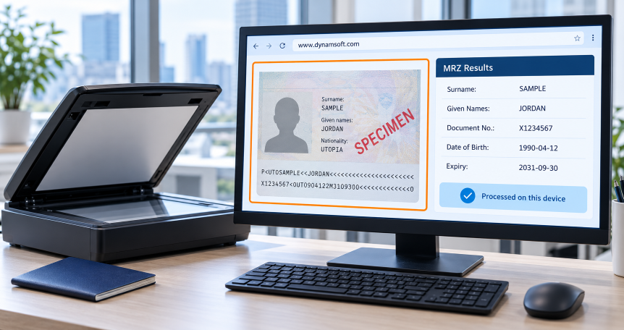
A scanner-based ID intake pipeline captures passports, ID cards, or visas using Dynamic Web TWAIN and extracts the machine-readable zone (MRZ) with the Dynamsoft MRZ Scanner, built on Label Recognizer and Code Parser. Dynamic Web TWAIN manages the scanner and stores scanned pages in its image buffer. The MRZ Scanner processes each page directly from this buffer, so it doesn’t require a camera. Pages may originate from a physical scanner or from local image and PDF files. Note that non-image-only PDFs require the PDF Rasterizer module included in the Web TWAIN license.
Proper scan settings are essential for this pipeline. Capture scans in color at 300 DPI, as MRZ recognition performs poorly on black-and-white images. Explicitly set feeder and duplex options, since omitting them can cause some scanner drivers to fail. To process a page, use a single launch() call with the image URL returned by Dynamic Web TWAIN’s GetImageURL(). The local Dynamic Web TWAIN Service serves this URL without additional cross-origin configuration. The output includes the parsed MRZ fields, a cropped and straightened image of the card or passport page, and the holder’s portrait if available.
Card scanners that crop tightly to the card’s edges leave no background for edge detection. For consistent cropping, add a border to pre-cropped scans before processing. The complete sample on GitHub demonstrates this border step and includes a custom MRZ template optimized for flatbed passports and small ID cards. For barcode-only indexing of scanned batches, Dynamic Web TWAIN provides a Barcode Recognition add-on.
Pipeline 3: How do you normalize multi-page files on a server?
A server-side normalization pipeline runs the preset PT_DETECT_AND_NORMALIZE_DOCUMENT template over every page of an input file and saves each corrected page as an image. In the Python edition, the application initializes the license, creates a CaptureVisionRouter, and calls capture_multi_pages() with the file path and preset template, returning one result per page. For each page, the processed document result contains enhanced document images, which the application writes to PNG files with the ImageIO class. For unattended batch jobs over a folder, the DirectoryFetcher image source feeds files to the router through set_input() and start_capturing().
How do the three pipelines compare?
The three pipelines differ mainly in image source and in where processing runs. The browser camera pipeline passes live video frames to capture() with the preset DetectDocumentBoundaries_Default and NormalizeDocument_Default templates and runs in the user’s browser.
The scanner ID pipeline sends Dynamic Web TWAIN page URLs to the MRZ Scanner’s launch() method using a custom MRZ template. This process operates in the user’s desktop browser with the local Dynamic Web TWAIN Service. The multi-page normalization pipeline passes a file path to capture_multi_pages() with the preset PT_DETECT_AND_NORMALIZE_DOCUMENT template and runs on your own server or desktop.
| Pipeline | Image Source | Template | Where Processing Runs |
|---|---|---|---|
| Browser camera capture | Live video frames passed to capture() | Presets: DetectDocumentBoundaries_Default, NormalizeDocument_Default | User’s browser |
| Scanner ID intake | Dynamic Web TWAIN page URLs passed to the MRZ Scanner’s launch() | Custom MRZ Scanner template | User’s desktop browser and local Dynamic Web TWAIN Service |
| Multi-page normalization | File path passed to capture_multi_pages() | Preset: PT_DETECT_AND_NORMALIZE_DOCUMENT | Your server or desktop |
What should you look for in a document capture API?
Assess a document capture API based on four key criteria: where data is processed, how it’s deployed, which platforms it supports, and how adaptable it is to your workflow. For regulated industries, prioritize security and data residency.
Data Residency: Where does document data go during processing?
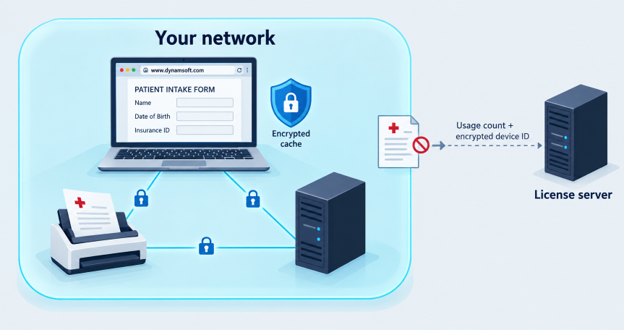
Document data should remain on the user’s device or within your network during processing. The vendor must specify exactly what data the software transmits. Request these specific controls instead of general assurances:
- Encryption in transit. Use HTTPS for all local and server traffic, ideally with your own certificate, to prevent interception of scanned images.
- Encryption at rest. Encrypt all image caches written to disk to prevent exposure if a workstation is shared or lost.
- Cache cleanup. Ensure cached data is deleted if the application closes unexpectedly to minimize residual data after a crash.
- Signed components. The vendor should digitally sign locally installed services so IT can verify their origin.
- Access authorization. Require authorization for access to local files or devices to prevent unauthorized file system access from web pages.
- License traffic. License checks must not include images or extracted data. Air-gapped sites should use offline or self-hosted licensing options.
Deployment: How is the capture software deployed?
Deploy capture software based on user needs: zero-install for mobile customers, managed installation for staff workstations, and standard packages for servers. Ensure IT can deploy required local components with existing enterprise tools and that browser libraries can be self-hosted instead of loaded from a public CDN.
Platform Coverage: Which platforms and devices should it cover?
A document capture API should support all entry points, including browsers, native mobile apps, desktop scanners, and servers. For scanners, verify protocol support for each operating system: TWAIN and WIA for Windows, ICA for macOS, and SANE for Linux.
Developer Experience: How fast can developers change a workflow?
Evaluate developer experience by how quickly teams can adapt workflows to new document types. Look for declarative configuration for behavior changes without code updates, preset templates for common tasks, access to intermediate results for debugging, and a trial that includes the full SDK.
How do Dynamsoft Capture Vision and Dynamic Web TWAIN meet these criteria?
Dynamsoft solutions cover both halves of a custom capture workflow: Dynamsoft Capture Vision handles image processing and data extraction, and Dynamic Web TWAIN handles acquisition from physical scanners in the browser. Each product meets the four criteria above in its own way.
Data residency and security.
Dynamsoft Capture Vision processes images on the device or server where it runs. The only Dynamsoft service the SDK contacts at runtime is the Dynamsoft License Server, which receives feature usage counts and an irreversibly encrypted device ID, never images or extracted data. The license server supports HTTPS, application binding, and session passwords; you can self-host it, and an offline license removes the connection entirely.
Dynamic Web TWAIN processes scans through the Dynamsoft Web TWAIN Service on the user’s machine and never routes documents through Dynamsoft servers. It provides built-in HTTPS with a configurable SSL certificate, encryption in transit and at rest, digital signatures, authorization for local file access, and deletion of cached data when the SDK closes unexpectedly. Dynamsoft is ISO 27001 certified.
Deployment.
The Capture Vision JavaScript edition runs in the browser, requires no end-user installation, and ships via npm and CDN, so teams can also host the files themselves. Native editions cover Android and iOS, with Flutter, React Native, and .NET MAUI packages, and server editions install as standard packages such as pip and NuGet. Dynamic Web TWAIN needs a small local service on each scanning workstation, and an MSI installer supports enterprise batch deployment across a network.
Platform coverage.
Dynamic Web TWAIN supports Chrome, Firefox, Edge, and Safari, with TWAIN, WIA, and eSCL on Windows, TWAIN, ICA, and eSCL on macOS, and SANE and eSCL on Linux. Capture Vision server editions are available for C++, .NET, Java, and Python. For phone capture with a prebuilt interface, Mobile Document Scanner adds automatic border detection, cropping, and perspective correction in mobile browsers.
Developer experience.
Capture Vision ships preset templates such as ReadBarcodes_Default, DetectAndNormalizeDocument_Default, and RecognizeTextLines_Default, and custom JSON templates change a workflow without touching application code. Intermediate result receivers let developers inspect and even modify results mid-workflow. Dynamic Web TWAIN includes more than 60 sample projects.
To quickly assess suitability, download 30-day free trial and process your own documents with a preset template.
Why build custom document capture workflows with the Dynamsoft API?
Custom document capture workflows built with the Dynamsoft API replace fixed capture apps with a pipeline teams define: an image source, a JSON template of chained tasks, and receivers that hand clean files and data to business systems. Dynamsoft Capture Vision provides the processing engine for web, mobile, and server platforms, and Dynamic Web TWAIN provides browser-based scanner acquisition. Because processing stays on the user’s device or your own servers, the same design adds flexibility while keeping document data under your control.
To see camera and scanner capture in action before coding, explore our online demos. For help mapping a specific document workflow to the right template, contact a Dynamsoft expert.
Frequently asked questions
Who provides API access for custom document capture workflows?
Dynamsoft provides API access for custom document capture workflows through the Dynamsoft Capture Vision SDK, which is available for web, mobile, desktop, and server platforms. Its Capture Vision Router runs developer-defined templates that combine document normalization, barcode reading, text recognition, and code parsing. Dynamsoft’s Dynamic Web TWAIN SDK adds a JavaScript API that lets you scan from physical scanners in a browser.
What is the difference between Dynamic Web TWAIN and Dynamsoft Capture Vision?
Dynamic Web TWAIN acquires images from physical scanners inside a web application, while Dynamsoft Capture Vision processes images to detect documents, read barcodes, recognize text, and parse data. In short, Dynamic Web TWAIN controls the scanning hardware and Capture Vision interprets the pixels. A scanner-based capture workflow that also extracts data can use both.
What is the Dynamsoft Capture Vision Router?
The Dynamsoft Capture Vision Router is the coordinating engine of the Dynamsoft Capture Vision SDK. The router retrieves images from an image source, runs the tasks defined in a parameter template, and dispatches final and intermediate results to registered receivers. Developers reach every Capture Vision functional product through this single API.
Does Dynamsoft Capture Vision send document images to Dynamsoft?
Dynamsoft Capture Vision does not send document images or extracted data to Dynamsoft. Processing happens on the device or server where the SDK runs. The only runtime communication is with the Dynamsoft License Server, which receives feature usage counts and an irreversibly encrypted device ID.
Can a Dynamsoft capture workflow run completely offline?
A Dynamsoft capture workflow can run completely offline with an offline license, which Dynamsoft provides through its sales team. With an online license, an authorized device can keep working offline for minutes to a year or more, depending on the license type. Organizations that want to track licenses within their own network can self-host the Dynamsoft License Server.
Is Dynamic Web TWAIN suitable for HIPAA-regulated environments?
Dynamsoft designs Dynamic Web TWAIN for regulated industries such as healthcare: scanned data stays within the customer’s network, communication is encrypted in transit and at rest, and the product is ISO 27001 and O-TTPS certified. HIPAA compliance depends on how the entire application stores and shares data, so the scanning layer is one part of an organization’s compliance review, not the whole.
Which platforms does the Dynamsoft Capture Vision SDK support?
The Dynamsoft Capture Vision SDK supports web browsers through JavaScript, Android and iOS natively, the Flutter, React Native, and .NET MAUI frameworks, and server or desktop development in C++, .NET, Java, and Python. The C++ edition runs on Windows and Linux. All editions share the same router, template, and receiver model.
Does Dynamic Web TWAIN work on macOS and Linux?
Dynamic Web TWAIN works on Windows, macOS, and Linux, but the supported scanner protocols differ by operating system. Windows supports TWAIN, WIA, and eSCL; macOS supports TWAIN, ICA, and eSCL; and Linux supports SANE and eSCL. Supported browsers include Chrome, Firefox, Edge, and Safari.
Do end users need to install software for Dynamsoft document capture?
End users don’t need to install software for camera-based capture with the Dynamsoft Capture Vision JavaScript edition or Mobile Document Scanner because both run in the browser. Scanner-based capture with Dynamic Web TWAIN requires the lightweight Dynamsoft Web TWAIN Service on each workstation because the SDK communicates with the scanner through that local service. IT teams can deploy that service at scale with Dynamsoft’s MSI installer.
Can a Capture Vision workflow change without code changes?
A Capture Vision workflow can change without code changes when the change lives in the JSON template, such as adding a task, limiting barcode formats, or adjusting regions of interest. The application loads the revised template with initSettings() and keeps its existing input and receiver code. Code updates are generally required when the application needs to process a new type of result.
When should you use Mobile Document Scanner instead of a custom workflow?
Dynamsoft Mobile Document Scanner fits when you need ready-made camera capture in mobile browsers, with a built-in interface that detects, crops, and corrects documents automatically. A custom Capture Vision workflow fits when you need the same capture also to yield data, such as a barcode value or parsed text, or when it must follow steps that the prebuilt scanner doesn’t include.