


 Blog
Blog
How to Scan Directly to Cloud Storage from the Browser: S3, Azure Blob, SharePoint, and Google Drive

Scanning directly to cloud storage from the browser means capturing a paper document with a physical scanner through a web application and immediately uploading it to a cloud repository such as Amazon S3, Azure Blob Storage, SharePoint, or Google Drive. This process uses a JavaScript scanning SDK that controls the scanner through a small local service and uploads the file via the cloud provider’s REST API, using a short-lived credential from your backend. The scanned file transfers from the user’s browser to the cloud without a desktop utility, watched folder, or manual saving.
This capability is important because document intake is often a weak point in digital workflows. Staff such as loan officers, clinic registrars, records clerks, and claims processors frequently handle paper documents while working in browser-based software. When scanners and web applications cannot communicate, staff must use a desktop scanning utility, save files locally, and upload them manually. This adds extra steps and creates unnecessary copies of sensitive data. This article explains how browser-based scanning works, how to implement it with four major cloud providers, and what to consider when choosing an SDK.
Key Takeaways
- Browser-based scan-to-cloud eliminates the need for a desktop scanning utility by allowing a web application to control the scanner and upload files directly to cloud storage in a single step.
- A JavaScript scanning SDK cannot access scanner hardware directly. Instead, it uses a lightweight local service that communicates with the scanner through native protocols such as TWAIN, WIA, ICA, SANE, or eSCL, making the scanner accessible to the web page.
- There are two primary upload methods: direct browser upload using a short-lived pre-assigned URL or SAS token, and relayed upload through your backend to keep cloud credentials secure.
- Amazon S3 and Azure Blob Storage accept a single authenticated PUT request. SharePoint requires an OAuth 2.0 access token via Microsoft Graph, while Google Drive requires an RFC 2387 multipart/related request body.
- Scanned documents should be processed locally on the end user’s machine and sent only to your designated destination. This approach supports compliance with HIPAA, financial services, and public sector requirements.
- Dynamic Web TWAIN processes all scanning locally on the end user’s machine. Dynamsoft does not receive, store, or route any document data.
Why is scanning to the cloud still a manual process in most organizations?

Scanning to the cloud is still manual in most organizations because scanner drivers and browsers were never designed to communicate. A flatbed or ADF scanner exposes itself to the operating system through a native protocol such as TWAIN on Windows, ICA on macOS, or SANE on Linux, and none of these protocols is reachable from JavaScript running inside a browser sandbox. The browser can accept a file the user selects, but it can’t tell a scanner to start a job.
This results in a user-driven workflow: the user opens the manufacturer’s scanning utility, scans the pages, saves the output locally with a self-chosen filename, returns to the web application, and uploads the file. Each step increases the risk of misfiling, inconsistent naming, or leaving sensitive documents on shared workstations.
What’s wrong with scan-to-folder and sync-client workflows?
Scan-to-folder and sync-client workflows are unreliable because they separate scanning from the business transaction the document belongs to. A file dropped into a synced OneDrive or Google Drive folder eventually reaches the cloud, but it arrives without a case number, patient ID, or link to the record that prompted the scan. Someone has to reconcile it later.
These workflows also create an undesirable data footprint. Scanned files reside on the local disk, in the sync client’s cache, and in the cloud, with local copies often persisting until manually deleted. In regulated environments, this means tracking three locations instead of one. Syncing also introduces latency, delaying document availability for colleagues.
How does browser-based scan-to-cloud actually work?
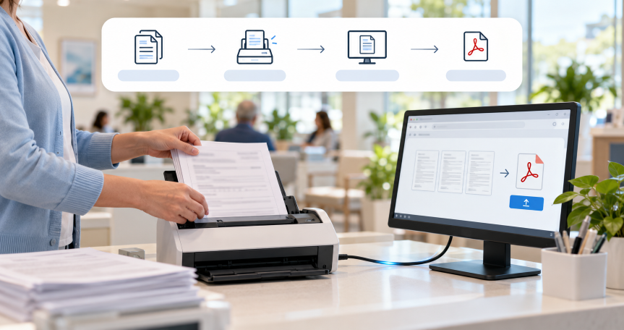
Browser-based scan-to-cloud operates in three stages: a local service acquires the image from the scanner, the JavaScript SDK converts the pages in the browser’s image buffer into a file object, and the web page uploads this object to the cloud provider’s REST API. The SDK does not bypass the browser sandbox; it communicates with the local service over a loopback connection, enabling hardware access without a plugin.
Step 1: Acquire the pages from the scanner
The web page tells the SDK to open the scanner selection dialog, pick a source, and start the scan, while the local service handles the technical negotiation with the device in the background. Dynamic Web TWAIN’s service listens to localhost port 18622 and 18625 for HTTP, and 18623 and 18626 for HTTPS. You can change these ports in the DDConfiguration.ini file, which matters if your network restricts which endpoints are allowed. In practice, this step is a single instruction that prompts the user to choose their scanner and then pull the captured pages into the browser, closing the scanner source automatically once the job finishes.
Step 2: Convert the scanned pages into a file object
Once the pages are held in the browser image buffer, the SDK packages them into a single file (a Blob) that any upload API can accept. You select all the scanned pages and choose an output format. If you scanned more than one page and want them in one file, use PDF or TIFF since the formats like JPEG or PNG saves each page a separate image. The result is one ready-to-upload file object that the next step sends to the cloud.
Step 3: Send the file to the cloud
At this stage, uploading is standard web development. The blob is sent in a fetch request to the provider’s endpoint, using the required credentials.
Should you upload directly from the browser or through your own backend?

Use direct browser upload if you want the file to bypass your servers. Use backend upload if you require validation, logging, or post-processing before storing the document. Both approaches are valid; the choice depends on how much control you want.
Direct upload is faster and more cost-effective because the file doesn’t pass through your infrastructure, but it relies on short-lived credentials. As Dynamsoft advises for Azure Blob Storage, direct uploads are secure only if tokens are strictly time-limited and scoped, as exposing long-lived tokens on the client is a security risk. Backend uploads keep cloud credentials server-side and allow OCR, barcode indexing, or virus scanning before storage.
How do you upload scanned documents to S3, Azure Blob, SharePoint, and Google Drive?
Each cloud provider accepts a scanned blob over HTTPS, but they differ in authorization methods and endpoint addresses. The following table and explanations summarize these differences.
| Cloud Target | Authorization | Upload Request | Documented single-request limit |
|---|---|---|---|
| Amazon S3 | Presigned URL generated by your backend | PUT to the presigned URL | 5 GB per single PUT |
| Azure Blob Storage | SAS token appended to the blob URL | PUT with x-ms-blob-type: BlockBlob | 5,000 MiB per Put Blob |
| SharePoint / OneDrive | OAuth 2.0 bearer token via Microsoft Graph | PUT to the drive item content endpoint | 250 MB |
| Google Drive | OAuth 2.0 bearer token | POST a multipart/related body to the Drive API | 5 MB for multipart |
- Amazon S3 uses a presigned URL generated by your backend. Uploads use a single PUT request to this URL. Any headers included during signing must also be present in the upload request, or the signature check will fail.
- Azure Blob Storage uses a Shared Access Signature appended to the blob URL as a query string. The request must include the x-ms-blob-type: BlockBlob header. Using a different blob type returns a 400 Bad Request. The Content-Type header is optional.
- SharePoint and OneDrive use an OAuth 2.0 bearer token for authorization. Files are uploaded through Microsoft Graph’s drive item content endpoint. A single call supports files up to 250 MB; larger files require an upload session.
- Google Drive also uses an OAuth 2.0 bearer token for authorization. The multipart endpoint expects an RFC 2387 multipart/related body, with JSON metadata first and the file second. This method supports files up to 5 MB; larger files require a resumable upload.
All four providers require CORS configuration on the bucket, container, or tenant before browser uploads are permitted. For Azure, include x-ms-blob-type in the allowed headers.
Amazon S3
Your backend generates a short-lived presigned URL for the file, and the browser sends the scanned file to that URL with a single PUT request. The one thing to watch: every header used when the URL was signed must be sent again on the upload, with exactly the same value, or S3 will reject the request with SignatureDoesNotMatch error. So, if your backend signs the URL with a content type, the upload must declare the same content type.
Azure Blob Storage
Your backend produces a SAS token, which is appended to the blob’s URL, and the browser uploads the file with PUT request to that address. Azure requires you to declare the blob type as BlockBlob on the request; sending a different type returns a 400 Bad Request. The content type is optional here.
SharePoint via Microsoft Graph
Uploads go through Microsoft Graph using an OAuth 2.0 bearer token for authorization. The browser sends the file with PUT request to the drive item’s content endpoint, specifying the target drive, folder, and filename. A single request handles up to 250 MB; anything bigger needs an upload session.
Google Drive
Google Drive also authorizes with an OAuth 2.0 bearer token, but it expects the request formatted as an RFC 2387 multipart/related body, meaning the file’s metadata (name, type, destination folder) comes first and the file itself comes second, separated by a boundary marker. The browser POSTs this combined body to the Drive upload endpoint. This multipart method works for files up to 5 MB; larger files require resumable upload.
What should you look for in a web scanning SDK for cloud workflows?
Evaluate a web scanning SDK based on five criteria: scanner protocol and platform coverage, security and data residency, deployment model, large-batch handling, and developer experience. Cloud upload is straightforward; the scanner integration is where products differ.
- Protocol and platform coverage: Confirm the SDK supports the protocols your users actually have, since TWAIN and WIA dominate on Windows, ICA is the native path on macOS, SANE is standard on Linux, and eSCL covers AirPrint-compatible network scanners and most modern MFPs without a driver install.
- Security and data residency: Ask where the image is processed, whether the local service communicates over HTTPS with a configurable certificate, whether installed binaries are code-signed, and what happens to cached data if the browser crashes mid-batch.
- Deployment model: Ensure the SDK offers a silent installer, since requiring users to set up many workstations manually isn’t practical for large deployments.
- Large-batch handling: Look for chunked upload and disk caching, as scanning large documents directly into browser memory can cause failures.
- Developer experience: Prioritize SDKs with framework support and working sample projects, as these resources demonstrate integration time more effectively than an API reference alone.
How Dynamsoft Dynamic Web TWAIN supports scanning direct to cloud storage

Dynamic Web TWAIN is a browser-based document scanning SDK that lets a web application control TWAIN, WIA, ICA, SANE, and eSCL scanners and export the result as a PDF, TIFF, JPEG, PNG, or BMP ready for cloud upload. Below is an overview of its capabilities based on the five criteria discussed above.
Protocol and platform coverage
Dynamic Web TWAIN supports eSCL, TWAIN, and WIA on Windows; eSCL, TWAIN, and ICA on macOS; and eSCL and SANE on Linux. It is compatible with Chrome, Firefox, Edge, and Safari browsers.
Security and data residency
All scanning is processed locally through the Dynamsoft Service on the end user’s machine, ensuring document data remains within your network. Dynamsoft does not receive, store, or route any document data. The product offers built-in HTTPS, configurable SSL certificates, encryption in transit and at rest, code-signed binaries, and sandbox isolation between the browser and scanner. Authorization is required for local file access, and cached data is automatically deleted if the SDK closes unexpectedly. Dynamic Web TWAIN is ISO 27001 and O-TTPS certified. A security whitepaper is available for your security team.
Deployment model
Dynamic Web TWAIN uses X-copy deployment and does not require server-side installation. The client service can be installed silently on Windows using msiexec /i “DynamicWebTWAINServiceSetup.msi” /qn and distributed across your organization via Group Policy.
Large-batch handling
Proprietary disk caching supports unlimited pages per session, and a 64-bit service mode manages large data volumes. Chunked, multi-threaded uploads transfer large files efficiently without affecting the user interface.
Developer experience
The SDK supports React, Vue, Angular, and plain JavaScript. It is available via npm and CDN, and includes over 60 sample projects.
Use the online demo to preview the capture process and run a full scan in your browser. When you’re ready to integrate your own cloud target, Dynamic Web TWAIN 30-day free trial gives you full SDK access without feature restrictions.
Where should you start with browser-based scan-to-cloud?
Begin with the scanning layer when implementing browser-based scan-to-cloud, as uploading is usually straightforward. Uploading a blob to S3, Azure Blob Storage, SharePoint, or Google Drive requires minimal code, but reliably acquiring pages from various scanners across Windows, macOS, and Linux is essential for production success.
Consider three key questions. First, confirm which protocols your users’ devices support. Environments with older flatbeds on Windows and AirPrint MFPs elsewhere require TWAIN, WIA, and eSCL.
Second, verify that scanned documents are processed locally and sent only to your chosen destination. Your security team will require this assurance.
Third, ensure the client service can install silently and deploy centrally. Manual setup on each workstation doesn’t scale.
Once you address these, you can implement the remaining workflow efficiently: capture, convert to a blob, and send an authenticated request.
To learn how this solution integrates with your cloud environment, contact a Dynamsoft solution expert for a walkthrough of your workflow and requirements.
Contact Dynamsoft Solution Expert
Try Document Scanner Online Demo
Frequently asked questions
Does browser-based scan-to-cloud require a plugin or a desktop application?
Browser-based scan-to-cloud does not require a browser plugin or separate desktop application, but it does require a small local service on the user’s machine. This service communicates with the scanner using its native protocol, as browsers cannot access scanner hardware directly. Users install the service once, and all web applications using the same SDK version can access it.
Does Dynamic Web TWAIN work in Chrome, and on macOS and Linux?
Dynamic Web TWAIN supports Chrome, Firefox, Edge, and Safari on Windows, macOS, and Linux. Protocol support varies by operating system: Windows uses eSCL, TWAIN, and WIA; macOS uses eSCL, TWAIN, and ICA; Linux uses eSCL and SANE. For mobile browsers, Dynamsoft Mobile Document Scanner uses the device camera instead of a hardware scanner.
Are scanned documents sent to Dynamsoft servers?
Scanned documents are not sent to Dynamsoft servers. Dynamic Web TWAIN processes all scanning locally through the Dynamsoft Service on the end user’s machine, ensuring document data remains within your network and chosen cloud destination. Dynamsoft never receives, stores, or routes scanned content.
Is browser-based scan-to-cloud suitable for HIPAA and other regulated environments?
Browser-based scan-to-cloud is suitable for regulated environments when the scanning layer retains data on the user’s machine and encrypts all transmissions. Dynamic Web TWAIN is designed for regulated industries: data remains within your network, communication is encrypted in transit and at rest, and the product is ISO 27001 and O-TTPS certified. Healthcare organizations such as Fujifilm and American HealthTech use it in production.
What is the difference between a presigned URL upload and a backend upload?
A presigned URL upload sends the scanned file directly from the browser to cloud storage using a temporary, limited-scope credential your backend generates. In contrast, a backend upload sends the file to your server first, which then writes it to storage using its own credentials. Presigned uploads reduce server load and latency, while backend uploads keep cloud credentials off the client and allow you to validate, log, or process documents before storage.
Can I upload a multi-page scan as a single file?
You can upload a multi-page scan as a single file if the output format is PDF or TIFF, as these formats support multiple pages. Formats like JPEG, PNG, and BMP store one image per file, so a ten-page scan results in ten uploads. For cloud archives, a multi-page PDF is typically the preferred default.
How is the scanning service deployed across many machines?
The scanning service is deployed at scale using its silent installer, rather than prompting each user. On Windows, administrators run msiexec /i “DynamicWebTWAINServiceSetup.msi” /qn and can distribute the package to all client machines through Group Policy or other software distribution tools. Silent installers are also available for macOS and Linux.