


Decode Barcodes and QR Codes from Uploaded Images in ASP.NET MVC 5
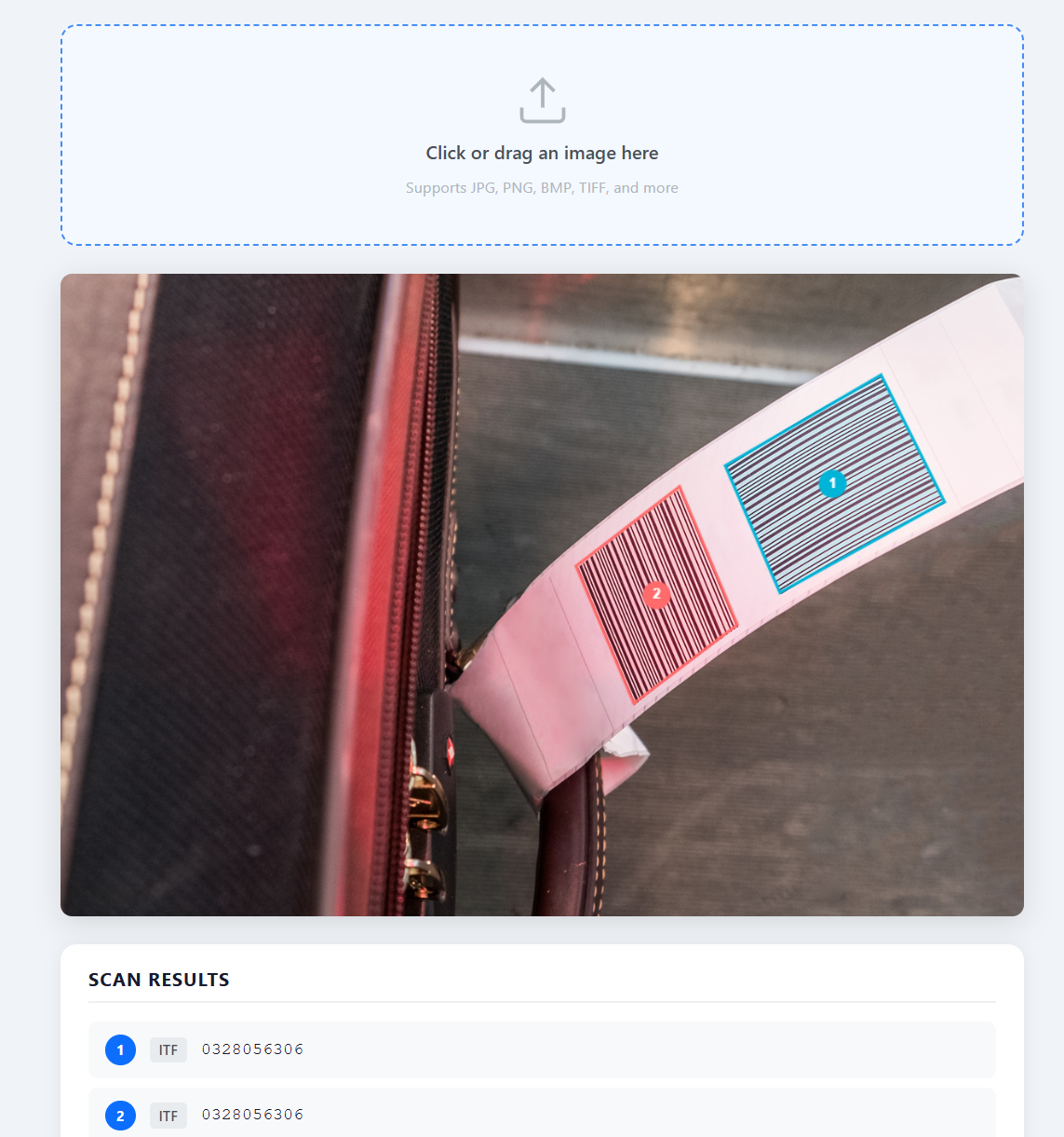
Reading barcodes and QR codes on the server side is a common requirement for document processing, inventory systems, and logistics applications. With the Dynamsoft Barcode Reader SDK and ASP.NET MVC 5 on .NET Framework 4.8, you can add accurate, multi-format barcode decoding to a web application in a few focused steps. The SDK’s CaptureVisionRouter API handles the heavy lifting on the backend, while a lightweight JavaScript frontend previews the image and draws color-coded overlays over every detected code.
What you’ll build: A responsive ASP.NET MVC 5 web application that accepts an uploaded image, decodes all barcodes and QR codes server-side using the Dynamsoft Barcode Reader SDK 11.4, and renders canvas overlays with format and text results in the browser.
This article is Part 2 in a 2-Part Series.
Key Takeaways
- This tutorial shows how to decode barcodes and QR codes from uploaded images in an ASP.NET MVC 5 application using Dynamsoft Barcode Reader SDK 11.4.
- The
CaptureVisionRouter.Capture()API reads multiple symbologies from one file, including QR Code, Code 128, PDF417, and DataMatrix. - The SDK returns four-corner coordinates for each result, which enables accurate canvas overlays after client-side image scaling.
- This server-side pattern fits document processing, inventory intake, and logistics workflows where images arrive over HTTP.
Common Developer Questions
How do I decode QR codes and barcodes from uploaded images in ASP.NET MVC 5?
Accept the uploaded file with a standard MVC form post, save it temporarily on the server, and pass the file path into CaptureVisionRouter.Capture() using the barcode preset template. The response can then return text, format, and corner coordinates so the browser can draw overlays on the preview image.
How do I install and configure Dynamsoft Barcode Reader in a .NET Framework 4.8 MVC project?
Install the Dynamsoft.DotNet.BarcodeReader.Bundle NuGet package, restore the dependencies, and initialize the license before creating a CaptureVisionRouter instance inside your controller. The bundle brings in the native binaries and the MVC project only needs the normal .NET Framework setup around it.
Why does LicenseManager.InitLicense return EC_LICENSE_CACHE_USED, and is it an error?
EC_LICENSE_CACHE_USED is not an error — it means the SDK accepted a cached offline license grant. The sample code treats it as a success path alongside EC_OK and continues decoding, serializing each barcode’s text, format string, and four-corner location to JSON for the browser overlay.
See the ASP.NET MVC Barcode and QR Code Reader Demo
Prerequisites
- .NET Framework 4.8 Developer Pack
- Visual Studio 2019 or later with the ASP.NET and web development workload
- NuGet CLI or the Visual Studio NuGet Package Manager
- A Dynamsoft Barcode Reader license key
Step 1: Install and Configure the SDK in ASP.NET MVC 5
Add the Dynamsoft.DotNet.BarcodeReader.Bundle NuGet package to the project. The bundle ships with native binaries for both x64 and x86 Windows, which are automatically copied to the output directory via the included MSBuild targets file.
<!-- packages.config -->
<packages>
  <package id="Dynamsoft.DotNet.BarcodeReader.Bundle" version="11.4.2000" targetFramework="net48" />
  <package id="Microsoft.AspNet.Mvc"      version="5.2.9" targetFramework="net48" />
  <package id="Newtonsoft.Json" version="13.0.3" targetFramework="net48" />
</packages>
Restore packages from the command line before the first build:
nuget restore MvcBarcodeQRCodeFramework.csproj -PackagesDirectory packages
Step 2: Enable Attribute Routing for the Upload Endpoint
The barcode upload endpoint uses MVC attribute routing ([Route("upload")]). Enable it in RouteConfig.cs before the conventional route:
public static void RegisterRoutes(RouteCollection routes)
{
    routes.IgnoreRoute("{resource}.axd/{*pathInfo}");

    // Enable attribute routing so [Route("upload")] works in FileController
    routes.MapMvcAttributeRoutes();

    routes.MapRoute(
        name: "Default",
        url: "{controller}/{action}/{id}",
        defaults: new { controller = "Home", action = "Index", id = UrlParameter.Optional }
    );
}
Step 3: Initialize the License and Decode Barcodes Server-Side
FileController accepts a multipart/form-data POST, saves each uploaded file to ~/App_Data/uploads/, initializes the license once per request, then calls CaptureVisionRouter.Capture() for each file. The decoded results — text, format string, and four-corner location — are serialized to JSON and returned to the browser.
using Dynamsoft.DBR;
using Dynamsoft.License;
using Dynamsoft.CVR;
using Dynamsoft.Core;

public class FileController : Controller
{
    [HttpPost]
    [Route("upload")]
    public ActionResult Upload()
    {
        var files = Request.Files;
        var uploadPath = Server.MapPath("~/App_Data/uploads");

        if (!Directory.Exists(uploadPath))
            Directory.CreateDirectory(uploadPath);

        string errorMsg;
        int errorCode = LicenseManager.InitLicense(
            "LICENSE-KEY",
            out errorMsg);

        if (errorCode != (int)EnumErrorCode.EC_OK &&
            errorCode != (int)EnumErrorCode.EC_LICENSE_CACHE_USED)
        {
            return Json(new { error = "License error: " + errorMsg });
        }

        var barcodes = new List<object>();

        using (var cvr = new CaptureVisionRouter())
        {
            for (int i = 0; i < files.Count; i++)
            {
                HttpPostedFileBase file = files[i];
                if (file == null || file.ContentLength == 0) continue;

                string fileName = Path.GetFileName(file.FileName);
                string filePath = Path.Combine(uploadPath, fileName);
                file.SaveAs(filePath);

                CapturedResult result = cvr.Capture(filePath, PresetTemplate.PT_READ_BARCODES);
                DecodedBarcodesResult barcodesResult = result.GetDecodedBarcodesResult();
                if (barcodesResult == null) continue;

                foreach (BarcodeResultItem item in barcodesResult.GetItems())
                {
                    var loc = item.GetLocation();
                    barcodes.Add(new
                    {
                        text   = item.GetText(),
                        format = item.GetFormatString(),
                        points = new[]
                        {
                            new { x = loc.points[0][0], y = loc.points[0][1] },
                            new { x = loc.points[1][0], y = loc.points[1][1] },
                            new { x = loc.points[2][0], y = loc.points[2][1] },
                            new { x = loc.points[3][0], y = loc.points[3][1] },
                        }
                    });
                }
            }
        }

        return Json(new { barcodes });
    }
}
PresetTemplate.PT_READ_BARCODES selects the SDK’s built-in multi-format template, which covers QR Code, Code 128, Code 39, PDF417, DataMatrix, Aztec Code, and many more without any additional configuration.
Step 4: Upload the Image and Draw Canvas Overlays in the Browser
The frontend uses a plain XMLHttpRequest to POST the file as multipart/form-data as soon as an image is selected or dropped. FileReader creates a data-URL preview, and once the server responds, each barcode’s four points are scaled from the image’s natural pixel dimensions to its rendered size and drawn as a filled, stroked quadrilateral on an absolutely-positioned <canvas> overlay.
function handleFile(file) {
    var reader = new FileReader();
    reader.addEventListener('load', function () {
        previewArea.style.display = 'flex';
        imageEl.src = reader.result;
        imageEl.onload = function () {
            syncCanvas();
            upload(file);
        };
    });
    reader.readAsDataURL(file);
}

function upload(file) {
    spinnerEl.style.display = 'flex';
    var formData = new FormData();
    formData.append('barcodeImage', file, file.name);

    var xhr = new XMLHttpRequest();
    xhr.open('POST', '/upload', true);
    xhr.onreadystatechange = function () {
        if (xhr.readyState !== 4) return;
        spinnerEl.style.display = 'none';
        if (xhr.status === 200) {
            try {
                showResults(JSON.parse(xhr.responseText));
            } catch (e) {
                showError('Failed to parse server response.');
            }
        } else {
            showError('Upload failed (HTTP ' + xhr.status + ').');
        }
    };
    xhr.send(formData);
}

var PALETTE = ['#00b4d8', '#ff6b6b', '#51cf66', '#fcc419', '#cc5de8', '#ff922b'];

function drawQuad(points, sx, sy, index) {
    var color = PALETTE[index % PALETTE.length];
    ctx.save();
    ctx.strokeStyle = color;
    ctx.lineWidth   = 2.5;
    ctx.fillStyle   = color + '30';
    ctx.beginPath();
    ctx.moveTo(points[0].x * sx, points[0].y * sy);
    for (var i = 1; i < points.length; i++)
        ctx.lineTo(points[i].x * sx, points[i].y * sy);
    ctx.closePath();
    ctx.fill();
    ctx.stroke();

    var cx = (points[0].x + points[1].x + points[2].x + points[3].x) / 4 * sx;
    var cy = (points[0].y + points[1].y + points[2].y + points[3].y) / 4 * sy;
    ctx.fillStyle = color;
    ctx.beginPath();
    ctx.arc(cx, cy, 12, 0, Math.PI * 2);
    ctx.fill();
    ctx.fillStyle = '#fff';
    ctx.font = 'bold 12px sans-serif';
    ctx.textAlign = 'center';
    ctx.textBaseline = 'middle';
    ctx.fillText(index + 1, cx, cy);
    ctx.restore();
}
sx and sy are scale factors computed as imageEl.offsetWidth / imageEl.naturalWidth (and the height equivalent), ensuring overlays remain in sync regardless of how the browser scales the image to fit the viewport.
Step 5: Build and Run with IIS Express
Build the project from the command line or open it in Visual Studio. To run without Visual Studio’s debug launcher, call IIS Express directly:
msbuild MvcBarcodeQRCodeFramework.csproj /p:Configuration=Debug /t:Build
"C:\Program Files\IIS Express\iisexpress.exe" /path:"%CD%" /port:62873
Then open http://localhost:62873/ in a browser, drop or select an image with barcodes, and results appear instantly.
Common Issues & Edge Cases
EC_LICENSE_CACHE_USEDon the first call: This is not an error — the SDK accepted a cached offline grant. The code already handles this by treatingEC_LICENSE_CACHE_USEDas a success path alongsideEC_OK.GetDecodedBarcodesResult()returnsnull: The image contains no recognizable barcodes, is too blurry, or the barcode region is too small for the selected preset template. Test with a high-resolution, well-lit scan before adjusting template parameters.- Canvas overlay shift after browser zoom or window resize: The
syncCanvas()function readsoffsetWidth/offsetHeightat upload time. If the window is resized after upload but before the response arrives, the overlay coordinates can be off. Re-triggersyncCanvas()inside theshowResultscallback to keep the canvas in sync (the sample already callssyncCanvas()at the start ofshowResults).
Conclusion
This project shows how straightforward it is to add multi-format barcode and QR code decoding to an existing ASP.NET MVC 5 application. The Dynamsoft Barcode Reader SDK 11.4 handles recognition server-side with a single CaptureVisionRouter.Capture() call, while the frontend draws precise quadrilateral overlays using the four-corner location data returned by the API. As a next step, explore the Dynamsoft Barcode Reader documentation to customize templates for specific barcode types or tune performance for high-throughput scenarios.