


How to Build a QR Code & Barcode Generator Chrome Extension in JavaScript (Manifest V3)
A barcode or QR Code generator can be incredibly useful for quickly sharing links, managing inventory, or encoding information. In this tutorial, we’ll walk you through building a Chrome extension that generates both 1D and 2D barcodes from the current webpage URL or user-inputted text.
What you’ll build: A Manifest V3 Chrome extension that generates QR codes and 1D barcodes from the active tab’s URL or any custom text — with download and clipboard support — built entirely in JavaScript using the offline-capable bwip-js library.
Key Takeaways
- A Manifest V3 Chrome extension can generate barcodes entirely offline using bwip-js bundled locally — external CDN scripts are blocked by Chrome’s Content Security Policy.
- Only the
activeTabpermission is required, keeping the extension privacy-friendly and straightforward to pass Chrome Web Store review. - bwip-js supports 13+ symbologies (QR Code, Code 128, EAN-13, PDF417, Data Matrix, and more) through a single
bwipjs.toCanvas()call. - The same architecture applies to any Chrome extension that needs to encode data into visual barcode formats without calling a remote API.
Common Developer Questions
How do I build a QR code generator Chrome extension in JavaScript?
Create a Manifest V3 extension with a popup UI, request only the activeTab permission, read the current tab URL when needed, and render the barcode into a canvas with bwip-js. This article keeps the whole workflow inside the popup, including generation, download, and clipboard copy.
Why can’t my Chrome extension load bwip-js from a CDN like jsDelivr?
Manifest V3 extensions are restricted by Chrome’s content security policy, so remote script loading is usually blocked for extension pages. Bundling bwip-js locally inside the extension package is the reliable way to keep barcode generation working offline and compliant with Web Store rules.
How do I use bwip-js to generate different barcode types in a Chrome popup?
Let the popup expose a barcode type selector, pass the selected symbology and input text into bwipjs.toCanvas(), and reuse the same canvas for QR Code, Code 128, EAN-13, PDF417, Data Matrix, and other formats. That single rendering API is what makes the popup easy to extend.
This article is Part 1 in a 3-Part Series.
- Part 1 - How to Build a QR Code & Barcode Generator Chrome Extension in JavaScript (Manifest V3)
- Part 2 - Build a JavaScript MRZ Generator Chrome Extension: ICAO-Compliant Test Data with Canvas API
- Part 3 - Build a Barcode & QR Code Scanner Chrome Extension with Manifest V3 (Camera, PDF, Screenshot)
Demo Video: 1D/2D Barcode Generator for Chrome
Chrome Extension Installation
The same generator also runs as a web page, which is handy for a quick test without installing anything: the online barcode & QR code generator renders 13 symbologies in the browser and exports them as a PNG.
What We’re Building
A Chrome extension that can:
- Generate QR codes from any webpage with one click
- Support mainstream barcode types (QR Code, EAN13, CODE128, PDF417, etc.)
- Allow manual text input for custom barcodes
- Download barcodes as PNG images
- Copy barcodes to clipboard
- Work completely offline with no data collection
Prerequisites
- bwip-js library for barcode generation
Step 1: Set Up the Extension Project Structure
Create a new directory for your extension:
mkdir barcode-generator-extension
cd barcode-generator-extension
Create the following file structure:
barcode-generator-extension/
├── manifest.json
├── popup.html
├── popup.css
├── popup.js
├── bwip-js.min.js
└── icons/
    ├── icon16.png
    ├── icon48.png
    └── icon128.png
Step 2: Define Permissions in manifest.json
The manifest.json is the heart of any Chrome extension. It defines metadata, permissions, and entry points.
Create manifest.json:
{
  "manifest_version": 3,
  "name": "Barcode & QR Code Generator",
  "version": "1.0",
  "description": "Generate 1D/2D barcodes from current page URL or custom text",
  "permissions": [
    "activeTab"
  ],
  "action": {
    "default_popup": "popup.html",
    "default_icon": {
      "16": "icons/icon16.png",
      "48": "icons/icon48.png",
      "128": "icons/icon128.png"
    }
  },
  "icons": {
    "16": "icons/icon16.png",
    "48": "icons/icon48.png",
    "128": "icons/icon128.png"
  }
}
Key Points:
manifest_version: 3- Uses the latest Manifest V3 specificationactiveTabpermission - Only accesses the current tab when user clicks the extensionaction.default_popup- Defines the popup HTML file
Step 3: Build the Popup UI in HTML
Create popup.html:
<!DOCTYPE html>
<html lang="en">
<head>
    <meta charset="UTF-8">
    <meta name="viewport" content="width=device-width, initial-scale=1.0">
    <link rel="stylesheet" href="popup.css">
    <title>Barcode Generator</title>
</head>
<body>
    <div class="container">
        <h1>Barcode Generator</h1>

        <div class="input-section">
            <div class="button-group">
                <button id="useUrl" class="btn btn-primary">Use Current URL</button>
                <button id="useManual" class="btn btn-secondary">Manual Input</button>
            </div>

            <div class="input-group">
                <label for="text">Text:</label>
                <input type="text" id="text" placeholder="Enter text or click 'Use Current URL'">
            </div>

            <div class="input-group">
                <label for="barcodeType">Barcode Type:</label>
                <select id="barcodeType">
                    <option value="qrcode">QR Code</option>
                    <option value="dotcode">Dotcode</option>
                    <option value="pdf417">PDF417</option>
                    <option value="maxicode">MaxiCode</option>
                    <option value="azteccode">AztecCode</option>
                    <option value="datamatrix">DataMatrix</option>
                    <option value="ean13">EAN13</option>
                    <option value="code128">CODE128</option>
                    <option value="code39">CODE39</option>
                    <option value="interleaved2of5">ITF</option>
                    <option value="msi">MSI</option>
                    <option value="pharmacode">Pharmacode</option>
                    <option value="rationalizedCodabar">Codabar</option>
                </select>
            </div>

            <button id="generate" class="btn btn-generate">Generate Barcode</button>
        </div>

        <div id="result" class="result-section" style="display: none;">
            <canvas id="barcodeCanvas"></canvas>
            <div class="action-buttons">
                <button id="download" class="btn btn-success">Download</button>
                <button id="copy" class="btn btn-info">Copy to Clipboard</button>
            </div>
        </div>

        <div id="error" class="error-message" style="display: none;"></div>
    </div>

    <script src="bwip-js.min.js"></script>
    <script src="popup.js"></script>
</body>
</html>
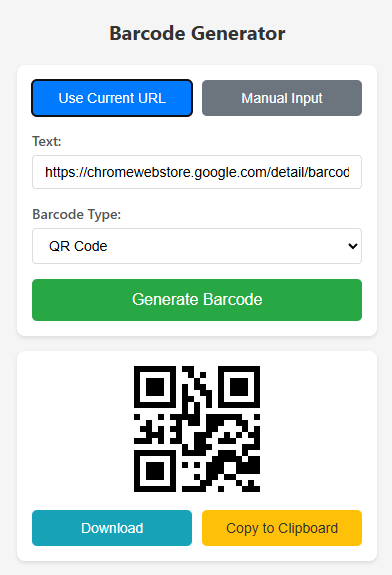
Step 4: Style the Popup with CSS
Create popup.css:
* {
    margin: 0;
    padding: 0;
    box-sizing: border-box;
}

body {
    width: 400px;
    font-family: 'Segoe UI', Tahoma, Geneva, Verdana, sans-serif;
    background: #f5f5f5;
}

.container {
    padding: 20px;
}

h1 {
    font-size: 20px;
    color: #333;
    margin-bottom: 20px;
    text-align: center;
}

.input-section {
    background: white;
    padding: 15px;
    border-radius: 8px;
    box-shadow: 0 2px 4px rgba(0,0,0,0.1);
    margin-bottom: 15px;
}

.button-group {
    display: flex;
    gap: 10px;
    margin-bottom: 15px;
}

.input-group {
    margin-bottom: 15px;
}

.input-group label {
    display: block;
    margin-bottom: 5px;
    font-size: 14px;
    color: #555;
    font-weight: 500;
}

.input-group input,
.input-group select {
    width: 100%;
    padding: 8px 12px;
    border: 1px solid #ddd;
    border-radius: 4px;
    font-size: 14px;
    transition: border-color 0.3s;
}

.input-group input:focus,
.input-group select:focus {
    outline: none;
    border-color: #007BFF;
}

.btn {
    padding: 10px 15px;
    border: none;
    border-radius: 5px;
    cursor: pointer;
    font-size: 14px;
    font-weight: 500;
    transition: all 0.3s;
}

.btn:hover {
    transform: translateY(-1px);
    box-shadow: 0 2px 8px rgba(0,0,0,0.15);
}

.btn-primary {
    background-color: #007BFF;
    color: white;
    flex: 1;
}

.btn-secondary {
    background-color: #6c757d;
    color: white;
    flex: 1;
}

.btn-generate {
    width: 100%;
    background-color: #28a745;
    color: white;
    padding: 12px;
    font-size: 16px;
}

.btn-success {
    background-color: #17a2b8;
    color: white;
    flex: 1;
}

.btn-info {
    background-color: #ffc107;
    color: #333;
    flex: 1;
}

.result-section {
    background: white;
    padding: 15px;
    border-radius: 8px;
    box-shadow: 0 2px 4px rgba(0,0,0,0.1);
    text-align: center;
}

#barcodeCanvas {
    max-width: 100%;
    height: auto;
    margin-bottom: 15px;
}

.action-buttons {
    display: flex;
    gap: 10px;
}

.error-message {
    background: #f8d7da;
    color: #721c24;
    padding: 12px;
    border-radius: 5px;
    border: 1px solid #f5c6cb;
    font-size: 14px;
    text-align: center;
}
Step 5: Implement Barcode Generation in JavaScript
Create popup.js:
// Helper functions
function getDefaultValue(barcodeType) {
    if (barcodeType === 'pharmacode') {
        return '12345';
    } else if (barcodeType === 'rationalizedCodabar') {
        return 'A1234567890B';
    } else {
        return '123456789012';
    }
}

function showError(message) {
    const errorDiv = document.getElementById('error');
    errorDiv.textContent = message;
    errorDiv.style.display = 'block';
    setTimeout(() => {
        errorDiv.style.display = 'none';
    }, 3000);
}

function showSuccess(message) {
    const resultDiv = document.getElementById('result');
    let successMsg = resultDiv.querySelector('.success-message');
    if (!successMsg) {
        successMsg = document.createElement('div');
        successMsg.className = 'success-message';
        successMsg.style.cssText = 'background: #d4edda; color: #155724; padding: 10px; border-radius: 5px; margin-top: 10px;';
        resultDiv.appendChild(successMsg);
    }
    successMsg.textContent = message;
    successMsg.style.display = 'block';
    setTimeout(() => {
        successMsg.style.display = 'none';
    }, 2000);
}

// Generate barcode
function generateBarcode() {
    const text = document.getElementById('text').value.trim();
    const barcodeType = document.getElementById('barcodeType').value;
    const canvas = document.getElementById('barcodeCanvas');
    const resultDiv = document.getElementById('result');

    if (!text) {
        showError('Please enter text or click "Use Current URL"');
        return;
    }

    try {
        bwipjs.toCanvas(canvas, {
            bcid: barcodeType,
            text: text,
            scale: 3,
            includetext: true,
        });

        resultDiv.style.display = 'block';
        document.getElementById('error').style.display = 'none';
    } catch (error) {
        showError('Error generating barcode: ' + error.message);
        resultDiv.style.display = 'none';
    }
}

// Download barcode
function downloadBarcode() {
    const canvas = document.getElementById('barcodeCanvas');
    const link = document.createElement('a');
    const barcodeType = document.getElementById('barcodeType').value;
    link.download = `barcode_${barcodeType}_${Date.now()}.png`;
    link.href = canvas.toDataURL();
    link.click();
    showSuccess('Barcode downloaded!');
}

// Copy to clipboard
async function copyToClipboard() {
    try {
        const canvas = document.getElementById('barcodeCanvas');
        const blob = await new Promise(resolve => canvas.toBlob(resolve));
        await navigator.clipboard.write([
            new ClipboardItem({ 'image/png': blob })
        ]);
        showSuccess('Barcode copied to clipboard!');
    } catch (error) {
        showError('Failed to copy to clipboard: ' + error.message);
    }
}

// Get current tab URL
async function getCurrentTabUrl() {
    try {
        const [tab] = await chrome.tabs.query({ active: true, currentWindow: true });
        return tab.url;
    } catch (error) {
        showError('Failed to get current URL: ' + error.message);
        return '';
    }
}

// Event listeners
document.getElementById('useUrl').addEventListener('click', async () => {
    const url = await getCurrentTabUrl();
    if (url) {
        document.getElementById('text').value = url;
        document.getElementById('barcodeType').value = 'qrcode';
    }
});

document.getElementById('useManual').addEventListener('click', () => {
    document.getElementById('text').value = '';
    document.getElementById('text').focus();
});

document.getElementById('generate').addEventListener('click', generateBarcode);

document.getElementById('download').addEventListener('click', downloadBarcode);

document.getElementById('copy').addEventListener('click', copyToClipboard);

document.getElementById('barcodeType').addEventListener('change', (e) => {
    const currentValue = document.getElementById('text').value;
    if (!currentValue || currentValue === getDefaultValue(e.target.value)) {
        document.getElementById('text').value = getDefaultValue(e.target.value);
    }
});

document.getElementById('text').addEventListener('keypress', (e) => {
    if (e.key === 'Enter') {
        generateBarcode();
    }
});

// Initialize
window.addEventListener('load', () => {
    const barcodeType = document.getElementById('barcodeType').value;
    document.getElementById('text').value = getDefaultValue(barcodeType);
});
Step 6: Bundle bwip-js Locally for CSP Compliance
Note: Chrome extensions cannot use external CDN libraries due to Content Security Policy (CSP). We need to include the library locally.
Download bwip-js:
curl -o bwip-js.min.js https://cdn.jsdelivr.net/npm/bwip-js@4.1.2/dist/bwip-js-min.js
Or manually download from bwip-js GitHub releases.
Step 7: Load and Test the Extension in Chrome
- Open Chrome and navigate to
chrome://extensions/ - Enable Developer mode (toggle in top-right corner)
- Click Load unpacked
- Select your extension folder
- The extension should now appear in your toolbar
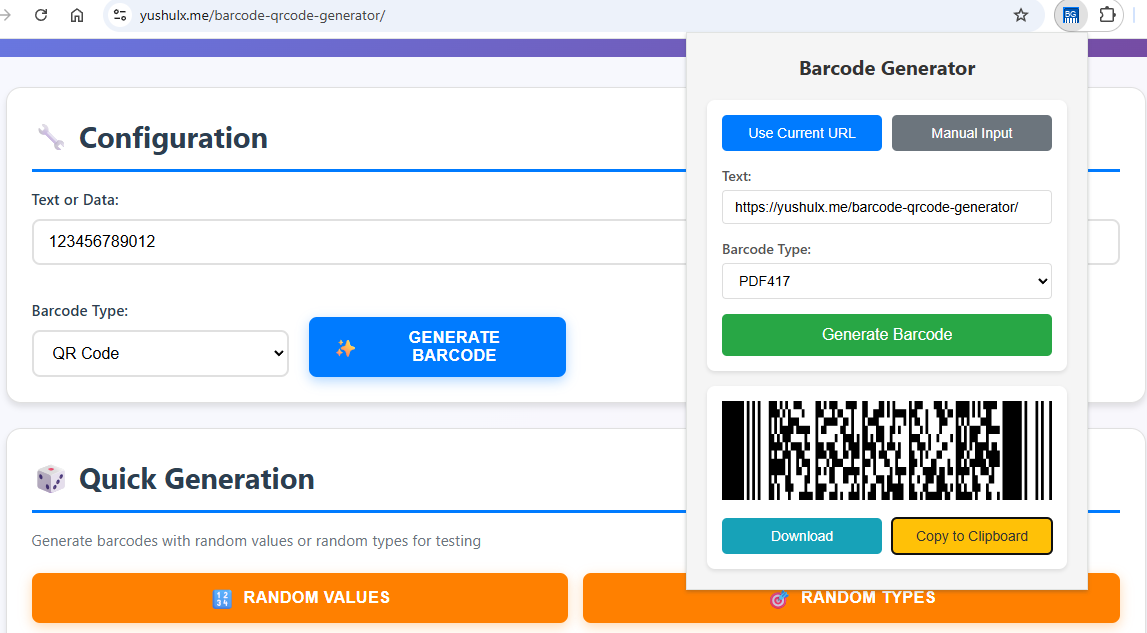
Test the features:
- Click the extension icon
- Click “Use Current URL” - it should populate the URL field
- Click “Generate Barcode” - a QR code should appear
- Try “Download” and “Copy to Clipboard” buttons
- Test different barcode types from the dropdown
Step 8: Package the Extension as a ZIP
Create a ZIP file with only the essential files:
zip -r barcode-extension.zip manifest.json popup.html popup.css popup.js bwip-js.min.js README.md icons/
Step 9: Publish to the Chrome Web Store
To submit your extension to the Chrome Web Store, follow these steps:
- Go to Chrome Web Store Developer Dashboard.
- Click “New Item”.
- Upload your ZIP file.
- Fill in Store listing (screenshots, description, categories), Privacy, and Distribution.
- Click Submit for Review (approval is typically 1–3 business days).

Common Issues & Edge Cases
- CSP blocks external scripts: Manifest V3 extensions forbid loading scripts from external CDNs at runtime. Always download
bwip-js.min.jsand bundle it locally — referencing ajsdelivr.netURL in<script src>will be blocked silently. - Invalid barcode input: Symbologies like EAN-13 require exactly 12 digits (the 13th check digit is computed automatically). If
bwipjs.toCanvas()throws, validate input length and character set before the call — for example, EAN-13 rejects letters or inputs shorter than 12 characters. - Clipboard API failure:
navigator.clipboard.write()requires a secure context. In some popup environments it may fail; always wrap it in atry/catchand display a user-friendly fallback message rather than silently failing.