


Integrate a Barcode Scanner in .NET MAUI HybridWebView
Starting from .NET 9, there is a new HybridWebView control in MAUI which makes it easy to host arbitrary HTML/JS/CSS content in a web view, and enables communication between the code in the web view (JavaScript) and the code that hosts the web view (C#/.NET).
In this article, we are going to talk about how to integrate a barcode scanner in .NET MAUI HybridWebView using Dynamsoft Barcode Reader’s JavaScript SDK. The app can run on Windows, Android and iOS from a single codebase.
What you’ll build: A cross-platform .NET MAUI app that hosts Dynamsoft Barcode Reader’s JavaScript SDK inside a HybridWebView, streams live camera video for barcode scanning, and passes detected results back to the native C# layer.
Key Takeaways
- .NET MAUI HybridWebView (available from .NET 9) lets you embed any HTML/JS/CSS UI — including a full barcode scanner — inside a native MAUI app.
- Dynamsoft Barcode Reader’s JavaScript SDK handles all barcode-decoding logic inside the web view, eliminating the need for a separate native barcode library.
- Two-way messaging between JavaScript and C# uses
HybridWebView.SendRawMessage/window.HybridWebView.SendRawMessage, keeping the integration lightweight. - Platform-specific WebView handlers are required on Android (to grant camera permission) and iOS (to enable inline media playback).
Common Developer Questions
How do I integrate a barcode scanner in .NET MAUI HybridWebView?
Host an HTML scanner page inside the HybridWebView, load Dynamsoft’s JavaScript barcode SDK in that page, and use MAUI only as the native shell around it. This keeps the barcode logic in reusable web code while still shipping as a native MAUI app.
How do I enable camera access inside a .NET MAUI WebView on Android and iOS?
Declare the normal platform camera permissions first, then customize the platform WebView handlers so Android grants camera permission requests and iOS allows inline media playback. Without those handler changes, the embedded scanner page can load but fail to open the camera correctly.
How do I pass barcode scan results from JavaScript to C# in a MAUI HybridWebView app?
Send the decoded barcode payload from JavaScript through the HybridWebView messaging bridge and handle that raw message on the C# side. The article uses the built-in MAUI message pipe so scan results can move from the web layer into native logic without extra networking.
Demo video:
This article is Part 1 in a 1-Part Series.

Prerequisites
Before you begin, ensure you have the following:
- Visual Studio 2022 with the .NET MAUI workload installed
- .NET 9 SDK
- A physical device or emulator with a camera (for Android/iOS testing)
- Get a 30-day free trial license for Dynamsoft Barcode Reader — you will need this to activate the SDK in the HTML page.
Quick links: Source code on GitHub · Jump to final HTML scanner page
HybridWebView vs. Native MAUI Wrappers for Barcode Scanning
When adding barcode scanning to a MAUI app you have two broad options:
| Approach | Pros | Cons |
|---|---|---|
| Native wrapper (e.g., binding a native Android/iOS barcode SDK) | Deep OS integration, fastest frame rate | Platform-specific code for each target, larger binary |
| HybridWebView + JS SDK (this tutorial) | Single JavaScript SDK covers all platforms, reuse existing web-based scanner UI | Camera permission wiring differs per platform, WebView overhead |
For teams already using Dynamsoft Barcode Reader’s JavaScript SDK in a web app, the HybridWebView approach lets you reuse that entire scanner page directly inside a MAUI shell with minimal changes.
Step 1: Create a New MAUI Project
Open Visual Studio to create a .NET MAUI app and select .NET 9 as the runtime.
In MainPage.xaml, add two buttons to control the scanner and a HybridWebView to host the scanner.
<?xml version="1.0" encoding="utf-8" ?>
<ContentPage xmlns="http://schemas.microsoft.com/dotnet/2021/maui"
             xmlns:x="http://schemas.microsoft.com/winfx/2009/xaml"
             x:Class="WebBarcodeScannerMAUI.MainPage">
    <Grid RowDefinitions="Auto,*"
          ColumnDefinitions="*">
        <StackLayout Orientation="Horizontal" HorizontalOptions="Center">
            <Button Text="Start Scanning"
                VerticalOptions="Center"
                HorizontalOptions="Center"
                />
            <Button Text="Stop Scanning"
                VerticalOptions="Center"
                HorizontalOptions="Center"
                />
        </StackLayout>

        <ScrollView Grid.Row="1">
            <HybridWebView x:Name="hybridWebView" />
        </ScrollView>
    </Grid>
</ContentPage>
Step 2: Set Up Camera Access
Declare Camera Permission
For Android, add the following to AndroidManifest.xml:
<uses-permission android:name="android.permission.CAMERA" />
For iOS, add the following to Info.plist:
<key>NSCameraUsageDescription</key>
<string>For barcode scanning</string>
Request Camera Permission
Request camera permission in MainPage.xaml.cs. This is needed for Android.
PermissionStatus status = await Permissions.RequestAsync<Permissions.Camera>();
Add Platform Handlers to Configure the WebView
Android
-
Create a
Platforms/Android/MyWebChromeClient.csfile to override theWebChromeClientclass to allow camera permission.namespace WebBarcodeScannerMAUI.Platforms.Android { public class MyWebChromeClient : WebChromeClient { private MainActivity _activity; public MyWebChromeClient(Context context) { _activity = context as MainActivity; } public override void OnPermissionRequest(PermissionRequest request) { try { request.Grant(request.GetResources()); base.OnPermissionRequest(request); } catch (Exception ex) { Console.WriteLine(ex); } } } } -
Create a handler under
Platforms/Android/MyHybridWebViewHandler.cs. It uses the Chrome client we just defined and set theMediaPlaybackRequiresUserGesturesetting of the web view to true so that we can directly open the camera when the web page is loaded.namespace WebBarcodeScannerMAUI.Platforms.Android { public class MyHybridWebViewHandler : HybridWebViewHandler { protected override global::Android.Webkit.WebView CreatePlatformView() { var view = base.CreatePlatformView(); view.Settings.MediaPlaybackRequiresUserGesture = false; var client = new MyWebChromeClient(this.Context); view.SetWebChromeClient(client); return view; } } } -
Use the handler in
MauiProgram.cs.var builder = MauiApp.CreateBuilder(); builder .UseMauiApp<App>() .ConfigureMauiHandlers(handlers => { #if ANDROID handlers.AddHandler<HybridWebView, WebBarcodeScannerMAUI.Platforms.Android.MyHybridWebViewHandler>(); #endif })
iOS
For iOS, we only need to define the handler under Platforms/iOS/MyHybridWebViewHandler.cs to update the settings of the web view.
namespace WebBarcodeScannerMAUI.Platforms.iOS
{
    public class MyHybridWebViewHandler : HybridWebViewHandler
    {
        protected override WebKit.WKWebView CreatePlatformView()
        {
            var view = base.CreatePlatformView();
            view.Configuration.AllowsInlineMediaPlayback = true;
            view.Configuration.MediaTypesRequiringUserActionForPlayback = WebKit.WKAudiovisualMediaTypes.None;
            return view;
        }
    }
}
Then use the handler in MauiProgram.cs.
   var builder = MauiApp.CreateBuilder();
   builder
       .UseMauiApp<App>()
       .ConfigureMauiHandlers(handlers =>
       {
   #if ANDROID
           handlers.AddHandler<HybridWebView, WebBarcodeScannerMAUI.Platforms.Android.MyHybridWebViewHandler>();
   #endif
   #if IOS
           handlers.AddHandler<HybridWebView, WebBarcodeScannerMAUI.Platforms.iOS.MyHybridWebViewHandler>();
   #endif
       })
How C# and JavaScript Communicate via HybridWebView
Understanding the two-way messaging bridge is essential before writing the scanner page.
Send a Message from C# to JavaScript
C#:
hybridWebView.SendRawMessage("stop");
JS:
window.addEventListener(
  "HybridWebViewMessageReceived",
  function (e) {
    console.log("Raw message: " + e.detail.message);
  }
);
Send a Message from JavaScript to C#
JS:
window.HybridWebView.SendRawMessage("message");
C#:
private void OnHybridWebViewRawMessageReceived(object sender, HybridWebViewRawMessageReceivedEventArgs e)
{
    MainThread.BeginInvokeOnMainThread(async () =>
    {
        await DisplayAlert("Message Received", e.Message, "OK");
    });
}
Step 3: Write a Web Barcode Scanner
Next, let’s write the web barcode scanner page that the HybridWebView will load.
-
Download the zip of Dynamsoft Barcode Reader. Unzip the distributable files under
Resources/raw.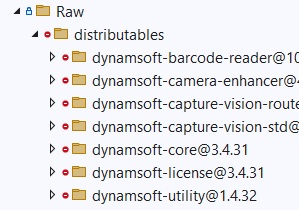
-
Create a new
index.htmlfile with the following content. It opens the barcode scanner which takes the entire part of the page. If it scans a barcode, send it to the C# side.<!DOCTYPE html> <html lang="en"> <head> <meta charset="utf-8" /> <meta name="viewport" content="width=device-width,initial-scale=1.0" /> <meta name="description" content="Quickly read barcodes with Dynamsoft Barcode Reader from a live camera stream." /> <meta name="keywords" content="barcode, camera" /> <title>Dynamsoft Barcode Reader Sample</title> <style> #camera-view-container { position: absolute; left: 0; top: 0; width: 100%; height: 100%; } body { margin: 0; padding: 0; overflow: hidden; } </style> </head> <body> <div id="camera-view-container"></div> <script src="./HybridWebView.js"></script> <script src="./distributables/dbr.bundle.js"></script> <script> window.addEventListener( "HybridWebViewMessageReceived", function (e) { console.log("Raw message: " + e.detail.message); if (e.detail.message === "stop") { stopScanning(); }else if (e.detail.message === "start") { startScanning(); } } ); /** LICENSE ALERT - README * To use the library, you need to first specify a license key using the API "initLicense()" as shown below. */ Dynamsoft.Core.CoreModule.engineResourcePaths.rootDirectory = "distributables"; Dynamsoft.License.LicenseManager.initLicense("LICENSE KEY"); /** * You can visit https://www.dynamsoft.com/customer/license/trialLicense?utm_source=samples&product=dbr&package=js to get your own trial license good for 30 days. * Note that if you downloaded this sample from Dynamsoft while logged in, the above license key may already be your own 30-day trial license. * For more information, see https://www.dynamsoft.com/barcode-reader/docs/web/programming/javascript/user-guide/index.html?ver=10.5.3000&cVer=true#specify-the-license&utm_source=samples or contact support@dynamsoft.com. * LICENSE ALERT - THE END */ // Optional. Used to load wasm resources in advance, reducing latency between video playing and barcode decoding. Dynamsoft.Core.CoreModule.loadWasm(["DBR"]); // Defined globally for easy debugging. let cameraEnhancer, cvRouter, cameraView; (async () => { try { // Create a `CameraEnhancer` instance for camera control and a `CameraView` instance for UI control. cameraView = await Dynamsoft.DCE.CameraView.createInstance(); cameraEnhancer = await Dynamsoft.DCE.CameraEnhancer.createInstance(cameraView); // Get default UI and append it to DOM. document.querySelector("#camera-view-container").append(cameraView.getUIElement()); // Create a `CaptureVisionRouter` instance and set `CameraEnhancer` instance as its image source. cvRouter = await Dynamsoft.CVR.CaptureVisionRouter.createInstance(); cvRouter.setInput(cameraEnhancer); // Define a callback for results. cvRouter.addResultReceiver({ onDecodedBarcodesReceived: (result) => { console.log(result); let barcodeResults = []; if (result.barcodeResultItems) { for (let i = 0; i < result.barcodeResultItems.length; i++) { let barcodeResult = result.barcodeResultItems[i]; let simpleResult = { barcodeText: barcodeResult.text, barcodeFormat: barcodeResult.formatString, }; barcodeResults.push(simpleResult); } }; console.log(barcodeResults); if (barcodeResults.length > 0) { // Send the results to the MAUI app. window.HybridWebView.SendRawMessage(JSON.stringify(barcodeResults)); } }, }); // Filter out unchecked and duplicate results. const filter = new Dynamsoft.Utility.MultiFrameResultCrossFilter(); // Filter out unchecked barcodes. filter.enableResultCrossVerification("barcode", true); // Filter out duplicate barcodes within 3 seconds. filter.enableResultDeduplication("barcode", true); await cvRouter.addResultFilter(filter); // Open camera and start scanning barcode. await cameraEnhancer.open(); cameraView.setScanLaserVisible(true); await cvRouter.startCapturing("ReadBarcodes_SpeedFirst"); } catch (ex) { let errMsg = ex.message || ex; console.error(errMsg); alert(errMsg); } })(); function stopScanning(){ cameraView.setScanLaserVisible(false); cvRouter.stopCapturing(); cameraEnhancer.close(); } async function startScanning(){ cameraView.setScanLaserVisible(true); await cameraEnhancer.open(); await cvRouter.startCapturing("ReadBarcodes_SpeedFirst"); } </script> </body> </html> -
Add a
HybridWebView.jsfile which is provided by Microsoft.window.HybridWebView = { "Init": function Init() { function DispatchHybridWebViewMessage(message) { const event = new CustomEvent("HybridWebViewMessageReceived", { detail: { message: message } }); window.dispatchEvent(event); } if (window.chrome && window.chrome.webview) { // Windows WebView2 window.chrome.webview.addEventListener('message', arg => { DispatchHybridWebViewMessage(arg.data); }); } else if (window.webkit && window.webkit.messageHandlers && window.webkit.messageHandlers.webwindowinterop) { // iOS and MacCatalyst WKWebView window.external = { "receiveMessage": message => { DispatchHybridWebViewMessage(message); } }; } else { // Android WebView window.addEventListener('message', arg => { DispatchHybridWebViewMessage(arg.data); }); } }, "SendRawMessage": function SendRawMessage(message) { window.HybridWebView.__SendMessageInternal('__RawMessage', message); }, "InvokeDotNet": async function InvokeDotNetAsync(methodName, paramValues) { const body = { MethodName: methodName }; if (typeof paramValues !== 'undefined') { if (!Array.isArray(paramValues)) { paramValues = [paramValues]; } for (var i = 0; i < paramValues.length; i++) { paramValues[i] = JSON.stringify(paramValues[i]); } if (paramValues.length > 0) { body.ParamValues = paramValues; } } const message = JSON.stringify(body); var requestUrl = `${window.location.origin}/__hwvInvokeDotNet?data=${encodeURIComponent(message)}`; const rawResponse = await fetch(requestUrl, { method: 'GET', headers: { 'Accept': 'application/json' } }); const response = await rawResponse.json(); if (response) { if (response.IsJson) { return JSON.parse(response.Result); } return response.Result; } return null; }, "__SendMessageInternal": function __SendMessageInternal(type, message) { const messageToSend = type + '|' + message; if (window.chrome && window.chrome.webview) { // Windows WebView2 window.chrome.webview.postMessage(messageToSend); } else if (window.webkit && window.webkit.messageHandlers && window.webkit.messageHandlers.webwindowinterop) { // iOS and MacCatalyst WKWebView window.webkit.messageHandlers.webwindowinterop.postMessage(messageToSend); } else { // Android WebView hybridWebViewHost.sendMessage(messageToSend); } }, "__InvokeJavaScript": async function __InvokeJavaScript(taskId, methodName, args) { try { var result = null; if (methodName[Symbol.toStringTag] === 'AsyncFunction') { result = await methodName(...args); } else { result = methodName(...args); } window.HybridWebView.__TriggerAsyncCallback(taskId, result); } catch (ex) { console.error(ex); window.HybridWebView.__TriggerAsyncFailedCallback(taskId, ex); } }, "__TriggerAsyncCallback": function __TriggerAsyncCallback(taskId, result) { const json = JSON.stringify(result); window.HybridWebView.__SendMessageInternal('__InvokeJavaScriptCompleted', taskId + '|' + json); }, "__TriggerAsyncFailedCallback": function __TriggerAsyncCallback(taskId, error) { if (!error) { json = { Message: "Unknown error", StackTrace: Error().stack }; } else if (error instanceof Error) { json = { Name: error.name, Message: error.message, StackTrace: error.stack }; } else if (typeof (error) === 'string') { json = { Message: error, StackTrace: Error().stack }; } else { json = { Message: JSON.stringify(error), StackTrace: Error().stack }; } json = JSON.stringify(json); window.HybridWebView.__SendMessageInternal('__InvokeJavaScriptFailed', taskId + '|' + json); } } window.HybridWebView.Init();
Step 4: Wire Up the Barcode Scanner in the MAUI App
In MainPage.xaml, define events for the buttons and the web view and set the default file for the web view to use the web page we wrote.
<StackLayout Orientation="Horizontal" HorizontalOptions="Center">
    <Button Text="Start Scanning"
        Clicked="OnStartScanButtonClicked"
        VerticalOptions="Center"
        HorizontalOptions="Center"
        />
    <Button Text="Stop Scanning"
        Clicked="OnStopScanButtonClicked"
        VerticalOptions="Center"
        HorizontalOptions="Center"
        />
</StackLayout>

<ScrollView Grid.Row="1">
    <HybridWebView x:Name="hybridWebView"
   RawMessageReceived="OnHybridWebViewRawMessageReceived"
   HybridRoot="" DefaultFile="index.html" />
</ScrollView>
In MainPage.xaml.cs, implement the events. When a barcode is scanned, stop the barcode scanner. The scanner can be started or stopped by the buttons.
private void OnHybridWebViewRawMessageReceived(object sender, HybridWebViewRawMessageReceivedEventArgs e)
{
    Debug.WriteLine(e.Message);
    MainThread.BeginInvokeOnMainThread(async () =>
    {
        hybridWebView.SendRawMessage("stop");
        await DisplayAlert("Barcode Results Received", e.Message, "OK");
    });
}

private void OnStartScanButtonClicked(object sender, EventArgs args)
{
    hybridWebView.SendRawMessage("start");
}

private void OnStopScanButtonClicked(object sender, EventArgs args)
{
    hybridWebView.SendRawMessage("stop");
}
Common Issues & Edge Cases
- Camera permission denied on Android: If
OnPermissionRequestis not called, verify yourMyWebChromeClientis correctly registered inMyHybridWebViewHandler. Check thatCAMERApermission is declared inAndroidManifest.xmland requested at runtime withPermissions.RequestAsync<Permissions.Camera>(). - Black camera preview on iOS: Ensure
AllowsInlineMediaPlayback = trueandMediaTypesRequiringUserActionForPlayback = WKAudiovisualMediaTypes.Noneare set in your iOS handler. Missing either setting causes the camera stream to fail silently. - License error on first launch: The Dynamsoft SDK must be initialized before
CameraEnhancerorCaptureVisionRouterare created. If you see a license exception, confirmLicenseManager.initLicense("YOUR_KEY")is called before the IIFE that creates those objects, and that the key has not expired.
Source Code
Get the full source code of the demo to have a try:
https://github.com/tony-xlh/MAUI-HybridWebView-Camera-Barcode-Scanner