


How to Extract Structured Data and Photos from Passports in JavaScript with Dynamsoft Capture Vision
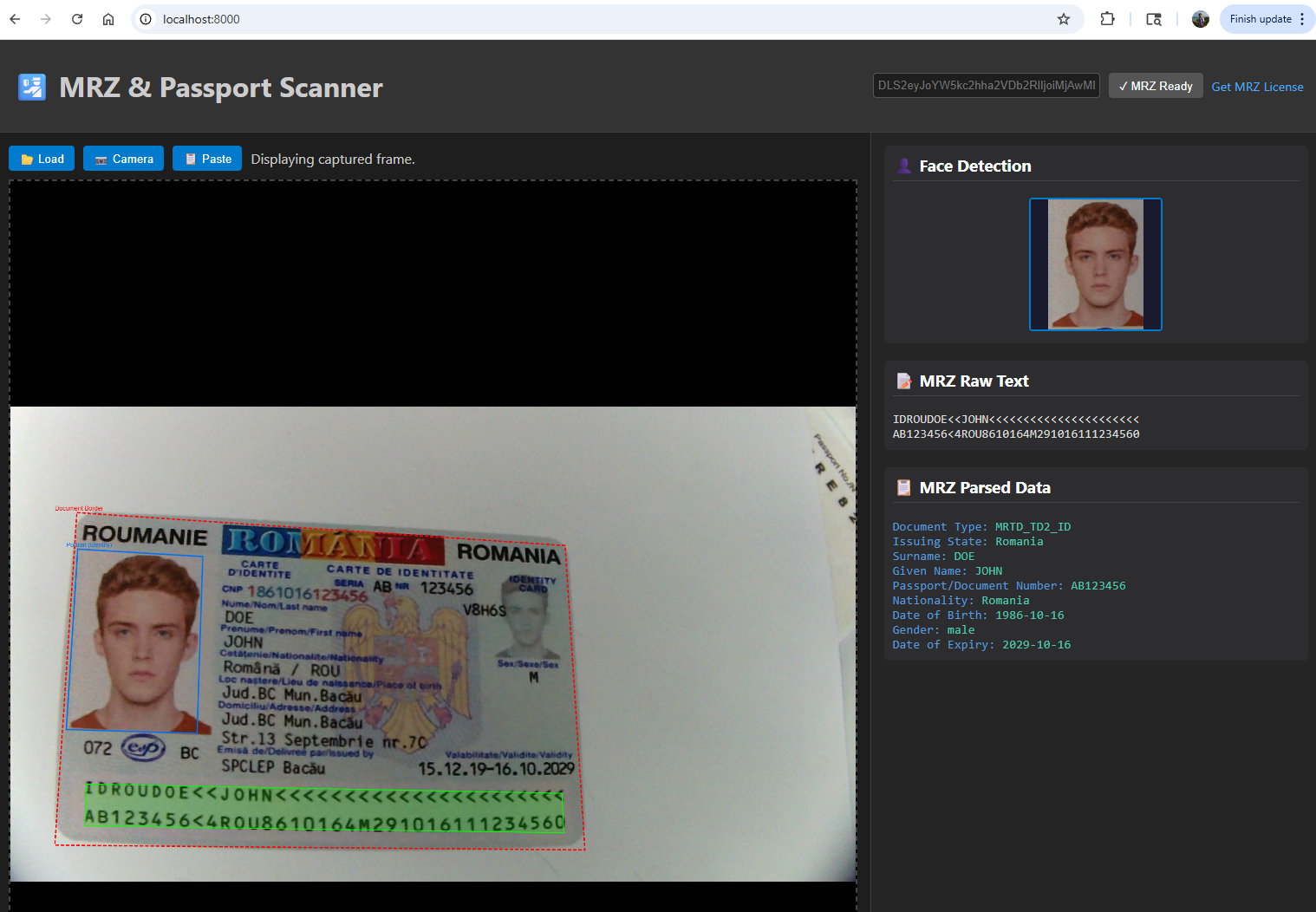
Passport onboarding, hotel check-in, and KYC flows usually need more than plain OCR. You need MRZ parsing, document localization, and a reliable portrait crop from the same capture pipeline, ideally in the browser without shipping data to a server. This sample uses Dynamsoft Capture Vision on the web to read passport and ID card MRZ data, draw document boundaries, and extract the portrait photo from uploaded images or a captured camera frame.
This article is Part 2 in a 4-Part Series.
- Part 1 - How to Build a Python MRZ Scanner with Passport Portrait and Face Extraction
- Part 2 - How to Extract Structured Data and Photos from Passports in JavaScript with Dynamsoft Capture Vision
- Part 3 - How to Build an Android Passport Scanner with MRZ and Portrait Detection
- Part 4 - How to Build an iOS MRZ Scanner with SwiftUI: Real-Time Passport and ID Card Recognition
What you’ll build: A plain JavaScript passport and ID scanner that uses Dynamsoft Capture Vision 3.4.2001 to extract MRZ text, structured fields, document borders, and portrait photos from uploaded images or a frozen camera frame.
Key Takeaways
- A single
ReadPassportAndIdcapture can return MRZ text lines, document borders, and the intermediate units needed for portrait extraction in the browser. dynamsoft-capture-vision-bundle@3.6.3200combinesCaptureVisionRouter,CodeParser, andIdentityProcessorto parse passport MRZ data from plain JavaScript.- Freezing the webcam frame before scanning reduces redundant capture calls and keeps the MRZ overlay and portrait crop aligned with one still image.
- This browser workflow fits passport onboarding, hotel registration, border control, and KYC verification flows that need structured identity data.
Common Developer Questions
How do I build a passport MRZ scanner in JavaScript that returns structured fields?
Initialize CaptureVisionRouter, load the MRZ specifications and the ReadPassportAndId template, then feed either an uploaded image or a frozen camera frame into the capture pipeline. The parsed MRZ content can then be converted into structured identity fields through CodeParser in the same browser session.
How do I extract a passport photo and document border from the same Dynamsoft Capture Vision result?
Use the same ReadPassportAndId capture result to read both the MRZ-related output and the intermediate document-location units that describe the border and portrait region. That is why this sample can draw the document outline and crop the face photo without performing a second scan.
Why does the ReadPassportAndId template fail after I load a custom JSON settings file?
The failure usually means the JSON settings file did not load correctly or did not expose the expected template name after initialization. This sample checks the initSettings() result and verifies that ReadPassportAndId is available before enabling scanning so template-loading problems surface immediately.
Live demo: Try the Online MRZ & Passport Scanner
Watch the JavaScript Passport Scanner Demo
Prerequisites
- A modern browser with camera and clipboard support
- A local web server such as Python’s built-in HTTP server
- Dynamsoft Capture Vision Bundle
3.4.2001 - A valid Dynamsoft license key for MRZ features
Get a 30-day free trial license
Step 1: Load the Dynamsoft Bundle and Build the Page Shell
The page uses a plain HTML layout with one image view, one camera view, an overlay canvas, and a face crop canvas.
<!DOCTYPE html>
<html lang="en">

<head>
    <meta charset="UTF-8">
    <meta name="viewport" content="width=device-width, initial-scale=1.0">
    <title>AI-Powered MRZ & Passport Scanner</title>
    <link rel="stylesheet" href="style.css">
    <!-- Dynamsoft Capture Vision Bundle for MRZ -->
    <script src="https://cdn.jsdelivr.net/npm/dynamsoft-capture-vision-bundle@3.6.3200/dist/dcv.bundle.min.js"></script>
    <!-- Face/Border detection powered by Dynamsoft IdentityProcessor (ReadPassportAndId template) -->
</head>

<body>
    <div class="app-container">
        <!-- Header / License Config -->
        <header>
            <h1>🛂 MRZ & Passport Scanner</h1>
            <div class="license-bar">
                <input type="text" id="licenseKey"
                    placeholder="LICENSE-KEY">
                <button id="initBtn">Initialize MRZ</button>
                <a href="https://www.dynamsoft.com/customer/license/trialLicense/?product=dcv&package=cross-platform"
                    target="_blank" rel="noopener noreferrer" class="trial-link">Get MRZ License</a>
            </div>
        </header>


        <!-- Main Content -->
        <main>
            <!-- Left Panel: Image Source & Display -->
            <section class="panel left-panel">
                <div class="toolbar">
                    <button id="btnLoad" title="Load Image" disabled>📂 Load</button>
                    <button id="btnCamera" title="Start Camera" disabled>📷 Camera</button>
                    <button id="btnPaste" title="Paste from Clipboard" disabled>📋 Paste</button>
                    <span id="status">Ready</span>
                </div>

                <div class="viewer-container" id="dropZone">
                    <div id="cameraView" class="hidden">
                        <canvas id="cameraOverlay"></canvas>
                    </div>
                    <div id="imageView" class="hidden">
                        <img id="displayImage" src="" alt="Input">
                        <canvas id="overlayCanvas"></canvas>
                    </div>
                    <div class="placeholder-text" id="placeholderText">
                        Drag & Drop Image Here<br>or Select Source
                    </div>
                </div>
            </section>
Step 2: Initialize Capture Vision and Load the MRZ Template
The initialization step loads the license, WASM modules, MRZ specifications, and the custom findPrecisePortraitZone.json template used by the ReadPassportAndId workflow.
els.initBtn.addEventListener('click', async () => {
    let key = els.licenseKey.value.trim();
    if (!key) {
        key = "LICENSE-KEY";
    }

    try {
        els.status.textContent = "Initializing MRZ SDK...";
        els.initBtn.disabled = true;

        // Initialize License
        await Dynamsoft.License.LicenseManager.initLicense(key, true);

        // Load WASM modules
        els.status.textContent = "Loading WASM modules...";
        await Dynamsoft.Core.CoreModule.loadWasm(["DLR", "DDN"]);

        // Create Code Parser for MRZ parsing
        parser = await Dynamsoft.DCP.CodeParser.createInstance();

        // Load MRZ specs
        els.status.textContent = "Loading MRZ specs...";
        await Dynamsoft.DCP.CodeParserModule.loadSpec("MRTD_TD1_ID");
        await Dynamsoft.DCP.CodeParserModule.loadSpec("MRTD_TD2_FRENCH_ID");
        await Dynamsoft.DCP.CodeParserModule.loadSpec("MRTD_TD2_ID");
        await Dynamsoft.DCP.CodeParserModule.loadSpec("MRTD_TD2_VISA");
        await Dynamsoft.DCP.CodeParserModule.loadSpec("MRTD_TD3_PASSPORT");
        await Dynamsoft.DCP.CodeParserModule.loadSpec("MRTD_TD3_VISA");

        // Preload the custom MRZ recognition models referenced by the sample settings file.
        await Dynamsoft.CVR.CaptureVisionRouter.appendDLModelBuffer([
            "MRZCharRecognition",
            "MRZTextLineRecognition"
        ]);

        // Create Capture Vision Router
        cvr = await Dynamsoft.CVR.CaptureVisionRouter.createInstance();

        // Load MRZ template
        const settingsResult = await cvr.initSettings("./findPrecisePortraitZone.json?t=" + new Date().getTime());
        if (settingsResult?.errorCode && settingsResult.errorCode !== 0) {
            throw new Error(`Template load failed: ${settingsResult.errorString || settingsResult.errorCode}`);
        }

        const hasReadPassportAndId = await cvr.checkTemplateNameValidity("ReadPassportAndId");
        if (!hasReadPassportAndId) {
            const templateNames = await cvr.getTemplateNames();
            throw new Error(
                `Template ReadPassportAndId is not available after loading findPrecisePortraitZone.json. Available templates: ${templateNames.join(", ")}`
            );
        }

        isMRZReady = true;

        if (typeof faceProcessor !== 'undefined') {
            await faceProcessor.setCVR(cvr);
        }
The JSON template is where the sample ties MRZ reading to document detection and normalization.
{
  "CaptureVisionTemplates": [
    {
      "Name": "ReadPassportAndId",
      "ImageROIProcessingNameArray": [
        "roi_passport_and_id"
      ],
      "SemanticProcessingNameArray": [
        "sp_passport_and_id"
      ],
      "OutputOriginalImage": 1,
      "MaxParallelTasks": 0,
      "Timeout": 20000
    }
  ],
  "TargetROIDefOptions": [
    {
      "Name": "roi_passport_and_id",
      "TaskSettingNameArray": [
        "task_passport_and_id",
        "task-detect-and-normalize-document"
      ]
    }
  ]
}
Step 3: Process Uploaded Images and Parse MRZ Text
For still images, the app loads the image into the UI first, clears the previous intermediate results, runs cvr.capture(), and then parses the concatenated MRZ text.
function loadImage(base64Image, captureSource = null) {
    currentImageCaptureSource = captureSource ?? base64Image;
    els.displayImage.src = base64Image;
    els.placeholderText.classList.add('hidden');
    els.imageView.classList.remove('hidden');
    els.cameraView.classList.add('hidden');

    els.displayImage.onload = async () => {
        resizeCanvas();
        els.status.textContent = "Processing...";
        clearResults();

        // Show spinner
        els.loadingSpinner.classList.add('visible');

        const ctx = els.overlayCanvas.getContext('2d', { willReadFrequently: true });
        ctx.clearRect(0, 0, els.overlayCanvas.width, els.overlayCanvas.height);

        try {
            // Run MRZ detection (only if license is initialized)
            if (isMRZReady && cvr) {
                try {
                    // Clear previous intermediate results so IdentityProcessor
                    // only sees data from this capture call
                    if (typeof faceProcessor !== 'undefined') {
                        faceProcessor.clearIntermediateResults();
                    }

                    // Use ReadPassportAndId template: one capture returns MRZ text,
                    // document border (DetectedQuad), and intermediate units for
                    // IdentityProcessor.findPortraitZone()
                    const captureSource = currentImageCaptureSource ?? els.displayImage;
                    const result = await cvr.capture(captureSource, "ReadPassportAndId");
                    const items = result.items || [];

                    let mrzTexts = [];
                    for (const item of items) {
                        if (item.type === Dynamsoft.Core.EnumCapturedResultItemType.CRIT_TEXT_LINE) {
                            mrzTexts.push(item.text);

                            // Draw overlay and capture MRZ zone
                            const location = item.location;
                            if (location && location.points) {
                                drawOverlay(location);
                            }
                        }
                    }

                    if (mrzTexts.length > 0) {
                        // Display raw MRZ text with newlines for readability
                        els.mrzRawText.textContent = mrzTexts.join('\n');

                        // Parse MRZ - join all lines into single string (no separators)
                        // TD3 passport has 2 lines of 44 chars each = 88 chars total
                        const mrzForParsing = mrzTexts.map(t => t.trim()).join('');

                        const parseResults = await parser.parse(mrzForParsing);
                        displayParsedMrz(parseResults);
                    } else {
                        els.mrzRawText.textContent = "No MRZ detected.";
                        els.mrzResults.textContent = "No MRZ detected.";
                    }

                    // Process face/border from the same captured result
                    if (typeof faceProcessor !== 'undefined') {
                        await faceProcessor.processCapturedResult(
                            result, els.displayImage, els.faceCropCanvas, els.overlayCanvas
                        );
                    }
Step 4: Draw Document Borders and Portrait Crops from One Capture Result
The helper class uses the same CapturedResult to locate the document quadrilateral, call IdentityProcessor.findPortraitZone(), and draw the cropped portrait.
async processCapturedResult(capturedResult, imageElement, faceCanvas, canvasOverlay) {
    if (!this.isInitialized) {
        this._clearFaceCanvas(faceCanvas);
        return;
    }

    let detectedQuad = null;
    let portraitZone = null;

    try {
        // 1. Extract detected document border from captured result items
        if (capturedResult && capturedResult.items) {
            for (const item of capturedResult.items) {
                if (item.type === Dynamsoft.Core.EnumCapturedResultItemType.CRIT_DETECTED_QUAD) {
                    detectedQuad = item;
                    break;
                }
            }
        }

        // 2. Find portrait zone using the same unit group assembly as the Python reference.
        portraitZone = await this.findPortraitZoneForCapturedResult(capturedResult);

        // 3. Draw document border
        if (detectedQuad) {
            const { width: srcW, height: srcH } = this._getSourceDimensions(imageElement);
            this.drawDocumentBorder(detectedQuad, canvasOverlay, srcW, srcH);
        }

        // 4. Draw portrait zone and crop
        if (portraitZone) {
            this.drawAndCropPortrait(portraitZone, imageElement, faceCanvas, canvasOverlay);
        } else {
            this._clearFaceCanvas(faceCanvas);
        }

    } catch (e) {
        console.error('FaceProcessor error:', e);
        this._clearFaceCanvas(faceCanvas);
    }
}
drawAndCropPortrait(portraitZone, sourceImage, faceCanvas, canvasOverlay) {
    const pts = portraitZone.points;
    if (!pts || pts.length < 4) return;

    const { width: imgW, height: imgH } = this._getSourceDimensions(sourceImage);

    const clamped = this._clampPoints(pts, imgW, imgH);

    this._drawQuad(clamped, canvasOverlay, 'Portrait (Identity)', false, '#0070f3');
    if (!this._drawPortraitQuadCrop(sourceImage, clamped, faceCanvas)) {
        this._clearFaceCanvas(faceCanvas);
        return;
    }
Step 5: Freeze the Camera Frame Before Scanning
Instead of scanning every live frame, this sample freezes the current camera image first, shows it immediately, and then runs MRZ and portrait detection on that frozen canvas.
async function captureAndFreezeCamera() {
    const video = els.cameraView.querySelector('video');
    if (!video || video.readyState < 2 || !video.videoWidth || !video.videoHeight) {
        els.status.textContent = "Camera frame is not ready yet.";
        return;
    }

    const frameCanvas = document.createElement('canvas');
    frameCanvas.width = video.videoWidth;
    frameCanvas.height = video.videoHeight;
    const frameCtx = frameCanvas.getContext('2d', { willReadFrequently: true });
    frameCtx.drawImage(video, 0, 0, frameCanvas.width, frameCanvas.height);
    const frozenFrameDataUrl = frameCanvas.toDataURL('image/jpeg', 0.95);

    isCameraRunning = false;

    if (els.cameraOverlay) {
        const ctx = els.cameraOverlay.getContext('2d', { willReadFrequently: true });
        ctx.clearRect(0, 0, els.cameraOverlay.width, els.cameraOverlay.height);
    }

    if (videoStream) {
        videoStream.getTracks().forEach(track => track.stop());
        videoStream = null;
    }
    video.srcObject = null;

    document.getElementById('btnCamera').textContent = "📷 Camera";
    els.cameraView.classList.add('hidden');
    els.imageView.classList.remove('hidden');
    els.status.textContent = "Processing captured frame...";
    clearResults();
    els.loadingSpinner.classList.add('visible');

    lastCameraResult = {
        base64Image: frozenFrameDataUrl,
        mrzTexts: [],
        mrzLocations: [],
        detectedQuad: null,
        portraitZone: null
    };

    try {
        await showCapturedCameraFrame(frozenFrameDataUrl);

        if (isMRZReady && cvr) {
            try {
                if (typeof faceProcessor !== 'undefined') {
                    faceProcessor.clearIntermediateResults();
                }

                const result = await cvr.capture(frameCanvas, "ReadPassportAndId");
Common Issues & Edge Cases
- Template mismatch: The app explicitly checks that
ReadPassportAndIdexists aftercvr.initSettings(). If the JSON path is wrong or the template name changes, initialization fails before scanning starts. - Stale portrait data: The code clears intermediate results before every
cvr.capture()call. If you remove that step, portrait extraction can use units from a previous image or frame. - Camera not ready:
captureAndFreezeCamera()checksvideo.readyState,video.videoWidth, andvideo.videoHeight. If the preview has not finished loading, the function exits early instead of scanning an empty frame.
Apply This Browser MRZ Workflow to Real Onboarding Flows
This project builds a browser MRZ scanner that can read passport and ID data, draw document borders, and crop portrait photos from the same Dynamsoft capture pipeline. It uses Dynamsoft Capture Vision in plain JavaScript, plus a custom template that combines MRZ recognition with document normalization. A natural next step is to adapt the same capture result to your onboarding form, back-office verification flow, or a production UI built with your preferred framework.