


How to Build a VSCode Extension with Angular Snippets for Document Scanning Using Dynamic Web TWAIN
You can migrate Dynamic Web TWAIN’s JavaScript document-scanning samples to Angular TypeScript components and package them as a VSCode extension that provides code snippets and a ready-to-use project template. This lets Angular developers scaffold document scanning and editing apps without rewriting the official samples from scratch.
This article is Part 2 in a 2-Part Series.
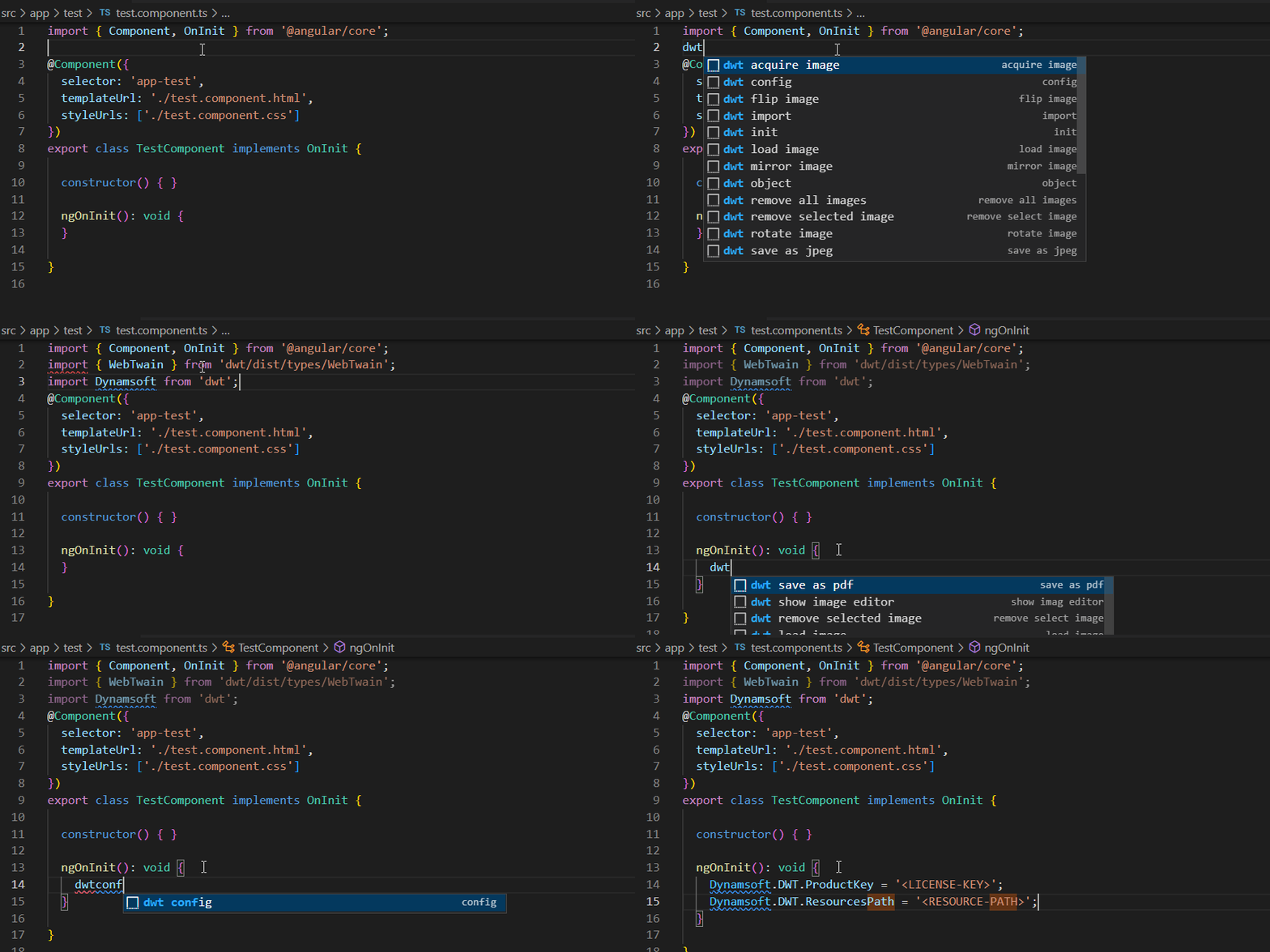
What you’ll build: A VSCode extension that provides Angular TypeScript code snippets and a ready-to-use project template for building document scanning and editing apps with Dynamic Web TWAIN.
Key Takeaways
- Dynamic Web TWAIN JavaScript samples can be migrated to Angular TypeScript components by adding type casts and adapting to Angular’s lifecycle hooks (
ngOnInit,ngOnDestroy). - A VSCode extension can bundle both TypeScript code snippets and a full Angular project template, letting developers scaffold document scanning apps in seconds.
- The
dwtnpm package provides complete TypeScript type definitions, so Angular projects get full IntelliSense and compile-time checks for all Web TWAIN APIs. - Document scanning and document editing are implemented as separate Angular components, each injecting a shared
DynamicWebTWAINServicefor license and resource configuration.
Common Developer Questions
How do I use Dynamic Web TWAIN in an Angular project with TypeScript?
Install the dwt package, configure the resource path and license in a shared Angular service, and initialize the viewer inside component lifecycle hooks such as ngOnInit. The migration also requires replacing plain JavaScript DOM patterns with TypeScript-safe Angular component code.
How do I create a VSCode extension with Angular code snippets for document scanning?
Package the migrated Angular snippets together with a sample project template so developers can scaffold both scanning and editing features from inside VS Code. That extension model is useful because it distributes working Angular patterns instead of asking every team to rewrite the JavaScript samples themselves.
What TypeScript type casts are needed when migrating Dynamic Web TWAIN JavaScript code to Angular?
Most of the migration work comes from typing DOM lookups, event targets, and Web TWAIN instance access patterns so they fit Angular’s TypeScript compiler expectations. The article also adapts initialization and cleanup into Angular lifecycle hooks instead of relying on loose global JavaScript callbacks.
Prerequisites
Before you begin, make sure you have the following installed:
- Node.js (LTS version recommended)
- Angular CLI (
npm install -g @angular/cli) - Visual Studio Code
- A Dynamic Web TWAIN license key. Get a 30-day free trial license if you don’t have one.
Install the Extension from Visual Studio Code Marketplace
Angular Snippets for Dynamic Web TWAIN
Migrate Dynamic Web TWAIN Samples from JavaScript to Angular
Dynamic Web TWAIN samples are written in JavaScript. You can find them on GitHub.
The samples can be categorized into two types: document scanning and document editing. Therefore, we create a new Angular project and add two Angular components for them respectively.
npm install -g @angular/cli
ng new dwt-angular-samples
ng generate component acquire-image
ng generate component image-editor
To make Web TWAIN API work, we need to set the license key and configure the resource path, which could be implemented using an Angular service. Run the following command to create a service.
ng generate service dynamic-web-twain
The command generates a dynamic-web-twain.service.ts file, in which we add the code for global settings.
import { Injectable, Optional } from '@angular/core';
import Dynamsoft from 'dwt';

@Injectable({
  providedIn: 'root'
})
export class DynamicWebTWAINService {

  constructor() {
    Dynamsoft.DWT.ProductKey = "LICENSE-KEY";
    Dynamsoft.DWT.ResourcesPath = "assets/dynamic-web-twain";
  }
}
Set your license key in the service constructor (see the Prerequisites section above for how to obtain one).
The resource path must be configured in angular.json file as well.
{
"glob": "**/*",
"input": "./node_modules/dwt/dist",
"output": "assets/dynamic-web-twain"
}
Next, we inject the service into the components.
export class AcquireImageComponent implements OnInit {

  constructor(private dynamicWebTwainService: DynamicWebTWAINService) {
  }
}

export class ImageEditorComponent implements OnInit {

  constructor(private dynamicWebTwainService: DynamicWebTWAINService) { }
}
The preparation work is done. A quick test is to run ng serve and verify the app status through the console log. If there is no resource loading error, we can get started to migrate JavaScript to TypeScript.
Scan Documents and Save as PDF, TIFF, or JPEG
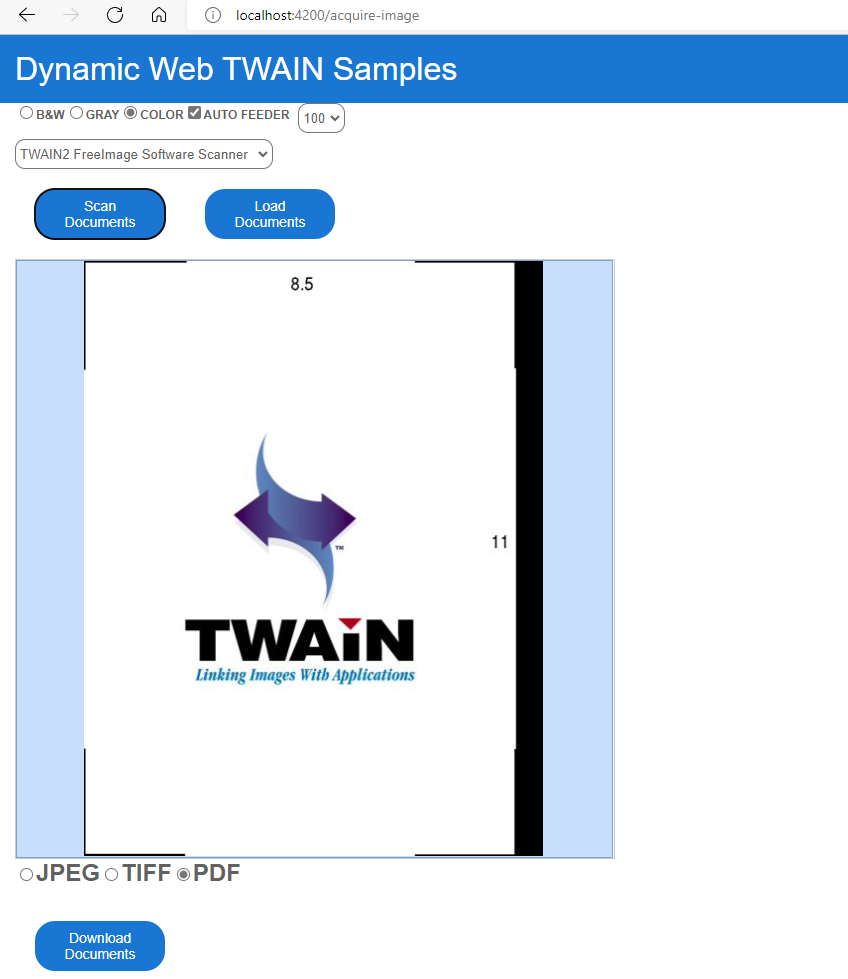
The document scanning sample includes the following features:
- Acquire documents from a scanner.
- Load images from local disk.
- Save images as JPEG, TIFF, and PDF.
Here is the UI implementation in HTML:
<div class="row">
<label for="BW">
<input type="radio" value="0" name="PixelType">B&W </label>
<label for="Gray">
<input type="radio" value="1" name="PixelType">Gray</label>
<label for="RGB">
<input type="radio" value="2" name="PixelType" checked="checked">Color</label>
<label>
<input type="checkbox" id="ADF" checked="checked">Auto Feeder</label>
<div> </div>
<select id="Resolution">
<option value="100">100</option>
<option value="150">150</option>
<option value="200">200</option>
<option value="300">300</option>
</select>
</div>
<select id="sources"></select><br />
<button (click)="acquireImage()">Scan Documents</button>
<button (click)="openImage()">Load Documents</button>
<div id="dwtcontrolContainer"></div>
<div class="row">
<label style="font-size: x-large;">
<input type="radio" value="jpg" name="ImageType" id="imgTypejpeg" />JPEG</label>
<label style="font-size: x-large;">
<input type="radio" value="tif" name="ImageType" id="imgTypetiff" />TIFF</label>
<label style="font-size: x-large;">
<input type="radio" value="pdf" name="ImageType" id="imgTypepdf" checked="checked" />PDF</label>
</div>
<button (click)="downloadDocument()">Download Documents</button>
It’s almost the same as the JavaScript version. The only difference is that we use the click event instead of onclick in the button element.
Now we make comparisons between the JavaScript code and TypeScript code.
-
Initialize Dynamic Web TWAIN object.
JavaScript
  Dynamsoft.DWT.Containers = [{ContainerId:'dwtcontrolContainer', Width:600, Height:800}];
  Dynamsoft.DWT.Load();
  Dynamsoft.DWT.RegisterEvent('OnWebTwainReady', onReady);
  function onReady() {
    dwtObject = Dynamsoft.DWT.GetWebTwain('dwtcontrolContainer');
  }
TypeScript
ngOnInit(): void { Dynamsoft.DWT.Containers = [{ ContainerId:'dwtcontrolContainer', Width:600, Height:800 }]; Dynamsoft.DWT.Load(); Dynamsoft.DWT.RegisterEvent('OnWebTwainReady', () => { this.onReady(); }); } onReady(): void { this.dwtObject = Dynamsoft.DWT.GetWebTwain(this.containerId); } -
Scan documents.
JavaScript
  dwtObject.SelectSourceByIndex(document.getElementById("source").selectedIndex);
  const onAcquireImageSuccess = () => { if (this.dwtObject) this.dwtObject.CloseSource(); };
  const onAcquireImageFailure = onAcquireImageSuccess;
  dwtObject.OpenSource();
  var pixelType = 2;
  var pixelTypeInputs = document.getElementsByName("PixelType");
  for (var i = 0; i < pixelTypeInputs.length; i++) {
      if (pixelTypeInputs[i].checked) {
      pixelType = pixelTypeInputs[i].value;
      break;
      }
  }
  dwtObject.AcquireImage(
      {
      IfShowUI: document.getElementById("ShowUI").checked,
      IfFeederEnabled: document.getElementById("ADF").checked,
      PixelType: pixelType,
      Resolution: parseInt(document.getElementById("Resolution").value),
      IfDisableSourceAfterAcquire: true
      },
      onAcquireImageSuccess,
      onAcquireImageFailure
  );
TypeScript
this.dwtObject.SelectSourceByIndex(this.selectSources.selectedIndex) const onAcquireImageSuccess = () => { if (this.dwtObject) this.dwtObject.CloseSource(); }; const onAcquireImageFailure = onAcquireImageSuccess; this.dwtObject.OpenSource(); let pixelType = '2'; var pixelTypeInputs = document.getElementsByName("PixelType"); for (var i = 0; i < pixelTypeInputs.length; i++) { if ((<HTMLInputElement>pixelTypeInputs[i]).checked) { pixelType = (<HTMLSelectElement>pixelTypeInputs[i]).value; break; } } this.dwtObject.AcquireImage({ IfFeederEnabled: (<HTMLInputElement>document.getElementById("ADF"))!.checked, PixelType: pixelType, Resolution: parseInt((<HTMLSelectElement>document.getElementById("Resolution"))!.value), IfDisableSourceAfterAcquire: true }, onAcquireImageSuccess, onAcquireImageFailure); -
Load images.
JavaScript
dwtObject.LoadImageEx("", Dynamsoft.DWT.EnumDWT_ImageType.IT_ALL, () => {}, () => {})TypeScript
this.dwtObject.LoadImageEx("", Dynamsoft.DWT.EnumDWT_ImageType.IT_ALL, () => {}, () => {}); -
Download documents as PDF, TIFF, or JPEG.
JavaScript
  if (document.getElementById("imgTypejpeg").checked == true) {
      if (dwtObject.GetImageBitDepth(dwtObject.CurrentImageIndexInBuffer) == 1)
          dwtObject.ConvertToGrayScale(dwtObject.CurrentImageIndexInBuffer);
      dwtObject.SaveAsJPEG("DynamicWebTWAIN.jpg", dwtObject.CurrentImageIndexInBuffer);
  }
  else if (document.getElementById("imgTypetiff").checked == true)
      dwtObject.SaveAllAsMultiPageTIFF("DynamicWebTWAIN.tiff", OnSuccess, OnFailure);
  else if (document.getElementById("imgTypepdf").checked == true)
      dwtObject.SaveAllAsPDF("DynamicWebTWAIN.pdf", OnSuccess, OnFailure);
TypeScript
  if ((<HTMLInputElement>document.getElementById("imgTypejpeg")).checked == true) {
      if (this.dwtObject.GetImageBitDepth(this.dwtObject.CurrentImageIndexInBuffer) == 1)
          this.dwtObject.ConvertToGrayScale(this.dwtObject.CurrentImageIndexInBuffer);
      this.dwtObject.SaveAsJPEG("DynamicWebTWAIN.jpg", this.dwtObject.CurrentImageIndexInBuffer);
  }
  else if ((<HTMLInputElement>document.getElementById("imgTypetiff")).checked == true)
  this.dwtObject.SaveAllAsMultiPageTIFF("DynamicWebTWAIN.tiff", () => { }, () => { });
  else if ((<HTMLInputElement>document.getElementById("imgTypepdf")).checked == true)
  this.dwtObject.SaveAllAsPDF("DynamicWebTWAIN.pdf", () => { }, () => { });
The primary difference between the JavaScript and TypeScript code is that the TypeScript requires type casting. Besides, because Angular has its own lifecycle, we also need to destroy the Dynamic Web TWAIN object when ngOnDestroy() is triggered.
ngOnDestroy() {
    Dynamsoft.DWT.Unload();
}
Edit Scanned Documents with the Built-in Image Editor
The document editing sample does not only demonstrates the basic image editing APIs of Dynamic Web TWAIN, but also shows how to use the built-in image editor.
<select id="sources"></select><br />
<div class="row">
    <button (click)="acquireImage()">Scan</button>
    <button (click)="openImage()">Load</button>
</div>

<div class="row">
    <div id="dwtcontrolContainer"></div>
    <div id="dwtcontrolContainerLargeViewer"></div>
</div>

<div style="width: 800px;">
    <input style="font-size: x-large;" type="button" value=" |< " (click)="firstImage()"/>
    <input style="font-size: x-large;" type="button" value=" < " (click)="preImage()"/>
    <input style="font-size: x-large;" type="text" size="2" id="DW_CurrentImage" readonly="readonly" value="0" /> /
    <input style="font-size: x-large;" type="text" size="2" id="DW_TotalImage" readonly="readonly" value="0" />
    <input style="font-size: x-large;" type="button" value=" > " (click)="nextImage()"/>
    <input style="font-size: x-large;" type="button" value=" >| " (click)="lastImage()"/> Preview Mode:
    <select style="font-size: x-large;" size="1" id="DW_PreviewMode" (change)="setMode()">
        <option value="0">1X1</option>
        <option value="1">2X2</option>
        <option value="2">3X3</option>
        <option value="3">4X4</option>
        <option value="4">5X5</option>
    </select>
</div>
<div class="row">
    <button (click)="removeSelected()">Remove Selected</button>
    <button (click)="removeAll()">Remove All</button>
    <button (click)="rotateLeft()">Rotate Left</button>
    <button (click)="rotateRight()">Rotate Right</button>
    <button (click)="mirror()">Mirror</button>
    <button (click)="flip()">Flip</button>
    <button (click)="showImageEditor()" id="imageEditor">Hide Editor</button>
</div>
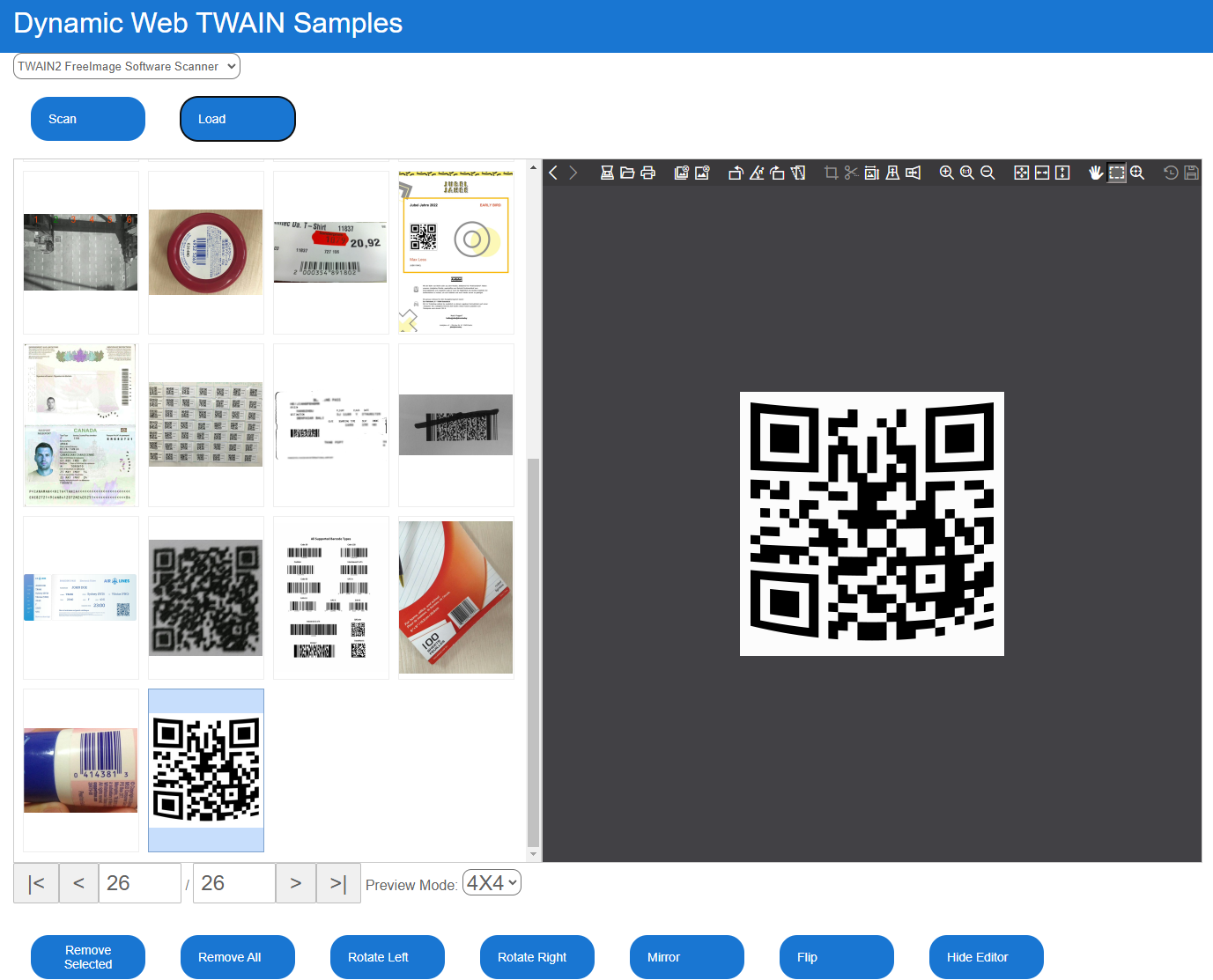
The corresponding implementation of button click events is as follows:
removeSelected() {
    this.dwtObject.RemoveAllSelectedImages();
}

removeAll() {
    this.dwtObject.RemoveAllImages();
}

rotateLeft() {
    this.dwtObject.RotateLeft(this.dwtObject.CurrentImageIndexInBuffer);
}

rotateRight() {
    this.dwtObject.RotateRight(this.dwtObject.CurrentImageIndexInBuffer);
}

mirror() {
    this.dwtObject.Mirror(this.dwtObject.CurrentImageIndexInBuffer);
}

flip() {
    this.dwtObject.Flip(this.dwtObject.CurrentImageIndexInBuffer);
}

createImageEditor() {
    this.imageEditor = this.dwtObject!.Viewer.createImageEditor({
    element: <HTMLDivElement>document.getElementById('dwtcontrolContainerLargeViewer'),
    width: 750,
    height: 800,
    buttons: {
        visibility: {
        close: false
        }}
    });
    this.imageEditor.show();
}
Build a VSCode Extension for Angular Document Scanning Development
To facilitate the development of Angular applications with Dynamic Web TWAIN, we can create a VSCode extension, which includes TypeScript code snippets and Angular project templates.
Set Up the VSCode Extension Skeleton
According to Microsoft’s documentation, we can create a VSCode extension skeleton by running the following command in the terminal:
npm install -g yo generator-code
yo code
Register TypeScript Code Snippets
- Create a
typescript.jsonfile under thesnippetsfolder. -
Follow the Snippet Guide to add the snippets for using Dynamic Web TWAIN.
{ "import": { "prefix": "dwt import", "description": "Import Dynamic Web TWAIN", "body": [ "import { WebTwain } from 'dwt/dist/types/WebTwain';", "import Dynamsoft from 'dwt';" ] }, ... } -
Configure the file path of code snippets in
package.json."contributes": { "snippets": [ { "language": "typescript", "path": "./snippets/typescript.json" } ] } -
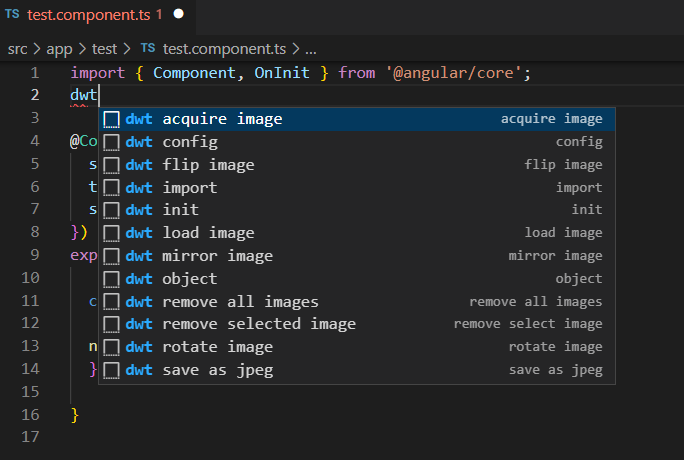
Use the snippets in a TypeScript file.
Bundle Angular Project Templates
-
Copy the Angular project we created in the previous section to the extension project. To avoid compiling the Angular project when debugging the VSCode extension, we need to exclude the project folder in
tsconfig.json."exclude": [ "<angular-project-template>" ] -
Register a command named
quickstartinpackage.json."activationEvents": [ "onCommand:dwt.quickstart" ] "contributes": { "commands": [ { "command": "dwt.quickstart", "title": "dwt: Create Angular Project for Dynamic Web TWAIN" } ] } -
In
extension.ts, create a new project viavscode.window.showInputBoxand then copy the Angular project template to the new project folder.async openFolder() { const projectName = await vscode.window.showInputBox({ prompt: 'Enter a name for the new project', validateInput: (value: string): string => { if (!value.length) { return 'A project name is required'; } return ''; } }); if (!projectName) { return ''; } let workspace = ''; const folderUris = await vscode.window.showOpenDialog({ canSelectFolders: true, canSelectFiles: false, canSelectMany: false, openLabel: 'Select folder' }); if (!folderUris) { return ''; } let workspaceFolderUri = folderUris[0]; workspace = workspaceFolderUri.fsPath; let projectFolder = path.join(workspace, projectName); if (!fs.existsSync(projectFolder)) { fs.mkdirSync(projectFolder); } console.log("Open " + projectFolder); await vscode.commands.executeCommand("vscode.openFolder", Uri.file(projectFolder), { forceNewWindow: true }); return projectFolder; } async createProject() { let src: string = path.join(__dirname, '../res/quickstart/'); // Select the project folder const answer = await vscode.window.showQuickPick(['Yes', 'No'], { placeHolder: 'Do you want to create a new folder?' }); if (!answer) { return; } let des: string = ''; if (answer === "Yes") { des = await this.openFolder(); if (des !== '') { copyFolder(src, des); } } else { let folders = vscode.workspace.workspaceFolders; if (!folders) { des = await this.openFolder(); if (des !== '') { copyFolder(src, des); } } else { des = folders[0].uri.fsPath; vscode.window.showInformationMessage(folders[0].uri.fsPath); copyFolder(src, des); } } } -
Press
F2to run thedwt.quickstartcommand.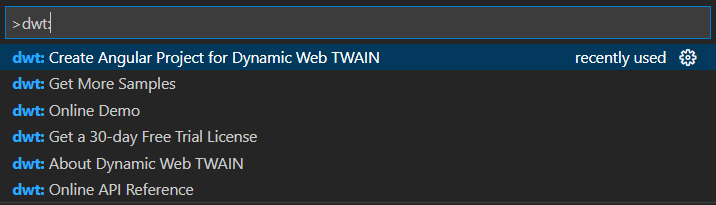
Package and Publish the VSCode Extension
- Build the extension package:
vsce packageIf some important template files are missing, check out whether they are included in the
.vscodeignorefile. For example, if*.tsis included in the.vscodeignorefile, all*.tsfiles will not be packaged into the extension. - Sign in Visual Studio Marketplace to upload the extension package.
Common Issues and Edge Cases
- Resource path not found after build: If the Dynamic Web TWAIN resources fail to load at runtime, verify that the
angular.jsonassets configuration correctly copiesnode_modules/dwt/disttoassets/dynamic-web-twain. Missing this step is the most common cause of blank viewer containers. - TypeScript strict-mode type errors: When
strictmode is enabled intsconfig.json, DOM element lookups likedocument.getElementById()returnHTMLElement | null. You must cast to the specific element type (e.g.<HTMLInputElement>) and use the non-null assertion operator (!) to avoid compile errors. - Extension template files excluded from package: If the Angular project template files are missing after running
vsce package, check your.vscodeignorefile. Patterns like*.tsor**/*.tswill strip all TypeScript files from the packaged extension, including template source files you intend to distribute.