


 Blog
Blog
How to Batch Process Checks via MICR
A common question we receive is whether JavaScript API is available to capture MICR data from Canon scanners.
For example, a developer building a batch check processing application asked “I have a Canon TWAIN CR-120 scanner for MICR. Do you have any API to capture MICR from scanner using JavaScript?”
The answer is: Yes. Through Dynamic Web TWAIN, Dynamsoft provides TWAIN-based APIs that allow developers to capture MICR data directly within web applications. With DWT it’s easy to connect to a TWAIN-compliant scanner, acquire images of checks and then extract MICR data for further processing.
This article explains what MICR is and how to integrate MICR scanning into a batch check processing web app.
What is MICR?
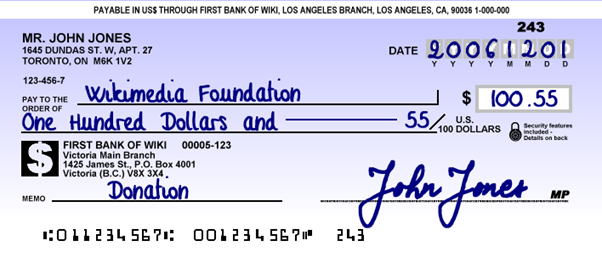
MICR stands for Magnetic Ink Character Recognition, a technology primarily used in the banking industry to accelerate the processing and clearance of checks and related documents.
On a standard bank check, MICR encoding – also referred to as MICR line – appears at the bottom and typically includes
- Bank code
- Account number
- Check number
Building a Batch Check Processing Web Application
Most scanners on the market are TWAIN-compliant, but it is always best to verify compatibility first. You confirm this by checking the manufacturer’s website or by using TWACKER tool on Windows.
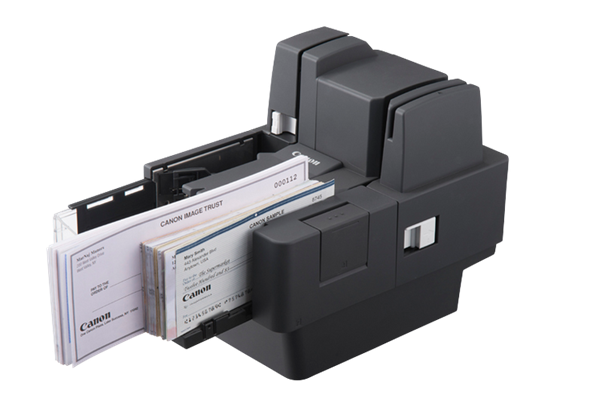
Once compatibility is confirmed, Dynamic Web TWAIN (DWT) provides the interface to connect your web application with the scanner.
To get started, try this sample, which demonstrates reading MICR data from a single check and displaying the results on a web page.
To capture magnetic data from a TWAIN scanner
- Read the value in MagType to determine the type of magnetic data supported by your device.
- Retrieve the value of MagData and pass it to the appropriate component of your application based on the workflow.
Refer to the sample code snippet below
<script type="text/javascript">
    var DWTObject;
    Dynamsoft.DWT.RegisterEvent("OnWebTwainReady", function () {
        DWTObject = Dynamsoft.DWT.GetWebTwain('dwtcontrolContainer'); // Get the Dynamic Web TWAIN object that is embeded in the div with id 'dwtcontrolContainer'
        DWTObject.RegisterEvent("OnPostTransferAsync", function (outputInfo) {
            console.log(outputInfo);
            var magData = {};
            if (outputInfo && outputInfo.extendedImageInfo && outputInfo.extendedImageInfo.others && outputInfo.extendedImageInfo.others.TWEI_MAGDATA) {
                magData.TWEI_MAGTYPE = outputInfo.extendedImageInfo.others.TWEI_MAGTYPE;
                magData.TWEI_MAGDATA = outputInfo.extendedImageInfo.others.TWEI_MAGDATA;
                alert(JSON.stringify(magData));
            }
        });
    });

    function AcquireImage() {
        if (DWTObject) {
            DWTObject.SelectSourceAsync().then(function () {
                return DWTObject.AcquireImageAsync({
                    IfShowUI: false,
                    IfCloseSourceAfterAcquire: true, // Scanner source will be closed automatically after the scan.
                    IfGetExtImageInfo: true,
                    extendedImageInfoQueryLevel: 0
                });
            }).catch(function (exp) {
                alert(exp.message);
            });
        }
    }
</script>
Download Dynamic Web TWAIN and start your 30-day free trial