


How to Build a Flutter Document Scanner App with Edge Detection, Editing, and PDF Export
Paper forms, receipts, and ID cards are still part of many mobile workflows, but camera captures are often skewed, low quality, or inconsistent. This project solves that by combining real-time document detection, perspective correction, and multi-page export in one Flutter app. It runs on Android and iOS using the Dynamsoft Capture Vision SDK.
What you’ll build: A Flutter mobile document scanner that detects and deskews pages in real time, supports quad editing and drag-and-drop page sorting, and exports results as images or PDF with Dynamsoft Capture Vision SDK.
This article is Part 3 in a 5-Part Series.
- Part 1 - How to Build an Android Document Scanner with Auto-Capture and PDF Export
- Part 2 - How to Build a JavaScript Multi-Page Document Scanner Web App with Auto-Capture and PDF Export
- Part 3 - How to Build a Flutter Document Scanner App with Edge Detection, Editing, and PDF Export
- Part 4 - Build a SwiftUI iOS Document Scanner with Stable Auto Capture and PDF Export
- Part 5 - How to Build a Desktop Document Scanner with Python, PySide6, and Dynamsoft Capture Vision
Key Takeaways
- This app demonstrates a production-style mobile scanning flow: detect, stabilize, capture, edit, reorder, and export.
dynamsoft_capture_vision_flutter(^3.6.2000) provides document detection, deskewing, and normalized image output.- The code uses an IoU + area-delta stabilizer (
iouThreshold=0.85,areaDeltaThreshold=0.15,stableFrameCount=3) to reduce accidental captures. - Users can correct crop boundaries in an
Edit Quadscreen and reorder pages with aReorderableListViewdrag handle. - The same architecture applies to expense capture, onboarding KYC uploads, and field-service form digitization.
Common Developer Questions
How do I initialize Dynamsoft Capture Vision in Flutter and bind it to a live camera feed?
Create a CaptureVisionRouter, add the cross-frame filter, initialize the license, set the camera as the router input, and then start capturing with the detectAndNormalizeDocument template. The scanner page in this tutorial wires those pieces together so live camera frames immediately produce deskewed document results.
Why does capture fail on device even though Flutter runs, and how should I handle license or permission setup?
The Flutter document scanner app still needs a valid Dynamsoft license key, camera permission, and the correct Flutter package setup even if the UI itself launches normally. In this sample those checks happen during SDK initialization, and any failure is surfaced through the _licenseError state so you can distinguish licensing problems from camera startup issues.
How can I avoid blurry or premature auto-captures when the document is still moving?
The Flutter scanner app waits for stable quads across consecutive frames before auto-capturing to avoid noisy captures. Manual capture also has a 500 ms timeout that falls back to raw frame capture when no document is found, so users can still continue scanning.
How do I let users drag quad corners to fix crop boundaries before export?
Open a dedicated edit screen for the selected page, display the detected quadrilateral, and then run cropAndDeskewImage with the user-adjusted corners before saving the updated result. That preserves the original capture while giving the user a manual correction step before export.
What’s the simplest way to support drag-and-drop page reordering in a multi-page scanner?
Use Flutter’s ReorderableListView and keep the captured pages in a list that is updated when the user drags an item. That gives a straightforward page-ordering workflow before exporting the final PDF or image set.
Demo Video: Flutter Mobile Document Scanner in Action
Prerequisites
- Flutter SDK 3.8+
- Dart SDK 3.8+
- Android API 21+ and iOS 13+
- A valid Dynamsoft Capture Vision license key
- Dependencies from
pubspec.yaml, includingdynamsoft_capture_vision_flutter: ^3.6.2000
Get a 30-day free trial license at dynamsoft.com/customer/license/trialLicense
Step 1: Install and Configure the SDK
Add the Dynamsoft package in pubspec.yaml and keep your license key in a shared constants file so initialization is centralized.
dependencies:
  flutter:
    sdk: flutter

  cupertino_icons: ^1.0.8

  dynamsoft_capture_vision_flutter: ^3.6.2000

  path_provider: ^2.1.5

  image_picker: ^1.1.2

  image_gallery_saver_plus: ^4.0.1

  pdf: ^3.11.1

  permission_handler: ^11.3.1

  open_filex: ^4.6.0
class AppConstants {
  AppConstants._();

  static const String licenseKey = 'LICENSE-KEY';
  static const String appName = 'Document Scanner';
  static const Duration snackBarDuration = Duration(seconds: 4);
  static const String exportFilePrefix = 'docscan_';
}
Step 2: Initialize Camera Input and Dynamsoft Router
The scanner page sets up CaptureVisionRouter, applies a cross-frame filter, initializes the license, then starts camera capture with the detectAndNormalizeDocument template.
Future<void> _initSdk() async {
  _cvr = CaptureVisionRouter()
    ..addResultFilter(
      MultiFrameResultCrossFilter()
        ..enableResultCrossVerification(
          EnumCapturedResultItemType.deskewedImage.value,
          true,
        ),
    );

  _receiver = CapturedResultReceiver()
    ..onProcessedDocumentResultReceived =
        (ProcessedDocumentResult result) async {
      if (_isProcessing || _cooldown) return;
      final items = result.deskewedImageResultItems;
      if (items == null || items.isEmpty) return;

      final item = items.first;

      _latestDeskewedItem = item;
      _latestOriginalImageHashId = result.originalImageHashId;

      if (_isBtnClicked) {
        _isBtnClicked = false;
        _captureTimeoutTimer?.cancel();
        _captureTimeoutTimer = null;
        _captureResult(item, result.originalImageHashId, autoCapture: false);
      } else if (item.crossVerificationStatus ==
          EnumCrossVerificationStatus.passed) {
        _quadStabilizer.feedQuad(item.sourceDeskewQuad);
      }
    };

  final (isSuccess, message) =
      await LicenseManager.initLicense(AppConstants.licenseKey);
  if (!isSuccess && mounted) {
    setState(() => _licenseError = message);
    return;
  }

  try {
    await _cvr.setInput(_camera);
    _cvr.addResultReceiver(_receiver);
    await _camera.open();
    await _cvr.startCapturing(_template);
    if (mounted) setState(() => _isSdkReady = true);
  } catch (e) {
    if (mounted) setState(() => _licenseError = e.toString());
  }
}
Step 3: Stabilize Auto-Capture and Add Manual Fallback
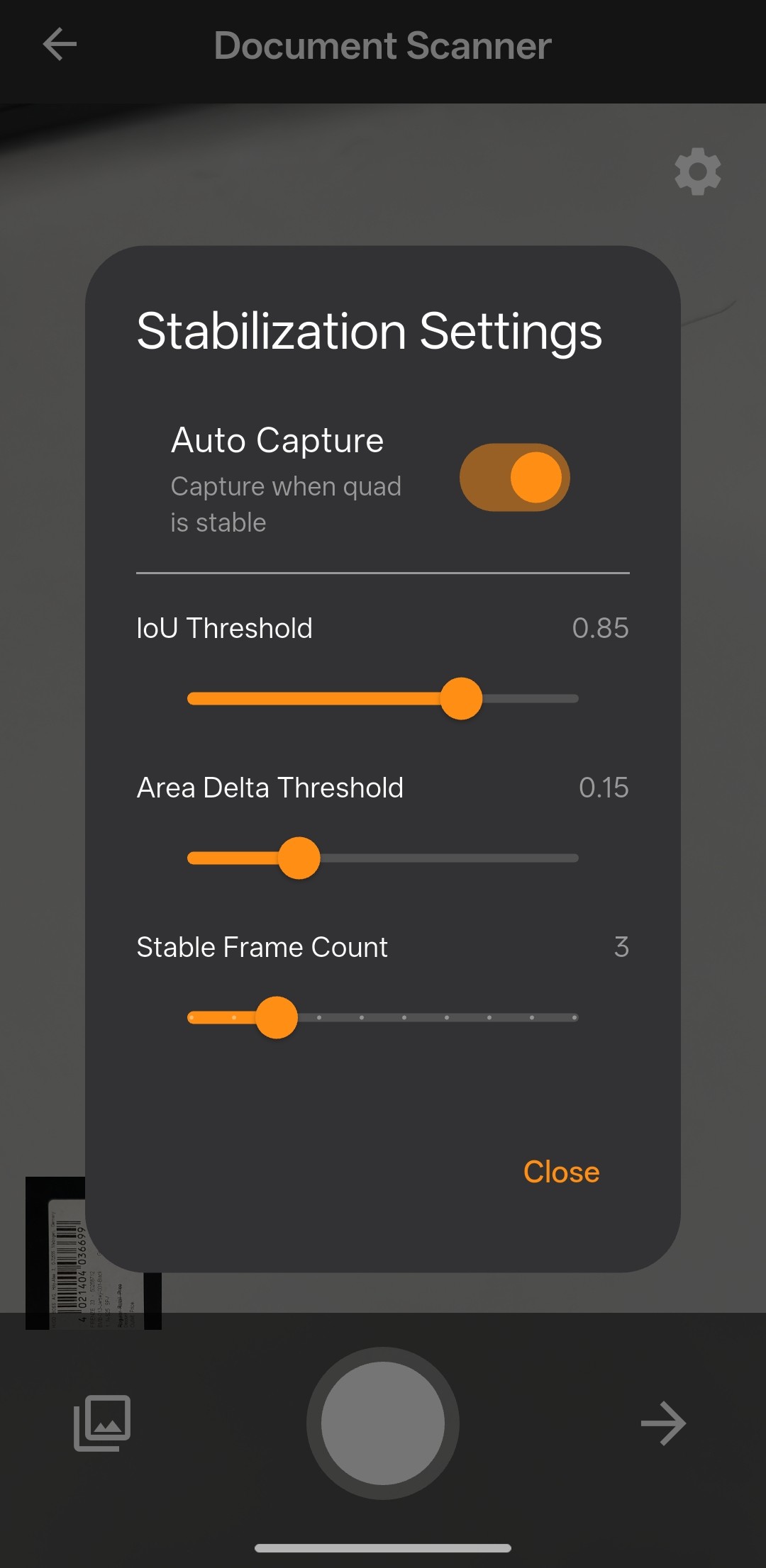
To avoid noisy captures, the app waits for stable quads across consecutive frames; manual capture also has a 500 ms timeout fallback to raw frame capture when no document is found.
class QuadStabilizer {
  double iouThreshold;
  double areaDeltaThreshold;
  int stableFrameCount;
  bool autoCaptureEnabled;

  Quadrilateral? _previousQuad;
  int _consecutiveStableFrames = 0;
  void Function()? onStable;

  QuadStabilizer({
    this.iouThreshold = 0.85,
    this.areaDeltaThreshold = 0.15,
    this.stableFrameCount = 3,
    this.autoCaptureEnabled = true,
    this.onStable,
  });

  void feedQuad(Quadrilateral quad) {
    if (!autoCaptureEnabled) return;

    if (_previousQuad == null) {
      _previousQuad = quad;
      _consecutiveStableFrames = 0;
      return;
    }

    final double iou = calculateIoU(_previousQuad!, quad);
    final double prevArea = _calculateQuadArea(_previousQuad!);
    final double currArea = _calculateQuadArea(quad);
    final double areaDelta =
        prevArea > 0 ? (currArea - prevArea).abs() / prevArea : 1.0;

    if (iou >= iouThreshold && areaDelta <= areaDeltaThreshold) {
      _consecutiveStableFrames++;
      if (_consecutiveStableFrames >= stableFrameCount) {
        onStable?.call();
        reset();
      }
    } else {
      _consecutiveStableFrames = 0;
    }

    _previousQuad = quad;
  }
}
void _onCapturePressed() {
  if (!_isSdkReady || _isProcessing || _cooldown) return;
  _isBtnClicked = true;
  _latestDeskewedItem = null;
  _latestOriginalImageHashId = null;
  _captureTimeoutTimer?.cancel();
  _captureTimeoutTimer = Timer(const Duration(milliseconds: 500), () {
    if (_isBtnClicked) {
      _isBtnClicked = false;
      _captureRawFrame();
    }
  });
}
Step 4: Import from Gallery and Handle No-Detection Cases
When scanning files from the gallery, the app tries captureFile first and gracefully falls back to the original image if no document is detected.
Future<void> _pickFromGallery() async {
  final picker = ImagePicker();
  final XFile? file = await picker.pickImage(source: ImageSource.gallery);
  if (file == null) return;

  if (mounted) setState(() => _isProcessing = true);

  try {
    final result = await _cvr.captureFile(file.path, _template);

    final docResult = result.processedDocumentResult;
    final items = docResult?.deskewedImageResultItems;

    if (items != null && items.isNotEmpty) {
      final item = items.first;
      final originalImage = await _cvr
          .getIntermediateResultManager()
          .getOriginalImage(result.originalImageHashId);

      final page = DocumentPage(
        originalImage: originalImage,
        normalizedImage: item.imageData!,
        quad: item.sourceDeskewQuad,
      );
      if (mounted) setState(() => _pages.add(page));
    } else {
      final originalImage = await ImageIO().readFromFile(file.path);
      if (originalImage != null && mounted) {
        ScaffoldMessenger.of(context).showSnackBar(
          const SnackBar(
              content: Text('No document detected. Using original image.')),
        );
        final page = DocumentPage(
          originalImage: originalImage,
          normalizedImage: originalImage,
          quad: null,
        );
        setState(() => _pages.add(page));
      }
    }
  } catch (e) {
    if (mounted) {
      ScaffoldMessenger.of(context).showSnackBar(
        SnackBar(content: Text('Failed to process image: $e')),
      );
    }
  } finally {
    if (mounted) setState(() => _isProcessing = false);
  }
}
Step 5: Add Interactive Quad Editing Before Export
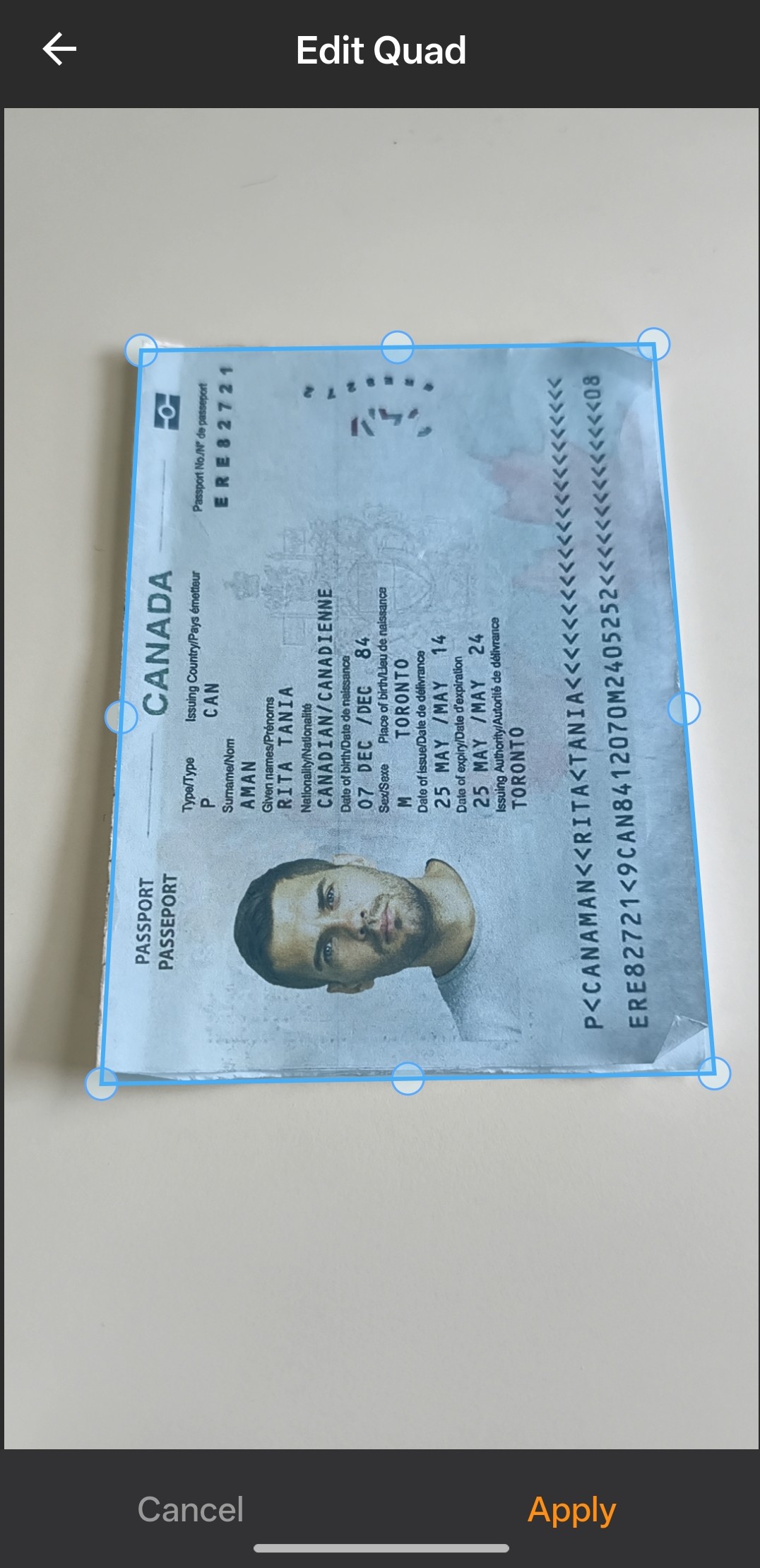
The result page opens an edit screen for the current page, then applies cropAndDeskewImage using the updated quadrilateral selected by the user.
void _editQuad() {
  final page = _pages[_currentIndex];
  if (!page.hasOriginalImage || page.quad == null) return;

  Navigator.push<Map<String, dynamic>>(
    context,
    MaterialPageRoute(
      builder: (_) => EditPage(
        originalImageData: page.originalImage!,
        quad: page.quad!,
      ),
    ),
  ).then((result) {
    if (result != null && mounted) {
      setState(() {
        if (result['croppedImageData'] != null &&
            result['updatedQuad'] != null) {
          page.updateFromQuadEdit(
            result['croppedImageData'] as ImageData,
            result['updatedQuad'] as Quadrilateral,
          );
        }
      });
    }
  });
}
Future<void> _applyEdit() async {
  if (_controller == null || _isApplying) return;
  setState(() => _isApplying = true);

  try {
    final selectedQuad = await _controller!.getSelectedQuad();
    final croppedImageData = await ImageProcessor()
        .cropAndDeskewImage(widget.originalImageData, selectedQuad);

    if (mounted) {
      Navigator.pop(context, {
        'croppedImageData': croppedImageData,
        'updatedQuad': selectedQuad,
      });
    }
  } catch (e) {
    if (mounted) {
      setState(() => _isApplying = false);
      ScaffoldMessenger.of(context).showSnackBar(
        SnackBar(
          content: const Text(
            'The selected area is not a valid quadrilateral. '
            'Please drag the corners to form a proper rectangle.',
          ),
          duration: AppConstants.snackBarDuration,
        ),
      );
    }
  }
}
Step 6: Enable Drag-and-Drop Page Reordering
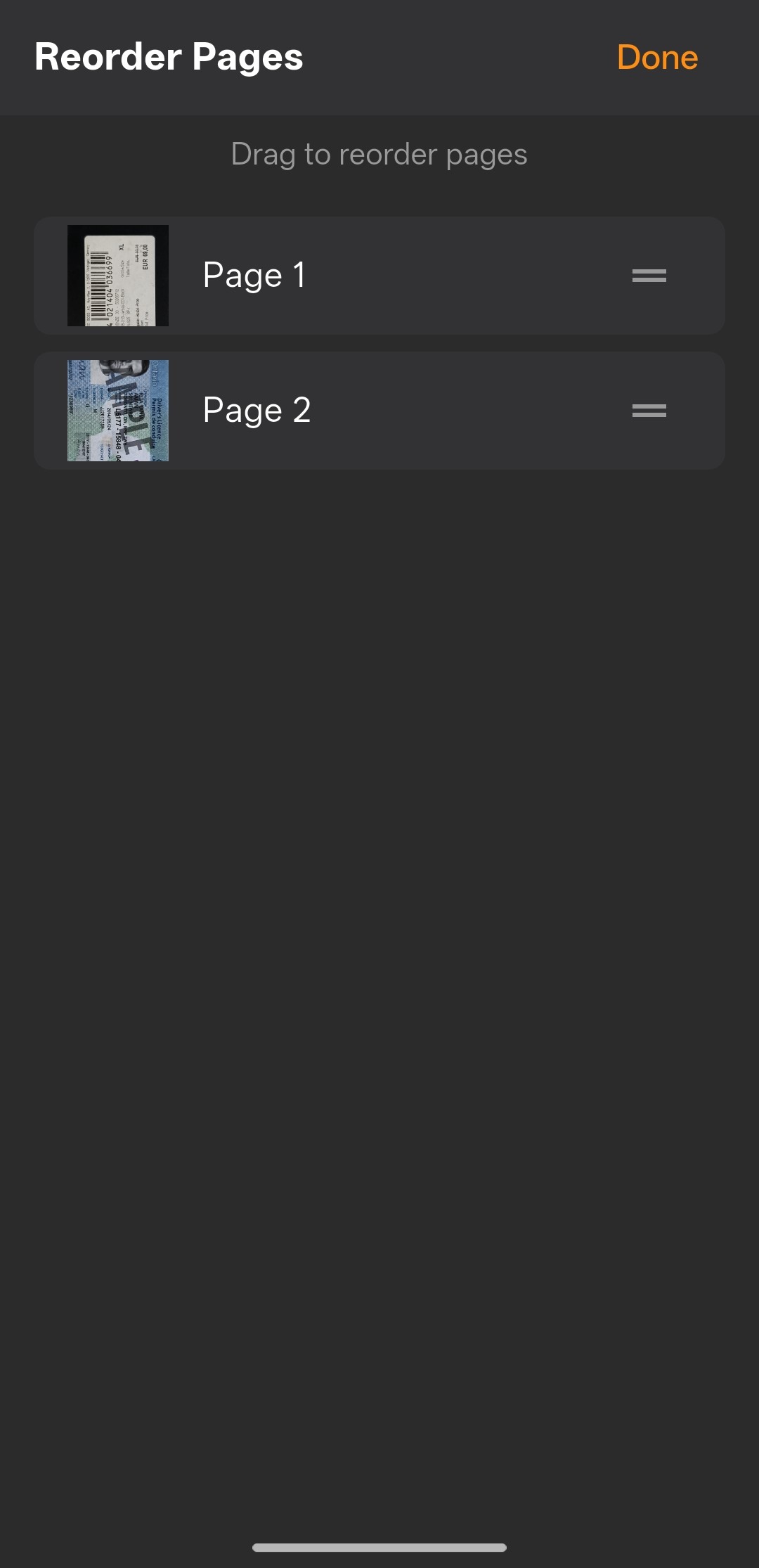
For multi-page workflows, the app opens a dedicated sorting view and uses ReorderableListView.builder so users can drag pages into the final PDF/image order.
void _sortPages() {
  Navigator.push<List<DocumentPage>>(
    context,
    MaterialPageRoute(
      builder: (_) => SortPagesPage(pages: List.from(_pages)),
    ),
  ).then((reordered) {
    if (reordered != null && mounted) {
      setState(() {
        _pages.clear();
        _pages.addAll(reordered);
        _currentIndex = 0;
        _pageController.jumpToPage(0);
      });
    }
  });
}
Expanded(
  child: ReorderableListView.builder(
    padding: const EdgeInsets.all(8),
    itemCount: _workingList.length,
    onReorderItem: (oldIndex, newIndex) {
      setState(() {
        final item = _workingList.removeAt(oldIndex);
        _workingList.insert(newIndex, item);
      });
    },
    itemBuilder: (ctx, index) {
      return _SortPageItem(
        key: ValueKey(index),
        page: _workingList[index],
        pageNumber: index + 1,
      );
    },
  ),
)
Step 7: Export Scanned Pages to Gallery or PDF
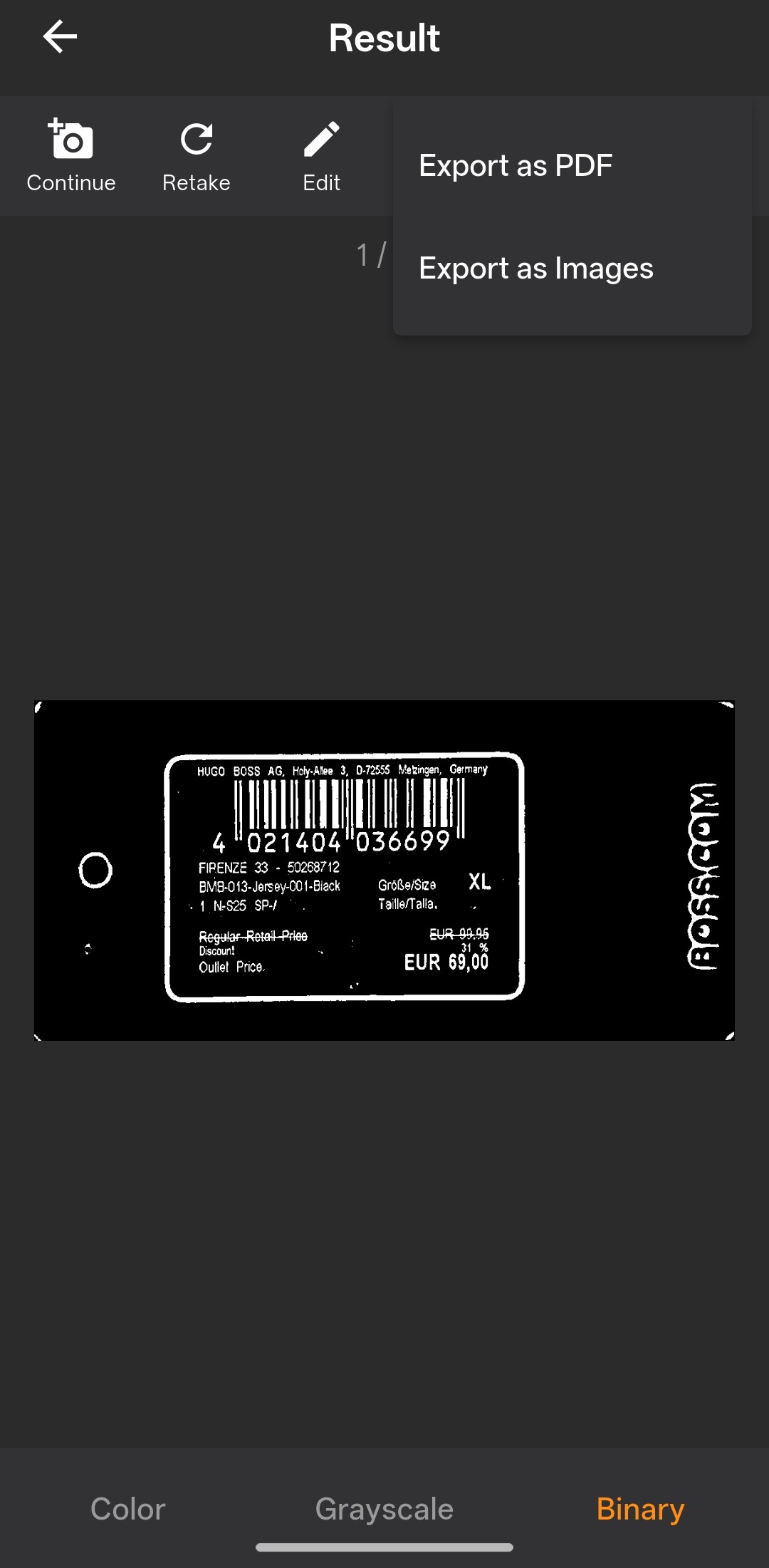
The result screen supports two output paths: save each page to the system gallery as PNG, or generate a multi-page A4 PDF in the app documents directory.
Future<void> _exportImages() async {
  if (_isSaving) return;
  setState(() => _isSaving = true);
  try {
    if (Platform.isAndroid) {
      final status = await Permission.photos.request();
      if (!status.isGranted) {
        await Permission.storage.request();
      }
    }

    final timestamp = DateTime.now().millisecondsSinceEpoch;
    int saved = 0;

    for (int i = 0; i < _pages.length; i++) {
      final bytes = await _pages[i].getDisplayBytes();
      if (bytes == null) continue;

      final fileName = '${AppConstants.exportFilePrefix}${timestamp}_${i + 1}.png';
      final result = await ImageGallerySaverPlus.saveImage(
        bytes,
        quality: 95,
        name: fileName,
      );

      if (result != null && result['isSuccess'] == true) {
        saved++;
      }
    }

    if (mounted) {
      ScaffoldMessenger.of(context).showSnackBar(
        SnackBar(
          content: Text('$saved image(s) saved to gallery'),
          duration: AppConstants.snackBarDuration,
        ),
      );
    }
  } catch (e) {
    if (mounted) {
      ScaffoldMessenger.of(context).showSnackBar(
        SnackBar(content: Text('Failed to save images: $e')),
      );
    }
  } finally {
    if (mounted) setState(() => _isSaving = false);
  }
}
Future<void> _exportPdf() async {
  if (_isSaving) return;
  setState(() => _isSaving = true);
  try {
    final pdf = pw.Document();

    for (int i = 0; i < _pages.length; i++) {
      final bytes = await _pages[i].getDisplayBytes();
      if (bytes == null) continue;

      final image = pw.MemoryImage(bytes);

      pdf.addPage(
        pw.Page(
          pageFormat: PdfPageFormat.a4,
          build: (pw.Context context) {
            return pw.Center(
              child: pw.Image(image, fit: pw.BoxFit.contain),
            );
          },
        ),
      );
    }

    final dir = await getApplicationDocumentsDirectory();
    final documentsDir = Directory('${dir.path}/documents');
    if (!documentsDir.existsSync()) {
      documentsDir.createSync(recursive: true);
    }

    final timestamp = DateTime.now().millisecondsSinceEpoch;
    final fileName = '${AppConstants.exportFilePrefix}$timestamp.pdf';
    final file = File('${documentsDir.path}/$fileName');
    final pdfBytes = await pdf.save();
    await file.writeAsBytes(pdfBytes);

    if (mounted) {
      ScaffoldMessenger.of(context).showSnackBar(
        SnackBar(
          content: Text('PDF saved: ${file.path}'),
          duration: AppConstants.snackBarDuration,
        ),
      );
    }

    await OpenFilex.open(file.path);
  } catch (e) {
    if (mounted) {
      ScaffoldMessenger.of(context).showSnackBar(
        SnackBar(content: Text('Failed to export PDF: $e')),
      );
    }
  } finally {
    if (mounted) setState(() => _isSaving = false);
  }
}
Common Issues & Edge Cases
- License initialization failure:
LicenseManager.initLicense(...)returns(false, message)and the UI switches to aLicense Errorstate. Verify the key and network availability for first activation. - No document found during manual or gallery capture: The code intentionally falls back to raw frame/image (
_captureRawFrame()orImageIO().readFromFile(...)) so users can still continue scanning. - Export permission mismatch on Android: The app requests
Permission.photosfirst and thenPermission.storageas a fallback. If users deny both, gallery export will fail. - Invalid quad during manual edit:
cropAndDeskewImage(...)throws when the selected polygon is not valid. The app catches this and prompts users to re-adjust corners into a proper quadrilateral.
Conclusion
This project builds a complete Flutter mobile document scanner with real-time detection, stabilization-based auto-capture, interactive quad editing, drag-and-drop page sorting, and multi-page export. The core capability comes from Dynamsoft Capture Vision SDK, while Flutter keeps the same workflow portable across Android and iOS. A practical next step is to add OCR on top of the normalized pages by extending the same capture pipeline.