


Build a SwiftUI iOS Document Scanner with Stable Auto Capture and PDF Export
This project builds a SwiftUI document scanner for iPhone and iPad that captures pages from the camera, stabilizes the detected document quad, and lets users review, edit, and export the final scan set. It uses Dynamsoft Capture Vision on iOS, so the same camera feed powers auto capture, manual fallback capture, gallery import, and deskewed export.
What you’ll build: A SwiftUI iOS document scanner with live camera capture, page review, crop adjustment, and PDF or JPEG export using Dynamsoft Capture Vision.
This article is Part 4 in a 5-Part Series.
- Part 1 - How to Build an Android Document Scanner with Auto-Capture and PDF Export
- Part 2 - How to Build a JavaScript Multi-Page Document Scanner Web App with Auto-Capture and PDF Export
- Part 3 - How to Build a Flutter Document Scanner App with Edge Detection, Editing, and PDF Export
- Part 4 - Build a SwiftUI iOS Document Scanner with Stable Auto Capture and PDF Export
- Part 5 - How to Build a Desktop Document Scanner with Python, PySide6, and Dynamsoft Capture Vision
Demo Video: Live document capture, page review, crop editing, and export on iPhone
Key Takeaways
- This tutorial shows how to build a camera-first document scanner that keeps capture, review, and export inside one SwiftUI flow.
- Dynamsoft Capture Vision powers document detection, quad stabilization, deskewing, and image normalization on iOS.
- The app uses a configurable stabilization model with IoU, area delta, and stable-frame thresholds to reduce premature captures.
- The result is well suited for onboarding, receipts, forms, IDs, and other scan-heavy mobile workflows.
Common Developer Questions
How do I capture a stable document frame only after the quad stops moving?
Compare each newly detected quadrilateral with the previous one and only fire auto-capture when overlap and area change remain within the configured thresholds for several consecutive frames. The sample’s QuadStabilizer does exactly that so the app waits for a stable page instead of reacting to every detection.
What common issues does this tutorial call out and how are they handled?
The current sample is tuned for portrait use, so the scanner, result sheets, and crop editor are laid out with that assumption. The rendering pipeline converts grayscale and binary variants on demand, then rotates the preview or export output without mutating the original source.
How can I export a multi-page scan as PDF and also allow per-page JPEG output?
Keep the captured pages in a review flow where users can rotate, reorder, retake, and crop them, then generate either one combined PDF or separate image exports from the same scan batch. That separation between capture and review is what makes both export modes practical in one SwiftUI app.
Prerequisites
- Xcode 16 or later
- iOS 16 or later
- A valid Dynamsoft Capture Vision license key
- A Mac with SwiftPM package resolution enabled in Xcode
Step 1: Install and Configure the SDK
The project depends on the Swift Package Manager package capture-vision-spm, which provides the Capture Vision products used by the scanner. The package is pinned in the Xcode project, and the app initializes the SDK during launch.
/* Begin XCRemoteSwiftPackageReference section */
		C30000000000000000000001 /* XCRemoteSwiftPackageReference "capture-vision-spm" */ = {
			isa = XCRemoteSwiftPackageReference;
			repositoryURL = "https://github.com/Dynamsoft/capture-vision-spm";
			requirement = {
				kind = upToNextMajorVersion;
				minimumVersion = 3.6.4000;
			};
		};
/* End XCRemoteSwiftPackageReference section */
import SwiftUI
import DynamsoftCaptureVisionBundle

@main
struct DynamsoftDocumentScannerApp: App {
    @StateObject private var store = DocumentScannerStore()

    init() {
        LicenseManager.initLicense(
            "LICENSE-KEY",
            verificationDelegate: nil
        )
    }

    var body: some Scene {
        WindowGroup {
            ContentView()
                .environmentObject(store)
        }
    }
}
Step 2: Stabilize Document Detection from the Camera Feed
The scanner view creates a CameraView, attaches a CameraEnhancer, and starts the DetectAndNormalizeDocument_Default template. It also keeps a short cooldown window so the same document is not captured repeatedly.
import SwiftUI
import UIKit
import DynamsoftCaptureVisionBundle

struct CameraScannerView: UIViewControllerRepresentable {
    @EnvironmentObject private var store: DocumentScannerStore

    let manualCaptureToken: Int
    let settings: AutoCaptureSettings

    func makeCoordinator() -> Coordinator {
        Coordinator(store: store, settings: settings)
    }

    func makeUIViewController(context: Context) -> UIViewController {
        context.coordinator.makeViewController()
    }

    func updateUIViewController(_ uiViewController: UIViewController, context: Context) {
        context.coordinator.update(settings: settings, manualCaptureToken: manualCaptureToken)
    }

    static func dismantleUIViewController(_ uiViewController: UIViewController, coordinator: Coordinator) {
        coordinator.stop()
    }

    final class Coordinator: NSObject, CapturedResultReceiver {
        private struct CaptureCandidate {
            let originalImageData: ImageData?
            let normalizedImageData: ImageData
            let quad: Quadrilateral?
            let crossVerified: Bool
        }

        private unowned let store: DocumentScannerStore
        private let router = CaptureVisionRouter()
        private let stabilizer: QuadStabilizer

        private var cameraEnhancer: CameraEnhancer?
        private var latestCandidate: CaptureCandidate?
        private var cooldown = false
        private var awaitingManualCapture = false
        private var lastManualCaptureToken = 0
        private var fallbackWorkItem: DispatchWorkItem?

        init(store: DocumentScannerStore, settings: AutoCaptureSettings) {
            self.store = store
            self.stabilizer = QuadStabilizer(settings: settings)
            super.init()
        }

        func makeViewController() -> UIViewController {
            let controller = UIViewController()
            controller.view.backgroundColor = .black

            let cameraView = CameraView(frame: .zero)
            cameraView.translatesAutoresizingMaskIntoConstraints = false
            cameraView.scanRegionMaskVisible = false
            cameraView.torchButtonVisible = false
            controller.view.addSubview(cameraView)

            NSLayoutConstraint.activate([
                cameraView.leadingAnchor.constraint(equalTo: controller.view.leadingAnchor),
                cameraView.trailingAnchor.constraint(equalTo: controller.view.trailingAnchor),
                cameraView.topAnchor.constraint(equalTo: controller.view.topAnchor),
                cameraView.bottomAnchor.constraint(equalTo: controller.view.bottomAnchor)
            ])

            cameraEnhancer = CameraEnhancer(view: cameraView)

            if let cameraEnhancer {
                cameraEnhancer.setResolution(.resolution1080P)
                try? router.setInput(cameraEnhancer)
            }

            configureTemplate()
            router.addResultReceiver(self)
            start()

            return controller
        }

        func update(settings: AutoCaptureSettings, manualCaptureToken: Int) {
            stabilizer.settings = settings
            if lastManualCaptureToken != manualCaptureToken {
                lastManualCaptureToken = manualCaptureToken
                requestManualCapture()
            }
        }

        func start() {
            cameraEnhancer?.open()
            router.startCapturing(detectAndNormalizeTemplateName) { [weak self] isSuccess, error in
                guard let self, !isSuccess else { return }
                Task { @MainActor in
                    self.store.errorMessage = error?.localizedDescription ?? "Failed to start capturing."
                }
            }
        }

        func stop() {
            fallbackWorkItem?.cancel()
            fallbackWorkItem = nil
            router.stopCapturing()
            router.removeAllResultReceivers()
            cameraEnhancer?.close()
        }

        private func configureTemplate() {
            guard let settings = try? router.getSimplifiedSettings(detectAndNormalizeTemplateName) else {
                return
            }

            settings.outputOriginalImage = true
            settings.minImageCaptureInterval = 0
            settings.timeout = 3000
            settings.maxParallelTasks = 1
            settings.documentSettings?.expectedDocumentsCount = 1
            _ = try? router.updateSettings(detectAndNormalizeTemplateName, settings: settings)
        }

        private func requestManualCapture() {
            guard !cooldown else { return }

            fallbackWorkItem?.cancel()
            latestCandidate = nil
            awaitingManualCapture = true

            let workItem = DispatchWorkItem { [weak self] in
                self?.captureFallbackFrameIfNeeded()
            }
            fallbackWorkItem = workItem
            DispatchQueue.main.asyncAfter(deadline: .now() + 0.5, execute: workItem)
        }

        func onProcessedDocumentResultReceived(_ result: ProcessedDocumentResult) {
            guard let item = result.deskewedImageResultItems?.first,
                  let normalizedImageData = item.imageData else {
                return
            }

            let originalImageData = router.getIntermediateResultManager().getOriginalImage(result.originalImageHashId)
            let candidate = CaptureCandidate(
                originalImageData: originalImageData,
                normalizedImageData: normalizedImageData,
                quad: cloneQuadrilateral(item.sourceDeskewQuad),
                crossVerified: item.crossVerificationStatus.rawValue == 1
            )

            latestCandidate = candidate

            if awaitingManualCapture {
                awaitingManualCapture = false
                fallbackWorkItem?.cancel()
                fallbackWorkItem = nil
                commit(candidate, autoCaptured: false)
                return
            }

            guard candidate.crossVerified, let quad = candidate.quad else { return }
            if stabilizer.feed(quad) {
                commit(candidate, autoCaptured: true)
            }
        }
    }
}
Step 3: Review, Adjust, and Export Scans
The store keeps the page list, selected page, color mode, and export payloads in one place. It also handles rotation, retake, reordering, PDF generation, and image export for the final scan batch.
import Foundation
import SwiftUI
import UIKit
import DynamsoftCaptureVisionBundle

@MainActor
final class DocumentScannerStore: ObservableObject {
    @Published var route: ScannerRoute = .scanner
    @Published var pages: [ScannedPage] = []
    @Published var selectedPageIndex: Int = 0
    @Published var retakePageIndex: Int? = nil
    @Published var autoCaptureSettings = AutoCaptureSettings.load() {
        didSet {
            autoCaptureSettings.persist()
        }
    }
    @Published var autoCaptureFlashVisible = false
    @Published var showSettings = false
    @Published var editorTarget: EditorTarget? = nil
    @Published var sharePayload: SharePayload? = nil
    @Published var errorMessage: String? = nil

    func integrateCapturedPage(_ page: ScannedPage, autoCaptured: Bool) {
        if let retakePageIndex, pages.indices.contains(retakePageIndex) {
            pages[retakePageIndex] = page
            selectedPageIndex = retakePageIndex
            self.retakePageIndex = nil
            route = .results
        } else {
            pages.append(page)
            selectedPageIndex = max(0, pages.count - 1)
        }

        if autoCaptured {
            autoCaptureFlashVisible = true
            Task { @MainActor in
                try? await Task.sleep(nanoseconds: 1_200_000_000)
                self.autoCaptureFlashVisible = false
            }
        }
    }

    func rotateSelectedPage() {
        guard pages.indices.contains(selectedPageIndex) else { return }
        pages[selectedPageIndex].rotationQuarterTurns = (pages[selectedPageIndex].rotationQuarterTurns + 1) % 4
    }

    func exportPDF() {
        let images = pages.compactMap { $0.renderedImage() }
        guard !images.isEmpty else { return }

        let exportURL = FileManager.default.temporaryDirectory
            .appendingPathComponent("dynamsoft-scan-\(UUID().uuidString)")
            .appendingPathExtension("pdf")

        let firstBounds = CGRect(origin: .zero, size: images[0].size)
        let renderer = UIGraphicsPDFRenderer(bounds: firstBounds)

        do {
            try renderer.writePDF(to: exportURL) { context in
                for image in images {
                    let bounds = CGRect(origin: .zero, size: image.size)
                    context.beginPage(withBounds: bounds, pageInfo: [:])
                    image.draw(in: bounds)
                }
            }
            sharePayload = SharePayload(items: [exportURL])
        } catch {
            errorMessage = error.localizedDescription
        }
    }
}
import SwiftUI
import UIKit
import DynamsoftCaptureVisionBundle

struct AutoCaptureSettingsSheet: View {
    @EnvironmentObject private var store: DocumentScannerStore

    var body: some View {
        NavigationStack {
            Form {
                Toggle("Enable auto capture", isOn: $store.autoCaptureSettings.autoCaptureEnabled)

                VStack(alignment: .leading, spacing: 8) {
                    HStack {
                        Text("IoU threshold")
                        Spacer()
                        Text(store.autoCaptureSettings.iouThreshold.formatted(.number.precision(.fractionLength(2))))
                            .foregroundStyle(.secondary)
                    }
                    Slider(value: $store.autoCaptureSettings.iouThreshold, in: 0.5...0.98)
                }

                VStack(alignment: .leading, spacing: 8) {
                    HStack {
                        Text("Area delta threshold")
                        Spacer()
                        Text(store.autoCaptureSettings.areaDeltaThreshold.formatted(.number.precision(.fractionLength(2))))
                            .foregroundStyle(.secondary)
                    }
                    Slider(value: $store.autoCaptureSettings.areaDeltaThreshold, in: 0.02...0.30)
                }

                VStack(alignment: .leading, spacing: 8) {
                    HStack {
                        Text("Stable frame count")
                        Spacer()
                        Text("\(store.autoCaptureSettings.stableFrameCount)")
                            .foregroundStyle(.secondary)
                    }
                    Stepper(value: $store.autoCaptureSettings.stableFrameCount, in: 1...8) {
                        EmptyView()
                    }
                }
            }
            .navigationTitle("Stabilization")
            .toolbar {
                ToolbarItem(placement: .confirmationAction) {
                    Button("Done") {
                        store.showSettings = false
                    }
                }
            }
        }
    }
}

struct QuadEditorSheet: View {
    let page: ScannedPage
    let onApply: (Quadrilateral) -> Void
    let onCancel: () -> Void

    @StateObject private var session = QuadEditorSession()

    var body: some View {
        VStack(spacing: 0) {
            HStack {
                Button("Cancel") {
                    onCancel()
                }

                Spacer()

                Text("Adjust Crop")
                    .font(.system(size: 18, weight: .bold, design: .rounded))

                Spacer()

                Button("Apply") {
                    if let quad = session.currentQuad() {
                        onApply(quad)
                    } else {
                        onCancel()
                    }
                }
                .fontWeight(.semibold)
            }
            .padding(.horizontal, 18)
            .padding(.vertical, 14)
            .background(.thinMaterial)

            if page.originalImageData != nil {
                QuadEditorRepresentable(page: page, session: session)
                    .ignoresSafeArea(edges: .bottom)
            } else {
                Spacer()
                Text("This page does not have an editable source image.")
                Spacer()
            }
        }
    }
}
Step 4: Import Photos and Deskew Existing Images
The app also supports gallery imports. If Capture Vision finds a document in the imported image, the store saves the deskewed image and its quad; otherwise it keeps the original image as a fallback page.
    func importPhotoData(_ data: Data) {
        guard let uiImage = UIImage(data: data)?.normalizedOrientationImage() else {
            errorMessage = "Unable to decode the selected image."
            return
        }

        let originalImageData = try? ImageIO().read(fromMemory: data)
        let capturedResult = importRouter.captureFromImage(uiImage, templateName: detectAndNormalizeTemplateName)

        if let item = capturedResult.processedDocumentResult?.deskewedImageResultItems?.first,
           let normalizedImageData = item.imageData {
            let page = ScannedPage(
                originalImageData: originalImageData,
                normalizedImageData: normalizedImageData,
                quad: cloneQuadrilateral(item.sourceDeskewQuad),
                fallbackImage: nil
            )
            integrateCapturedPage(page, autoCaptured: false)
            return
        }

        let page = ScannedPage(
            originalImageData: nil,
            normalizedImageData: nil,
            quad: nil,
            fallbackImage: uiImage
        )
        integrateCapturedPage(page, autoCaptured: false)
    }
Step 5: Trigger Auto Capture Only After the Document Quad Stabilizes
The scanner does not commit a page on the first detection. Instead, it compares each new quadrilateral against the previous one and only auto-captures when the overlap and area change stay within the configured thresholds for several consecutive frames.
import Foundation
import DynamsoftCaptureVisionBundle

final class QuadStabilizer {
    var settings: AutoCaptureSettings

    private var previousQuad: Quadrilateral?
    private var consecutiveStableFrames = 0

    init(settings: AutoCaptureSettings) {
        self.settings = settings
    }

    func reset() {
        previousQuad = nil
        consecutiveStableFrames = 0
    }

    func feed(_ quad: Quadrilateral) -> Bool {
        guard settings.autoCaptureEnabled else { return false }

        guard let previousQuad else {
            self.previousQuad = cloneQuadrilateral(quad)
            consecutiveStableFrames = 0
            return false
        }

        let iou = quadrilateralIoU(previousQuad, quad)
        let previousArea = quadrilateralArea(previousQuad)
        let currentArea = quadrilateralArea(quad)
        let areaDelta = previousArea > 0 ? abs(currentArea - previousArea) / previousArea : 1

        if iou >= settings.iouThreshold && areaDelta <= settings.areaDeltaThreshold {
            consecutiveStableFrames += 1
            if consecutiveStableFrames >= settings.stableFrameCount {
                reset()
                return true
            }
        } else {
            consecutiveStableFrames = 0
        }

        self.previousQuad = cloneQuadrilateral(quad)
        return false
    }
}
import CoreGraphics
import DynamsoftCaptureVisionBundle

func quadrilateralIoU(_ lhs: Quadrilateral, _ rhs: Quadrilateral) -> Double {
    let a = quadrilateralBounds(lhs)
    let b = quadrilateralBounds(rhs)

    let intersection = a.intersection(b)
    guard !intersection.isNull && intersection.width > 0 && intersection.height > 0 else {
        return 0
    }

    let intersectionArea = intersection.width * intersection.height
    let unionArea = (a.width * a.height) + (b.width * b.height) - intersectionArea
    guard unionArea > 0 else { return 0 }
    return intersectionArea / unionArea
}

func quadrilateralArea(_ quad: Quadrilateral) -> Double {
    let points = quadrilateralPoints(quad)
    guard points.count >= 4 else { return 0 }

    var area: Double = 0
    for index in points.indices {
        let nextIndex = (index + 1) % points.count
        area += Double(points[index].x * points[nextIndex].y)
        area -= Double(points[nextIndex].x * points[index].y)
    }
    return abs(area) / 2
}
Step 6: Build the Capture-to-Review Workflow in SwiftUI
The app keeps capture, review, and page ordering inside one SwiftUI state machine. ScannerScreen handles import, manual capture, and thumbnails, while ResultsScreen exposes export, retake, edit, rotate, and sort actions.
import SwiftUI
import PhotosUI

struct ScannerScreen: View {
    @EnvironmentObject private var store: DocumentScannerStore
    @State private var manualCaptureToken = 0
    @State private var selectedPhotoItem: PhotosPickerItem?

    var body: some View {
        VStack(spacing: 18) {
            ZStack(alignment: .topLeading) {
                CameraScannerView(manualCaptureToken: manualCaptureToken, settings: store.autoCaptureSettings)
                    .frame(maxWidth: .infinity)
                    .aspectRatio(3 / 4, contentMode: .fit)

                if store.autoCaptureFlashVisible {
                    Text("Auto captured")
                }
            }

            HStack(spacing: 18) {
                PhotosPicker(selection: $selectedPhotoItem, matching: .images) {
                    Label("Import", systemImage: "photo.on.rectangle.angled")
                }

                Spacer()

                Button {
                    manualCaptureToken += 1
                } label: {
                    Circle()
                        .fill(Color.white)
                        .frame(width: 86, height: 86)
                }

                Spacer()

                Button {
                    store.openResults()
                } label: {
                    Label("Next", systemImage: "arrow.right")
                }
                .disabled(store.pages.isEmpty)
            }

            VStack(alignment: .leading, spacing: 10) {
                if store.pages.isEmpty || store.retakePageIndex != nil {
                    RoundedRectangle(cornerRadius: 22, style: .continuous)
                        .frame(height: 84)
                } else {
                    ScrollView(.horizontal, showsIndicators: false) {
                        HStack(spacing: 12) {
                            ForEach(Array(store.pages.enumerated()), id: \.element.id) { index, page in
                                ThumbnailCard(page: page, index: index + 1) {
                                    store.openResults(from: index)
                                } onRemove: {
                                    store.removePage(id: page.id)
                                }
                            }
                        }
                    }
                }
            }
        }
        .onChange(of: selectedPhotoItem) { newValue in
            guard let newValue else { return }
            Task {
                if let data = try? await newValue.loadTransferable(type: Data.self) {
                    await MainActor.run {
                        store.importPhotoData(data)
                    }
                } else {
                    await MainActor.run {
                        store.errorMessage = "Unable to load the selected photo."
                    }
                }
                await MainActor.run {
                    selectedPhotoItem = nil
                }
            }
        }
    }
}
struct ResultsScreen: View {
    @EnvironmentObject private var store: DocumentScannerStore

    var body: some View {
        VStack(spacing: 18) {
            HStack(alignment: .top) {
                Spacer()

                Menu {
                    Button("Export PDF") {
                        store.exportPDF()
                    }
                    Button("Export Images") {
                        store.exportImages()
                    }
                } label: {
                    Image(systemName: "square.and.arrow.up")
                }
            }

            if store.pages.isEmpty {
                Text("Capture a page before reviewing results.")
            } else {
                TabView(selection: $store.selectedPageIndex) {
                    ForEach(Array(store.pages.enumerated()), id: \.element.id) { index, page in
                        ZoomablePageView(page: page)
                            .tag(index)
                    }
                }

                HStack(spacing: 12) {
                    ActionChip(title: "Continue", systemImage: "plus.viewfinder") {
                        store.continueScanning()
                    }
                    ActionChip(title: "Retake", systemImage: "camera.rotate") {
                        store.startRetake()
                    }
                    ActionChip(title: "Edit", systemImage: "crop") {
                        store.presentEditor()
                    }
                    .disabled(!(store.currentPage?.canEdit ?? false))
                    ActionChip(title: "Rotate", systemImage: "rotate.right") {
                        store.rotateSelectedPage()
                    }
                    ActionChip(title: "Sort", systemImage: "square.grid.2x2") {
                        store.route = .sort
                    }
                }
            }
        }
    }
}
Step 7: Render Final Pages in Color, Grayscale, or Binary
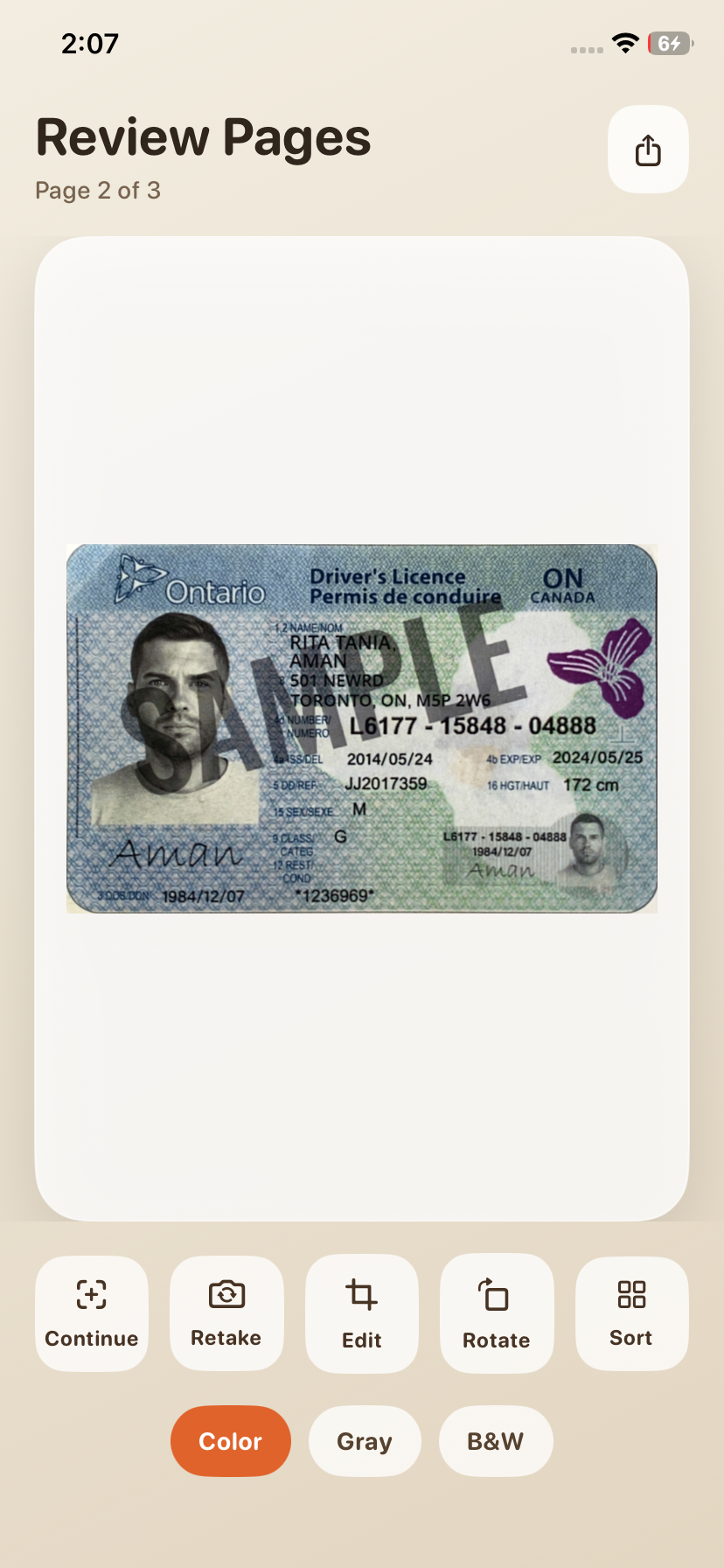
Each page keeps either a normalized document image from Capture Vision or a fallback UIImage. The rendering pipeline converts grayscale and binary variants on demand, then rotates the preview or export output without mutating the original source.
struct ScannedPage: Identifiable {
    let id = UUID()
    var originalImageData: ImageData?
    var normalizedImageData: ImageData?
    var quad: Quadrilateral?
    var fallbackImage: UIImage?
    var colorMode: DocumentColorMode = .color
    var rotationQuarterTurns: Int = 0

    var canEdit: Bool {
        originalImageData != nil && quad != nil
    }

    func renderedImage(processor: ImageProcessor = ImageProcessor()) -> UIImage? {
        let rendered: UIImage?

        if let normalizedImageData {
            var workingImage = normalizedImageData
            switch colorMode {
            case .color:
                break
            case .grayscale:
                workingImage = processor.convert(toGray: workingImage)
            case .binary:
                let grayscaleImage = processor.convert(toGray: workingImage)
                workingImage = processor.convert(toBinaryLocal: grayscaleImage)
            }
            rendered = try? workingImage.toUIImage()
        } else if let fallbackImage {
            rendered = fallbackImage.processed(for: colorMode)
        } else {
            rendered = nil
        }

        return rendered?.rotated(quarterTurns: rotationQuarterTurns)
    }
}
import UIKit

extension UIImage {
    func rotated(quarterTurns: Int) -> UIImage {
        let normalizedQuarterTurns = ((quarterTurns % 4) + 4) % 4
        guard normalizedQuarterTurns != 0 else { return self }

        let angle = CGFloat(normalizedQuarterTurns) * (.pi / 2)
        let rotatedSize = normalizedQuarterTurns.isMultiple(of: 2) ? size : CGSize(width: size.height, height: size.width)

        let renderer = UIGraphicsImageRenderer(size: rotatedSize)
        return renderer.image { context in
            context.cgContext.translateBy(x: rotatedSize.width / 2, y: rotatedSize.height / 2)
            context.cgContext.rotate(by: angle)
            draw(in: CGRect(x: -size.width / 2, y: -size.height / 2, width: size.width, height: size.height))
        }
    }

    func processed(for mode: DocumentColorMode) -> UIImage {
        switch mode {
        case .color:
            return self
        case .grayscale:
            return pixelProcessed(binary: false)
        case .binary:
            return pixelProcessed(binary: true)
        }
    }
}
Common Issues & Edge Cases
- SwiftPM package resolution: If Xcode shows
No such module 'DynamsoftCaptureVisionBundle', run package resolution from the.xcodeprojand reopen the project so thecapture-vision-spmpackage is loaded. - Premature auto capture: The scanner waits for a stable quadrilateral and a successful cross-verification result before it commits a page, which helps prevent blurry or partial scans.
- Portrait-only UI: The current sample is tuned for portrait use, so the scanner, result sheets, and crop editor are laid out with that assumption.
Conclusion
You now have a SwiftUI iOS document scanner that captures pages from the camera, stabilizes document detection, supports manual retries, and exports results as PDF or JPEG. The same Capture Vision SDK also handles imported photos and crop editing, so the workflow stays inside one iOS app.
For more SDK background and related use cases, visit the official Dynamsoft site and docs at https://www.dynamsoft.com/.