Build a .NET MAUI Cross-Platform Camera Barcode Scanner for Windows, Android, and iOS
.NET MAUI is designed for cross-platform development, but achieving seamless compatibility across all platforms isn’t always straightforward. While developers might assume cross-platform apps are easy to build with .NET MAUI, many existing libraries were initially tailored for Xamarin and remain limited to Android and iOS. Creating a unified .NET MAUI project for desktop and mobile requires addressing platform-specific challenges. For instance, Dynamsoft’s barcode SDKs are split into two NuGet packages: Dynamsoft.DotNet.BarcodeReader.Bundle (for Windows desktop ) and Dynamsoft.CaptureVisionBundle.Maui (for mobile ), which do not provide unified APIs. This article explains how to merge MAUI desktop barcode scanner and MAUI mobile barcode scanner into a single project supporting Windows, Android, and iOS.
What you’ll build: A single .NET MAUI project that scans barcodes from camera or image files on Windows, Android, and iOS using Dynamsoft Barcode Reader — with platform-specific rendering handled via preprocessor directives and separate page classes.
Key Takeaways
- A single
.csprojcan targetnet9.0-android,net9.0-ios, andnet9.0-windows10.0.19041.0by conditionally including platform-specific NuGet packages. - Dynamsoft Barcode Reader provides two separate packages (
Dynamsoft.DotNet.BarcodeReader.Bundlefor Windows,Dynamsoft.CaptureVisionBundle.Mauifor mobile) that must be gated with#ifpreprocessor directives. SKCanvasView(SkiaSharp) must be used on iOS for overlay rendering —GraphicsViewcauses text-rendering failures on iOS and crashes on Android.- Platform-specific page classes (
AndroidCameraPage,iOSCameraPage) are the most reliable way to avoid cross-platform rendering bugs in a single MAUI project.
Common Developer Questions
How do I use Dynamsoft Barcode Reader in a single .NET MAUI project targeting Windows, Android, and iOS?
Keep one MAUI project but separate the Windows and mobile integration paths behind platform checks, because the desktop and mobile Dynamsoft packages are not identical. This article combines them by conditionally using the right package and page implementation for each target platform.
Why does GraphicsView fail to render text overlays on iOS in .NET MAUI?
GraphicsView can render barcode overlay text unreliably on iOS, while Android has its own stability problems with SKCanvasView. That is why this implementation uses platform-specific page classes and rendering components instead of forcing one drawing surface across Windows, Android, and iOS.
How do I conditionally include NuGet packages per platform in a .csproj file?
Use target-framework conditions in the project file so Android and iOS only receive the MAUI capture package while Windows uses the desktop barcode package. That keeps one project file while still allowing the build to resolve the correct SDK set for each platform.
This article is Part 5 in a 5-Part Series.
- Part 1 - Build a .NET MAUI Windows Desktop Barcode Scanner with Live Camera Feed
- Part 2 - How to Build a .NET MAUI Barcode and QR Code Scanner in C#
- Part 3 - How to Build a .NET MAUI Document Scanner App with Capture, Normalize, and Share
- Part 4 - Build a Passport MRZ Scanner for Android and iOS in C# with .NET MAUI
- Part 5 - Build a .NET MAUI Cross-Platform Camera Barcode Scanner for Windows, Android, and iOS
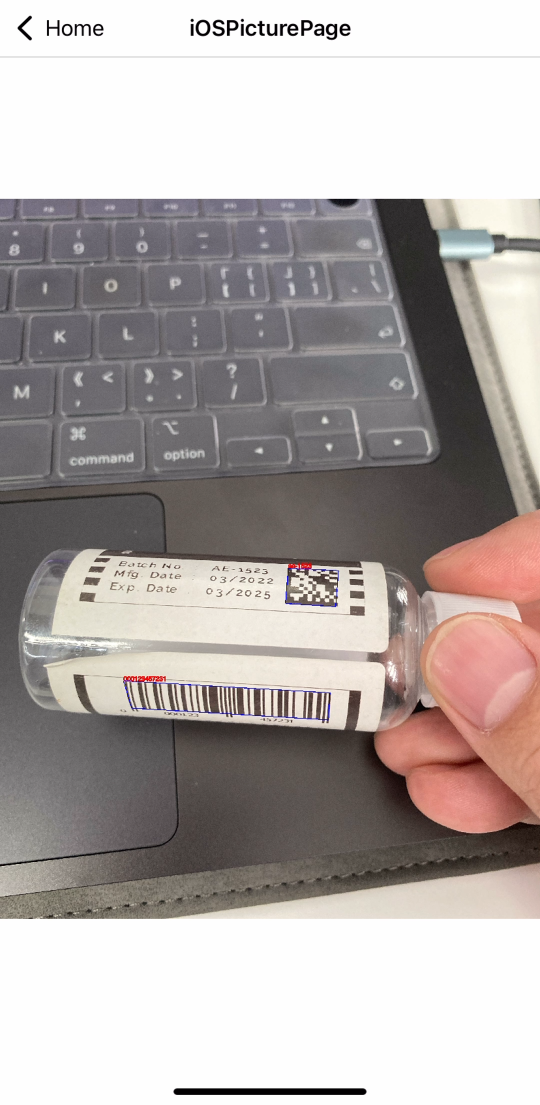
See the iOS Barcode Scanner in Action
Prerequisites
- Install the .NET 9.0 SDK.
- Obtain a trial license key for Dynamsoft Barcode Reader.
Step 1: Configure the .csproj File to Target Windows, Android, and iOS
First, remove macOS from the target frameworks to avoid build conflicts when compiling for iOS on macOS:
<PropertyGroup>
		<TargetFrameworks>net9.0-android;net9.0-ios</TargetFrameworks>
		<TargetFrameworks Condition="$([MSBuild]::IsOSPlatform('windows'))">$(TargetFrameworks);net9.0-windows10.0.19041.0</TargetFrameworks>

		<OutputType>Exe</OutputType>
		<RootNamespace>BarcodeQrScanner</RootNamespace>
		<UseMaui>true</UseMaui>
		<SingleProject>true</SingleProject>
		<ImplicitUsings>enable</ImplicitUsings>
		<Nullable>enable</Nullable>

		<ApplicationTitle>BarcodeQrScanner</ApplicationTitle>

		<ApplicationId>com.companyname.barcodeqrscanner</ApplicationId>

		<ApplicationDisplayVersion>1.0</ApplicationDisplayVersion>
		<ApplicationVersion>1</ApplicationVersion>

		<WindowsPackageType>None</WindowsPackageType>

		<SupportedOSPlatformVersion Condition="$([MSBuild]::GetTargetPlatformIdentifier('$(TargetFramework)')) == 'ios'">15.0</SupportedOSPlatformVersion>
		<!-- <SupportedOSPlatformVersion Condition="$([MSBuild]::GetTargetPlatformIdentifier('$(TargetFramework)')) == 'maccatalyst'">15.0</SupportedOSPlatformVersion> -->
		<SupportedOSPlatformVersion Condition="$([MSBuild]::GetTargetPlatformIdentifier('$(TargetFramework)')) == 'android'">21.0</SupportedOSPlatformVersion>
		<SupportedOSPlatformVersion Condition="$([MSBuild]::GetTargetPlatformIdentifier('$(TargetFramework)')) == 'windows'">10.0.19041.0</SupportedOSPlatformVersion>
		<TargetPlatformMinVersion Condition="$([MSBuild]::GetTargetPlatformIdentifier('$(TargetFramework)')) == 'windows'">10.0.19041.0</TargetPlatformMinVersion>
		<SupportedOSPlatformVersion Condition="$([MSBuild]::GetTargetPlatformIdentifier('$(TargetFramework)')) == 'tizen'">6.5</SupportedOSPlatformVersion>
	</PropertyGroup>
Next, conditionally include the mobile-specific NuGet package Dynamsoft.CaptureVisionBundle.Maui:
<ItemGroup Condition="'$(TargetFramework)' == 'net9.0-android' Or '$(TargetFramework)' == 'net9.0-ios'">
    <PackageReference Include="Dynamsoft.CaptureVisionBundle.Maui" Version="3.0.3100" />
</ItemGroup>
The desktop package Dynamsoft.DotNet.BarcodeReader.Bundle can be added globally without issues:
<PackageReference Include="Dynamsoft.DotNet.BarcodeReader.Bundle" Version="11.0.3000" />
Step 2: Isolate Platform-Specific Code with Preprocessor Directives
Use #if directives to isolate code for Android/iOS and Windows:
#if ANDROID || IOS
using Dynamsoft.License.Maui;
#endif


public partial class MainPage : ContentPage
{
#if ANDROID || IOS
	class LicenseVerificationListener : ILicenseVerificationListener
	{
		public void OnLicenseVerified(bool isSuccess, string message)
		{
			if (!isSuccess)
			{
				Debug.WriteLine(message);
			}
		}
	}
#endif

    public MainPage()
	{
		InitializeComponent();

#if ANDROID || IOS
		LicenseManager.InitLicense("LICENSE-KEY", new LicenseVerificationListener());
#endif
	}
}
Step 3: Choose the Right UI Components per Platform
To manage barcode scanning from files or cameras, we create four pages due to rendering differences:
- AndroidPicturePage.xaml / iOSPicturePage.xaml: Handle image-based barcode detection.
- AndroidCameraPage.xaml / iOSCameraPage.xaml: Enable real-time camera scanning.
This separation is necessary because:
- Android: Uses
GraphicsView(avoids crashes caused bySKCanvasView). - iOS: Uses
SKCanvasView(resolves text-rendering issues inGraphicsView).
private async void OnFileButtonClicked(object sender, EventArgs e)
{
    try
    {

        FileResult? photo = null;
        if (DeviceInfo.Current.Platform == DevicePlatform.WinUI || DeviceInfo.Current.Platform == DevicePlatform.MacCatalyst)
        {
            photo = await FilePicker.PickAsync();
        }
        else if (DeviceInfo.Current.Platform == DevicePlatform.Android || DeviceInfo.Current.Platform == DevicePlatform.iOS)
        {
            photo = await MediaPicker.CapturePhotoAsync();
        }
        await LoadPhotoAsync(photo);
    }
    catch (Exception ex)
    {
        Debug.WriteLine($"CapturePhotoAsync THREW: {ex.Message}");
    }
}

private async void OnCameraButtonClicked(object sender, EventArgs e)
{
    if (DeviceInfo.Current.Platform == DevicePlatform.Android)
    {
        await Navigation.PushAsync(new AndroidCameraPage());
    }
    else if (DeviceInfo.Current.Platform == DevicePlatform.iOS)
    {
        await Navigation.PushAsync(new iOSCameraPage());
    }
    else
    {
        await Navigation.PushAsync(new CameraPage());
    }

}

async Task LoadPhotoAsync(FileResult? photo)
{
    if (photo == null)
    {
        return;
    }

    if (DeviceInfo.Current.Platform == DevicePlatform.Android)
    {
        await Navigation.PushAsync(new AndroidPicturePage(photo));
    }
    else if (DeviceInfo.Current.Platform == DevicePlatform.iOS)
    {
        await Navigation.PushAsync(new iOSPicturePage(photo));
    }
    else
    {
        await Navigation.PushAsync(new PicturePage(photo.FullPath));
    }
}
Why Platform-Specific Pages Prevent iOS and Android Rendering Failures
While SKCanvasView and GraphicsView are cross-platform in theory, they exhibit critical bugs:
- Android:
SKCanvasViewcauses app crashes and black screens. - iOS:
GraphicsViewfails to render text overlays. Using platform-specific pages ensures stability and performance.
Step 4: Implement Picture and Camera Pages for Android
- Reuse the
PicturePageandCameraPagecode from thehttps://github.com/yushulx/maui-barcode-mrz-document-scanner/tree/main/examples/BarcodeQrScannerasAndroidPicturePageandAndroidCameraPage. -
Add platform directives to
AndroidPicturePage.xaml.cs.#if ANDROID || IOS using Dynamsoft.CaptureVisionRouter.Maui; using Dynamsoft.BarcodeReader.Maui; #endif using SkiaSharp; using System.Diagnostics; using Microsoft.Maui.Graphics.Platform; namespace BarcodeQrScanner; public partial class AndroidPicturePage : ContentPage { #if ANDROID || IOS private CaptureVisionRouter router = new CaptureVisionRouter(); #endif ... async private void LoadImageWithOverlay(FileResult result) { var filePath = result.FullPath; var stream = await result.OpenReadAsync(); float originalWidth = 0; float originalHeight = 0; try { ... #if ANDROID || IOS var streamcopy = await result.OpenReadAsync(); byte[] filestream = new byte[streamcopy.Length]; int offset = 0; while (offset < filestream.Length) { int bytesRead = streamcopy.Read(filestream, offset, filestream.Length - offset); if (bytesRead == 0) break; offset += bytesRead; } streamcopy.Close(); if (offset != filestream.Length) { throw new IOException("Could not read the entire stream."); } CapturedResult capturedResult = router.Capture(filestream, EnumPresetTemplate.PT_READ_BARCODES); DecodedBarcodesResult? barcodeResults = null; if (capturedResult != null) { barcodeResults = capturedResult.DecodedBarcodesResult; } var drawable = new ImageWithOverlayDrawable(barcodeResults, originalWidth, originalHeight, true); OverlayGraphicsView.Drawable = drawable; OverlayGraphicsView.Invalidate(); #endif } catch (Exception ex) { Console.WriteLine($"An error occurred: {ex.Message}"); } } ... } -
Add directives to
AndroidCameraPage.xaml.cs.namespace BarcodeQrScanner; #if ANDROID || IOS using Dynamsoft.Core.Maui; using Dynamsoft.CaptureVisionRouter.Maui; using Dynamsoft.BarcodeReader.Maui; using Dynamsoft.CameraEnhancer.Maui; using System.Diagnostics; using CommunityToolkit.Mvvm.Messaging; public partial class AndroidCameraPage : ContentPage, ICapturedResultReceiver, ICompletionListener { ... } #endif
Step 5: Implement Picture and Camera Pages for iOS
As mentioned earlier, the GraphicsView has some UI rendering issues. To resolve this issue, we use SKCanvasView instead.
Build the iOS Picture Page with SKCanvasView
-
Add the following layout code to
iOSPicturePage.xaml:<?xml version="1.0" encoding="utf-8" ?> <ContentPage xmlns="http://schemas.microsoft.com/dotnet/2021/maui" xmlns:x="http://schemas.microsoft.com/winfx/2009/xaml" x:Class="BarcodeQrScanner.iOSPicturePage" xmlns:skia="clr-namespace:SkiaSharp.Views.Maui.Controls;assembly=SkiaSharp.Views.Maui.Controls" Title="iOSPicturePage"> <ContentPage.Content> <Grid> <skia:SKCanvasView x:Name="canvasView" HorizontalOptions="Fill" VerticalOptions="Fill" PaintSurface="OnCanvasViewPaintSurface"/> <Label FontSize="18" FontAttributes="Bold" x:Name="ResultLabel" Text="" TextColor="Red" HorizontalOptions="Center" VerticalOptions="Center"/> </Grid> </ContentPage.Content> </ContentPage> -
In
iOSPicturePage.xaml.cs, follow these steps:-
Decode an image file to
SKBitmap:var stream = await fileResult.OpenReadAsync(); bitmap = SKBitmap.Decode(stream); -
Read barcodes from the image stream:
private CaptureVisionRouter router = new CaptureVisionRouter(); stream = await fileResult.OpenReadAsync(); byte[] filestream = new byte[stream.Length]; int offset = 0; while (offset < filestream.Length) { int bytesRead = stream.Read(filestream, offset, filestream.Length - offset); if (bytesRead == 0) break; offset += bytesRead; } stream.Close(); if (offset != filestream.Length) { throw new IOException("Could not read the entire stream."); } result = router.Capture(filestream, EnumPresetTemplate.PT_READ_BARCODES); -
Render the bitmap and barcode results on
SKCanvasView:void OnCanvasViewPaintSurface(object sender, SKPaintSurfaceEventArgs args) { if (!isDataReady) { return; } SKImageInfo info = args.Info; SKSurface surface = args.Surface; SKCanvas canvas = surface.Canvas; canvas.Clear(); if (bitmap != null) { var imageCanvas = new SKCanvas(bitmap); float textSize = 28; float StrokeWidth = 4; if (DeviceInfo.Current.Platform == DevicePlatform.Android || DeviceInfo.Current.Platform == DevicePlatform.iOS) { textSize = (float)(18 * DeviceDisplay.MainDisplayInfo.Density); StrokeWidth = 4; } SKPaint skPaint = new SKPaint { Style = SKPaintStyle.Stroke, Color = SKColors.Blue, StrokeWidth = StrokeWidth, }; SKPaint textPaint = new SKPaint { Style = SKPaintStyle.Stroke, Color = SKColors.Red, StrokeWidth = StrokeWidth, }; SKFont font = new SKFont() { Size = textSize }; #if ANDROID || IOS if (isDataReady) { if (result != null) { ResultLabel.Text = ""; DecodedBarcodesResult? barcodesResult = result.DecodedBarcodesResult; if (barcodesResult != null) { var items = barcodesResult.Items; foreach (var barcodeItem in items) { Microsoft.Maui.Graphics.Point[] points = barcodeItem.Location.Points; imageCanvas.DrawText(barcodeItem.Text, (float)points[0].X, (float)points[0].Y, SKTextAlign.Left, font, textPaint); imageCanvas.DrawLine((float)points[0].X, (float)points[0].Y, (float)points[1].X, (float)points[1].Y, skPaint); imageCanvas.DrawLine((float)points[1].X, (float)points[1].Y, (float)points[2].X, (float)points[2].Y, skPaint); imageCanvas.DrawLine((float)points[2].X, (float)points[2].Y, (float)points[3].X, (float)points[3].Y, skPaint); imageCanvas.DrawLine((float)points[3].X, (float)points[3].Y, (float)points[0].X, (float)points[0].Y, skPaint); } } } else { ResultLabel.Text = "No 1D/2D barcode found"; } } #endif float scale = Math.Min((float)info.Width / bitmap.Width, (float)info.Height / bitmap.Height); float x = (info.Width - scale * bitmap.Width) / 2; float y = (info.Height - scale * bitmap.Height) / 2; SKRect destRect = new SKRect(x, y, x + scale * bitmap.Width, y + scale * bitmap.Height); canvas.DrawBitmap(bitmap, destRect); } }
-
Build the iOS Camera Page with Live Barcode Overlay
-
Add the following layout code to
iOSCameraPage.xaml:<?xml version="1.0" encoding="utf-8" ?> <ContentPage xmlns="http://schemas.microsoft.com/dotnet/2021/maui" xmlns:x="http://schemas.microsoft.com/winfx/2009/xaml" x:Class="BarcodeQrScanner.iOSCameraPage" xmlns:skia="clr-namespace:SkiaSharp.Views.Maui.Controls;assembly=SkiaSharp.Views.Maui.Controls" Title="iOSCameraPage"> <Grid x:Name="MainGrid" Margin="0"> <skia:SKCanvasView x:Name="canvasView" Margin="0" HorizontalOptions="FillAndExpand" VerticalOptions="FillAndExpand"/> </Grid> </ContentPage>Note: Do not place the camera preview control here. Instead, add it dynamically in the code-behind file to avoid build failures.
-
In
iOSCameraPage.xaml.cs, implement the camera preview and barcode scanning:-
Initialize the camera preview and barcode scanner. Insert the camera preview control into
MainGridbelow theSKCanvasView. UseOnCanvasViewPaintSurfaceto render barcode results.public iOSCameraPage() { InitializeComponent(); canvasView.PaintSurface += OnCanvasViewPaintSurface; if (DeviceInfo.Platform == DevicePlatform.Android || DeviceInfo.Platform == DevicePlatform.iOS) { CameraPreview = new Dynamsoft.CameraEnhancer.Maui.CameraView(); MainGrid.Children.Insert(0, CameraPreview); } enhancer = new CameraEnhancer(); router = new CaptureVisionRouter(); router.SetInput(enhancer); router.AddResultReceiver(this); WeakReferenceMessenger.Default.Register<LifecycleEventMessage>(this, (r, message) => { if (message.EventName == "Resume") { if (this.Handler != null && enhancer != null) { enhancer.Open(); } } else if (message.EventName == "Stop") { enhancer?.Close(); } }); } -
Receive barcode results in a callback function and trigger
SKCanvasViewto render them.public void OnDecodedBarcodesReceived(DecodedBarcodesResult result) { if (imageWidth == 0 && imageHeight == 0) { IntermediateResultManager manager = router.GetIntermediateResultManager(); ImageData data = manager.GetOriginalImage(result.OriginalImageHashId); imageWidth = data.Width; imageHeight = data.Height; } lock (_lockObject) { _barcodeResult = result; CameraPreview.GetDrawingLayer(EnumDrawingLayerId.DLI_DBR).Visible = false; MainThread.BeginInvokeOnMainThread(() => { canvasView.InvalidateSurface(); }); } } -
Render the result overlay in the
OnCanvasViewPaintSurfaceevent handler.void OnCanvasViewPaintSurface(object sender, SKPaintSurfaceEventArgs args) { double width = canvasView.Width; double height = canvasView.Height; var mainDisplayInfo = DeviceDisplay.MainDisplayInfo; var orientation = mainDisplayInfo.Orientation; var rotation = mainDisplayInfo.Rotation; var density = mainDisplayInfo.Density; width *= density; height *= density; double scale, widthScale, heightScale, scaledWidth, scaledHeight; double previewWidth, previewHeight; if (orientation == DisplayOrientation.Portrait) { previewWidth = imageWidth; previewHeight = imageHeight; } else { previewWidth = imageHeight; previewHeight = imageWidth; } widthScale = previewWidth / width; heightScale = previewHeight / height; scale = widthScale < heightScale ? widthScale : heightScale; scaledWidth = previewWidth / scale; scaledHeight = previewHeight / scale; SKImageInfo info = args.Info; SKSurface surface = args.Surface; SKCanvas canvas = surface.Canvas; canvas.Clear(); SKPaint skPaint = new SKPaint { Style = SKPaintStyle.Stroke, Color = SKColors.Blue, StrokeWidth = 4, }; SKPaint textPaint = new SKPaint { Style = SKPaintStyle.Stroke, Color = SKColors.Red, StrokeWidth = 4, }; float textSize = 18; SKFont font = new SKFont() { Size = textSize }; lock (_lockObject) { if (_barcodeResult != null) { DecodedBarcodesResult? barcodesResult = _barcodeResult; if (barcodesResult != null) { var items = barcodesResult.Items; if (items != null) { foreach (var barcodeItem in items) { Microsoft.Maui.Graphics.Point[] points = barcodeItem.Location.Points; float x1 = (float)(points[0].X / scale); float y1 = (float)(points[0].Y / scale); float x2 = (float)(points[1].X / scale); float y2 = (float)(points[1].Y / scale); float x3 = (float)(points[2].X / scale); float y3 = (float)(points[2].Y / scale); float x4 = (float)(points[3].X / scale); float y4 = (float)(points[3].Y / scale); if (widthScale < heightScale) { y1 = (float)(y1 - (scaledHeight - height) / 2); y2 = (float)(y2 - (scaledHeight - height) / 2); y3 = (float)(y3 - (scaledHeight - height) / 2); y4 = (float)(y4 - (scaledHeight - height) / 2); } else { x1 = (float)(x1 - (scaledWidth - width) / 2); x2 = (float)(x2 - (scaledWidth - width) / 2); x3 = (float)(x3 - (scaledWidth - width) / 2); x4 = (float)(x4 - (scaledWidth - width) / 2); } canvas.DrawText(barcodeItem.Text, x1, y1 - 10, SKTextAlign.Left, font, textPaint); canvas.DrawLine(x1, y1, x2, y2, skPaint); canvas.DrawLine(x2, y2, x3, y3, skPaint); canvas.DrawLine(x3, y3, x4, y4, skPaint); canvas.DrawLine(x4, y4, x1, y1, skPaint); } } } } } }
-
Common Issues & Edge Cases
- iOS camera preview not appearing: If you declare the
CameraViewin XAML, the iOS build may fail with a linker error. Always add theDynamsoft.CameraEnhancer.Maui.CameraViewcontrol dynamically in code-behind usingMainGrid.Children.Insert(0, CameraPreview). - Android black screen with SkiaSharp:
SKCanvasViewis not stable on Android within MAUI camera pages. UseGraphicsViewwith a customIDrawablefor Android overlays to avoid rendering crashes. - Barcode coordinates misaligned on rotated device: The overlay scale calculation must account for display orientation (
DisplayOrientation.Portraitvs.Landscape). SwapimageWidth/imageHeightwhen the device is in landscape mode and recalculate the offset to reposition points correctly.
Step 6: Run the .NET MAUI Barcode Scanner on Windows, Android, and iOS
-
In Visual Studio Code, click the curly brackets icon at the bottom.
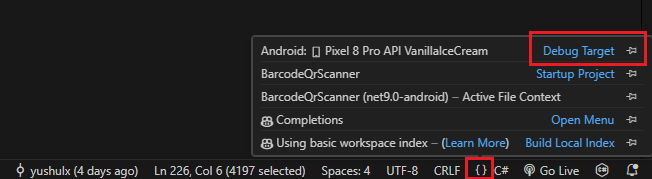
-
Select the target device.
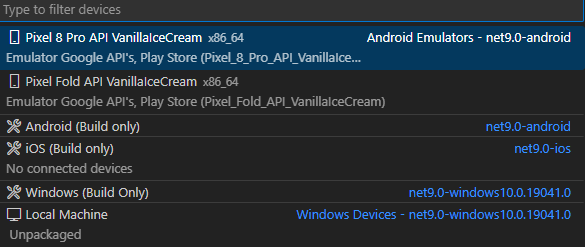
-
Press
F5to run the application.