


C++ Windows Webcam Barcode Scanner Tutorial: Windows Media Foundation API and Dynamsoft SDK
In the previous article, we developed a LiteCam library for camera access on Linux. To extend its functionality to Windows, we will leverage the Media Foundation API. This article explores how to use Media Foundation to access the camera on Windows, integrate it with the LiteCam library, and reuse the existing barcode scanning example code to build a camera-based barcode scanner for Windows.
What you’ll build: A native C++ Windows application that opens a webcam stream via Windows Media Foundation, converts YUY2 frames to RGB, and decodes barcodes in real time using the Dynamsoft Barcode Reader SDK v11.
Key Takeaways
- Windows Media Foundation provides a lightweight, OpenCV-free path to webcam access in C++ desktop applications on Windows 10+.
- The LiteCam library wraps Media Foundation (Windows) and V4L2 (Linux) behind a unified API, letting you reuse the same barcode scanning logic across platforms.
- YUY2-to-RGB channel order differs between Windows (BGR) and Linux (RGB), requiring a conditional swap in
ConvertYUY2ToRGB. - Dynamsoft Barcode Reader SDK v11 decodes 20+ barcode types from a raw RGB frame with a single API call — no image preprocessing required.
Common Developer Questions
How do I access a webcam in C++ on Windows without using OpenCV?
Use Windows Media Foundation to enumerate camera devices, configure the desired media type, and read sample buffers directly from the webcam stream. That gives a native C++ capture path on Windows without adding OpenCV as a dependency.
How do I build a real-time barcode scanner in C++ using Windows Media Foundation?
Capture frames through the LiteCam wrapper over Media Foundation, convert each sample into the RGB format expected by the Dynamsoft Barcode Reader SDK, and decode inside the live preview loop. The same application can then show both the camera stream and barcode results in real time.
What is the correct YUY2-to-RGB channel conversion for Windows versus Linux in C++?
The YUY2 conversion math is the same, but the final red and blue channel order differs between the Windows and Linux pipelines used in this project. The conversion helper therefore swaps channel placement conditionally so the downstream renderer and barcode SDK receive the correct byte order on each platform.
Prerequisites
- Windows 10 or later with a connected webcam
- Visual Studio 2019+ or MinGW-w64, CMake 3.10+
- Dynamsoft Barcode Reader C++ SDK v11 — Get a 30-day free trial license to activate it
This article is Part 2 in a 6-Part Series.
- Part 1 - How to Read Barcodes from a Linux Camera in C++ Without OpenCV
- Part 2 - C++ Windows Webcam Barcode Scanner Tutorial: Windows Media Foundation API and Dynamsoft SDK
- Part 3 - How to Build a macOS Camera Barcode Scanner in C++ Using AVFoundation
- Part 4 - How to Read Multiple Barcodes from a Camera Using Python and Dynamsoft Barcode Reader
- Part 5 - How to Build a Node.js Camera SDK and Barcode Scanner
- Part 6 - How to Build a Lightweight Flutter Camera Plugin for Windows, Linux, and macOS
Windows Camera Demo Video
Step 1: Implement Camera Capture Using Windows Media Foundation
Update Camera.h to Support Both Windows and Linux
To support both Windows and Linux, the Camera.h header file requires the following updates:
-
Include platform-specific headers:
#ifdef _WIN32 #include <windows.h> #include <mfapi.h> #include <mfidl.h> #include <mfobjects.h> #include <mfreadwrite.h> #include <wrl/client.h> #include <dshow.h> #elif __linux__ #include <linux/videodev2.h> #include <fcntl.h> #include <unistd.h> #include <sys/ioctl.h> #include <sys/mman.h> struct Buffer { void *start; size_t length; }; #endif -
Define the
CAMERA_APImacro for platform-specific export visibility:#ifdef _WIN32 #ifdef CAMERA_EXPORTS #define CAMERA_API __declspec(dllexport) #else #define CAMERA_API __declspec(dllimport) #endif #elif defined(__linux__) || defined(__APPLE__) #define CAMERA_API __attribute__((visibility("default"))) #else #define CAMERA_API #endif -
Modify the
MediaTypeInfoandCaptureDeviceInfostructures to use appropriate string types:struct CAMERA_API MediaTypeInfo { uint32_t width; uint32_t height; #ifdef _WIN32 wchar_t subtypeName[512]; #else char subtypeName[512]; #endif }; struct CAMERA_API CaptureDeviceInfo { #ifdef _WIN32 wchar_t friendlyName[512]; #else char friendlyName[512]; #endif }; -
Adjust pixel conversion logic in the
ConvertYUY2ToRGBfunction:void ConvertYUY2ToRGB(const unsigned char *yuy2Data, unsigned char *rgbData, int width, int height) { int rgbIndex = 0; for (int i = 0; i < width * height * 2; i += 4) { unsigned char y1 = yuy2Data[i]; unsigned char u = yuy2Data[i + 1]; unsigned char y2 = yuy2Data[i + 2]; unsigned char v = yuy2Data[i + 3]; #ifdef _WIN32 rgbData[rgbIndex++] = clamp(y1 + 1.772 * (u - 128), 0.0, 255.0); rgbData[rgbIndex++] = clamp(y1 - 0.344136 * (u - 128) - 0.714136 * (v - 128), 0.0, 255.0); rgbData[rgbIndex++] = clamp(y1 + 1.402 * (v - 128), 0.0, 255.0); rgbData[rgbIndex++] = clamp(y2 + 1.772 * (u - 128), 0.0, 255.0); rgbData[rgbIndex++] = clamp(y2 - 0.344136 * (u - 128) - 0.714136 * (v - 128), 0.0, 255.0); rgbData[rgbIndex++] = clamp(y2 + 1.402 * (v - 128), 0.0, 255.0); #else rgbData[rgbIndex++] = clamp(y1 + 1.402 * (v - 128), 0.0, 255.0); rgbData[rgbIndex++] = clamp(y1 - 0.344136 * (u - 128) - 0.714136 * (v - 128), 0.0, 255.0); rgbData[rgbIndex++] = clamp(y1 + 1.772 * (u - 128), 0.0, 255.0); rgbData[rgbIndex++] = clamp(y2 + 1.402 * (v - 128), 0.0, 255.0); rgbData[rgbIndex++] = clamp(y2 - 0.344136 * (u - 128) - 0.714136 * (v - 128), 0.0, 255.0); rgbData[rgbIndex++] = clamp(y2 + 1.772 * (u - 128), 0.0, 255.0); #endif } }The pixel order for red and blue channels is swapped between Windows and Linux.
-
Define the
Cameraclass with platform-specific members and methods:class CAMERA_API Camera { public: #ifdef _WIN32 Camera(); ~Camera(); #elif __linux__ Camera() : fd(-1), frameWidth(640), frameHeight(480), buffers(nullptr), bufferCount(0) {} ~Camera() { Release(); } #endif private: #ifdef _WIN32 void *reader; bool initialized; void InitializeMediaFoundation(); void ShutdownMediaFoundation(); #endif #ifdef __linux__ int fd; Buffer *buffers; unsigned int bufferCount; bool InitDevice(); void UninitDevice(); bool StartCapture(); void StopCapture(); #endif };
Enumerate Available Cameras
Use the Media Foundation API to enumerate available cameras:
std::vector<CaptureDeviceInfo> ListCaptureDevices()
{
    HRESULT hr = S_OK;
    ComPtr<IMFAttributes> attributes;
    std::vector<CaptureDeviceInfo> devicesInfo;

    hr = MFCreateAttributes(&attributes, 1);
    if (FAILED(hr))
    {
        std::cerr << "Failed to create attributes." << std::endl;
        return devicesInfo;
    }

    hr = attributes->SetGUID(MF_DEVSOURCE_ATTRIBUTE_SOURCE_TYPE, MF_DEVSOURCE_ATTRIBUTE_SOURCE_TYPE_VIDCAP_GUID);
    if (FAILED(hr))
    {
        std::cerr << "Failed to set video capture device attribute." << std::endl;
        return devicesInfo;
    }

    UINT32 count = 0;
    IMFActivate **devices = nullptr;

    hr = MFEnumDeviceSources(attributes.Get(), &devices, &count);
    if (FAILED(hr) || count == 0)
    {
        std::cerr << "No video capture devices found." << std::endl;
        return devicesInfo;
    }

    for (UINT32 i = 0; i < count; ++i)
    {
        WCHAR *friendlyName = nullptr;
        UINT32 nameLength = 0;

        hr = devices[i]->GetAllocatedString(MF_DEVSOURCE_ATTRIBUTE_FRIENDLY_NAME, &friendlyName, &nameLength);
        if (SUCCEEDED(hr))
        {
            CaptureDeviceInfo info = {};
            wcsncpy(info.friendlyName, friendlyName, nameLength);
            devicesInfo.push_back(info);
            CoTaskMemFree(friendlyName);
        }
        devices[i]->Release();
    }

    CoTaskMemFree(devices);
    return devicesInfo;
}
Explanation
- Create an
IMFAttributesobject to specify the video capture device. - Enumerate video capture devices using
MFEnumDeviceSources. - Retrieve the friendly name of each device using
GetAllocatedString.
Open and Activate a Camera Stream
-
Activate a specified camera by index:
ComPtr<IMFMediaSource> mediaSource;
hr = devices[cameraIndex]->ActivateObject(IID_PPV_ARGS(&mediaSource));
for (UINT32 i = 0; i < count; i++)
    devices[i]->Release();
CoTaskMemFree(devices);

if (FAILED(hr))
    return false;

ComPtr<IMFSourceReader> mfReader;
hr = MFCreateSourceReaderFromMediaSource(mediaSource.Get(), nullptr, &mfReader);
if (FAILED(hr))
    return false;
The
IMFSourceReaderobject is used to read video data from the camera. -
Configure video width, height, and pixel format. For example,
YUY2format with a frame size of640x480:ComPtr<IMFMediaType> mediaType; hr = MFCreateMediaType(&mediaType); if (FAILED(hr)) return false; hr = mediaType->SetGUID(MF_MT_MAJOR_TYPE, MFMediaType_Video); hr = mediaType->SetGUID(MF_MT_SUBTYPE, MFVideoFormat_YUY2); hr = MFSetAttributeSize(mediaType.Get(), MF_MT_FRAME_SIZE, frameWidth, frameHeight); if (SUCCEEDED(hr)) { hr = mfReader->SetCurrentMediaType(MF_SOURCE_READER_FIRST_VIDEO_STREAM, nullptr, mediaType.Get()); if (SUCCEEDED(hr)) { reader = reinterpret_cast<void *>(mfReader.Detach()); return true; } }After setting the media type, the
IMFSourceReaderobject is stored in thereadermember variable.
Capture and Convert Camera Frames to RGB
-
Read a sample from the camera:
HRESULT hr; DWORD streamIndex, flags; LONGLONG timestamp; ComPtr<IMFSample> sample; FrameData frame; frame.width = frameWidth; frame.height = frameHeight; frame.rgbData = nullptr; IMFSourceReader *mfReader = reinterpret_cast<IMFSourceReader *>(reader); hr = mfReader->ReadSample( MF_SOURCE_READER_FIRST_VIDEO_STREAM, 0, &streamIndex, &flags, ×tamp, &sample); if (FAILED(hr)) { std::cerr << "Failed to read sample." << std::endl; return frame; } -
Get the raw data from the sample and convert it to RGB888 format:
if (sample) { ComPtr<IMFMediaBuffer> buffer; hr = sample->ConvertToContiguousBuffer(&buffer); if (FAILED(hr)) { std::cerr << "Failed to convert sample to contiguous buffer." << std::endl; return frame; } BYTE *rawData = nullptr; DWORD maxLength = 0, currentLength = 0; hr = buffer->Lock(&rawData, &maxLength, ¤tLength); if (SUCCEEDED(hr)) { frame.size = frameWidth * frameHeight * 3; frame.rgbData = new unsigned char[frame.size]; if (!frame.rgbData) { std::cerr << "Failed to allocate memory for RGB data." << std::endl; return frame; } ConvertYUY2ToRGB(rawData, frame.rgbData, frameWidth, frameHeight); buffer->Unlock(); } }
Release Camera and Media Foundation Resources
Release the IMFSourceReader object and Media Foundation resources:
if (reader)
{
    ComPtr<IMFSourceReader> mfReader(static_cast<IMFSourceReader *>(reader));
    reader = nullptr;
}

if (initialized)
{
    MFShutdown();
    initialized = false;
}
Step 2: Build the Camera Preview Window for Windows
Update CameraPreview.h for Cross-Platform Display Support
To support cross-platform compatibility, the CameraPreview.h header file was updated as follows:
-
Define the
CAMERA_APImacro for Windows and Linux.#ifdef _WIN32 #include <windows.h> #elif __linux__ #include <X11/Xlib.h> #include <X11/Xutil.h> #elif __APPLE__ #include <Cocoa/Cocoa.h> #endif #ifdef _WIN32 #ifdef CAMERA_EXPORTS #define CAMERA_API __declspec(dllexport) #else #define CAMERA_API __declspec(dllimport) #endif #elif defined(__linux__) || defined(__APPLE__) #define CAMERA_API __attribute__((visibility("default"))) #else #define CAMERA_API #endif -
Add platform-specific window and rendering components:
  class CAMERA_API CameraWindow
  {

  private:

  #ifdef _WIN32
      static LRESULT CALLBACK WindowProc(HWND hwnd, UINT uMsg, WPARAM wParam, LPARAM lParam);

      HWND hwnd;
      HDC hdc;
      WNDCLASS wc;
      HINSTANCE hInstance;
  #elif __linux__
      Display *display;
      Window window;
      GC gc;
      Atom wmDeleteMessage;
  #endif
  };
Initialize and Destroy the Window
The constructor initializes the window class and event callback. The destructor cleans up resources:
CameraWindow::CameraWindow(int w, int h, const std::string &t)
    : width(w), height(h), title(t), hwnd(nullptr), hdc(nullptr)
{

    hInstance = GetModuleHandle(nullptr);

    wc = {};
    wc.lpfnWndProc = WindowProc;
    wc.hInstance = hInstance;
    wc.lpszClassName = "CameraWindowClass";
}

CameraWindow::~CameraWindow()
{
    if (hdc)
    {
        ReleaseDC(hwnd, hdc);
    }
    if (hwnd)
    {
        DestroyWindow(hwnd);
    }
    UnregisterClass("CameraWindowClass", hInstance);
}

LRESULT CALLBACK CameraWindow::WindowProc(HWND hwnd, UINT uMsg, WPARAM wParam, LPARAM lParam)
{
    switch (uMsg)
    {
    case WM_DESTROY:
        PostQuitMessage(0);
        return 0;
    }
    return DefWindowProc(hwnd, uMsg, wParam, lParam);
}
Create and Register the Win32 Window
Invoke CreateWindowEx to create a window and GetDC to get the device context:
bool CameraWindow::Create()
{
    if (!RegisterClass(&wc))
    {
        std::cerr << "Failed to register window class." << std::endl;
        return false;
    }

    hwnd = CreateWindowEx(
        0, "CameraWindowClass", title.c_str(), WS_OVERLAPPEDWINDOW,
        CW_USEDEFAULT, CW_USEDEFAULT, width, height,
        nullptr, nullptr, hInstance, nullptr);

    if (!hwnd)
    {
        std::cerr << "Failed to create window." << std::endl;
        return false;
    }

    hdc = GetDC(hwnd);
    return true;
}
Show the Window
Call ShowWindow to display the window:
void CameraWindow::Show()
{
    ShowWindow(hwnd, SW_SHOW);
}
Handle Keyboard Input for Exit
Capture keyboard input to exit the application:
bool CameraWindow::WaitKey(char key)
{
    MSG msg = {};
    while (PeekMessage(&msg, nullptr, 0, 0, PM_REMOVE))
    {
        TranslateMessage(&msg);
        DispatchMessage(&msg);

        if (msg.message == WM_QUIT)
        {
            return false;
        }

        if (msg.message == WM_KEYDOWN)
        {
            char keyPressed = static_cast<char>(msg.wParam);

            if (key != '\0' && (keyPressed == key || keyPressed == std::toupper(key)))
            {
                return false;
            }
        }
    }
    return true;
}
Render Camera Frames with StretchDIBits
Use StretchDIBits function to render the camera frame.
void CameraWindow::ShowFrame(const unsigned char *rgbData, int frameWidth, int frameHeight)
{
    if (!hdc || !rgbData)
        return;

    BITMAPINFO bmpInfo = {};
    bmpInfo.bmiHeader.biSize = sizeof(BITMAPINFOHEADER);
    bmpInfo.bmiHeader.biWidth = frameWidth;
    bmpInfo.bmiHeader.biHeight = -frameHeight;
    bmpInfo.bmiHeader.biPlanes = 1;
    bmpInfo.bmiHeader.biBitCount = 24;
    bmpInfo.bmiHeader.biCompression = BI_RGB;

    StretchDIBits(
        hdc,
        0, 0, frameWidth, frameHeight,
        0, 0, frameWidth, frameHeight,
        rgbData,
        &bmpInfo,
        DIB_RGB_COLORS,
        SRCCOPY
    );
}
Draw Text Overlays with GDI
Draw text on the window using the TextOut function.
void CameraWindow::DrawText(const std::string &text, int x, int y, int fontSize, const Color &color)
{
    if (!hdc)
        return;

    SetTextColor(hdc, RGB(color.r, color.g, color.b));
    SetBkMode(hdc, TRANSPARENT);

    HFONT hFont = CreateFont(
        fontSize,
        0,
        0,
        0,
        FW_NORMAL,
        FALSE,
        FALSE,
        FALSE,
        DEFAULT_CHARSET,
        OUT_DEFAULT_PRECIS,
        CLIP_DEFAULT_PRECIS,
        DEFAULT_QUALITY,
        DEFAULT_PITCH | FF_DONTCARE,
        "Arial");

    if (!hFont)
        return;

    HGDIOBJ oldFont = SelectObject(hdc, hFont);

    TextOut(hdc, x, y, text.c_str(), static_cast<int>(text.length()));

    SelectObject(hdc, oldFont);
    DeleteObject(hFont);
}
Draw Barcode Contour Overlays
Draw contours on the window using the MoveToEx and LineTo functions.
void CameraWindow::DrawContour(const std::vector<std::pair<int, int>> &points)
{
    if (!hdc || points.size() < 4)
        return;

    HPEN hPen = CreatePen(PS_SOLID, 2, RGB(0, 255, 0));
    HGDIOBJ oldPen = SelectObject(hdc, hPen);

    MoveToEx(hdc, points[0].first, points[0].second, nullptr);
    for (size_t i = 1; i < points.size(); ++i)
    {
        LineTo(hdc, points[i].first, points[i].second);
    }
    LineTo(hdc, points[0].first, points[0].second);

    SelectObject(hdc, oldPen);
    DeleteObject(hPen);
}
Step 3: Assemble and Build the Windows Barcode Scanner
To build the barcode scanner, no changes are needed for the barcode scanning logic. Follow these steps:
- Prepare the camera library and Dynamsoft C++ Barcode SDK for Windows.
-
Update the
CMakeLists.txtfile to include the Windows-specific configuration.cmake_minimum_required(VERSION 3.10) project(BarcodeScanner) if(WIN32) if(CMAKE_BUILD_TYPE STREQUAL "Release") link_directories(${CMAKE_CURRENT_SOURCE_DIR}/../../dist/lib/windows/release ${CMAKE_CURRENT_SOURCE_DIR}/../../../examples/10.x/sdk/platforms/win/lib) else() link_directories(${CMAKE_CURRENT_SOURCE_DIR}/../../dist/lib/windows/debug ${CMAKE_CURRENT_SOURCE_DIR}/../../../examples/10.x/sdk/platforms/win/lib) endif() set(DBR_LIBS "DynamsoftCorex64" "DynamsoftLicensex64" "DynamsoftCaptureVisionRouterx64" "DynamsoftUtilityx64") elseif(UNIX) SET(CMAKE_CXX_FLAGS "-std=c++11 -O3 -Wl,-rpath=$ORIGIN") SET(CMAKE_INSTALL_RPATH "$ORIGIN") link_directories(${CMAKE_CURRENT_SOURCE_DIR}/../../dist/lib/linux ${CMAKE_CURRENT_SOURCE_DIR}/../../../examples/10.x/sdk/platforms/linux) set(DBR_LIBS "DynamsoftCore" "DynamsoftLicense" "DynamsoftCaptureVisionRouter" "DynamsoftUtility" pthread) endif() # Create the executable add_executable(BarcodeScanner main.cpp) target_include_directories(BarcodeScanner PUBLIC ${CMAKE_CURRENT_SOURCE_DIR}/../../dist/include ${CMAKE_CURRENT_SOURCE_DIR}/../../../examples/10.x/sdk/include) target_link_libraries(BarcodeScanner litecam ${DBR_LIBS}) if(WIN32) if(CMAKE_BUILD_TYPE STREQUAL "Release") add_custom_command(TARGET BarcodeScanner POST_BUILD COMMAND ${CMAKE_COMMAND} -E copy_directory ${CMAKE_CURRENT_SOURCE_DIR}/../../dist/lib/windows/release $<TARGET_FILE_DIR:BarcodeScanner>) else() add_custom_command(TARGET BarcodeScanner POST_BUILD COMMAND ${CMAKE_COMMAND} -E copy_directory ${CMAKE_CURRENT_SOURCE_DIR}/../../dist/lib/windows/debug $<TARGET_FILE_DIR:BarcodeScanner>) endif() add_custom_command(TARGET BarcodeScanner POST_BUILD COMMAND ${CMAKE_COMMAND} -E copy_directory ${CMAKE_CURRENT_SOURCE_DIR}/../../../examples/10.x/sdk/platforms/win/bin/ $<TARGET_FILE_DIR:BarcodeScanner>) elseif(UNIX) add_custom_command(TARGET BarcodeScanner POST_BUILD COMMAND ${CMAKE_COMMAND} -E copy_directory ${CMAKE_CURRENT_SOURCE_DIR}/../../../examples/10.x/sdk/platforms/linux/ $<TARGET_FILE_DIR:BarcodeScanner>) endif() -
Build the application using CMake.
 mkdir build
 cd build
 cmake ..
 cmake --build .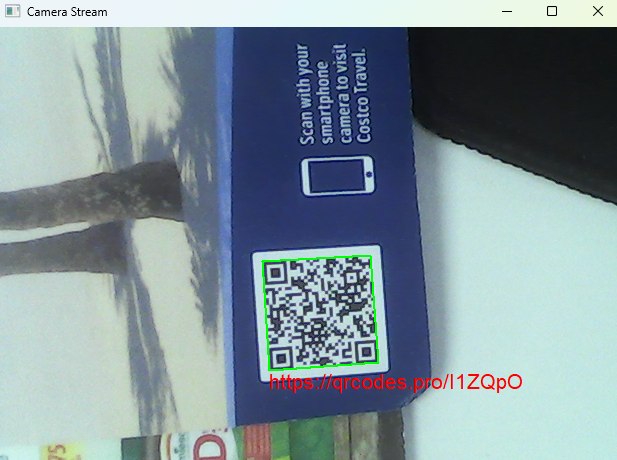
Common Issues & Edge Cases
MFCreateSourceReaderFromMediaSourcereturnsMF_E_INVALIDMEDIATYPE: The requested YUY2/640×480 combination may not be supported by your webcam. UseIMFSourceReader::GetNativeMediaTypeto enumerate supported media types and select a valid resolution and subtype before callingSetCurrentMediaType.- Black or corrupted first frame: Media Foundation buffers several frames on stream start. Discard the first 1–2
ReadSampleresults before displaying or passing frames to the barcode decoder. RegisterClassfails with error0x80070582(class already registered): This happens when the process restarts without unregistering the window class. CallGetClassInfobeforeRegisterClassand skip registration if the class already exists, or ensureUnregisterClassis called in the destructor.