


Detect Blank Scanned Pages in JavaScript with Dynamic Web TWAIN's IsBlankImageAsync()
Document scanning workflows often involve processing multi-page documents that contain separator pages or blank pages used for organizational purposes. Manually identifying and removing these blank pages while splitting documents can be time-consuming and error-prone. In this tutorial, we’ll explore how to implement intelligent document splitting using Dynamic Web TWAIN’s powerful blank page detection capabilities.
What you’ll build: A browser-based document management tool that uses Dynamic Web TWAIN’s IsBlankImageAsync() API to automatically detect blank separator pages, split multi-page document batches at those boundaries, and remove blank pages from the final output.
Key Takeaways
- Dynamic Web TWAIN’s
IsBlankImageAsync()method provides accurate, condition-aware blank page detection directly in the browser — no server-side processing required. - Iterating in reverse index order prevents array-shifting bugs when deleting pages or splitting document groups in-place.
- The auto-split workflow detects blank separator pages, inserts document boundaries, and removes the blank sheets — reducing manual sorting to a single button click.
- This pattern applies directly to high-volume scanning environments (invoices, contracts, medical records) that use blank sheets as physical document separators.
Common Developer Questions
How do I detect blank scanned pages in JavaScript using Dynamic Web TWAIN?
Loop through image indices and await IsBlankImageAsync() on each page. Treat true results as separator candidates, then apply split and delete actions only after checking the surrounding page context.
How do I auto-remove blank pages and split a multi-page scanned batch into separate documents?
Split only when the blank page has a previous content page, remove the blank page, and run deleteEmptyDocs() after processing to clean up empty group containers created by boundary cases.
Why does my image index shift unexpectedly when deleting pages in a Dynamic Web TWAIN loop?
Deleting or splitting while iterating forward shifts later indices and causes skipped pages. Iterating from imageCount - 1 down to 0 keeps index references stable during in-place modifications.
This article is Part 2 in a 3-Part Series.
Demo Video: Blank Image Detection for Document Management
Online Demo
https://yushulx.me/web-twain-document-scan-management/examples/split_merge_document/
Prerequisites
- Get a 30-day free trial license for Dynamic Web TWAIN.
What Makes Blank Pages a Problem in Document Scanning
In professional document scanning environments, blank pages serve various purposes:
- Document Separators: Used to divide different documents in a batch scan
- Page Padding: Added to ensure proper document alignment in feeders
- Organizational Markers: Inserted between sections for filing purposes
- Accidental Inclusions: Blank pages mixed in with content pages
Manual processing of these documents requires:
- Human review of each page
- Manual identification of blank pages
- Time-consuming splitting and reorganization
- Risk of human error in document classification
Why Use Dynamic Web TWAIN for Blank Page Detection
Dynamic Web TWAIN provides several advantages for implementing intelligent blank page detection:
JavaScript Blank Detection API
- Built-in IsBlankImageAsync() method for accurate detection
- Handles various image qualities and scanning conditions
Browser-Based Scanner Control
- Cross-platform compatibility (Windows, macOS, Linux)
- Supports TWAIN, WIA, ICA, and SANE scanners
How the Auto Split Feature Works
Our implementation provides an intelligent Auto Split feature that:
- Analyzes each page using Dynamic Web TWAIN’s blank detection
- Identifies separator pages based on blank content detection
- Splits documents at blank page boundaries
- Removes blank pages from the final output
- Creates organized document groups automatically
Key Benefits:
- Automated Workflow: Eliminates manual intervention
- Improved Accuracy: Reduces human error in document organization
- Time Savings: Processes hundreds of pages in seconds
- Clean Output: Removes unwanted blank pages automatically
Step 1: Include and Initialize Dynamic Web TWAIN
Before implementing blank page detection, ensure you have included the Dynamic Web TWAIN SDK in your project.
<!-- Dynamic Web TWAIN SDK -->
<script src="https://unpkg.com/dwt/dist/dynamsoft.webtwain.min.js"></script>
Configure the License Key and Resources
Initialize the Dynamic Web TWAIN environment with your license key:
Dynamsoft.DWT.ProductKey = licenseKey;
Dynamsoft.DWT.ResourcesPath = 'https://unpkg.com/dwt/dist/';

Dynamsoft.DWT.CreateDWTObjectEx({
    WebTwainId: 'mydwt-' + Date.now()
}, (dwtObject) => {
    console.log('Dynamic Web TWAIN initialized successfully');
}, (error) => {
    console.error('DWT initialization failed:', error);
});
Step 2: Implement Auto Split with IsBlankImageAsync()
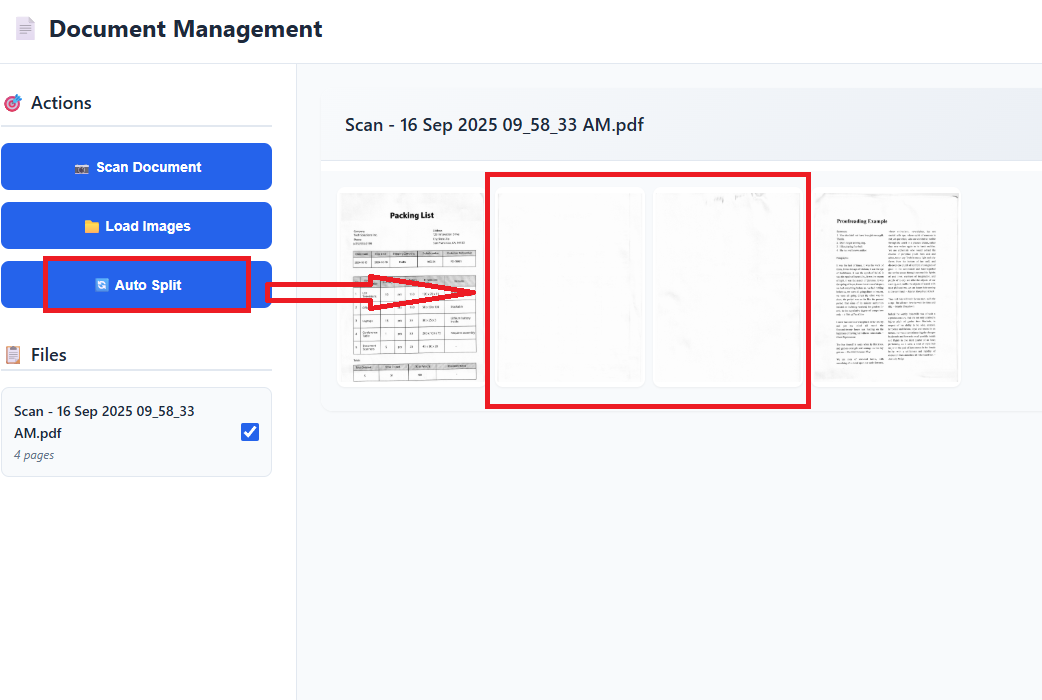
Here’s the complete implementation of our intelligent auto split feature:
async autoSplit() {
    if (!DWTObject || imageCount === 0) {
        Utils.showNotification('No images to analyze for auto split', 'error');
        return;
    }

    Utils.showNotification('Analyzing images for blank pages...', 'info');
    let splitsPerformed = 0;
    let blankPagesRemoved = 0;

    const imageBoxContainer = document.querySelector('#imagebox-1 .ds-imagebox');
    if (!imageBoxContainer) {
        Utils.showNotification('No images found to analyze', 'error');
        return;
    }

    for (let i = imageCount - 1; i >= 0; i--) {
        try {
            let isBlank = await DWTObject.IsBlankImageAsync(i);

            if (isBlank) {
                const imageID = DWTObject.IndexToImageID(i);
                const imgElement = document.querySelector(`img[imageid="${imageID}"]`);

                if (imgElement) {
                    const imageWrapper = imgElement.parentNode;
                    const previousWrapper = imageWrapper.previousElementSibling;

                    if (previousWrapper) {
                        this.splitImage(imgElement);
                        splitsPerformed++;
                        console.log(`Split performed before blank page (image index: ${i})`);
                    }

                    FileManager.deleteOneImage(imgElement);
                    blankPagesRemoved++;
                    console.log(`Blank page removed (image index: ${i})`);
                }
            }
        } catch (error) {
            console.error('Error analyzing image at index', i, ':', error);
        }
    }

    FileManager.deleteEmptyDocs();

    if (splitsPerformed > 0 || blankPagesRemoved > 0) {
        let message = 'Auto split completed! ';
        if (splitsPerformed > 0) message += `${splitsPerformed} split(s) performed. `;
        if (blankPagesRemoved > 0) message += `${blankPagesRemoved} blank page(s) removed.`;
        Utils.showNotification(message, 'success');
        PageManager.updateAll();
    } else {
        Utils.showNotification('No blank pages detected for splitting', 'info');
    }
}
Implementation Details
1. Reverse Processing Strategy
for (let i = imageCount - 1; i >= 0; i--) {
}
Processing images in reverse order prevents index shifting issues when documents are split or pages are removed.
2. Blank Page Detection
let isBlank = await DWTObject.IsBlankImageAsync(i);
Dynamic Web TWAIN’s IsBlankImageAsync() method provides accurate blank page detection algorithm.
3. Smart Document Splitting
if (previousWrapper) {
    this.splitImage(imgElement);
    splitsPerformed++;
}
The algorithm intelligently splits documents only when blank pages have preceding content, preventing empty document creation.
4. Cleanup and Removal
FileManager.deleteOneImage(imgElement);
blankPagesRemoved++;
Blank pages are completely removed from the document workflow, ensuring clean output.
Step 3: Implement the Document Splitting Logic
The splitImage() method handles the creation of new document groups:
splitImage(imageEl) {
    const imageWrapperDiv = imageEl.parentNode;
    const previousDivEl = imageWrapperDiv.previousSibling;

    if (previousDivEl) {
        this.createNextDocument(previousDivEl);
    }
}
This method:
- Identifies the split point before the blank page
- Creates a new document group
- Moves subsequent pages to the new group
- Updates the UI to reflect the new document structure
Common Issues & Edge Cases
- False positives on lightly printed pages:
IsBlankImageAsync()may flag pages with very faint stamps, light watermarks, or near-blank content as blank. Validate the result before deletion or add a user confirmation step before removing flagged pages. - Index shifting during forward iteration: Deleting pages while iterating forward causes subsequent items to shift down, resulting in skipped pages. Always iterate in reverse (
for (let i = imageCount - 1; i >= 0; i--)) to keep all indices stable throughout the loop. - Empty document groups after a boundary split: If a blank separator appears as the very first page in a batch, splitting before it creates an empty leading document. Call
FileManager.deleteEmptyDocs()after the loop to clean up empty stubs automatically.