


Bulk Document Scanning for Enterprise Data Management with Dynamic Web TWAIN
Imagine this scenario: An operator at an insurance firm has just spent 20 minutes scanning a 500-page claim file. Suddenly, the browser freezes and crashes due to memory exhaustion. All that work is lost instantly. For developers building web-based document management systems, this is a nightmare. Browsers like Chrome and Edge have strict memory limits for tabs. When you try to hold hundreds of high-resolution images in memory (RAM), the browser tab will inevitably crash.
Dynamic Web TWAIN solves this problem elegantly with its Caching and Local Disk Storage features, enabling you to build applications that can handle thousands of pages in a single session with zero data loss.
What you’ll build: A JavaScript web application that uses Dynamic Web TWAIN’s Local Storage API to offload scanned pages to encrypted disk storage, auto-save on every scan, and recover a full session after a browser crash or power outage.
Key Takeaways
- Bulk document scanning helps enterprise data management by converting large paper workloads into recoverable, searchable, and process-ready digital document batches.
- Dynamic Web TWAIN automatically caches scanned images to disk (no code required), eliminating browser RAM limits for high-volume document scanning in JavaScript.
- The
createLocalStorage/saveToLocalStorage/loadFromLocalStorageAPI trio enables persistent sessions — users can close the browser and resume scanning without data loss. - All cached and stored data is double-encrypted with AES-256-GCM and AES-128-GCM; the encryption key lives only in memory and is destroyed when the DWTObject is released.
- This pattern is applicable to any enterprise workflow requiring batch scanning of hundreds to thousands of pages (insurance, healthcare, legal).
Common Developer Questions
What are the key benefits of bulk document scanning for enterprise data management?
Bulk document scanning lets enterprises digitize large paper workloads, reduce manual filing, recover interrupted scan jobs, and move documents into downstream systems for indexing, search, retention, and review. When the scanning app can handle hundreds or thousands of pages without losing data, operators can process large case files, claims, records, and archives in fewer sessions.
How do I prevent a browser crash when scanning large numbers of document pages in JavaScript?
Use Dynamic Web TWAIN’s disk-based caching and Local Storage API instead of keeping all scanned images in browser memory. The SDK can offload image data to encrypted disk storage, which avoids tab memory limits during high-volume scanning.
How do I implement session recovery after a power outage or browser crash in a web document scanning app?
Create a local storage area with createLocalStorage, save the image buffer with saveToLocalStorage, persist the storage UID in browser localStorage, and call loadFromLocalStorage when the app starts again. This allows the user to resume the same scanned batch after a crash or restart.
How does Dynamic Web TWAIN store scanned images on disk without exposing sensitive data?
Dynamic Web TWAIN stores cached and local-storage images in encrypted service-managed files. The files are tied to the DWTObject and cannot be read directly by normal browser code or unrelated DWTObject instances.
This article is Part 3 in a 3-Part Series.
Demo Video: Local Disk Storage for Document Scanning
Prerequisites
Get a 30-day free trial license for Dynamic Web TWAIN to run the examples in this tutorial.
Why Browsers Crash When Scanning Large Document Batches
Web browsers are not designed to be heavy-duty image processing engines.
- RAM Constraints: A standard browser tab has a memory ceiling (often around 2GB-4GB).
- High-Res Images: A single A4 color scan at 300 DPI can be 25MB uncompressed. Scanning 100 pages can easily consume gigabytes of RAM.
- The Result: As the user scans more pages, the application becomes sluggish and eventually crashes, wiping out all unsaved progress.
How Dynamic Web TWAIN Prevents Crashes with Disk-Based Storage
Dynamic Web TWAIN bypasses these browser limitations by intelligently offloading scanned data to the local hard drive instead of keeping everything in the browser’s volatile memory.
Automatic Caching vs. Developer-Controlled Local Storage
Dynamic Web TWAIN provides two complementary disk-based features:
Automatic Caching (No Code Required):
- Handled automatically by Dynamic Web TWAIN
- As you scan images, they’re transparently cached to disk without any developer intervention
- Prevents memory overflow and browser crashes
- Works out-of-the-box with zero configuration
Local Storage (Developer-Controlled via API):
- Requires explicit API calls (covered in this guide)
- Enables persistent storage across browser sessions
- Provides data recovery and resume functionality for any interruption
- Allows users to close the tab/browser and return later without data loss
Both features use the same encryption technology, but serve different purposes. This tutorial focuses on implementing Local Storage APIs to enable the persistent session and recovery capabilities.
What You Gain with Disk-Based Storage
1. Unlimited Scanning Volume (Automatic)
By offloading image data to the local disk, your application is no longer bound by browser RAM limits. Users can scan 1,000, 2,000, or even 5,000 pages in a single batch. The only limit is the user’s hard drive space.
This benefit is automatic—no code needed beyond basic SDK initialization.
2. Session Recovery (Requires Local Storage API)
This is a game-changer for high-volume workflows. When you implement Local Storage, scanned images persist across sessions, protecting work in multiple scenarios:
- Intentional tab/browser close (taking a break, end of workday)
- Browser crash or freeze
- Power outage or system restart
- Accidental tab close
When the user returns and reopens the application, Dynamic Web TWAIN detects the existing session and automatically restores all previously scanned images. Work continues seamlessly from where they left off.
This requires implementing the Local Storage API (covered in the implementation section below).
3. Enterprise-Grade Security (Automatic)
For industries like banking and healthcare, writing data to disk raises security concerns. Dynamic Web TWAIN addresses this with built-in encryption for both automatic caching and local storage:
Encryption Architecture:
- Each DWTObject generates its own random encryption key during initialization
- Data undergoes compression and double encryption using AES-256-GCM and AES-128-GCM algorithms
- Encryption follows DWT’s custom security rules before data is written to disk
- The disk-based files (both cache and storage) can only be read by Dynamic Web TWAIN
- Each DWTObject can only access its own data—isolation between different DWTObject instances is enforced
- The encryption key exists only in memory and is destroyed when the DWTObject is released
- Once the key is lost, the encrypted files become permanently unreadable
- All files are automatically deleted when each DWTObject is destroyed
This ensures that sensitive documents remain secure and compliant (GDPR, HIPAA) even while stored temporarily on the client machine.
Implementation Guide: Enable Persistent Scanning Sessions
Now let’s implement the Local Storage API to enable persistent sessions and data recovery.
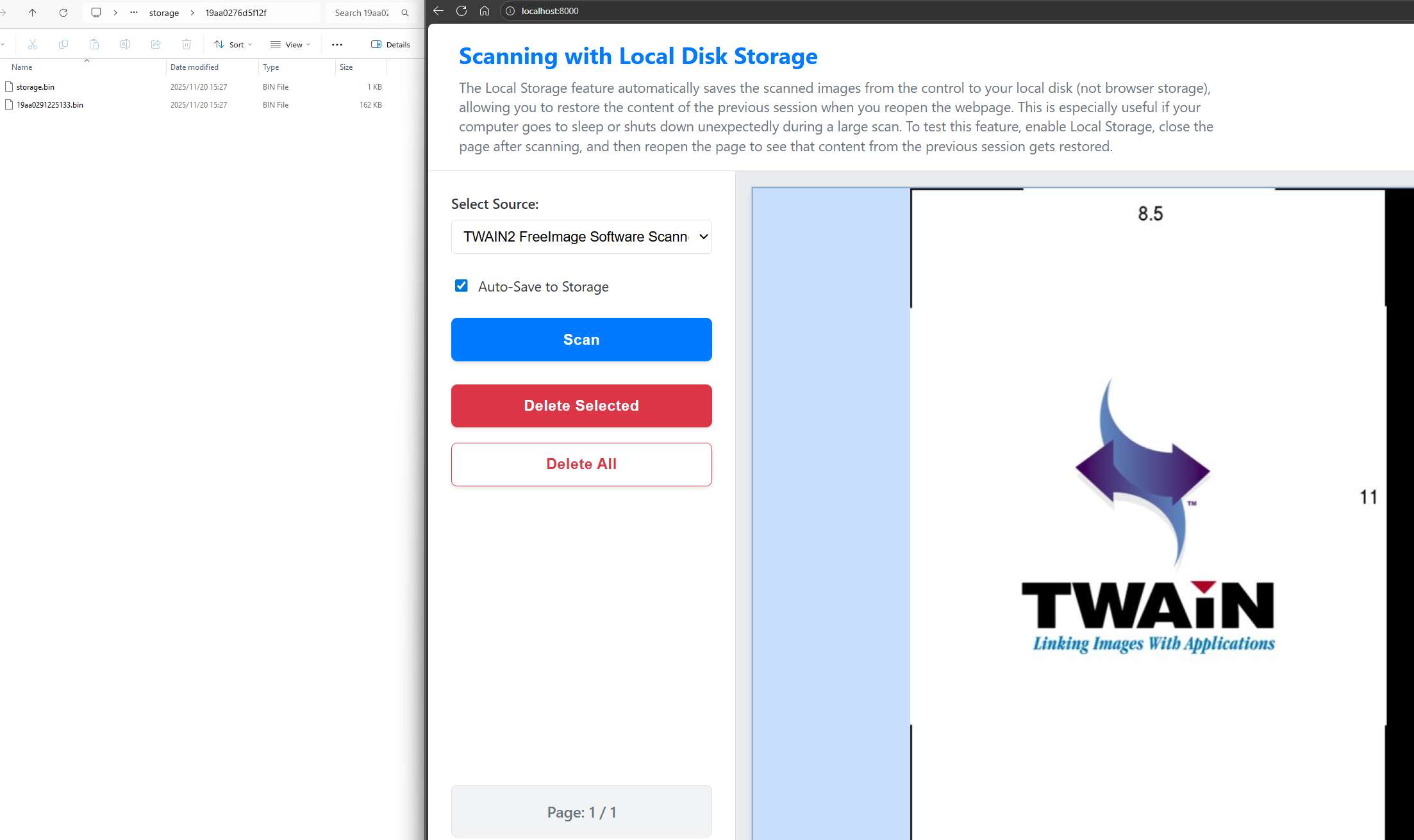
Step 1: Initialize the Dynamic Web TWAIN SDK
First, include the Dynamic Web TWAIN library and configure the basic settings:
<script src="https://cdn.jsdelivr.net/npm/dwt@latest/dist/dynamsoft.webtwain.min.js"></script>
<script>
    Dynamsoft.DWT.ProductKey = "YOUR_LICENSE_KEY";
    Dynamsoft.DWT.ResourcesPath = 'https://cdn.jsdelivr.net/npm/dwt@latest/dist';
    Dynamsoft.DWT.Containers = [{
        ContainerId: 'dwtcontrolContainer',
        Width: '100%',
        Height: '100%'
    }];
    Dynamsoft.DWT.AutoLoad = true;
</script>
Step 2: Define Variables to Track Storage State
Define variables to track the local storage UID and preference:
var localStoreUid;
var storeName = 'DynamicWebTWAIN_LocalStorage';
var storeName_EnableAutoSaveStorage = 'DynamicWebTWAIN_EnableAutoSaveStorage';
The localStoreUid is a unique identifier for the storage session. We use browser’s localStorage (the standard key-value store) to persist this UID between page reloads.
Step 3: Check and Restore the User’s Storage Preference on Load
On page load, check if the user had Local Storage enabled previously:
(function() {
    var checked = localStorage[storeName_EnableAutoSaveStorage];
    if (checked === "false") {
        localStoreUid = '';
        delete localStorage[storeName];
    } else {
        // Default to enabled
        localStoreUid = localStorage[storeName];
        localStorage[storeName_EnableAutoSaveStorage] = "true";
    }
})();
Step 4: Reload Scanned Images from the Previous Session
When the SDK is ready, check if a previous session exists and restore it:
var DWTObject;
Dynamsoft.DWT.RegisterEvent("OnWebTwainReady", function() {
    DWTObject = Dynamsoft.DWT.GetWebTwain('dwtcontrolContainer');

    if (DWTObject && isStorageEnabled()) {
        restoreStorage(); // Restore images from disk

        // Auto-save on any buffer change
        DWTObject.RegisterEvent('OnBufferChanged', Dynamsoft_OnBufferChanged);
    }
});
Step 5: Implement the Core Save and Restore Logic
Here’s the core logic that handles both saving and restoring:
async function _saveOrRestoreStorage(bSave) {
    if (!isStorageEnabled()) return;

    try {
        // Check if storage already exists
        var ifExist = false;
        if (localStoreUid) {
            ifExist = await DWTObject.localStorageExist(localStoreUid);
        }

        if (ifExist && localStoreUid) {
            // Update or load from existing storage
            if (bSave) {
                await DWTObject.saveToLocalStorage({ uid: localStoreUid });
            } else {
                await DWTObject.loadFromLocalStorage({ uid: localStoreUid });
            }
        } else {
            // Create new storage
            localStoreUid = await DWTObject.createLocalStorage();
            localStorage[storeName] = localStoreUid; // Persist UID
            await DWTObject.saveToLocalStorage({ uid: localStoreUid });
        }
    } catch (ex) {
        console.error('Storage operation failed:', ex);
    }
}

async function saveStorage() {
    return _saveOrRestoreStorage(true);
}

async function restoreStorage() {
    return _saveOrRestoreStorage(false);
}
Key Points:
DWTObject.createLocalStorage()creates an encrypted storage area on disk and returns a unique ID.DWTObject.saveToLocalStorage({ uid })writes the current image buffer to disk.DWTObject.loadFromLocalStorage({ uid })reads the images back into the buffer.- The UID is stored in browser’s
localStorageso we can reference the same disk storage after page reload.
Step 6: Auto-Save Every Scan to Disk via Buffer Events
Automatically save whenever images are added or removed:
function Dynamsoft_OnBufferChanged(p1) {
    if (isStorageEnabled() && p1) {
        // Skip internal operations
        if (p1.action === 'shift' || p1.action === 'filter') return;

        saveStorage(); // Persist to disk
    }
}
The OnBufferChanged event fires whenever the image buffer is modified (scan, delete, etc.). We hook into this to keep the disk storage in sync.
Step 7: Clean Up Disk Storage When the User Opts Out
When the user disables Local Storage, clean up the disk storage:
function removeStorage() {
    DWTObject.UnregisterEvent('OnBufferChanged', Dynamsoft_OnBufferChanged);

    if (localStoreUid) {
        var _localStoreUid = localStoreUid;
        localStoreUid = '';
        delete localStorage[storeName];

        DWTObject.localStorageExist(_localStoreUid).then(function(ifExist) {
            if (ifExist) {
                DWTObject.removeLocalStorage({ uid: _localStoreUid });
            }
        });
    }
}
Where Dynamic Web TWAIN Stores Encrypted Files on Disk
The encrypted image files are stored in the Dynamic Web TWAIN service directory on the user’s machine:
Windows:
C:\Program Files (x86)\Dynamsoft\Dynamic Web TWAIN Service {versionnumber}\storage
macOS:
/Users/{username}/Applications/Dynamsoft/Dynamic Web TWAIN Service {versionnumber}/storage
Linux:
/opt/dynamsoft/Dynamic Web TWAIN Service {versionnumber}/storage
Common Issues & Edge Cases
- UID lost after clearing browser localStorage: The
localStoreUidis persisted in the browser’slocalStorage. If the user manually clears browser data, the UID is gone but the encrypted files remain on disk. The application creates a fresh storage session on next load — the orphaned files are left on disk until manually deleted or the DWTObject destroys them. Consider surfacing a warning to the user before they clear storage. localStorageExistreturns false for a valid UID: This can happen if the Dynamic Web TWAIN service was reinstalled or if the storage directory was moved. Handle this by catching the rejection branch in_saveOrRestoreStorageand falling back tocreateLocalStorage()to start a new session rather than throwing an unhandled error.- High CPU usage during auto-save on rapid scanning: The
OnBufferChangedevent fires on every single image addition. If the user is scanning with an ADF feeder at high speed, callingsaveToLocalStorageon every event may queue up many concurrent writes. Add a debounce (e.g., 500 ms) around thesaveStorage()call to batch rapid buffer changes into a single disk write.
Conclusion
Bulk document scanning is valuable for enterprise data management only when the workflow can survive real production conditions: large batches, long sessions, browser memory limits, operator interruptions, and sensitive data handling. Dynamic Web TWAIN’s caching and Local Storage API make browser-based scanning practical for these workloads by moving scanned pages out of volatile memory, encrypting disk storage, and restoring batches after crashes or restarts.