


How to Add Electronic Signatures to PDF Documents Using JavaScript and HTML5
An e-signature is a digital form of a handwritten signature that allows individuals to sign documents electronically. It has become an essential tool for businesses and organizations to streamline the signing process, enabling documents to be signed in just a few clicks from anywhere in the world. In this article, we will explore how to insert a signature into PDF documents using HTML5, JavaScript, and Dynamsoft Document Viewer.
What you’ll build: A web-based PDF editor that lets users draw freehand electronic signatures on an HTML5 Canvas and stamp them onto any page of a PDF document using JavaScript and the Dynamsoft Document Viewer SDK.
Key Takeaways
- Dynamsoft Document Viewer’s
annotationManager.createAnnotationAPI can insert a canvas-drawn signature as a stamp annotation on any PDF page. - The HTML5 Canvas
toBlob()method converts a freehand drawing into a PNG image suitable for PDF embedding. - Signature position, stroke color, and line width are fully configurable; signatures can be batch-applied to all pages in a single loop.
- This approach works in any modern browser without server-side processing or native plugins.
Common Developer Questions
How do I add a handwritten electronic signature to a PDF using JavaScript and HTML5?
Let the user draw a signature on an HTML5 canvas, convert that drawing to an image blob, and insert it into the PDF as a stamp annotation through Dynamsoft Document Viewer. The signed document can then be saved directly from the browser.
How can I let users draw a freehand signature and insert it into a PDF in the browser?
Capture pointer or mouse strokes on a canvas element, export the final canvas with toBlob(), and attach the resulting PNG to the current PDF page at the desired position. This gives users a natural freehand signature flow without leaving the page.
What JavaScript SDK supports PDF annotation with electronic signatures?
Dynamsoft Document Viewer is the SDK used here because it supports annotation insertion, rendering, and PDF saving in the browser. It provides the annotation APIs needed to place the signature image onto one or more PDF pages.
This article is Part 3 in a 5-Part Series.
- Part 1 - How to Add Barcodes to a PDF Using JavaScript on the Client Side
- Part 2 - How to Read DataMatrix Barcodes from PDF Files Using JavaScript
- Part 3 - How to Add Electronic Signatures to PDF Documents Using JavaScript and HTML5
- Part 4 - Build an HTML5 JavaScript Document Scanner: Detect, Crop, and Save to PDF
- Part 5 - How to Integrate Document Scan and Annotation JavaScript APIs into Your Angular Application
Demo Video: Sign PDF Documents with Electronic Signature
Try the Online Demo
https://yushulx.me/web-document-annotation/
Prerequisites
-
Dynamsoft Capture Vision Trial License: Obtain a 30-day free trial license to unlock the full capabilities of Dynamsoft Products.
-
Dynamsoft Document Viewer: This JavaScript SDK enables seamless viewing of PDF, JPEG, PNG, TIFF, and BMP files. It also features PDF annotation rendering and saving. Download link: https://www.npmjs.com/package/dynamsoft-document-viewer.
Build a PDF Signature Feature in a Web Editor
Our web document annotation project, built with the Dynamsoft Document Viewer, is highly extensible. It currently includes barcode detection for PDF documents. In the following sections, we will guide you through the process of adding an electronic signature to PDF documents step by step.
Step 1: Clone the Source Code Repository
-
Clone the source code from the GitHub repository:
git clone https://github.com/yushulx/web-twain-document-scan-management.git -
Navigate to the
document_annotationdirectory:cd web-twain-document-scan-management/examples/document_annotation -
Open the project in Visual Studio Code.
Step 2: Add a Signature Button to the Toolbar
-
In
main.css, add a material icon for the signature button:.icon-stylus::before { content: "edit"; } .icon-stylus { display: flex; font-size: 1.5em; }
-
Define the signature button and add it to the toolbar in
main.js:const signatureButton = { type: Dynamsoft.DDV.Elements.Button, className: "material-icons icon-stylus", tooltip: "Sign the document", events: { click: "sign", } } const pcEditViewerUiConfig = { type: Dynamsoft.DDV.Elements.Layout, flexDirection: "column", className: "ddv-edit-viewer-desktop", children: [ { type: Dynamsoft.DDV.Elements.Layout, className: "ddv-edit-viewer-header-desktop", children: [ { type: Dynamsoft.DDV.Elements.Layout, children: [ Dynamsoft.DDV.Elements.ThumbnailSwitch, Dynamsoft.DDV.Elements.Zoom, Dynamsoft.DDV.Elements.FitMode, Dynamsoft.DDV.Elements.Crop, Dynamsoft.DDV.Elements.Filter, Dynamsoft.DDV.Elements.Undo, Dynamsoft.DDV.Elements.Redo, Dynamsoft.DDV.Elements.DeleteCurrent, Dynamsoft.DDV.Elements.DeleteAll, Dynamsoft.DDV.Elements.Pan, Dynamsoft.DDV.Elements.AnnotationSet, qrButton, checkButton, scanButton, clearButton, signatureButton, ], }, { type: Dynamsoft.DDV.Elements.Layout, children: [ { type: Dynamsoft.DDV.Elements.Pagination, className: "ddv-edit-viewer-pagination-desktop", }, loadButton, downloadButton, ], }, ], }, Dynamsoft.DDV.Elements.MainView, ], }; -
Add the click event handler for the signature button:
 editViewer.on("sign", sign);

 function sign() {
     ...
 }
Step 3: Create a Signature Input Dialog
The pop-up dialog for signature input includes the following elements:
- A canvas element for drawing the signature.
- Color options for changing the signature color.
- A stroke slider to adjust signature thickness.
- X and Y coordinates for positioning the signature.
- A save button to insert the signature into the PDF document.
- A cancel button to close the dialog.
- A redraw button to erase the signature.
HTML Code
<div id="signature-input" class="overlay">
    <div class="signature-container">
        <h2>Create New Signature</h2>
        <canvas id="signatureCanvas"></canvas>
        <div class="form-group">
            <span>Color Style:</span>
            <div id="blue" class="color-button" style="background-color: blue;"></div>
            <div id="red" class="color-button" style="background-color: red;"></div>
            <div id="black" class="color-button" style="background-color: black;"></div>
        </div>
        <div class="form-group">
            <span>Stroke:</span>
            <input type="range" id="strokeSlider" min="1" max="10" value="3">
        </div>

        <!-- X -->
        <div class="form-group">
            <label for="signatureX">X:</label>
            <input type="text" id="signatureX" name="signatureX" placeholder="0">
        </div>

        <!-- Y -->
        <div class="form-group">
            <label for="signatureY">Y:</label>
            <input type="text" id="signatureY" name="signatureY" placeholder="0">
        </div>

        <div style="margin-top: 10px;">
            <input type="checkbox" id="signatureAllPage"> Auto-generate signatures on all pages
        </div>


        <div class="popup-buttons">
            <button id="signatureOK">OK</button>
            <button id="signatureRedraw">Redraw</button>
            <button id="signatureCancel">Cancel</button>
        </div>
    </div>
</div>
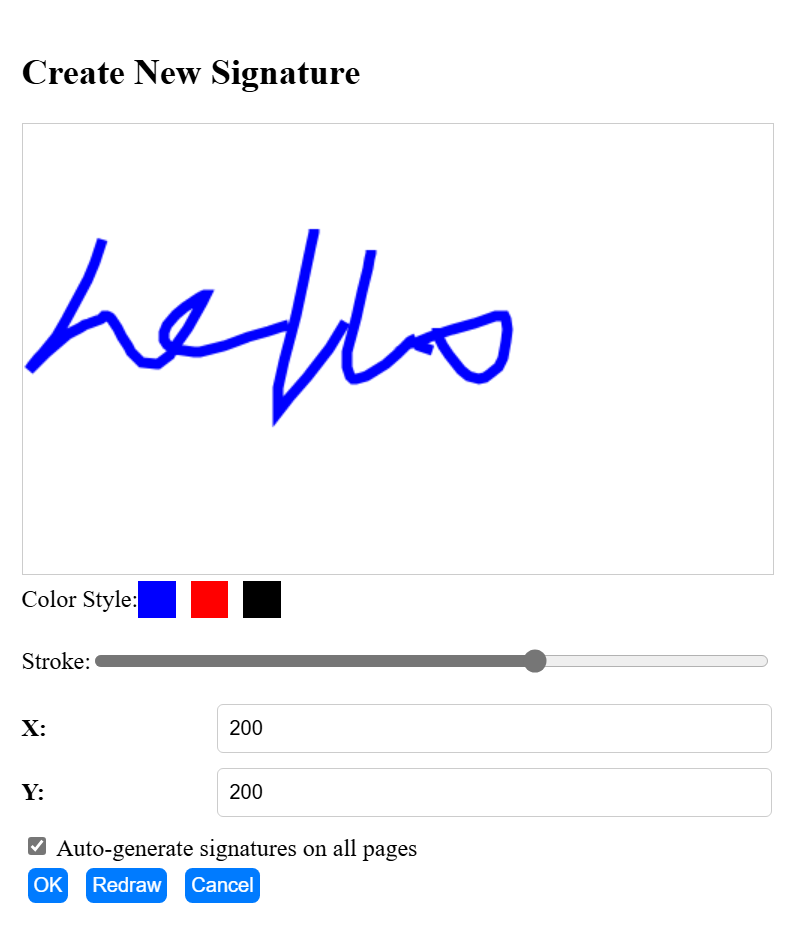
JavaScript code for the signature input dialog
-
Initialize the canvas and drawing context:
let canvas = document.getElementById("signatureCanvas"); let ctx = canvas.getContext("2d"); let isDrawing = false; let color = "black"; let strokeWidth = 3; let drawingHistory = []; canvas.width = 500; canvas.height = 300; -
Add event listeners for mouse events:
canvas.addEventListener("mousedown", startDrawing); canvas.addEventListener("mousemove", draw); canvas.addEventListener("mouseup", stopDrawing); canvas.addEventListener("mouseout", stopDrawing); -
Add event listeners for color and stroke options:
document.getElementById("blue").addEventListener("click", () => { color = "blue"; redrawCanvas(); }); document.getElementById("red").addEventListener("click", () => { color = "red"; redrawCanvas(); }); document.getElementById("black").addEventListener("click", () => { color = "black"; redrawCanvas(); }); document.getElementById("strokeSlider").addEventListener("input", (e) => { strokeWidth = e.target.value; redrawCanvas(); }); -
Implement the drawing functions:
 function startDrawing(event) {
     isDrawing = true;
     let currentPath = {
         color: color,
         strokeWidth: strokeWidth,
         points: [{ x: event.offsetX, y: event.offsetY }]
     };
     drawingHistory.push(currentPath);
 }

 function draw(event) {
     if (isDrawing) {
         let currentPath = drawingHistory[drawingHistory.length - 1];
         currentPath.points.push({ x: event.offsetX, y: event.offsetY });
         redrawCanvas();
     }
 }

 function stopDrawing() {
     isDrawing = false;
 }

 function redrawCanvas() {
     ctx.clearRect(0, 0, canvas.width, canvas.height);

     drawingHistory.forEach(path => {
         ctx.beginPath();
         ctx.moveTo(path.points[0].x, path.points[0].y);
         for (let i = 1; i < path.points.length; i++) {
             ctx.lineTo(path.points[i].x, path.points[i].y);
         }
         ctx.strokeStyle = color;
         ctx.lineWidth = strokeWidth;
         ctx.stroke();
     });
 }

 function clearCanvas() {
     drawingHistory = [];
     redrawCanvas();
 }
All paths are stored in the
drawingHistoryarray. TheredrawCanvasfunction iterates through the array and redraws the paths on the canvas. -
Add event listeners for the
OK,Redraw, andCancelbuttons:const signatureOKButton = document.getElementById('signatureOK'); const signatureRedrawButton = document.getElementById('signatureRedraw'); const signatureCancelButton = document.getElementById('signatureCancel'); signatureOKButton.addEventListener('click', async () => { ... }); signatureRedrawButton.addEventListener('click', async () => { drawingHistory = []; redrawCanvas(); }); signatureCancelButton.addEventListener('click', async () => { document.getElementById("signature-input").style.display = "none"; });
Step 4: Insert the Signature into PDF Pages
To insert the signature into the PDF document:
-
Convert the canvas to a blob:
canvas.toBlob(async (blob) => { ... }, 'image/png'); -
Get the current page ID and page data:
let currentPageId = currentDoc.pages[editViewer.getCurrentPageIndex()]; let pageData = await currentDoc.getPageData(currentPageId); -
Create new stamp annotations with the signature image:
 const applyToAllPages = document.getElementById("signatureAllPage").checked;

 const x = Number(document.getElementById("signatureX").value);
 const y = Number(document.getElementById("signatureY").value);

 const option = {
     stamp: blob,
     x: x > pageData.mediaBox.width - canvas.width ? pageData.mediaBox.width - canvas.width - 10 : x,
     y: y > pageData.mediaBox.height - canvas.height ? pageData.mediaBox.height - canvas.height - 10 : y,
     width: canvas.width,
     height: canvas.height,
     opacity: 1.0,
     flags: {
         print: false,
         noView: false,
         readOnly: false,
     }
 }

 try {
     if (applyToAllPages) {
         for (let i = 0; i < currentDoc.pages.length; i++) {
             let signatureAnnotation = await Dynamsoft.DDV.annotationManager.createAnnotation(currentDoc.pages[i], "stamp", option)
             signatureAnnotation['name'] = 'signature';
         }
     } else {
         let signatureAnnotation = await Dynamsoft.DDV.annotationManager.createAnnotation(currentPageId, "stamp", option)
         signatureAnnotation['name'] = 'signature';
     }
 } catch (e) {
     console.log(e);
 }
Common Issues and Edge Cases
- Signature appears outside the visible page area: If the X/Y coordinates exceed the page dimensions, the stamp is placed off-screen. The code clamps the position to
pageData.mediaBox.width - canvas.widthandpageData.mediaBox.height - canvas.height, but always validate user input before callingcreateAnnotation. - Canvas is blank when clicking OK: This happens when a user clicks OK without drawing anything. Check that
drawingHistory.length > 0before converting the canvas to a blob to avoid inserting an empty stamp. - Signature renders at unexpected size on high-DPI screens: The canvas
width/heightattributes are fixed at 500×300 CSS pixels. On Retina displays, consider scaling the canvas backing store bywindow.devicePixelRatioso the exported PNG matches the on-screen resolution.