


How to Read DataMatrix Barcodes from PDF Files Using JavaScript
You can extract and read DataMatrix and other 1D/2D barcodes from PDF files in the browser by flattening barcode annotations into raster images with Dynamsoft Document Viewer and decoding them with Dynamsoft Barcode Reader. This HTML5 and JavaScript workflow handles healthcare forms, logistics labels, and other PDF documents that embed machine-readable barcodes.
What you’ll build: A browser-based JavaScript application that loads PDF files, flattens barcode annotations into raster images, and decodes DataMatrix and other 1D/2D barcodes using Dynamsoft Document Viewer and Dynamsoft Barcode Reader.
Key Takeaways
- Dynamsoft Document Viewer can render, annotate, and flatten PDF annotations—including barcodes—entirely in the browser using JavaScript.
- Barcode annotations stored as vector graphics in PDFs must be flattened to raster images before they can be decoded by a barcode reader.
- Dynamsoft Barcode Reader’s
CaptureVisionRouterdecodes DataMatrix, QR Code, PDF417, Code 128, and other symbologies from in-memory images with a single API call. - This approach applies to healthcare forms, logistics labels, and any PDF workflow that embeds machine-readable barcodes.
Common Developer Questions
How do I read DataMatrix barcodes from a PDF file using JavaScript?
Load the PDF in Document Viewer, make sure any barcode annotations are flattened into the page image, and then pass the rendered page image to Dynamsoft Barcode Reader for decoding. That workflow allows DataMatrix and other barcode formats to be read directly in the browser.
Why can’t my barcode reader detect barcodes embedded as annotations in a PDF?
Because many PDF barcode annotations are stored as vector annotation objects rather than raster image content, a barcode reader that expects pixel data will not see them until they are flattened. Converting the annotation into rendered page pixels solves that detection gap.
How do I flatten PDF annotations into raster images in the browser?
Use Dynamsoft Document Viewer’s annotation-saving options or per-annotation flattening support to merge those graphics into the page rendering. Once flattened, the barcodes become part of the rasterized page image that the barcode SDK can decode.
This article is Part 2 in a 5-Part Series.
- Part 1 - How to Add Barcodes to a PDF Using JavaScript on the Client Side
- Part 2 - How to Read DataMatrix Barcodes from PDF Files Using JavaScript
- Part 3 - How to Add Electronic Signatures to PDF Documents Using JavaScript and HTML5
- Part 4 - Build an HTML5 JavaScript Document Scanner: Detect, Crop, and Save to PDF
- Part 5 - How to Integrate Document Scan and Annotation JavaScript APIs into Your Angular Application
Demo Video: Read DataMatrix from PDF Files
Try the Online Demo
https://yushulx.me/web-document-annotation/
Prerequisites
-
Dynamsoft Capture Vision Trial License: Obtain a 30-day free trial license to unlock the full capabilities of Dynamsoft Products.
-
Dynamsoft Document Viewer: This JavaScript SDK allows for seamless viewing of PDF, JPEG, PNG, TIFF, and BMP files. It also features PDF annotation rendering and saving. Download link: https://www.npmjs.com/package/dynamsoft-document-viewer.
-
Dynamsoft Barcode Reader Bundle: This powerful JavaScript barcode scanning SDK supports a wide range of 1D and 2D barcode formats, including DataMatrix, QR Code, PDF417, Code 128 and more. Download link: https://www.npmjs.com/package/dynamsoft-barcode-reader-bundle.
Extract and Decode Barcodes from PDF Files
In a previous article, we created a web-based PDF document editor with barcode insertion capabilities using Dynamsoft Document Viewer. The source code from that article will be used as the starting point for this tutorial.
In the latest version of Dynamsoft Document Viewer, a flattened property has been added to the annotation object, making it more flexible and efficient to flatten target annotations into a document. When barcodes are inserted as annotations into PDF documents, they are typically stored as vector graphics and are unreadable until they are flattened into the document. This process converts the vector graphics into raster images.
Step 1: Flatten 1D/2D Barcode Annotations into Raster Images
If you don’t have a PDF document with barcode annotations, you can create one as follows:
-
Deploy the project and open the web-based PDF document editor in your browser.
python -m http.server 8000 - Click
 to load a PDF or other image file into the document viewer.
 - Click
 to insert a DataMatrix or other barcode into the document.
 -
Click
 to save the modified PDF file to your local disk.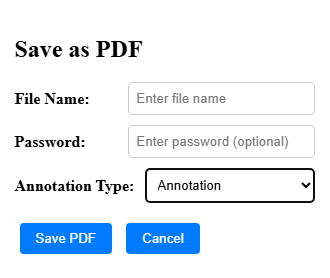
Explanation
- The password is optional. You can encrypt the PDF file with a password.
- The annotation type specifies how to save the annotations. The default value is
None, which means the annotations will not be saved in the PDF file. Other options include Image, Annotation, and Flattened. Select Annotation to save the barcode annotations to ensure they can be edited when importing the PDF file back into the document viewer.
Next, load the saved PDF file into the document viewer. The default built-in loading method does not support entering the PDF password, so we need to customize the loading button to prompt for the password.
-
Create a prompt container in
index.html:<div id="password-input" class="overlay"> <div class="popup"> <h2>Input PDF Password</h2> <form id="passwordForm"> <div class="form-group"> <label for="password">Password:</label> <input type="password" id="pdfpassword" name="pdfpassword" placeholder="Enter password" required> </div> <div class="popup-buttons"> <button type="button" id="submitPassword">Submit</button> <button type="button" id="cancelPassword">Cancel</button> </div> </form> </div> </div> -
Create an element object and insert it into the UI configuration in
main.js:const loadButton = { type: Dynamsoft.DDV.Elements.Button, className: "ddv-button ddv-load-image", tooltip: "Load a document", events: { click: "loadDocument", }, } const pcEditViewerUiConfig = { type: Dynamsoft.DDV.Elements.Layout, flexDirection: "column", className: "ddv-edit-viewer-desktop", children: [ { type: Dynamsoft.DDV.Elements.Layout, className: "ddv-edit-viewer-header-desktop", children: [ ... { type: Dynamsoft.DDV.Elements.Layout, children: [ { type: Dynamsoft.DDV.Elements.Pagination, className: "ddv-edit-viewer-pagination-desktop", }, loadButton, downloadButton, ], }, ], }, Dynamsoft.DDV.Elements.MainView, ], }; -
Handle the
loadDocumentevent to load the PDF file with a password prompt inmain.js:editViewer.on("loadDocument", loadDocument); function loadDocument() { let fileInput = document.createElement("input"); fileInput.type = "file"; fileInput.accept = ".jpg,.jpeg,.png,.tiff,.tif,.bmp,.pdf"; fileInput.onchange = async (e) => { let file = e.target.files[0]; if (!file) return; const reader = new FileReader(); reader.onload = async function (e) { fileBlob = new Blob([e.target.result], { type: file.type }); load(fileBlob); }; reader.readAsArrayBuffer(file); }; fileInput.click(); } async function load(blob, password) { try { if (!currentDoc) { currentDoc = Dynamsoft.DDV.documentManager.createDocument({ name: Date.now().toString(), author: "DDV", }); } const source = { fileData: blob, password: password, renderOptions: { renderAnnotations: "loadAnnotations" } }; await currentDoc.loadSource([source]); editViewer.openDocument(currentDoc); } catch (error) { console.error(error); // PDF is encrypted if (error.cause.code == -80202) { document.getElementById("password-input").style.display = "flex"; } } } let fileBlob = null; const submitPasswordButton = document.getElementById('submitPassword'); const cancelPasswordButton = document.getElementById('cancelPassword'); cancelPasswordButton.addEventListener('click', () => { document.getElementById("password-input").style.display = "none"; } ); submitPasswordButton.addEventListener('click', async () => { const password = document.getElementById('pdfpassword').value; load(fileBlob, password); document.getElementById("password-input").style.display = "none"; });Explanation
loadDocument(): Create an input element for loading PDF files. UseFileReaderto read the file content and convert it into a blob.load(blob, password): Load the PDF file into the document viewer. If the PDF is encrypted, display a password input element.
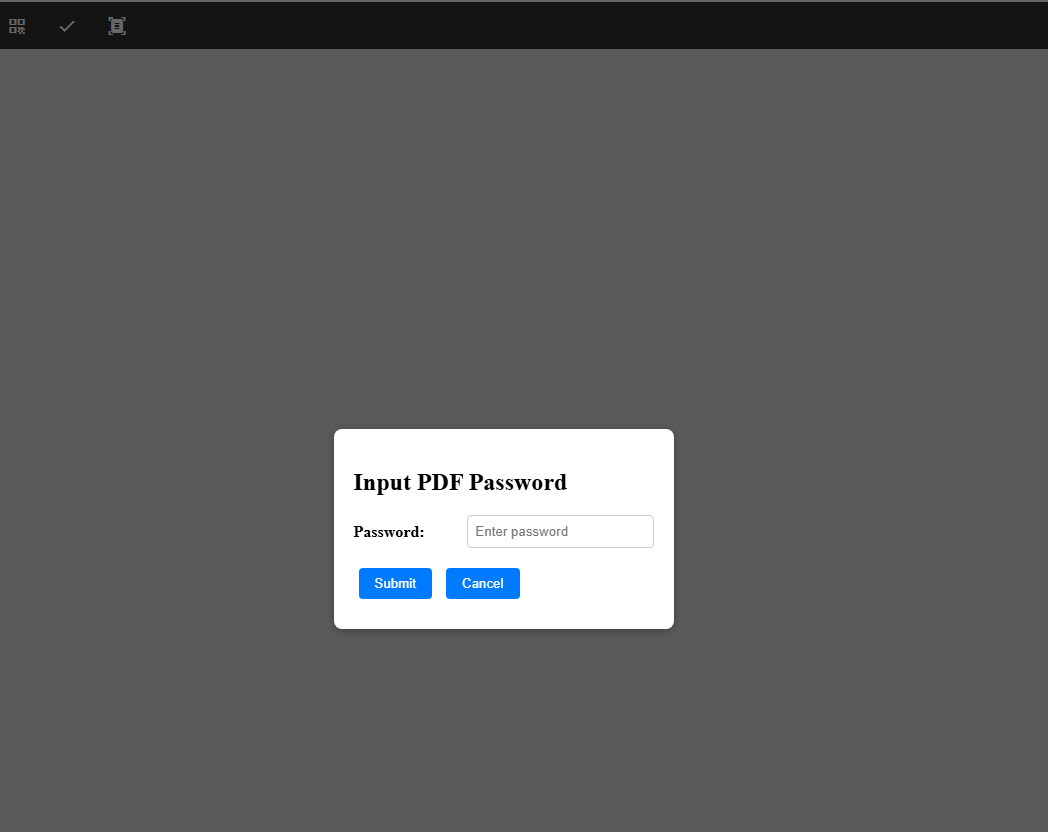
As a PDF file is loaded into the document viewer, change the status of all annotations to flattened. This creates a raster image for barcode detection later.
let currentPageId = currentDoc.pages[editViewer.getCurrentPageIndex()];
let annotations = Dynamsoft.DDV.annotationManager.getAnnotationsByPage(currentPageId);

for (let i = 0; i < annotations.length; i++) {
    annotations[i].flattened = true;
}
const image = await editViewer.currentDocument.saveToJpeg(editViewer.getCurrentPageIndex(), settings);
Step 2: Decode Barcodes from the Flattened PDF Page
-
Include the Dynamsoft Barcode Reader Bundle in
index.html:<script src="https://cdn.jsdelivr.net/npm/dynamsoft-barcode-reader-bundle@10.4.2002/dist/dbr.bundle.js"></script> -
Create a
CaptureVisionRouterobject inmain.js:cvRouter = await Dynamsoft.CVR.CaptureVisionRouter.createInstance(); -
Read the barcodes from the raster image in
main.js:const result = await cvRouter.capture(image, "ReadBarcodes_Default");The second parameter is the a template name preset in the Capture Vision Router. Click here to learn more about the preset templates.
-
Display the barcode results by drawing annotations in
main.js:for (let item of result.items) { if (item.type !== Dynamsoft.Core.EnumCapturedResultItemType.CRIT_BARCODE) { continue; } console.log(JSON.stringify(item)); let text = item.text; let points = item.location.points; let currentPageId = currentDoc.pages[editViewer.getCurrentPageIndex()]; let pageData = await currentDoc.getPageData(currentPageId); // https://www.dynamsoft.com/document-viewer/docs/api/interface/annotationinterface/texttypewriterannotationoptions.html let textX = Math.min(points[0].x, points[1].x, points[2].x, points[3].x) / pageData.display.width * pageData.mediaBox.width; let textY = Math.min(points[0].y, points[1].y, points[2].y, points[3].y) / pageData.display.height * pageData.mediaBox.height; const textTypewriterOptions = { x: textX < 0 ? 0 : textX, y: textY - 15 < 0 ? 0 : textY - 15, textContents: [{ content: text, color: "rgb(255,0,0)" }], flags: { print: false, noView: false, readOnly: false, } } // https://www.dynamsoft.com/document-viewer/docs/api/class/annotationmanager.html#createAnnotation let textTypewriter = await Dynamsoft.DDV.annotationManager.createAnnotation(currentPageId, "textTypewriter", textTypewriterOptions) savedAnnotations.push(textTypewriter); textTypewriter['name'] = 'overlay'; // https://www.dynamsoft.com/document-viewer/docs/api/interface/annotationinterface/polygonannotationoptions.html const polygonOptions = { points: points.map(p => { return { x: p.x / pageData.display.width * pageData.mediaBox.width, y: p.y / pageData.display.height * pageData.mediaBox.height } }), borderColor: "rgb(255,0,0)", flags: { print: false, noView: false, readOnly: false, } } let polygon = Dynamsoft.DDV.annotationManager.createAnnotation(currentPageId, "polygon", polygonOptions); polygon['name'] = 'overlay'; savedAnnotations.push(polygon); }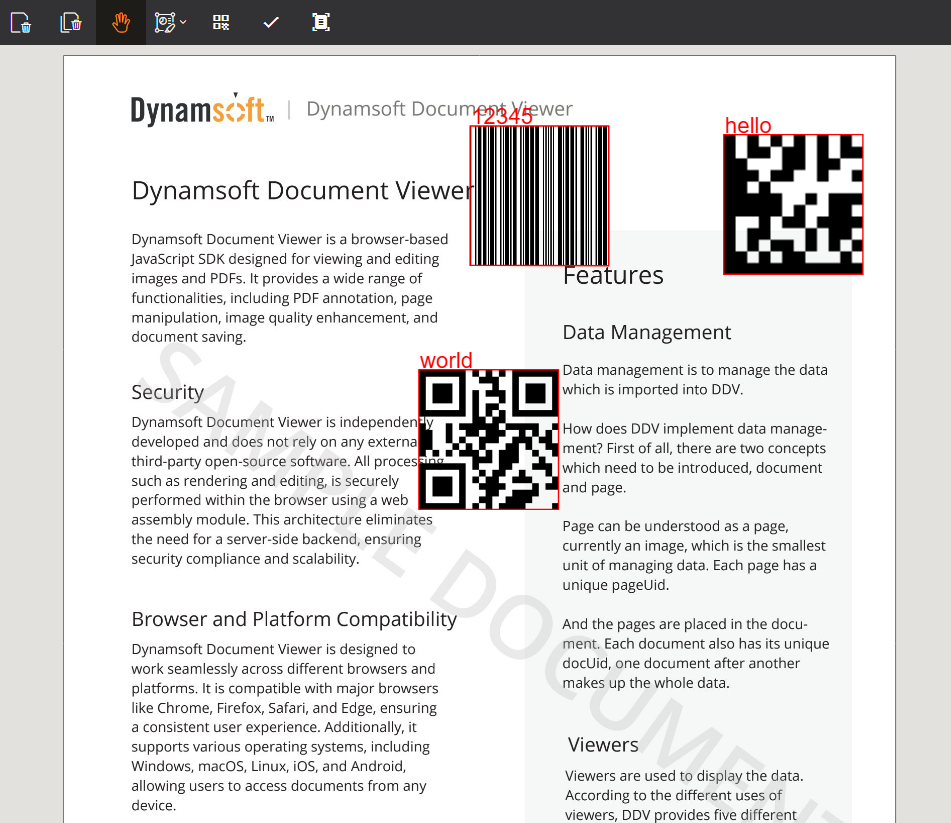
Common Issues and Edge Cases
- Barcode annotations not detected: If barcodes are stored as vector annotations in the PDF, they will not be readable until flattened. Set
annotation.flattened = truefor each annotation before exporting the page as a JPEG. - Encrypted PDF files fail to load: Password-protected PDFs throw error code
-80202on the default load path. Implement a password prompt as shown in Step 1 to handle this case. - Low-resolution raster output: When flattening annotations to JPEG, use appropriate quality settings in
saveToJpeg()to ensure sufficient resolution for barcode detection—especially for small DataMatrix symbols.