


How to Choose a Document Capture Solution for Digitizing Paper Records
If you’re wondering how to choose a document capture solution for digitizing paper records, the answer depends on four factors: volume, document type, user location, and integration architecture. A high-speed production scanner that processes 200 pages per minute may be overkill for a small office digitizing a few contracts a week. Conversely, a mobile camera app won’t cut it when you need to scan thousands of archived patient records with audit-level image quality.
What this guide helps you decide: Whether your paper record digitization workflow should use TWAIN scanner capture, camera-based capture, DWT Service REST API scanning, or a combination of all three.
This guide walks you through the options — physical scanner (TWAIN), camera-based capture, and network/remote scanning — and shows how Dynamsoft’s document capture SDKs provide a unified API layer across all three.
Key Takeaways
- TWAIN scanner capture is the best default for high-volume paper record digitization when you need ADF, duplex scanning, and consistent 200-600 DPI output.
- Camera-based capture is better for bound books, fragile records, ID cards, and remote users because it runs in the browser with document edge detection and manual capture controls.
- DWT Service REST API scanning is the right architecture when multiple users need browser access to a shared physical scanner without installing drivers on every client.
- The sample project in
document-capture-comparisonlets developers compare all three workflows in one app with a shared Dynamsoft license field and live demo tabs.
Common Developer Questions
How do I choose between TWAIN scanners, camera capture, and REST API scanning for paper record digitization?
TWAIN scanner capture is the best default for high-volume paper digitization that requires ADF feeding, duplex scanning, and consistent image quality. Camera capture is better for bound, fragile, oversized, or remotely submitted documents. Use DWT Service REST API scanning when multiple browser users need to access a scanner connected to another machine.
Which document capture approach works best for high-volume batch scanning with an ADF and duplex mode?
TWAIN scanner capture is the best option for high-volume batch scanning because it supports automatic document feeders, duplex scanning, predictable 200–600 DPI output, and higher throughput than manual camera capture.
How can I test physical scanner capture, browser camera capture, and network scanning in one JavaScript app?
Use the document-capture-comparison sample, which provides separate tabs for TWAIN scanner capture, browser camera capture, and DWT Service REST API scanning. All three workflows are available from one JavaScript application, allowing developers to compare local scanners, mobile cameras, and network scanner access with the same interface.
Related Guides in This Cluster
- Browse comparison guides
- Browse migration and alternatives guides
- Review scanning over a shared network
- Modernize a desktop document scanner with .NET MAUI Blazor and TWAIN
Demo Video
Prerequisites
- Get a 30-day free trial license for the shared license field used by all three demos.
- For physical scanner testing, connect a TWAIN, ICA, or SANE scanner and install the scanner driver plus the Dynamsoft Service.
- For camera capture testing, use a recent Chrome, Edge, or Firefox browser and allow camera access when prompted.
- For REST API testing, run the Dynamic Web TWAIN Service on the scanner host and confirm the endpoint is reachable at
http://127.0.0.1:18622or your configured host.
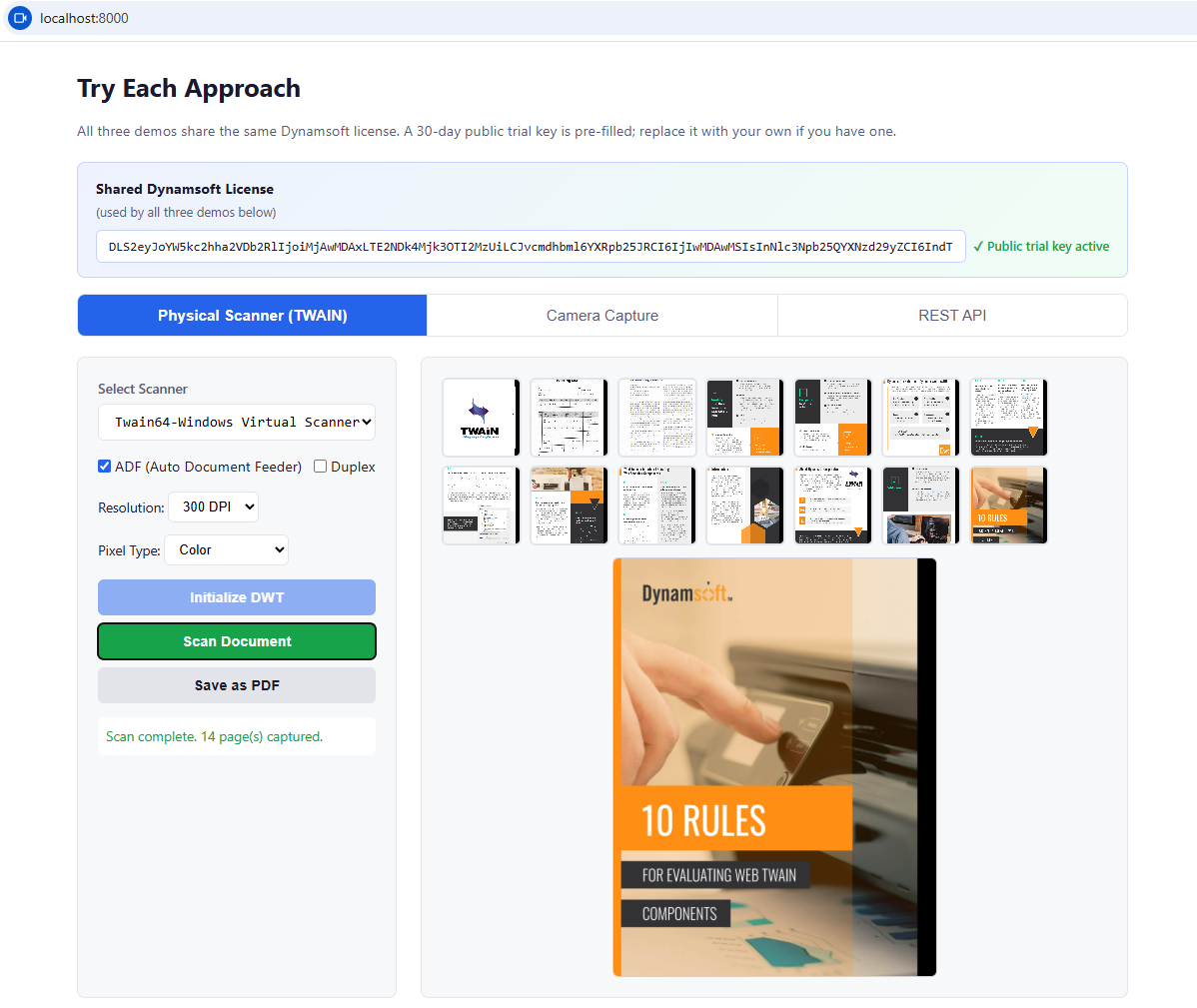
Run the Interactive Comparison Demo
The sample project is a single-page app under document-capture-comparison. It contains a four-question decision framework, a side-by-side comparison table, and three live demo tabs: Physical Scanner (TWAIN), Camera Capture, and REST API.
Try the hosted version here: Document Capture Solution Comparison online demo.
To run the same demo locally, start a static server from the repository root, then open the demo in your browser:
python -m http.server
Then visit http://localhost:8000/document-capture-comparison/. The app pre-fills a public trial key for quick testing, but production apps should use your own license key.
What the Full Sample Project Covers
The code snippets in this article are intentionally short so developers can see the core SDK call for each capture mode without scrolling through UI wiring. The full document-capture-comparison sample covers the production-facing flow around those calls:
| Scenario | Covered in the sample project |
|---|---|
| Choosing a capture approach | Four-question decision form for volume, document type, user location, and integration architecture |
| Physical scanner capture | Dynamsoft Service availability check, scanner discovery, ADF, duplex, resolution, pixel type, thumbnail preview, and PDF export |
| Camera capture | Browser permission handling, camera start/stop, document boundary overlay, stability-based auto-capture, manual fallback capture, and perspective normalization |
| REST API scanning | Configurable service host, remote scanner discovery, scan job creation, page-by-page PNG fetching, raw API logging, and job cleanup |
| Failure handling | No scanner found, service unavailable, camera denied, camera in use, no camera device, and unreachable REST host states |
It is not meant to replace a document management system by itself. For a production archive workflow, you would still add authentication, role-based access control, upload/storage logic, OCR or barcode indexing, audit logging, retention rules, and backend retry queues around the capture layer.
Compare the Three Document Capture Approaches
Here’s a side-by-side comparison of the three primary ways to digitize paper records. Use this table to narrow down which approach — or combination — fits your project.
| Criterion | Physical Scanner (TWAIN/WIA/SANE) | Camera-Based Capture | Network / Remote Scanning |
|---|---|---|---|
| Best for | High-volume, ADF-fed stacks | Bound books, fragile docs, mobile use | Shared-office, multi-user access |
| Throughput | 20–200 ppm with duplex | ~5–15 pages/min (manual) | Depends on scanner + client count |
| Image quality | Consistent 200–600 DPI | Variable, depends on lighting & angle | Same as physical scanner |
| Document types | Loose sheets only (ADF required) | Any — bound, fragile, odd sizes | Loose sheets (scanner-dependent) |
| Client setup | Install TWAIN driver on each PC | Browser only (WebRTC/getUserMedia) | Browser only (hits REST API endpoint) |
| Offline support | Yes (local driver) | Yes (browser-side processing) | No (requires network to scanner host) |
| Multi-user | One user per scanner | One device, one user | Many users share one scanner |
| SDK example | Dynamic Web TWAIN | Mobile Web Capture | DWT Service REST API |
Choose Physical Scanner Capture for High-Volume TWAIN Workflows
When to choose this: You have a stack of loose documents and you need them digitized fast and at consistent quality.
TWAIN is the industry-standard protocol for communicating with document scanners on Windows. Its equivalents on other platforms are SANE (Linux) and ICA (macOS). Dynamic Web TWAIN abstracts all four protocols behind a single JavaScript API, so your web app can scan directly from any browser without per-machine driver installation beyond the TWAIN driver itself.
Key features that matter for digitizing paper records:
- Auto Document Feeder (ADF) — load a stack of pages and walk away
- Duplex scanning — captures both sides in one pass
- Configurable DPI and color mode — trade off between file size and quality
- Barcode/OCR integration — automatically classify and index scanned pages
- Direct-to-PDF/PDF/A — produce archive-ready output
// Example: Bulk scanning with ADF via Dynamic Web TWAIN
const dwt = await Dynamsoft.DWT.CreateDWTObject();
const devices = await dwt.GetDevicesAsync();
await dwt.SelectDeviceAsync(devices[0]);
await dwt.AcquireImageAsync({
    IfShowUI: false,
    PixelType: Dynamsoft.DWT.EnumDWT_PixelType.TWPT_GRAY,
    Resolution: 300,
    IfFeederEnabled: true,   // Enable ADF
    IfDuplexEnabled: true,   // Scan both sides
    IfCloseSourceAfterAcquire: true,
});
Choose Camera Capture for Bound, Fragile, or Remote Documents
When to choose this: Your documents can’t go through a feeder — bound books, fragile historical records, oversized maps — or your users need to scan from anywhere, including from phones.
Camera-based capture uses the device’s camera (mobile or desktop webcam) with AI-powered edge detection to automatically find the document in the frame, crop it, and perspective-correct it. Dynamsoft’s Mobile Web Capture SDK packages this into a ready-made capture → perspective → edit pipeline that runs entirely in the browser.
Key advantages for paper record digitization:
- No hardware investment — uses existing smartphone cameras or UVC-compatible overhead cameras
- Handles non-standard documents — bound volumes, fragile paper, irregular sizes
- Auto-detect and auto-capture — AI finds the document edges and snaps when stable
- On-device processing — documents never leave the browser for privacy-sensitive records
// Example: Camera capture with auto-document detection
const captureViewer = new Dynamsoft.DDV.CaptureViewer({
    container: "camera-container",
    viewerConfig: {
        enableAutoDetect: true,
        acceptedPolygonConfidence: 60,
    }
});
await captureViewer.play();
// Document detected → auto-cropped → ready for edit/export
Choose REST API Scanning for Shared Network Scanner Access
When to choose this: You have one high-quality scanner shared by an entire department, and users access it from their own devices without installing drivers.
The Dynamic Web TWAIN Service runs on a machine connected to a physical scanner and exposes a complete REST API over HTTP. Any client — web app, mobile app, Python script, .NET service — can discover scanners, create scan jobs, and stream back pages via JSON.
Why this matters for enterprise digitization:
- One scanner, many users — no driver installation on client machines
- Scanner locking — prevents two users from hijacking the same device
- Cross-platform — the REST API works from Windows, macOS, Linux, Android, iOS
- Auditable — every scan job is logged with user identity, timestamp, and page count
- Custom workflows — build a FastAPI, Express, or .NET gateway with authentication, routing, and post-processing
# Example: Remote scan via REST API from Python
from twain_wia_sane_scanner import ScannerController

controller = ScannerController()
devices = controller.get_devices("http://scanner-host:18622")
job = controller.create_job("http://scanner-host:18622", {
    "license": "YOUR-KEY",
    "device": devices[0]["device"],
    "config": {
        "IfFeederEnabled": True,
        "Resolution": 300,
        "PixelType": 2,
    }
})
images = controller.get_image_streams("http://scanner-host:18622", job["jobuid"])
# Process or save the scanned pages
Choose the Right Capture Workflow with Four Questions
Ask yourself these four questions in order:
Match the Capture Method to Daily Page Volume
| Daily pages | Recommended approach |
|---|---|
| < 50 | Any approach works. Camera-based is easiest to start. |
| 50–500 | Physical scanner with ADF. Camera is too slow manually. |
| 500–5,000 | Physical scanner with ADF + duplex. Consider batch separation (barcode/patch code). |
| 5,000+ | Physical scanner + Remote scanning for multi-operator workflow. |
Match the Capture Method to Document Type
| Document type | Best approach |
|---|---|
| Standard loose sheets (A4/Letter) | Physical scanner (ADF) |
| Bound books, fragile paper, photos | Camera-based capture |
| ID cards, driver licenses | Camera-based (desktop or mobile) |
| Mixed (loose + bound) | Combine physical scanner + camera in one app |
Match the Capture Method to User Location
| User location | Best approach |
|---|---|
| Same room as scanner | Physical scanner (local TWAIN) |
| Same building, different rooms | Network/remote scanning (REST API) |
| Remote / home offices | Camera-based capture (mobile) |
| Mixed | Combine remote scanning + camera capture |
Match the Capture Method to Integration Architecture
| Integration need | What to look for |
|---|---|
| Standalone web app | Dynamic Web TWAIN (browser-based, no backend) |
| Custom backend service | DWT Service REST API + your language of choice |
| Mobile-first workflow | Mobile Web Capture SDK |
| All of the above | Dynamsoft’s unified platform — same license, same APIs |
Use One Dynamsoft SDK Ecosystem for All Capture Modes
Dynamsoft is one of the few providers that offers all three capture approaches under a single SDK ecosystem, with a common license and consistent API patterns:
- Dynamic Web TWAIN — JavaScript SDK for browser-based TWAIN/SANE/ICA/WIA scanner access. Document feeder, duplex, image processing, OCR, PDF output.
- Mobile Web Capture — Camera-based document detection with AI edge finding, perspective correction, and an editing viewer. Runs fully browser-side.
- DWT Service REST API — RESTful interface to physical scanners. Use from any language: Python, .NET, Java, Node.js, Flutter, Swift.
Combine Capture Modes in Real-World Digitization Workflows
Most enterprises end up using a combination rather than picking one:
- Hospital records digitization: Physical scanner (ADF) for loose patient records + Camera capture for bound logbooks and oversized charts.
- Law firm e-discovery: Remote scanning via REST API — all lawyers scan to a central repository from their browsers, with scanner locking to prevent conflicts.
- School examination paper archive: Physical scanner for answer sheets → OCR → barcode-based automatic indexing → searchable PDF archive.
- Remote notary / contract signing: Camera-based mobile capture for on-the-go document digitization, with instant upload to a document management system.
Common Issues & Edge Cases
- No scanner appears in the TWAIN demo: Confirm the scanner driver and Dynamsoft Service are installed, then reconnect the scanner and reload the page before calling
GetDevicesAsync()again. - Camera capture produces skewed or low-contrast pages: Improve lighting, place the page on a contrasting background, and ask users to hold the device steady before accepting the captured frame.
- REST API scans fail from another device: Verify the service host URL, firewall rules, and scanner access permissions; the default local endpoint only works from the machine running the Dynamsoft Service.
FAQ: Choosing a Document Capture Solution
What is the best document capture solution for high-volume paper record digitization?
For high-volume paper record digitization, a physical scanner controlled through TWAIN, WIA, SANE, or ICA is usually the best option. It supports ADF batch feeding, duplex scanning, predictable 200-600 DPI output, and faster throughput than manual camera capture.
When should I choose camera-based document capture instead of a scanner?
Choose camera-based document capture when the records are bound, fragile, oversized, irregularly shaped, or handled by remote users. Camera capture is also useful for ID cards and field workflows where users already have a phone or webcam but do not have access to a document scanner.
When does REST API scanning make sense?
REST API scanning makes sense when a scanner is physically connected to one host machine but multiple users need to access it from browsers or backend services. The Dynamic Web TWAIN Service exposes scanner discovery, job creation, and image retrieval over HTTP so client devices do not need local scanner drivers.
Can one application support TWAIN scanners, camera capture, and network scanning?
Yes. A document capture application can combine TWAIN scanner capture for local batch jobs, camera capture for mobile or fragile documents, and REST API scanning for shared scanner access. The sample project in this article demonstrates the three workflows side by side with one shared license field.
What factors should I evaluate before digitizing paper records?
Evaluate daily page volume, document type, user location, and integration architecture first. Those four factors usually determine whether you need a local scanner workflow, a browser camera workflow, a shared network scanner workflow, or a hybrid capture process.