


Build a SwiftUI Remote Document Scanner for macOS and iOS Using the Dynamic Web TWAIN REST API
In office environments, network-connected physical document scanners from manufacturers like HP , Canon , Epson , and Brother often support protocols such as ESCL (AirPrint) or ICA (Image Capture). However, for scanners that do not natively support these protocols, you can use third-party services like Dynamic Web TWAIN to enable network scanning. This tutorial builds a remote document scanner app in SwiftUI that digitizes documents over the network by calling the Dynamic Web TWAIN REST API, which supports TWAIN, SANE, ICA, ESCL, and WIA scanner protocols.
What you’ll build: A cross-platform SwiftUI app for macOS and iOS that connects to a remote Dynamic Web TWAIN service and controls physical document scanners over a local network, displaying scanned pages in-app and saving them as PDF files.
Key Takeaways
- Dynamic Web TWAIN’s REST API lets any Swift app control physical scanners (TWAIN, ESCL, SANE, ICA, WIA) over the network without installing platform-specific scanner drivers on the client device.
- A single
ScannerController.swiftfile wraps all REST calls — device enumeration, job creation, image streaming, and job deletion — using Swift’sasync/awaitconcurrency model. - SwiftUI’s conditional compilation (
#if os(macOS)) isolates the small set of platform-specific APIs (NSImage vs. UIImage, NSSavePanel vs. UIDocumentPickerViewController) while sharing all scanner and networking logic. - The app targets both macOS and iOS from a single Xcode multiplatform project, requiring only App Sandbox entitlements and a local network usage description to function.
Common Developer Questions
How do I connect a SwiftUI app to a TWAIN or ESCL scanner over the network without native drivers?
Connect the SwiftUI app to the machine running Dynamic Web TWAIN Service and call its REST endpoints for scanner discovery and job execution. Because the service owns the platform-specific drivers, the Swift client only needs network access and normal HTTP code.
What is the Dynamic Web TWAIN REST API and how do I call it from Swift using async/await?
The Dynamic Web TWAIN REST API is an HTTP interface exposed by Dynamic Web TWAIN Service for listing scanners, creating jobs, retrieving pages, and deleting jobs. In Swift, you can wrap those endpoints in URLSession methods marked async and await the responses from a reusable ScannerController.swift helper.
How do I save scanned document images as a PDF in SwiftUI on both macOS and iOS?
Build the PDF from the scanned page images in shared Swift code, then use conditional compilation only for the save UI: NSSavePanel on macOS and a document picker flow on iOS. The scanner and PDF assembly logic can stay common across both platforms.
Remote Document Scanner Demo Video
This article is Part 7 in a 8-Part Series.
- Part 1 - How to Build a Document Scanning REST API in Node.js
- Part 2 - How to Scan Documents from TWAIN, WIA, and eSCL Scanners in a Flutter App
- Part 3 - How to Scan Documents in Java Using TWAIN, WIA, eSCL, and SANE via REST API
- Part 4 - Build a Cross-Platform Python Document Scanner with TWAIN, WIA, and SANE
- Part 5 - How to Build a Cross-Platform .NET C# Document Scanner with TWAIN, WIA, SANE, and eSCL Support
- Part 6 - How to Scan Documents from a Web Page Using the Dynamic Web TWAIN REST API
- Part 7 - Build a SwiftUI Remote Document Scanner for macOS and iOS Using the Dynamic Web TWAIN REST API
- Part 8 - Build a Web Document Scanner with JavaScript: File, Camera, and TWAIN Scanner Support
Prerequisites
- Get a 30-day free trial license for Dynamic Web TWAIN.
- Install the Dynamic Web TWAIN service on your local machine that has a connected scanner.
- Navigate to
http://127.0.0.1:18625/to enable remote access by binding the IP address of your machine. Without this step, the service is inaccessible from other devices on the network.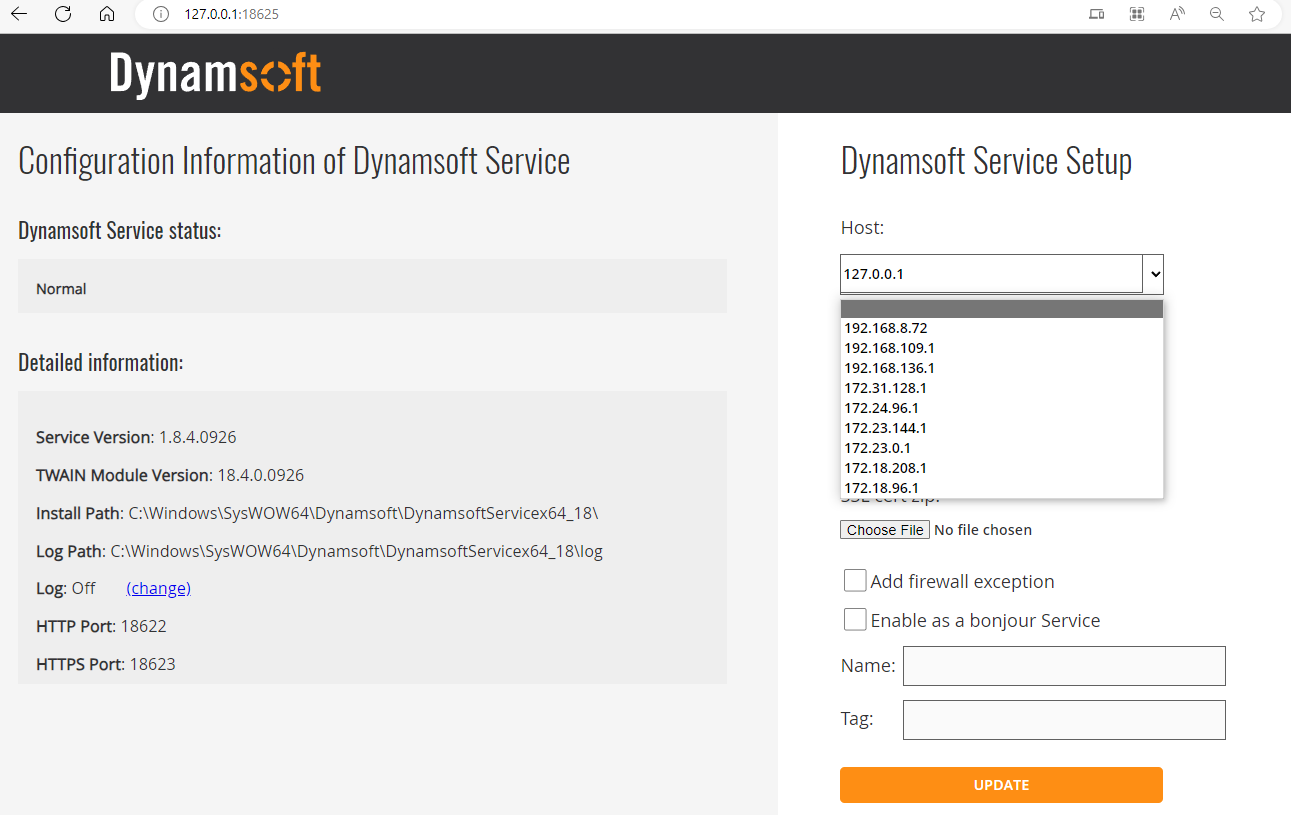
Step 1: Set Up a New SwiftUI Project
- Create a new Multiplatform app project in Xcode to support both macOS and iOS.
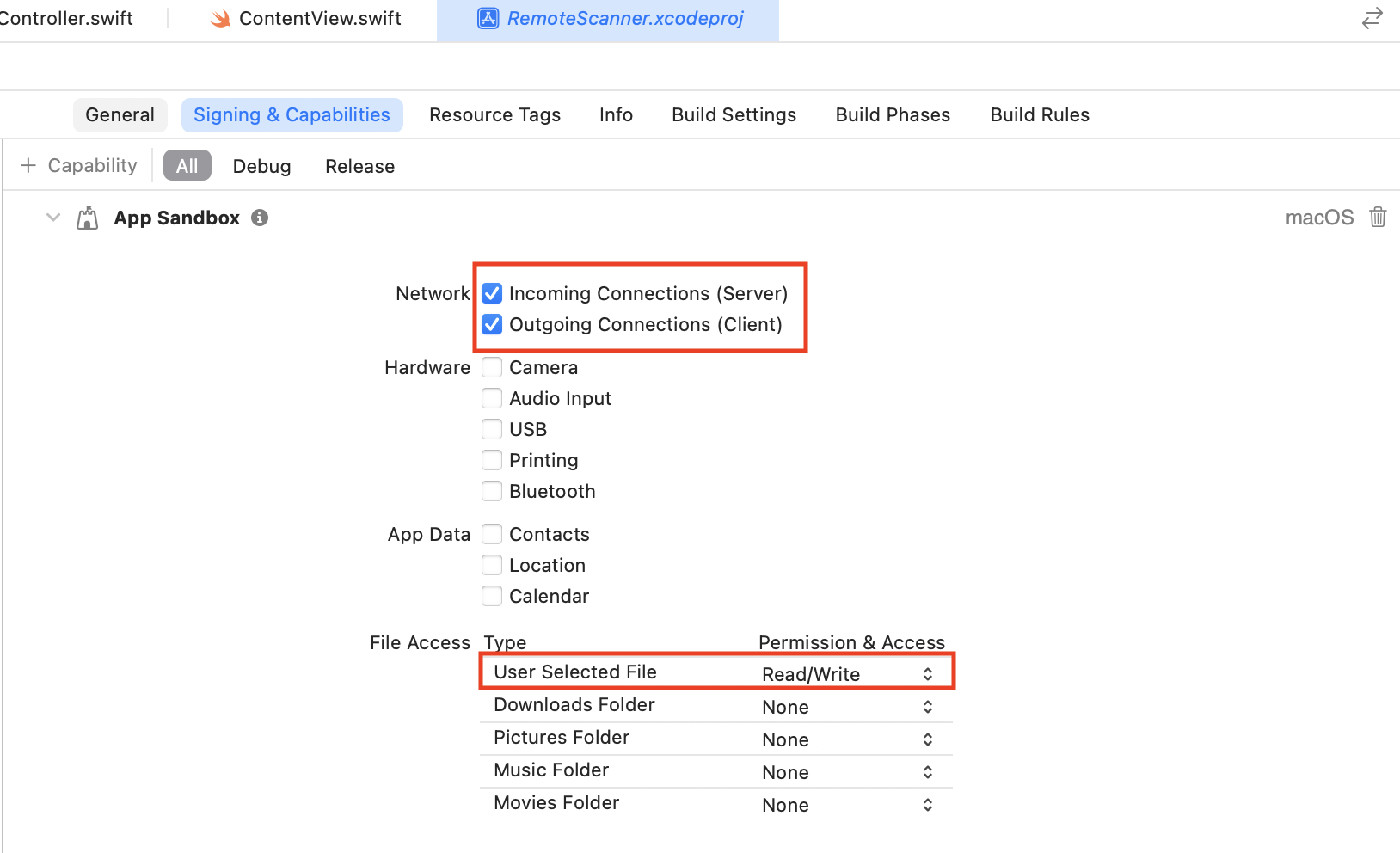
- Navigate to Project Settings > Signing & Capabilities > App Sandbox, and enable:
- Outgoing Connections (Client) and Incoming Connections (Server) (Required for macOS apps to communicate with the Dynamic Web TWAIN service).
- User Selected File (Read/Write) permission (Allows saving scanned PDFs locally on macOS).
-
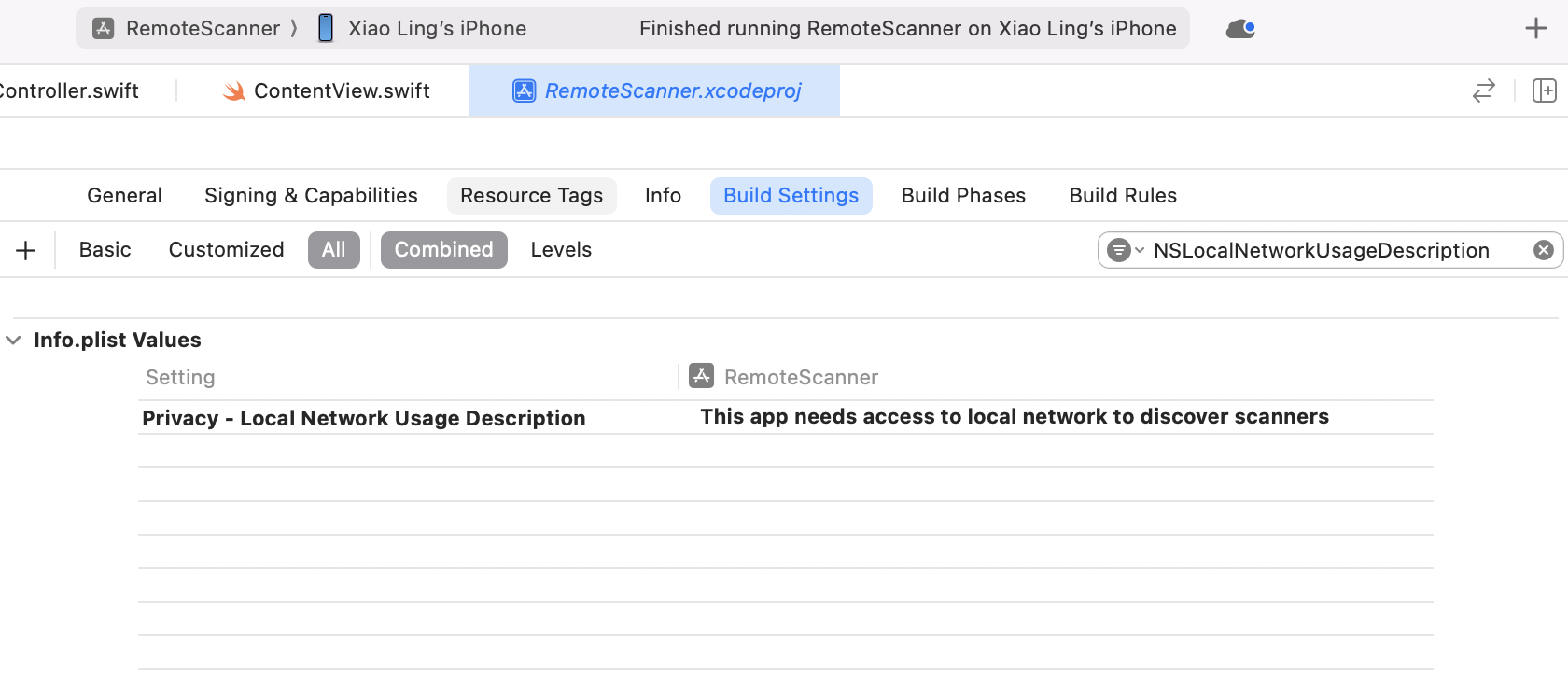
Navigate to Project Settings > Build Settings, and add the NSLocalNetworkUsageDescription key. This is required for the iOS app to request local network access to communicate with the Dynamic Web TWAIN service.
Step 2: Convert the Dynamic Web TWAIN REST API Wrapper from C# to Swift
Previously, we wrote ScannerController.cs in C# to invoke the Dynamsoft RESTful API. Instead of rewriting it from scratch, we can quickly convert the C# code to Swift using AI tools like ChatGPT or Gemini.
Create the ScannerController.swift File
Create a new file named ScannerController.swift and paste the converted Swift code:
import SwiftUI

struct ScannerType {
    static let TWAINSCANNER: Int = 0x10
    static let WIASCANNER: Int = 0x20
    static let TWAINX64SCANNER: Int = 0x40
    static let ICASCANNER: Int = 0x80
    static let SANESCANNER: Int = 0x100
    static let ESCLSCANNER: Int = 0x200
    static let WIFIDIRECTSCANNER: Int = 0x400
    static let WIATWAINSCANNER: Int = 0x800
}

class ScannerController {
    static let SCAN_SUCCESS = "success"
    static let SCAN_ERROR = "error"

    private let httpClient = URLSession.shared

    func getDevices(host: String, scannerType: Int? = nil) async -> [[String: Any]] {
        var devices: [[String: Any]] = []

        do {
            let response = try await getDevicesHttpResponse(host: host, scannerType: scannerType)
            if response.statusCode == 200 {
                if let data = response.data, let responseBody = String(data: data, encoding: .utf8),
                    !responseBody.isEmpty
                {
                    devices = try JSONDecoder().decode([[String: AnyCodable]].self, from: data).map
                    { $0.mapValues { $0.value } }
                }
            }
        } catch {
            print(error.localizedDescription)
        }

        return devices
    }

    func getDevicesHttpResponse(host: String, scannerType: Int? = nil) async throws -> (
        statusCode: Int, data: Data?
    ) {
        var url = URL(string: "\(host)/DWTAPI/Scanners")!
        if let scannerType = scannerType {
            url = URL(string: "\(host)/DWTAPI/Scanners?type=\(scannerType)")!
        }

        var request = URLRequest(url: url)
        request.httpMethod = "GET"

        let (data, response) = try await httpClient.data(for: request)
        guard let httpResponse = response as? HTTPURLResponse else {
            throw NSError(domain: "InvalidResponse", code: 0, userInfo: nil)
        }
        return (httpResponse.statusCode, data)
    }

    func scanDocument(host: String, parameters: [String: Any]) async -> [String: String] {
        var dict: [String: String] = [:]

        do {
            let response = try await scanDocumentHttpResponse(host: host, parameters: parameters)
            if let data = response.data, let text = String(data: data, encoding: .utf8) {
                if response.statusCode == 200 || response.statusCode == 201 {
                    dict[ScannerController.SCAN_SUCCESS] = text
                } else {
                    dict[ScannerController.SCAN_ERROR] = text
                }
            }
        } catch {
            dict[ScannerController.SCAN_ERROR] = error.localizedDescription
        }

        return dict
    }

    func scanDocumentHttpResponse(host: String, parameters: [String: Any]) async throws -> (
        statusCode: Int, data: Data?
    ) {
        let url = URL(string: "\(host)/DWTAPI/ScanJobs")!
        var request = URLRequest(url: url)
        request.httpMethod = "POST"
        request.addValue("application/json", forHTTPHeaderField: "Content-Type")
        request.httpBody = try JSONSerialization.data(withJSONObject: parameters)

        let (data, response) = try await httpClient.data(for: request)
        guard let httpResponse = response as? HTTPURLResponse else {
            throw NSError(domain: "InvalidResponse", code: 0, userInfo: nil)
        }
        return (httpResponse.statusCode, data)
    }

    func deleteJob(host: String, jobId: String) async throws -> (statusCode: Int, data: Data?) {
        let url = URL(string: "\(host)/DWTAPI/ScanJobs/\(jobId)")!
        var request = URLRequest(url: url)
        request.httpMethod = "DELETE"

        let (data, response) = try await httpClient.data(for: request)
        guard let httpResponse = response as? HTTPURLResponse else {
            throw NSError(domain: "InvalidResponse", code: 0, userInfo: nil)
        }
        return (httpResponse.statusCode, data)
    }

    func getImageFile(host: String, jobId: String, directory: String) async -> String {
        do {
            let response = try await getImageStreamHttpResponse(host: host, jobId: jobId)
            if response.statusCode == 200, let data = response.data {
                let timestamp = Int(Date().timeIntervalSince1970 * 1000)
                let filename = "image_\(timestamp).jpg"
                let imagePath = URL(fileURLWithPath: directory).appendingPathComponent(filename)
                    .path
                try data.write(to: URL(fileURLWithPath: imagePath))
                return filename
            }
        } catch {
            print("No more images.")
        }

        return ""
    }

    func getImageFiles(host: String, jobId: String, directory: String) async -> [String] {
        var images: [String] = []

        while true {
            let filename = await getImageFile(host: host, jobId: jobId, directory: directory)
            if filename.isEmpty {
                break
            } else {
                images.append(filename)
            }
        }

        return images
    }

    func getImageStreams(host: String, jobId: String) async -> [[UInt8]] {
        var streams: [[UInt8]] = []

        while true {
            let bytes = await getImageStream(host: host, jobId: jobId)
            if bytes.isEmpty {
                break
            } else {
                streams.append(bytes)
            }
        }

        return streams
    }

    func getImageStream(host: String, jobId: String) async -> [UInt8] {
        do {
            let response = try await getImageStreamHttpResponse(host: host, jobId: jobId)

            if response.statusCode == 200, let data = response.data {
                return Array(data)
            } else if response.statusCode == 410 {
                return []
            }
        } catch {
            return []
        }

        return []
    }

    func getImageStreamHttpResponse(host: String, jobId: String) async throws -> (
        statusCode: Int, data: Data?
    ) {
        let timestamp = Int(Date().timeIntervalSince1970 * 1000)
        let url = URL(string: "\(host)/DWTAPI/ScanJobs/\(jobId)/NextDocument?\(timestamp)")!

        var request = URLRequest(url: url)
        request.httpMethod = "GET"

        let (data, response) = try await httpClient.data(for: request)
        guard let httpResponse = response as? HTTPURLResponse else {
            throw NSError(domain: "InvalidResponse", code: 0, userInfo: nil)
        }
        return (httpResponse.statusCode, data)
    }
}
...
Step 3: Build the Remote Document Scanner App in SwiftUI
Understand API Differences Between macOS and iOS
Although SwiftUI is cross-platform, macOS and iOS require different APIs for handling images and files:
| macOS | iOS | Purpose |
|---|---|---|
| NSImage | UIImage | Image storage |
| NSSavePanel | UIDocumentPickerViewController | PDF saving UI |
| PDFDocument/PDFPage | UIGraphicsPDFRenderer | PDF rendering |
| Image(nsImage:) | Image(uiImage:) | SwiftUI Image display |
Design the App Features and UI
App Features
- List the available scanners via an IP address.
- Select a scanner and start scanning.
- Display the scanned images in a scroll view.
- Save the scanned images as a PDF file.
UI Implementation in ContentView.swift
In ContentView, add the following UI components:
struct ContentView: View {
    @StateObject private var viewModel = ScannerViewModel()
    @State private var showAlert = false
    @State private var alertMessage = ""

    var body: some View {
        VStack {
            Picker("Select Scanner", selection: $viewModel.selectedScannerName) {
                ForEach(viewModel.rawScanners.indices, id: \.self) { index in
                    if let name = viewModel.rawScanners[index]["name"] as? String {
                        Text(name).tag(name as String?)
                    }
                }
            }
            .pickerStyle(.menu)
            .padding()

            HStack {
                Button("Fetch Scanners") {
                    Task { await viewModel.fetchScanners() }
                }
                Button("Scan Document") {
                    Task { await viewModel.scanDocument() }
                }
                .disabled(viewModel.selectedScannerName == nil)
            }
            .padding()

            ScrollViewReader { proxy in
                List {
                    ForEach(Array(viewModel.scannedImages.enumerated()), id: \.offset) {
                        index, image in
                        let image = viewModel.scannedImages[index]
                        #if os(macOS)
                        Image(nsImage: image).resizable()
                            .scaledToFit()
                            .frame(height: 400)
                            .id(index)
                        #else
                        Image(uiImage: image).resizable()
                            .scaledToFit()
                            .frame(height: 400)
                            .id(index)
                        #endif
                    }
                }
                .onChange(of: viewModel.scannedImages.count) {
                    withAnimation {
                        proxy.scrollTo(viewModel.scannedImages.count - 1, anchor: .bottom)
                    }
                }
            }

            Button("Save to PDF") {
                viewModel.saveImagesToPDF()
            }
            .padding()
        }
        .onAppear {
            Task { await viewModel.fetchScanners() }
        }
        .alert("Scanner Error", isPresented: $showAlert) {
            Button("OK") { }
        } message: {
            Text(alertMessage)
        }
        .frame(width: 500, height: 600)
    }
}
Explanation:
- The
Fetch Scannersbutton fetches the available scanners and lists them in thePickercomponent. - The
Scan Documentbutton triggers remote document scanning. - The
ScrollViewReadercomponent displays the scanned images. - The
Save to PDFbutton saves the scanned images as a PDF file.
Implement the ScannerViewModel
The ScannerViewModel class serves the following purposes:
- Acts as the central manager for scanner operations.
- Bridges the UI (SwiftUI) with the scanner hardware/API.
- Handles platform-specific implementations for macOS and iOS.
Key ScannerViewModel Functions
1. Initialize the Scanner Controller
The ScannerViewModel initializes the ScannerController, sets up the IP address, license key, and scanning parameters. Be sure to replace the IP and license key with your own values.
class ScannerViewModel: ObservableObject {
    @Published var rawScanners: [[String: Any]] = []
    @Published var selectedScannerName: String?
    @Published var scannedImages: [PlatformImage] = []

    private let scannerController = ScannerController()
    private let apiURL = "http://192.168.8.72:18622"
    private let licenseKey = "LICENSE-KEY"
    private let scanConfig: [String: Any] = [
        "IfShowUI": false,
        "PixelType": 2,
        "Resolution": 200,
        "IfFeederEnabled": false,
        "IfDuplexEnabled": false
    ]
}
2. Fetching Available Scanners
The function below retrieves a list of available scanners. You can specify a scanner type to filter the results.
func fetchScanners() async {
    let jsonArray = await scannerController.getDevices(
        host: apiURL,
        scannerType: ScannerType.TWAINX64SCANNER | ScannerType.ESCLSCANNER
    )

    await MainActor.run {
        rawScanners = jsonArray
        selectedScannerName = jsonArray.first?["name"] as? String
    }
}
3. Scanning a Document
The scanDocument() function sends a scan request to the selected scanner. It returns a job ID, which is later used to fetch scanned images.
func scanDocument() async {
    guard let scanner = rawScanners.first(where: { $0["name"] as? String == selectedScannerName }),
            let device = scanner["device"]
    else { return }

    let parameters: [String: Any] = [
        "license": licenseKey,
        "device": device,
        "config": scanConfig
    ]

    let result = await scannerController.scanDocument(
        host: apiURL,
        parameters: parameters
    )

    if let jobId = result[ScannerController.SCAN_SUCCESS] {
        await fetchImages(jobId: jobId)
    }
}
4. Fetching Scanned Images
This function retrieves the scanned images from the scanner and converts them into NSImage (macOS) or UIImage (iOS).
private func fetchImages(jobId: String) async {
    let streams = await scannerController.getImageStreams(host: apiURL, jobId: jobId)

    for bytes in streams {
        let data = Data(bytes: bytes, count: bytes.count)
        await MainActor.run {
            #if os(macOS)
            guard let image = NSImage(data: data) else { return }
            #else
            guard let image = UIImage(data: data) else { return }
            #endif
            scannedImages.append(image)
        }
    }
}
5. Saving Images as a PDF
This function saves scanned images as a PDF file and allows users to store it locally.
func saveImagesToPDF() {
    #if os(macOS)
    let pdfDocument = PDFDocument()
    for (index, image) in scannedImages.enumerated() {
        if let pdfPage = PDFPage(image: image) {
            pdfDocument.insert(pdfPage, at: index)
        }
    }

    let savePanel = NSSavePanel()
    savePanel.allowedContentTypes = [.pdf]
    savePanel.nameFieldStringValue = "ScannedDocument.pdf"

    if savePanel.runModal() == .OK, let url = savePanel.url {
        pdfDocument.write(to: url)
    }
    #else
    guard let pdfData = createPDFData() else { return }
    let tempURL = URL(fileURLWithPath: NSTemporaryDirectory()).appendingPathComponent("ScannedDocument.pdf")

    do {
        try pdfData.write(to: tempURL)
        let controller = UIDocumentPickerViewController(forExporting: [tempURL])
        if let windowScene = UIApplication.shared.connectedScenes
            .filter({ $0.activationState == .foregroundActive })
            .first as? UIWindowScene {

            windowScene.windows.first?.rootViewController?.present(controller, animated: true)
        }
    } catch {
        print("Save failed: \(error.localizedDescription)")
    }
    #endif
}
Run and Test the App
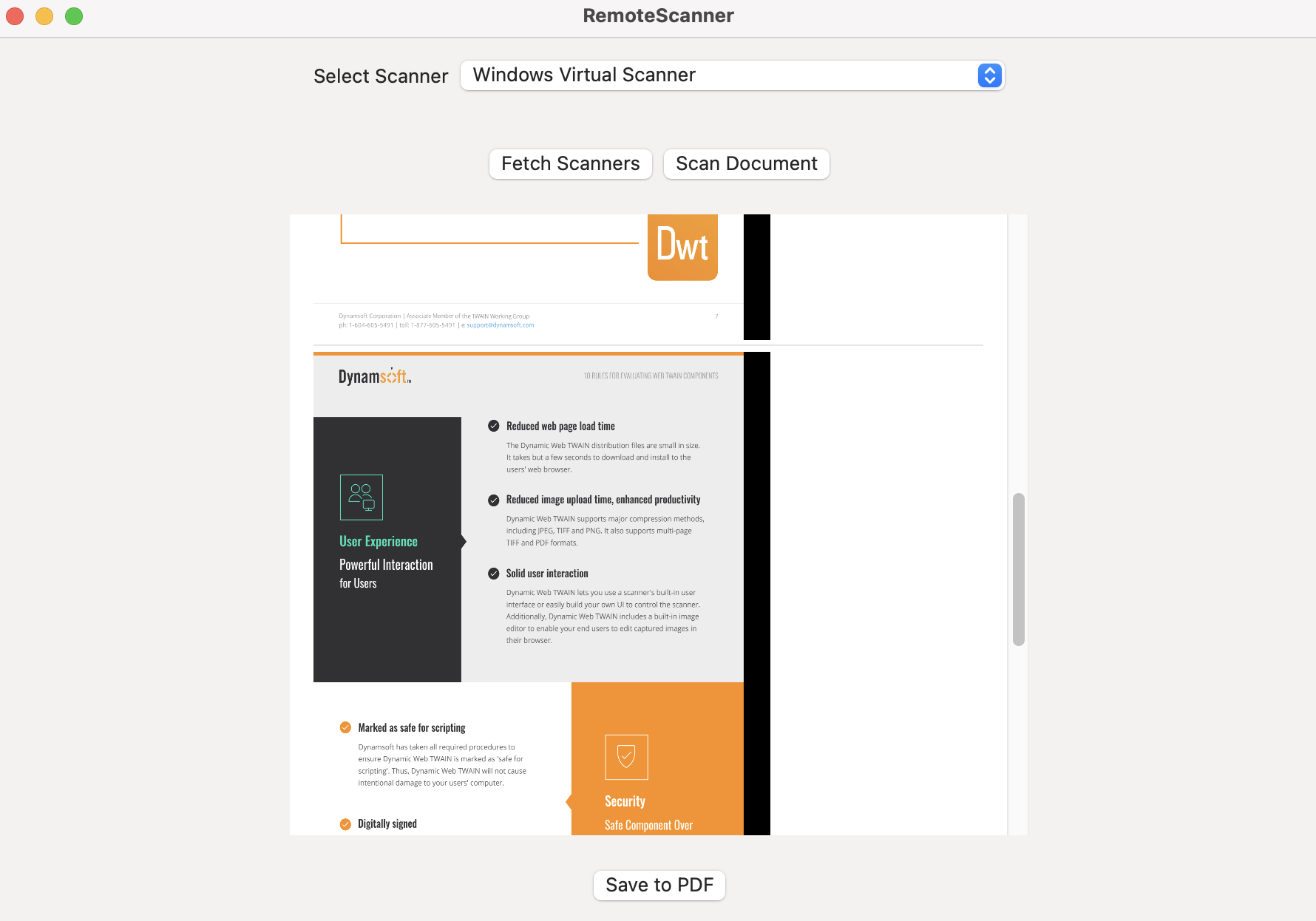
Run the app on macOS or iOS to test the scanner functionality.
Common Issues & Edge Cases
- Service unreachable from the iOS/macOS client: Ensure remote access is enabled in the Dynamic Web TWAIN service dashboard at
http://127.0.0.1:18625/and that the host machine’s IP is bound. The firewall on the scanner host must allow inbound connections on port18622. - Scanner not listed after fetching: The scanner type bitmask may not match the connected device. Try omitting the
scannerTypeparameter or combining flags (e.g.,ScannerType.TWAINX64SCANNER | ScannerType.ESCLSCANNER) to broaden discovery. - No images returned after a successful scan job: Verify the
jobIdfromscanDocument()is non-empty. A410 Goneresponse fromNextDocumentis the normal completion signal — it means all pages have been delivered. If zero images arrive, confirm the scanner has a document loaded and that the selected device string matches the physical scanner.