


Build a SwiftUI Barcode Scanner for iOS and macOS with Dynamsoft Capture Vision
In the previous tutorial, we explored how to build a SwiftUI barcode scanner app for macOS using the Dynamsoft Capture Vision C++ SDK. Since SwiftUI is a cross-platform framework supporting both macOS and iOS, and the Dynamsoft Capture Vision SDK provides a Swift Package Manager (SPM) for iOS, it is theoretically possible to make the SwiftUI project compatible with both platforms. This article demonstrates how to modify the existing macOS barcode scanner project to support iOS.
What you’ll build: A SwiftUI barcode scanner app that runs on both iOS and macOS, using the Dynamsoft Capture Vision SDK to decode 1D/2D barcodes from the device camera in real time.
why Dynamsoft Capture Vision SDK: The Dynamsoft Capture Vision SDK is a powerful tool for barcode scanning, offering high-speed and high-accuracy barcode recognition. It supports various barcode formats, including QR Code, Data Matrix, and PDF417, and can be easily integrated into iOS and macOS projects using the Swift Package Manager.
Key Takeaways
- SwiftUI can target both macOS and iOS from a single codebase by using
#if os(iOS)/#if os(macOS)conditional compilation. - The Dynamsoft Capture Vision SDK is available as a Swift Package Manager (SPM) dependency for iOS, making integration straightforward in Xcode.
- Portrait-mode barcode scanning on iOS requires a 90-degree coordinate transform when mapping barcode locations to the camera preview overlay.
- Platform-specific type aliases (
NSImagevsUIImage,NSViewControllervsUIViewController) let you keep shared logic while swapping UI primitives per platform.
Common Developer Questions
How do I build a SwiftUI barcode scanner app that works on both iOS and macOS?
Keep the shared scanner logic in SwiftUI and isolate the platform-specific pieces with #if os(iOS) and #if os(macOS) blocks. That lets one project target both operating systems while swapping only the view-controller and image-type details that truly differ.
How do I add the Dynamsoft Capture Vision SDK to an Xcode project using Swift Package Manager?
Use File > Add Package Dependencies in Xcode, point it at the capture-vision-spm repository, and add the required package products to your target. After that, the SDK can be imported directly in the Swift source files.
Why are barcode overlay coordinates wrong in portrait mode on iOS, and how do I fix them?
On iOS portrait mode, the camera preview and decoded coordinates may use different orientations, so you need a 90-degree coordinate transform before drawing overlays. Once the points are remapped into preview space, the boxes line up correctly.
This article is Part 4 in a 6-Part Series.
- Part 1 - How to Build an iOS QR Code and Barcode Scanner with SwiftUI on Apple Silicon
- Part 2 - Build an iOS Passport and ID MRZ Scanner with SwiftUI and Dynamsoft Capture Vision
- Part 3 - Build a macOS Barcode Scanner with SwiftUI and a C++ Barcode SDK
- Part 4 - Build a SwiftUI Barcode Scanner for iOS and macOS with Dynamsoft Capture Vision
- Part 5 - Build a Cross-Platform SwiftUI Document Scanner for macOS and iOS
- Part 6 - How to Build a macOS Framework Wrapping C++ in Objective-C++ for Swift Barcode Scanning
iOS Barcode Scanner Demo
Prerequisites
- Get a 30-day free trial license for the Dynamsoft Capture Vision SDK.
- capture-vision-spm: The Swift Package Manager (SPM) for the Dynamsoft Capture Vision SDK.
- Xcode 15+ with an iOS 16+ deployment target.
Step 1: Configure the SwiftUI Project for macOS and iOS
-
In Xcode, select
File > Add Package Dependenciesto add thecapture-vision-spmpackage: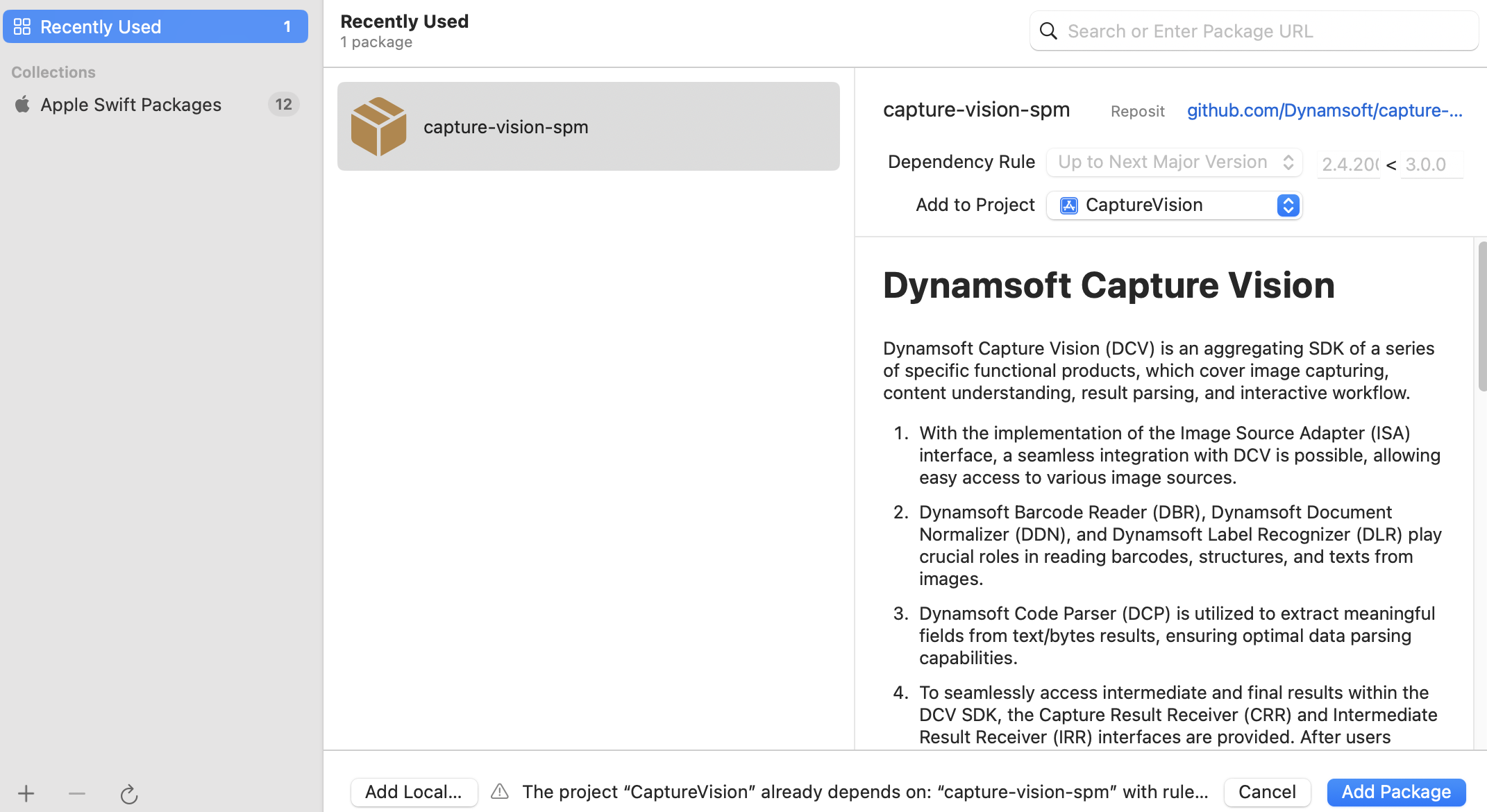
-
After adding all packages to the target, navigate to
Project > Build Phases > Link Binary With Libraries, and adjust the supported platform of the packages toiOS: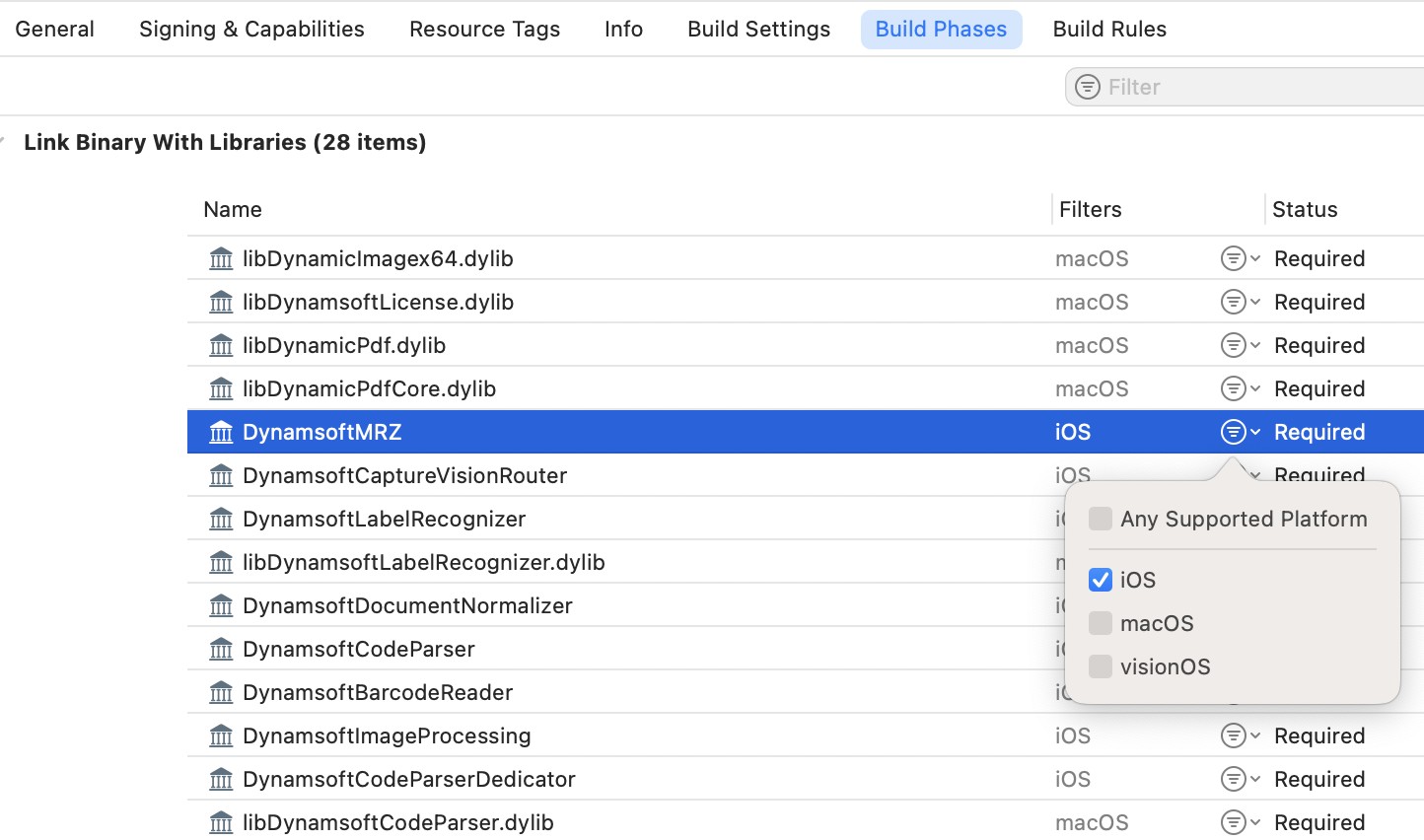
-
For macOS-specific bridging code that is unnecessary for iOS, ensure the build passes by conditionally excluding the macOS code using macros in
*.hand*.mmfiles:#include <TargetConditionals.h> #if defined(__APPLE__) && defined(__MACH__) && !TARGET_OS_IPHONE // macOS code #endif -
To access the camera on iOS, go to
Project > Infoand add theNSCameraUsageDescriptionkey: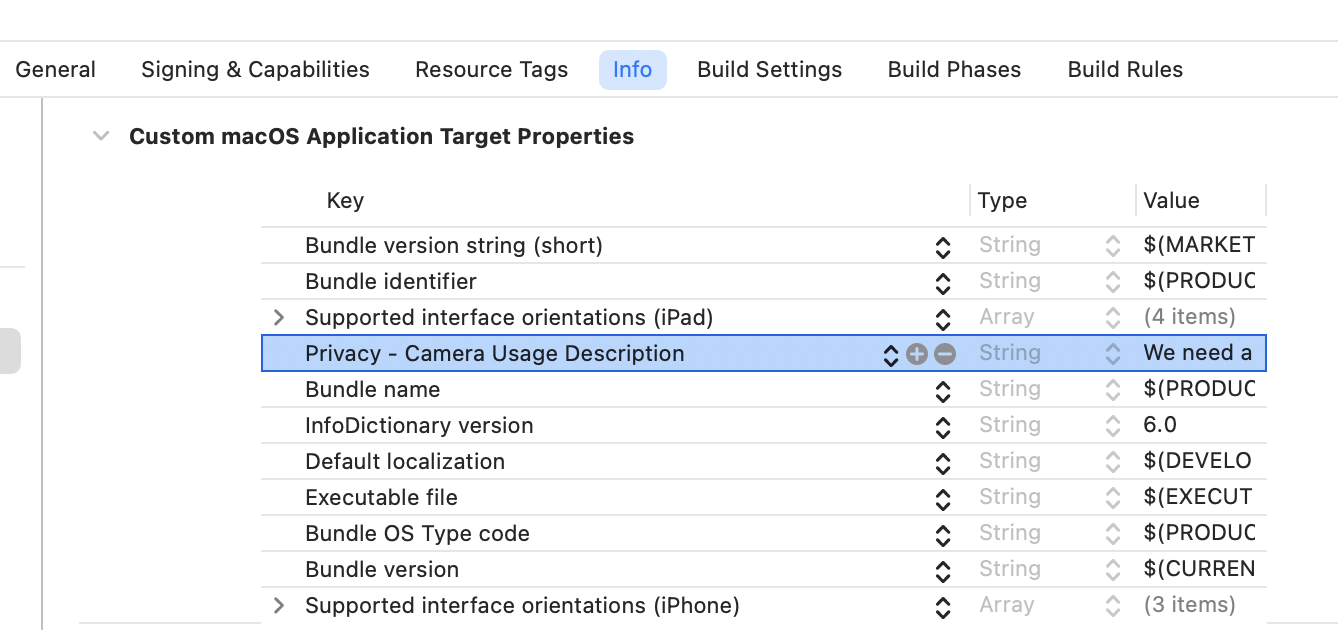
Step 2: Adapt Platform-Specific APIs for iOS
The naming conventions for macOS and iOS differ. For example, NSImage is used on macOS, while UIImage is used on iOS.
Below is a comparison table of classes and methods used in macOS and iOS barcode scanner projects:
| macOS (Swift) | iOS (Swift) |
|---|---|
NSImage |
UIImage |
NSView |
UIView |
NSColor |
UIColor |
NSViewControllerRepresentable |
UIViewControllerRepresentable |
NSGraphicsContext |
UIGraphicsGetCurrentContext |
NSFont |
UIFont |
NSViewController |
UIViewController |
viewDidLayout |
viewDidLayoutSubviews |
To make the code compatible with both platforms, we can use #if os(macOS) and #if os(iOS) to conditionally compile platform-specific code.
Create the SwiftUI Camera View with UIViewControllerRepresentable
In CameraView.swift, implement the CameraView struct using UIViewControllerRepresentable for iOS:
#if os(iOS)
    struct CameraView: UIViewControllerRepresentable {
        @Binding var image: ImageType?
        @Binding var shouldCapturePhoto: Bool

        func makeCoordinator() -> Coordinator {
            Coordinator(self)
        }

        func makeUIViewController(context: Context) -> CameraViewController {
            let cameraViewController = CameraViewController()
            context.coordinator.cameraViewController = cameraViewController
            return cameraViewController
        }

        func updateUIViewController(_ uiViewController: CameraViewController, context: Context) {

        }

        class Coordinator: NSObject {
            var parent: CameraView
            var cameraViewController: CameraViewController?

            init(_ parent: CameraView) {
                self.parent = parent
            }
        }
    }
#elseif os(macOS)
    struct CameraView: NSViewControllerRepresentable {
        ...
    }
#endif
Import the Dynamsoft Capture Vision SDK for iOS
In CameraViewController.swift, import the Dynamsoft Capture Vision SDK for iOS as follows:
#if os(iOS)
    import UIKit
    import CoreGraphics
    import DynamsoftCaptureVisionRouter
    import DynamsoftBarcodeReader
    import DynamsoftLicense
    typealias ViewController = UIViewController
    typealias ImageType = UIImage
#elseif os(macOS)
    import Cocoa
    typealias ViewController = NSViewController
    typealias ImageType = NSImage
#endif
Set Up the License Key for Dynamsoft Capture Vision
The license setup method differs between macOS (synchronous) and iOS (asynchronous). Modify the code in CameraViewController.swift as follows:
class CameraViewController: ViewController, AVCapturePhotoCaptureDelegate,
    AVCaptureVideoDataOutputSampleBufferDelegate
{
    override func viewDidLoad() {
        super.viewDidLoad()

        let licenseKey =
            "LICENSE-KEY"

        #if os(iOS)
            setLicense(license: licenseKey)
        #elseif os(macOS)
            let result = CaptureVisionWrapper.initializeLicense(licenseKey)
            if result == 0 {
                print("License initialized successfully")
            } else {
                print("Failed to initialize license with error code: \(result)")
            }
        #endif
        ...
    }
}

#if os(iOS)
    extension CameraViewController: LicenseVerificationListener {

        func onLicenseVerified(_ isSuccess: Bool, error: Error?) {
            if !isSuccess {
                if let error = error {
                    print("\(error.localizedDescription)")
                }
            }
        }

        func setLicense(license: String) {
            LicenseManager.initLicense(license, verificationDelegate: self)
        }
    }
#endif
Decode Barcodes from Camera Frames on iOS
The barcode decoding methods for macOS and iOS differ slightly. For macOS, you pass width, height, stride, and format directly to the capture method. On iOS, an ImageData object is created and passed to the capture method:
#if os(iOS)
    let cvr = CaptureVisionRouter()

    let buffer = Data(bytes: baseAddress, count: bytesPerRow * height)
    let imageData = ImageData(
        bytes: buffer, width: UInt(width), height: UInt(height),
        stride: UInt(bytesPerRow), format: .ARGB8888, orientation: 0, tag: nil)
    let result = cvr.captureFromBuffer(
        imageData, templateName: PresetTemplate.readBarcodes.rawValue)
#elseif os(macOS)
    let cv = CaptureVisionWrapper()

    ...
    let buffer = Data(bytes: baseAddress, count: bytesPerRow * height)
    let barcodeArray =
        cv.captureImage(
            with: buffer, width: Int32(width), height: Int32(Int(height)),
            stride: Int32(Int(bytesPerRow)), pixelFormat: pixelFormat)
        as? [[String: Any]] ?? []
#endif
Convert Barcode Coordinates for Portrait Mode on iOS
On iOS, when scanning barcodes in portrait mode, the image is rotated 90 degrees. Adjust coordinates as follows:
#if os(iOS)
    private func convertToOverlayCoordinates(
        cameraPoint: CGPoint, overlaySize: CGSize, orientation: AVCaptureVideoOrientation
    ) -> CGPoint {
        let cameraSize = cameraPreviewSize

        let scaleX = overlaySize.width / cameraSize.height
        let scaleY = overlaySize.height / cameraSize.width

        var transformedPoint = CGPoint.zero

        if scaleX < scaleY {
            let deltaX = CGFloat((cameraSize.height * scaleY - overlaySize.width) / 2)

            transformedPoint = CGPoint(
                x: cameraPoint.x * scaleY, y: cameraPoint.y * scaleY)

            transformedPoint = CGPoint(
                x: overlaySize.width - transformedPoint.y + deltaX, y: transformedPoint.x)

        } else {
            let deltaY = CGFloat((cameraSize.width * scaleX - overlaySize.height) / 2)
            transformedPoint = CGPoint(
                x: cameraPoint.x * scaleX, y: cameraPoint.y * scaleX)

            transformedPoint = CGPoint(
                x: overlaySize.width - transformedPoint.y, y: transformedPoint.x - deltaY)
        }

        return transformedPoint

    }
#elseif os(macOS)
    private func convertToOverlayCoordinates(cameraPoint: CGPoint, overlaySize: CGSize)
        -> CGPoint
    {
        let cameraSize = cameraPreviewSize

        let scaleX = overlaySize.width / cameraSize.width
        let scaleY = overlaySize.height / cameraSize.height

        if scaleX < scaleY {
            let deltaX = CGFloat((cameraSize.width * scaleY - overlaySize.width) / 2)
            return CGPoint(x: cameraPoint.x * scaleY - deltaX, y: cameraPoint.y * scaleY)
        } else {
            let deltaY = CGFloat((cameraSize.height * scaleX - overlaySize.height) / 2)
            return CGPoint(x: cameraPoint.x * scaleX, y: cameraPoint.y * scaleX - deltaY)
        }
    }
#endif
Step 3: Run the iOS Barcode Scanner App
-
Select a target device in Xcode:
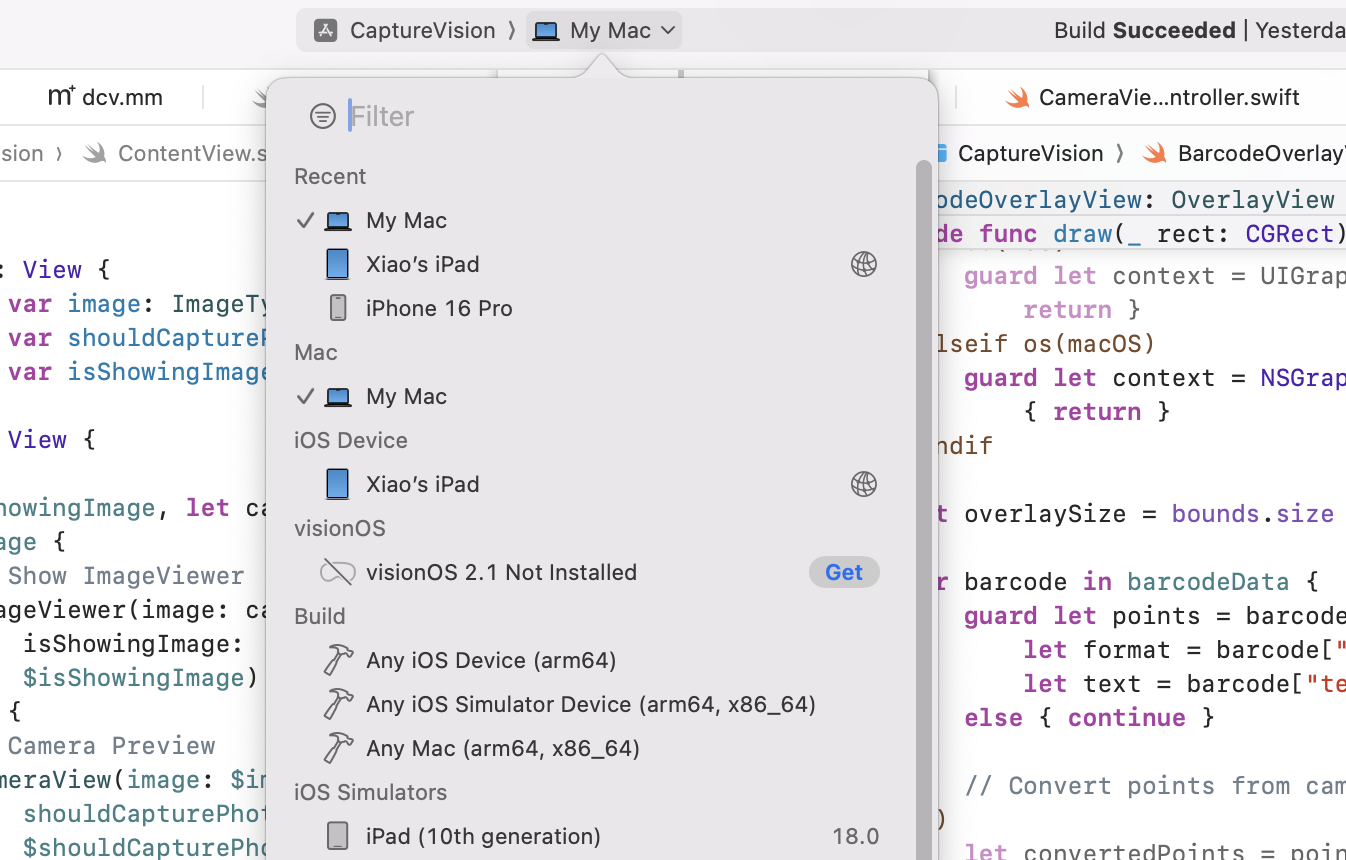
-
Run the barcode scanner app to see the results:
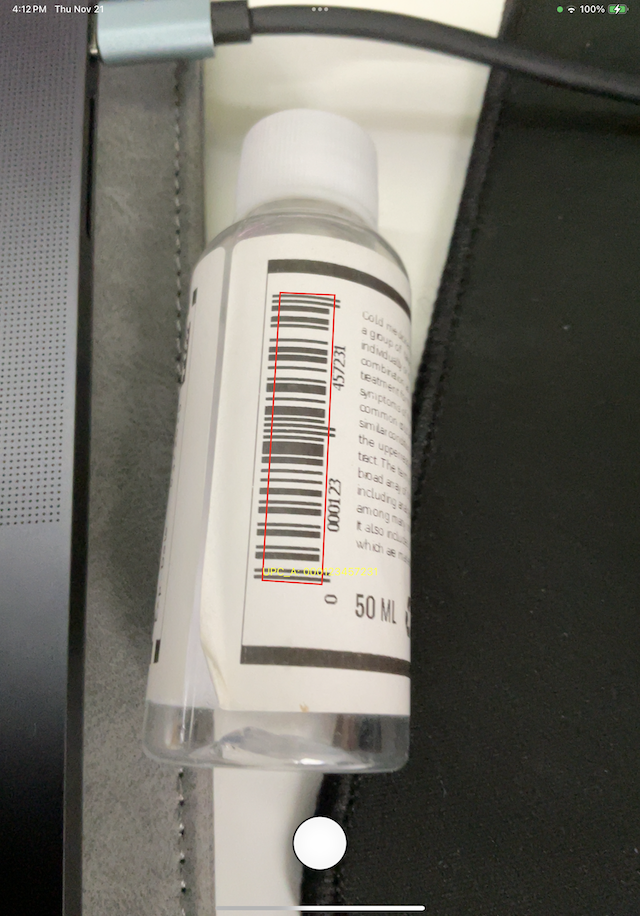
Common Issues and Edge Cases
- Camera permission denied on iOS: If the app crashes or shows a black preview, verify that
NSCameraUsageDescriptionis set in yourInfo.plist. Without it, iOS silently denies camera access. - Barcode overlay coordinates are offset in portrait mode: iOS returns camera frames in landscape orientation. You must apply a 90-degree coordinate transform (swap X/Y axes and adjust for aspect-ratio scaling) when drawing barcode bounding boxes on the preview layer.
- SPM package “platform not supported” error: After adding
capture-vision-spm, make sure you set each linked library’s supported platform to iOS inBuild Phases > Link Binary With Libraries. Leaving it on the default may cause Xcode to skip linking on the target platform.