




Thanks for Downloading Dynamic Web TWAIN 30-Day Trial!
Your download will start shortly. If your download does not begin, click here to retry.
Error Troubleshooting
This is an evolving browser security behavior. Details in this article may change as Chromium and Firefox continue updating their Local Network Access implementations.
Error message - Local network access permission denied
Overview
Local Network Access (LNA) is a browser security model that restricts requests from public network origins to local or loopback destinations - including localhost / 127.0.0.1 - unless the user explicitly grants permission. Dynamic Web TWAIN relies on a locally installed service that listens on a loopback address, so if this permission is not granted, DWT cannot communicate with that service.
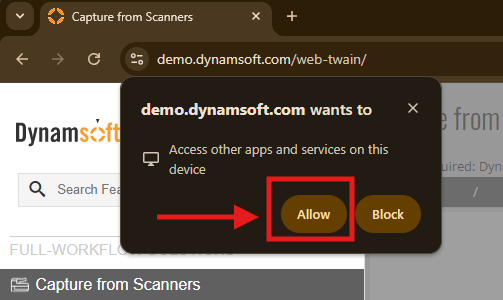
When a page first requests local access, the browser shows an LNA permission prompt. The symptoms and resolution steps below apply when a user dismisses this prompt or clicks Block.
Both Chromium-based browsers (Chrome, Edge, Brave, Opera) and Firefox now enforce LNA, but on different rollout timelines and with different permission names - choose your browser below.
Root Cause
A page hosted on a public origin (for example, https://your-domain.com) is attempting to reach a loopback address (127.0.0.1), which is now treated as a protected local-network request. Under this model, such requests are blocked by default unless the required permission has been granted.
This is driven by browser security policy decisions. Dynamic Web TWAIN cannot bypass these restrictions programmatically. Browser behavior will continue evolving, and temporary workarounds may be removed in future versions. You should plan your deployment and UX flow around current browser permission requirements.
Browser permission popup UI changes frequently. Starting with Dynamic Web TWAIN v19.3.1, static popup screenshots were removed from this FAQ - for the latest browser-specific screenshots, see: https://dynamsoft.github.io/Dynamic-Web-TWAIN/local-network-access.html
Local Network Access has been enforced in Chromium-based browsers since version 142 (released October 28, 2025), including Chrome, Edge, Brave, and Opera.
For Chromium’s background and design rationale, see Chrome’s developer blog and the Chrome Platform Status entry.
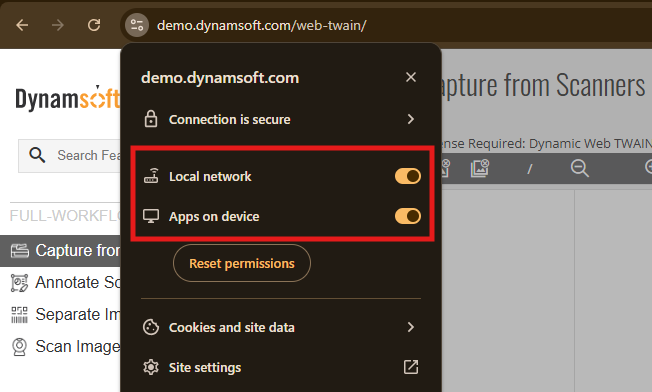
Starting in Chrome 145, the site-setting label changed from one local network access permission to two:
loopback-networkshown as Apps on devicelocal-networkshown as Local Network
Dynamic Web TWAIN Service communicates with localhost / 127.0.0.1, so Apps on device (loopback-network) is the key permission for most deployments.
Symptoms
If the initial LNA prompt is dismissed or blocked, you may experience one or more of the following:
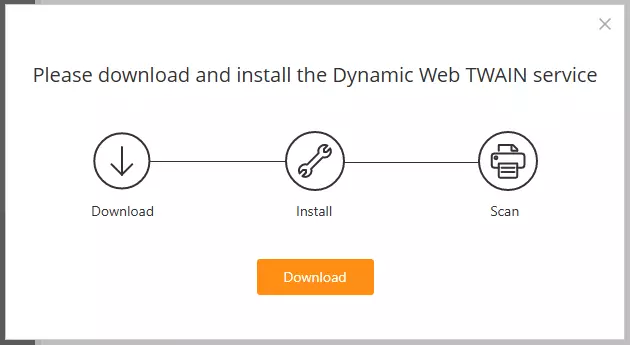
1) Browser repeatedly prompts to download the service
The browser asks the user to download/install the Dynamic Web TWAIN Service even though it is already installed.
2) Initialization succeeds, but scanning / loading returns blank
Initialization appears successful, but scanned or loaded images are blank.
The browser console (F12 -> Console) may show a CORS denial similar to:
Access to fetch at 'https://127.0.0.1:18623/fa/VersionInfo?ts=1761893667670'
from origin 'https://your-domain.com' has been blocked by CORS policy:
Permission was denied for this request to access the `unknown` address space.
This is the Local Network Access restriction described in Root Cause above.
Version-Specific Behavior
Observed behavior depends on Chromium version and Dynamic Web TWAIN (DWT) version:
| Browser Version | DWT Version | Resulting Symptom |
|---|---|---|
| Chromium 142+ | < 18.5.0 | Service Installation Prompt |
| Chromium 142+ | >= 18.5.0, < 19.3 | Blank Images after Scanning |
| Chromium 142+ | >= 19.3 | Permission Prompt |
| Chromium future version blocking WebSocket(*) | Any | Service Installation Prompt |
(*) Blocking WebSocket requests is on Chromium’s roadmap, and may be enforced in a future release.
Firefox has already begun enforcing Local Network Access, including blocking WebSocket connections starting in Firefox 154 - see the Firefox tab above.
Resolution
1. To manually correct this in Chrome
- Navigate to your Dynamic Web TWAIN page.
- Click the lock/settings icon in the browser address bar.
- In Chrome 142-144, ensure Local Network Access (
local-network-access) isAllow. - In Chrome 145+, check:
- Apps on device (
loopback-network) isAllow(required forlocalhost/127.0.0.1) - Local Network (
local-network) isAllowonly if your app also needs private-network device access
- Apps on device (
2. (For Admins) Apply this setting across an enterprise
Enterprise administrators can deploy Chrome and/or Edge policies to set local-network permission to Allow for your website.
Please refer to:
- Chrome Enterprise Policy List and Management Documentation
- Microsoft Edge Browser Policy Documentation
Product Improvements Related to Local Network Access
Starting from v19.3, Dynamic Web TWAIN now includes UX enhancements to better surface local-service connectivity and permission issues.
These changes do not alter or bypass Chromium’s security model. They make permission-related failures easier to identify and guide users to the correct browser settings.
The key improvements include:
-
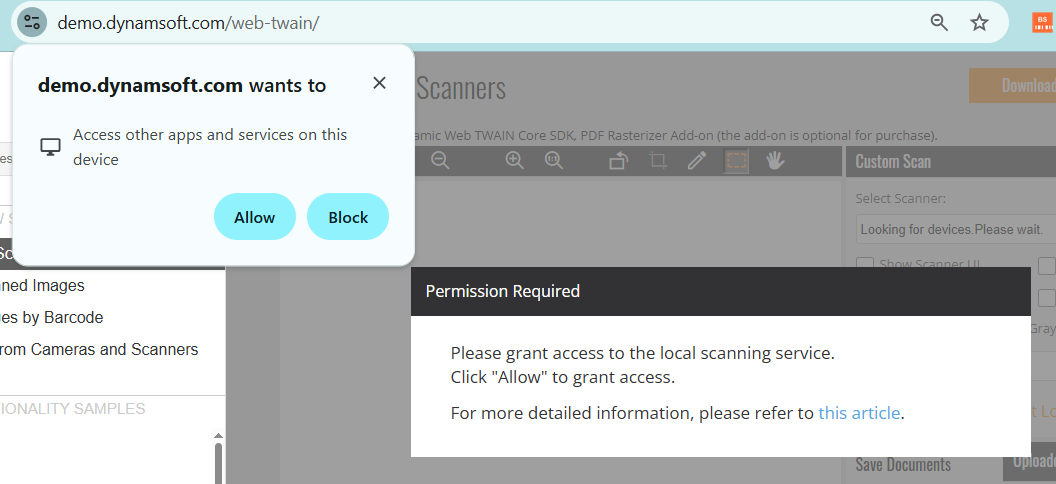
Guide the user to grant local network access
If the service is installed (detected via WebSocket) but access to the local service is failing, and the detected permission state is “prompt”, DWT prompts the user to grant access.Dialog 1 - Permission Granting Guidance
-
Explicit detection of blocked local network access
If the permission can be detected and is “denied”, a clear dialog explains the cause and directs users to a guide, which tells how to enable the permission in site settings.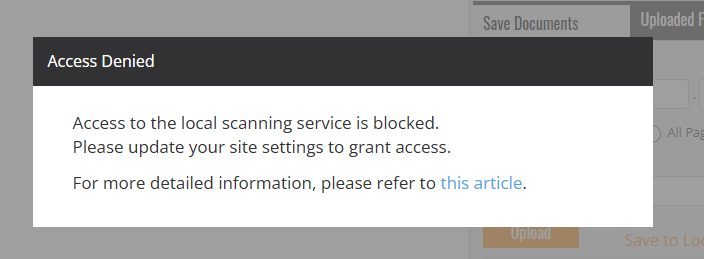
Dialog 2 - Site Settings Guidance
-
Clearer messaging during service installation
The service installation dialog explains that connection failure may be caused either by missing service installation or denied local-network permission.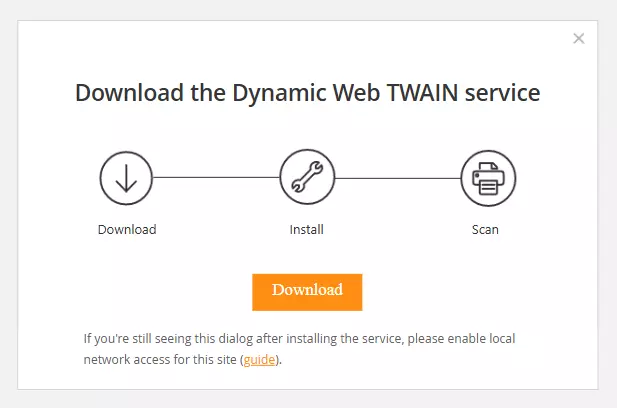
Dialog 3 - Service Installation
These improvements are available starting with Dynamic Web TWAIN v19.3.
For older versions, a supplemental JavaScript file can be provided on request by contacting Dynamsoft Support.
This supplemental JavaScript file improves user guidance only and does not change browser permission requirements.
Firefox is rolling out its own Local Network Access protections, with a similar goal to Chromium’s but on a different timeline and with different permission names.
For background and configuration details, see Mozilla’s documentation: Control personal device and local network permissions in Firefox.
Rollout timeline:
| Firefox Version | Behavior |
|---|---|
| 149 | LNA enforced only for users with Enhanced Tracking Protection set to Strict |
| 151 | Gradual rollout begins for all users |
| 153 | Enforced by default for all desktop users |
| 154 | Enforcement extended to WebSocket connections |
Dynamic Web TWAIN Service communicates with the browser over WebSocket, so Firefox 154+ is the version that directly affects DWT, in the same way Chromium’s LNA does.
Firefox groups this permission differently than Chromium:
- Device apps and services - access to your own computer / localhost and apps running on it. This is the permission relevant to DWT Service.
- Local network devices - access to other hardware on the same LAN (printers, routers, IoT devices, etc.). Not required for DWT Service.
Symptoms
Because Firefox blocks the WebSocket connection itself (rather than a subset of requests, as Chromium currently does), DWT cannot distinguish “service not installed” from “service installed but permission blocked.” As a result, Firefox users who dismiss or block the LNA prompt will consistently see:
Browser repeatedly prompts to download the service, even though it is already installed - regardless of DWT version.
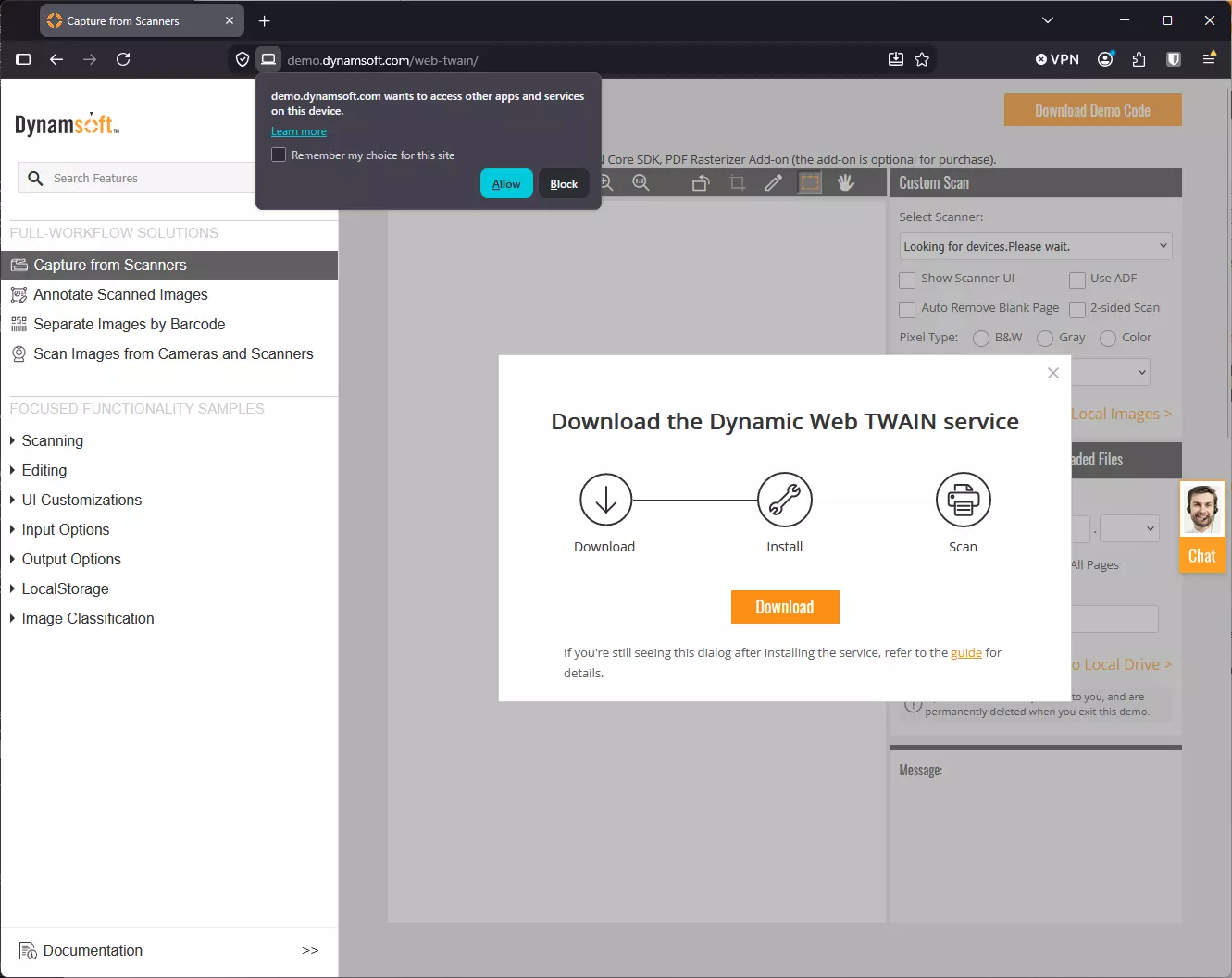
As observed on Firefox 153+, DWT currently shows this generic service-installation dialog on Firefox rather than the enhanced guidance dialogs described under “Product Improvements Related to Local Network Access” in the Chromium tab - even though Firefox does support querying the underlying permission (see Developer Notes below). Until DWT’s guided dialogs are extended to Firefox, use the manual steps below to resolve this.
Resolution
1. To manually correct this in Firefox
- Navigate to your Dynamic Web TWAIN page.
- When Firefox shows the permission prompt near the address bar (“<site> wants to access other apps and services on this device”), click Allow.
- To fix it after dismissing/blocking the prompt, or to manage it in advance: open Firefox Settings → Privacy & Security → Permissions → Device apps and services → Settings…, find your site, and set it to Allow.
2. (For Admins) Apply this setting across an enterprise
Firefox Enterprise / ESR supports the LocalNetworkAccess policy via policies.json, which works differently from Chrome/Edge’s LocalNetworkAccessAllowedForUrls - it uses a SkipDomains exception list rather than an allow-list:
{
  "policies": {
    "LocalNetworkAccess": {
      "SkipDomains": ["your-domain.com", "*.your-domain.com"]
    }
  }
}
Please refer to: Firefox LocalNetworkAccess policy documentation
Developer Notes
These notes apply to Dynamic Web TWAIN deployments on both Chromium-based browsers and Firefox, since both implement Local Network Access against the same underlying permission model.
If running inside an iframe
If Dynamic Web TWAIN runs inside a cross-origin iframe,
loopback-networkpermissions must be explicitly allowed in the iframeallowattribute. If the iframe is same-origin, no additional iframe permission configuration is required.
For Chrome 145+, use loopback-network (and local-network only if needed). For older Chromium versions, include local-network-access.
<!-- Recommended: explicitly list only required origins and permissions -->
<iframe
  src="..."
  allow="loopback-network https://your-domain.com; local-network https://your-domain.com; local-network-access https://your-domain.com">
</iframe>

<!-- Not recommended: wildcard -->
<!-- <iframe src="..." allow="loopback-network *; local-network *; local-network-access *"></iframe> -->
Firefox implements the same underlying Local Network Access specification as Chromium and reuses the
loopback-networkpermission name, so the sameallowattribute pattern above is expected to carry over. This has not been explicitly confirmed against a cross-origin iframe in Firefox - test before relying on it in production, and contact Dynamsoft Support if you run into issues.
Permission check for improved UX
You can optionally query LNA permissions at runtime. This is not required, but it can help you guide users before initialization fails. The permission name loopback-network is shared by Chrome 145+ and Firefox 153+; the code below also falls back to the older Chromium 142-144 name.
// Helper: query the first supported permission name from a list.
async function queryFirstSupportedPermission(names) {
  for (const name of names) {
    try {
      const result = await navigator.permissions.query({ name });
      return { name, state: result.state };
    } catch (_) {
      // Not supported in this browser version.
    }
  }
  return null;
}

(async () => {
  // Chrome 145+ and Firefox 153+: loopback-network; Chrome 142-144: local-network-access.
  const loopbackPerm = await queryFirstSupportedPermission([
    "loopback-network",
    "local-network-access"
  ]);

  if (!loopbackPerm) {
    console.log("This browser does not expose the Local Network permission API.");
    // Fallback: initialize DWT directly.
    return;
  }

  console.log(`Loopback permission (${loopbackPerm.name}): ${loopbackPerm.state}`);

  if (loopbackPerm.state === "denied") {
    const currentSite = encodeURIComponent(window.location.origin);
    const chromeSettingsUrl = `chrome://settings/content/siteDetails?site=${currentSite}`;
    console.log(
      "Local network permission is denied.\n" +
      `Chrome/Edge: open ${chromeSettingsUrl} and allow Local Network / Apps on device.\n` +
      "Firefox: open Settings -> Privacy & Security -> Permissions -> Device apps and services, and allow this site."
    );
    return;
  }

  if (loopbackPerm.state === "prompt") {
    alert(
      "To connect with the local scanning service, your browser may ask for Local Network permission. " +
      "Please click Allow when prompted."
    );
  }

  // Proceed with DWT initialization.
  // e.g., Dynamsoft.DWT.Load() or CreateDWTObjectEx(...)
})();
Other Causes of Failure to Connect to the Service
There are other causes of service connection failure. See another FAQ.
Original post creation date: Nov 04, 2025
Last modified date: Sep 01, 2026
 Yes
Yes No
No